Showing posts with label IAutoFieldGenerator. Show all posts

Sunday, 14 November 2010

Making the Text in the DynamicData List Pages GridView Wrap.

Why won’t the text in my Dynamic Data List page GridView wrap? This is answered here and in this post on the ASP.NET Dynamic Data Forum here Re: DynamicField within GridView truncating data where Yuipcheng asks;

“I commented out the code to truncate the FieldValueString, but the rendered text doesn't wrap since the td tag has (style="white-space: nowrap;")”

I answered here but I thought I would document it here also.

Before After
Before After

So you may be asking Dynamic Data 1 didn’t do this, so why does Dynamic Data 4 do it?

The answer it has to do with the validation “*”  showing up next to the field in Edit mode and appears to have just gotten into the GridView as by default we don't do inline editing.

The solution from David Fowler is to create an class and inherit from System.Web.DynamicData.DefaultAutoFieldGenerator and then override the CreateField method, so here it is:

/// <summary>
/// Add the option to the Default Auto Field Generator 
/// to not add the (Style="white-space: nowrap;") to each field.
/// </summary>
public class AdvancedAutoFieldGenerator : DefaultAutoFieldGenerator
{
    private Boolean _noWrap;

    /// <summary>
    /// Initializes a new instance of the 
    /// <see cref="AdvancedAutoFieldGenerator"/> class.
    /// </summary>
    /// <param name="table">The table.</param>
    /// <param name="noWrap">if set to <c>true</c> 
    /// the (Style="white-space: nowrap;") is added 
    /// to each field.</param>
    public AdvancedAutoFieldGenerator(MetaTable table, Boolean noWrap)
        : base(table)
    {
        _noWrap = noWrap;
    }

    protected override DynamicField CreateField(
        MetaColumn column, 
        ContainerType containerType, 
        DataBoundControlMode mode)
    {
        DynamicField field = base.CreateField(column, containerType, mode)

        // override the wrap behavior
        // with the noWrap parameter
        field.ItemStyle.Wrap = !_noWrap;
        return field;
    }
}

Listing 1 – Advanced Field Generator

and we apply it in the Page_Load event of the List page (or you own custom page)

// apply custom auto field generator
GridView1.ColumnsGenerator = new AdvancedAutoFieldGenerator(table, false);

This will then remove the unwanted style,

Note: If you still want this on some pages I have not hard coded it, so you can change it in code where you want to.

Sunday, 14 February 2010

A New Way To Do Column Generation in Dynamic Data 4 (UPDATED)

There have been several questions on the Dynamic Data Forum saying things like IAutoFieldGenerator does not work with Details, Edit and Insert pages. This is because these page template have now moved to FormView which allows for us to have the nice new Entity Templates and this is cool; but leaves us with the issue of having to do custom column generation in two ways one for form view and one for GridView in List and ListDetails pages. So harking back to this post A Great Buried Sample in Dynamic Data Preview 4 – Dynamic Data Futures long ago in a year far far awayBig Grin

So what I am planning to do is add our own MetaModel that we can pass in a delegate to produce a custom list of columns. I am going to implement the Hide column based on page template (HideColumnInAttribute) for now.

The Custom MetaModel


So first things first lets build out custom MetaModel, the only two classes we will need to implement for our custom MetaModel are:


  MetaModel
  MetaTable

We need MetaModel because it goes away and get the other classes.

public class CustomMetaModel : MetaModel
{
    /// <summary>
    /// Delegate to allow custom column generator to be passed in.
    /// </summary>
    public delegate IEnumerable<MetaColumn> GetVisibleColumns(IEnumerable<MetaColumn> columns);

    private GetVisibleColumns _getVisdibleColumns;

    public CustomMetaModel() { }

    public CustomMetaModel(GetVisibleColumns getVisdibleColumns)
    {
        _getVisdibleColumns = getVisdibleColumns;
    }

    protected override MetaTable CreateTable(TableProvider provider)
    {
        if (_getVisdibleColumns == null)
            return new CustomMetaTable(this, provider);
        else
            return new CustomMetaTable(this, provider, _getVisdibleColumns);
    }
}

Listing 1 – Custom MetaModel class

So what are we doing here, firstly we have a delegate so we can pass in a methods to do the column generation and we are passing this in through our custom constructor. Then in the only method we are overriding we are returning the CustomMetaTable class, and passing in the delegate if it has been set.

public class CustomMetaTable : MetaTable
{
    private  CustomMetaModel.GetVisibleColumns _getVisdibleColumns;

    /// <summary>
    /// Initializes a new instance of the <see cref="CustomMetaTable"/> class.
    /// </summary>
    /// <param name="metaModel">The entity meta model.</param>
    /// <param name="tableProvider">The entity model provider.</param>
    public CustomMetaTable(MetaModel metaModel, TableProvider tableProvider) :
        base(metaModel, tableProvider) { }

    /// <summary>
    /// Initializes a new instance of the <see cref="CustomMetaTable"/> class.
    /// </summary>
    /// <param name="metaModel">The meta model.</param>
    /// <param name="tableProvider">The table provider.</param>
    /// <param name="getVisibleColumns">Delegate to get the visible columns.</param>
    public CustomMetaTable(
        MetaModel metaModel, 
        TableProvider tableProvider, 
        CustomMetaModel.GetVisibleColumns getVisibleColumns) :
        base(metaModel, tableProvider)
    {
        _getVisdibleColumns = getVisibleColumns;
    }

    protected override void Initialize()
    {
        base.Initialize();
    }

    public override IEnumerable<MetaColumn> GetScaffoldColumns(
        DataBoundControlMode mode, 
        ContainerType containerType)
    {
        if (_getVisdibleColumns == null)
            return base.GetScaffoldColumns(mode, containerType);
        else
            return _getVisdibleColumns(base.GetScaffoldColumns(mode, containerType));
    }
}

Listing 2 – Custom MetaTable class

In CustomMetaTable we have the default constructor and a custom constructor again we passing the delegate into the custom constructor. Now in the only method we are overriding we either call the base GetScaffoldColumns or our delegate if is has been set. And that’s it as far as the Meta Classes are concerned.

The Attribute

[AttributeUsage(AttributeTargets.Property, AllowMultiple = false)]
public class HideColumnInAttribute : Attribute
{
    public PageTemplate PageTemplate { get; private set; }

    public HideColumnInAttribute() { }

    public HideColumnInAttribute(PageTemplate lookupTable)
    {
        PageTemplate = lookupTable;
    }
}

Listing 3 – HideColumnInAttribute

Listing 3 is the HideColumnIn attribute see Dynamic Data - Hiding Columns in selected PageTemplates for details on this attribute.

public static class ControlExtensionMethods
{
    // "~/DynamicData/PageTemplates/List.aspx"
    private const String extension = ".aspx";

    /// <summary>
    /// Gets the page template from the page.
    /// </summary>
    /// <param name="page">The page.</param>
    /// <returns></returns>
    public static PageTemplate GetPageTemplate(this Page page)
    {
        try
        {
            return (PageTemplate)Enum.Parse(typeof(PageTemplate),
                page.RouteData.Values["action"].ToString());
        }
        catch (ArgumentException)
        {
            return PageTemplate.Unknown;
        }
    }
}

Listing 4 – GetPageTemplate extension method.

Updated: Here the GetPageTemplate extension method has been updated thanks to beeps4848 from the DD forum see this thread How to cast integer values as an array of enum values? where he makes this cool suggestion of using the RoutData to get the action name, so maybe the attribute should now be HideColumnInAction ot the Enum ActionName (PageActions has been used).
[Flags]
public enum PageTemplate
{
    // standard page templates
    Details         = 0x01,
    Edit            = 0x02,
    Insert          = 0x04,
    List            = 0x08,
    ListDetails     = 0x10,
    // unknown page templates
    Unknown         = 0xff,
}

Listing 5 – PageTemplate enum.

In Listing 4 we have the new improved GetPageTemplate extension method now you don’t have to change each page to inherit DynamicPage you can just call the Page.GetPageTemplate() to find out which page you are on. it required the PageTemplate enum in listing 5.

The Delegate Methods

public static IEnumerable<MetaColumn> GetVisibleColumns(IEnumerable<MetaColumn> columns)
{
    var visibleColumns = from c in columns
                         where IsShown(c)
                         select c;
    return visibleColumns;
}

public static Boolean IsShown(MetaColumn column)
{
    // need to get the current page template
    var page = (System.Web.UI.Page)System.Web.HttpContext.Current.CurrentHandler;
    var pageTemplate = page.GetPageTemplate();

    var hideIn = column.GetAttribute<HideColumnInAttribute>();
    if (hideIn != null)
        return !((hideIn.PageTemplate & pageTemplate) == pageTemplate);

    return true;
} 

Listing 6 – Column generator methods

Now we need to supply our own column generator methods, in Listing 6 we have two methods the first GetVisibleColumns (and the name does not need to be the same as the Delegate) is the one we pass into the MetaModel, and the second IsHidden is where we test to see if the column should be hidden or not.

Adding To Web Application

Now we need to put these into our sample web application.

 public class Global : System.Web.HttpApplication
 {
     private static MetaModel s_defaultModel = new CustomMetaModel(GetVisibleColumns);
     public static MetaModel DefaultModel
     {
         get { return s_defaultModel; }
     }
    // other code ...
}

Listing 7 – Adding to Global.asax

So all we have to do is change the default value in Global.asax from

private static MetaModel s_defaultModel = new MetaModel();

to

private static MetaModel s_defaultModel = new CustomMetaModel(GetVisibleColumns);

Now all column generation throughout the site is handled by the GetVisibleColumns method from Listing 6.

[MetadataType(typeof(OrderMetadata))]
public partial class Order
{
    internal partial class OrderMetadata
    {
        public Object OrderID { get; set; }
        public Object CustomerID { get; set; }
        public Object EmployeeID { get; set; }
        public Object OrderDate { get; set; }
        [HideColumnIn(PageTemplate.List)]
        public Object RequiredDate { get; set; }
        public Object ShippedDate { get; set; }
        public Object ShipVia { get; set; }
        [HideColumnIn(PageTemplate.List)]
        public Object Freight { get; set; }
        public Object ShipName { get; set; }
        [HideColumnIn(PageTemplate.List)]
        public Object ShipAddress { get; set; }
        [HideColumnIn(PageTemplate.List)]
        public Object ShipCity { get; set; }
        [HideColumnIn(PageTemplate.List)]
        public Object ShipRegion { get; set; }
        [HideColumnIn(PageTemplate.List)]
        public Object ShipPostalCode { get; set; }
        [HideColumnIn(PageTemplate.List)]
        public Object ShipCountry { get; set; }
        // Entity Ref 
        public Object Customer { get; set; }
        // Entity Ref 
        public Object Employee { get; set; }
        // Entity Set 
        public Object Order_Details { get; set; }
        // Entity Ref 
        public Object Shipper { get; set; }
    }
}

Listing 8 – sample metadata.

Download

Note: The sample is for Visual Studio 2010 RC

Happy Coding

Friday, 4 December 2009

Hiding Foreign Key or Children Columns Globally in Dynamic Data

A continuation of Hiding Foreign Key column Globally in Dynamic Data. Kharot here was asking in this tread Conditional display of Foreign key navigation for a way to do this same thing with the Children FieldTemplate (it took me a while to catch on Embarrassed) and so here it is, it’s basically the same as previouly written but just a few changes to the attribute and the Extension method used in the previous example.

/// <summary>
/// Checks if either the Foreign Key or 
/// Children navigation fields the are hidden.
/// </summary>
/// <param name="column">The current MetaColumn.</param>
/// <returns>
/// true if either the Foreign Key or Children 
/// navigation field are set to hidden at table level
/// </returns>
public static Boolean FkIsHidden(this MetaColumn column)
{
    var fkColumn = column as MetaForeignKeyColumn;
    if (fkColumn != null)
        return fkColumn.ParentTable.
            GetAttributeOrDefault<HideFKColumnAttribute>().
            ForeignKeyFieldIsHidden;
    
    var childrenColumn = column as MetaChildrenColumn;
    if (childrenColumn != null)
        return childrenColumn.ChildTable.
            GetAttributeOrDefault<HideFKColumnAttribute>().
            ChildrenFieldIsHidden;

    return false;
}

Listing 1 – the Extension method

All I’ve done here is test for the column being a hidden in either the Parent or Children tables.

/// <summary>
/// Hides the ForeignKey or Children Navigation Column
/// </summary>
[AttributeUsage(AttributeTargets.Class)]
public class HideFKColumnAttribute : Attribute
{
    /// <summary>
    /// Gets or sets a value indicating whether [foreign key field hidden].
    /// </summary>
    /// <value>
    ///     <c>true</c> if [foreign key field hidden]; otherwise, <c>false</c>.
    /// </value>
    public Boolean ForeignKeyFieldIsHidden { get; set; }

    /// <summary>
    /// Gets or sets a value indicating whether [children field hidden].
    /// </summary>
    /// <value><c>true</c> if [children field hidden]; otherwise, <c>false</c>.</value>
    public Boolean ChildrenFieldIsHidden { get; set; }

    /// <summary>
    /// Initializes a new instance of the <see cref="HideFKColumnAttribute"/> class.
    /// </summary>
    public HideFKColumnAttribute()
    {
        ForeignKeyFieldIsHidden = false;
        ChildrenFieldIsHidden = false;
    }
}

Listing 2 – HideFKColumnAttribute

Here I’ve added a new property and done a little refactoring to make things make sense and since it’s a Foreign Key relationship I’ve left the attribute with the same name.

[HideFKColumn(
    ForeignKeyFieldIsHidden = true,
    ChildrenFieldIsHidden = true)]
public partial class Employee
{
    // code omitted for brevity
}

Listing 3 – the metadata

I’ve made no changes to the IAutoFieldGenerator so things should just work, you can now hide the Foreign Key or Children columns globally.

Download

Remember to have fun coding Happy Wizzard

Monday, 26 October 2009

Conditional UIHint

Long time no posts Open-mouthed but I’m posting again should have some DDv2 and ASP.Net 4.0 samples soon Open-mouthed

I just had need of a conditional UIHint for a project I was working and so here it is.

[AttributeUsage(AttributeTargets.Property, AllowMultiple = false)]
public class ConditionalUIHintAttribute : Attribute
{
    public String UIHint { get; set; }
    public PageTemplate PageTemplates { get; private set; }

    public ConditionalUIHintAttribute() { }

    public ConditionalUIHintAttribute(String uiHint, PageTemplate pageTemplates)
    {
        UIHint = uiHint;
        PageTemplates = pageTemplates;
    }
}

Listing 1 – the  conditional UIHint attribute

We will need and IAutoColumnGenerator to generate the columns for us and here that is in Listing 2 I’ve simplified it and all the extra code extension methods are in the sample at the end of the article.

/// <summary>
/// Implements the IAutoFieldGenerator interface and 
/// supports advanced scenarios such as declarative 
/// column ordering, workaround for attribute 
/// localization issues.
/// </summary>
public class AdvancedFieldGenerator : IAutoFieldGenerator
{

    private MetaTable _table;
    private bool _multiItemMode;
    protected Page _page;

    /// <summary>
    /// Creates a new AdvancedFieldGenerator.
    /// </summary>
    /// <param name="table">The table this class generates fields for.</param>
    /// <param name="multiItemMode"><value>true</value> to indicate a 
    /// multi-item control such as GridView, <value>false</value> for 
    /// a single-item control such as DetailsView.
    /// </param>
    public AdvancedFieldGenerator(MetaTable table, bool multiItemMode, Page page)
    {
        if (table == null)
            throw new ArgumentNullException("table");

        _table = table;
        _multiItemMode = multiItemMode;
        _page = page;

    }

    public ICollection GenerateFields(Control control)
    {
        var template = _page.GetPageTemplate();
        var fields = from c in _table.GetVisibleColumns(_multiItemMode, template)
                     select new DynamicField()
                                  {
                                      DataField = c.Name,
                                      HeaderText = c.DisplayName,
                                      UIHint = c.ConditionalUIHint(template)
                                  };

        return fields.ToList();
    }
}

Listing 2 – IAutoColumnGenerator

The neat thing here is the ConditionalUIHint extension method that returns the ConditionalUIHint (see it in Listing 5) if the PageTemplate matches otherwise the standard UIHint is returned, here I’ve created a different Boolean field template called AltBoolean that is used only in Edit pages; you could also specify:

[ConditionalUIHint("AltBoolean", PageTemplate.Edit | PageTemplate.Insert)]

which would use the condition field template in both Edit and Insert mode, but in the sample metadata you will get a different field template for Edit and Insert pages to show off the feature.

[MetadataType(typeof(ProductMetadata))]
partial class Product
{
    partial class ProductMetadata
    {
        public Object ProductID { get; set; } 
        public Object ProductName { get; set; } 
        public Object SupplierID { get; set; } 
        public Object CategoryID { get; set; } 
        public Object QuantityPerUnit { get; set; } 
        public Object UnitPrice { get; set; } 
        public Object UnitsInStock { get; set; } 
        public Object UnitsOnOrder { get; set; } 
        public Object ReorderLevel { get; set; } 

        [ConditionalUIHint("AltBoolean", PageTemplate.Edit)]
        public Object Discontinued { get; set; } 
        // Entity Set 
        public Object Order_Details { get; set; } 
        // Entity Ref 
        public Object Category { get; set; } 
        // Entity Ref 
        public Object Supplier { get; set; } 
    }
}

Listing 4 – sample metadata

To use this in a page you would need to:

public partial class Details : System.Web.UI.Page
{
    protected MetaTable table;

    protected void Page_Init(object sender, EventArgs e)
    {
        DynamicDataManager1.RegisterControl(DetailsView1);
        table = DetailsDataSource.GetTable();
        DetailsView1.RowsGenerator = new AdvancedFieldGenerator(table, true, this);
    }

Listing 3 – Page_Init Details page

move the table assignment to the Page_Init and add the

DetailsView1.RowGenerator = new AdvancedFieldGenerator(table, true, Page);

to the Page_Init of each page you want to use it with. I’ve added this to every page in the sample.

Below are the extension methods attributes required to use the above code

/// <summary>
/// Conditionals the UI hint.
/// </summary>
/// <param name="column">The column.</param>
/// <param name="currentPage">The current page.</param>
/// <returns></returns>
public static String ConditionalUIHint(this MetaColumn column, PageTemplate currentPage)
{
    var conditionalUIHint = column.GetAttribute<ConditionalUIHintAttribute>();
    if (conditionalUIHint != null && conditionalUIHint.AlternateUIHint(currentPage))
        return conditionalUIHint.UIHint;
    else
        return column.UIHint;
}

/// <summary>
/// Alternates the UI hint.
/// </summary>
/// <param name="cUIHint">The c UI hint.</param>
/// <param name="currentPage">The current page.</param>
/// <returns></returns>
public static Boolean AlternateUIHint(this ConditionalUIHintAttribute cUIHint, PageTemplate currentPage)
{
    return (cUIHint.PageTemplates & currentPage) == currentPage;
}

Listing 5 – Extension methods

Updated: For ASP.Net 4.0 if MetaColumn.UIHint (see A Great Buried Sample in Dynamic Data Preview 4 and now ASP.Net 4.0 Beta 2) was virtual we could have overridden it to achieve the same thing without  having to add the AdvancedFieldGenerator to each page.

Download

All other extension methods are provided in the sample.

Have fun Open-mouthed

For the next post I think we may be able to use a FieldTemplateFatory like the EnumFieldTemplateFactory from the old Futures sample. And maybe something extra for ASP.Net 4.0 using the MetaModel classes Dont tell anyone

Saturday, 30 May 2009

Move Command Link Column to End Column – Dynamic Data

Whilst answering this question Move Edit, Details, Delete (col 0) to the Rightmost column of table on the Dynamic Data Forum I found this had been answered before (Move GridView command column or dynamically append columns) and decided to post it to my blog in full for easy access.

The post suggest using IAutoFieldGenerator to add the command column to the end like this:

public ICollection GenerateFields(Control control)
{
    // Get all of table's columns, take only the ones that should be automatically included in a fields collection,
    // sort the result by the ColumnOrderAttribute, and for each column create a DynamicField
    var fields = from column in _table.Columns
                 where IncludeField(column)
                 orderby ColumnOrdering(column), column.Name
                 select new DynamicField()
                 {
                     DataField = column.Name,
                     HeaderText = column.DisplayName
                 };

    List<DynamicField> flds = fields.ToList();
    if (_table.PrimaryKeyColumns.Count > 0)
    {
        // get the first primary key field                
        DynamicField ctrl = new DynamicField();
        ctrl.HeaderText = "Commands";
        ctrl.DataField = _table.PrimaryKeyColumns[0].Name;
        ctrl.UIHint = "GridCommand";
        flds.Add(ctrl);
    }

    return flds;
}

Listing 1 – GenerateFields method of the IAutoFieldGenerator

The main change to my usual IAutoFieldGenerator is shown in Bold Italic this works by only adding the GridCommand FieldTemplate if the table a=has a Primary Key.

<asp:HyperLink 
    ID="EditHyperLink" 
    runat="server" 
    NavigateUrl='<%# Table.GetActionPath(PageAction.Edit, Row) %>' 
    Text="Edit" />
&nbsp;
<asp:LinkButton 
    ID="DeleteLinkButton" 
    runat="server" 
    CommandName="Delete" 
    CausesValidation="false" 
    Text="Delete" 
    OnClientClick='return confirm("Are you sure you want to delete this item?");' />
&nbsp;
<asp:HyperLink 
    ID="DetailsHyperLink" 
    runat="server" 
    NavigateUrl='<%# Table.GetActionPath(PageAction.Details, Row) %>' 
    Text="Details" />

Listing 2 – GridCommand FieldTemplate

In Listing 2 we see the GridCommand FieldTemplate layed out neatly (you may need to tidy it so that it is similar to the section it is copied form in the List page. >&nbsp;<)

Download

The download contains the full IAutoFieldGenerator and GridCommand FieldTemplate plus Column sort capability.

Saturday, 11 April 2009

Hiding Foreign Key column Globally in Dynamic Data

This article is based on a question in the Dynamic Data forum Hide Foreign Key Column. And so I thought I’d document what I did for posterity or at least so I can find it again if ever the question arises again :D

So I decided  here is what I would need:

  1. An Attribute to mark FK relation ships as hidden.
  2. Some Extension methods to extract and test the attribute
  3. An IAutoFieldGenerator to filter the Columns on a page

The Attribute

[AttributeUsage(AttributeTargets.Class)]
public class HideFKColumnAttribute : Attribute
{
    public Boolean Hidden { get; set; }
    public HideFKColumnAttribute()
    {
        Hidden = false;
    }

    public HideFKColumnAttribute(Boolean hide)
    {
        Hidden = hide;
    }
}

Listing 1 – HideFKColumnAttribute

This attribute will be set to true if the FK relationship is to be hidden and will default to false to make testing for easy.

The Extension Methods

/// <summary>
/// Test if this FK column should be hidden.
/// </summary>
/// <param name="column">
/// The column to test.
/// </param>
/// <returns>
/// Returns true if it the column should be hidden or false if not.
/// </returns>
public static Boolean FkIsHidden(this MetaColumn column)
{
    var fkColumn = column as MetaForeignKeyColumn;
    if (fkColumn != null)
        return fkColumn.ParentTable.GetAttributeOrDefault<HideFKColumnAttribute>().Hidden;
    else
        return false;
}

/// <summary>
/// Get the attribute or a default instance of the attribute
/// if the Table attribute do not contain the attribute
/// </summary>
/// <typeparam name="T">Attribute type</typeparam>
/// <param name="table">Table to search for the attribute on.</param>
/// <returns>The found attribute or a default instance of the attribute of type T</returns>
public static T GetAttributeOrDefault<T>(this MetaTable table) where T : Attribute, new()
{
    return table.Attributes.OfType<T>().DefaultIfEmpty(new T()).FirstOrDefault();
}

Listing 2 – Extension methods

FkIsHidden is used to test if the ParentTable has the HideFKColumnAttribute applied. And the extension method GetAttributeOrDefault returns an HideFKColumnAttribute which is false if not set but true if set explicitly.

The IAutoFieldGenerator class

using System.Collections;
using System.Collections.Generic;
using System.Web.DynamicData;
using System.Web.UI;

public class HideColumnFieldsManager : IAutoFieldGenerator
{
    protected MetaTable _table;
    protected PageTemplate _currentPage;

    public HideColumnFieldsManager(MetaTable table, PageTemplate currentPage)
    {
        _table = table;
        _currentPage = currentPage;
    }

    public ICollection GenerateFields(Control control)
    {
        var oFields = new List<DynamicField>();

        foreach (var column in _table.Columns)
        {
            // carry on the loop at the next column  
            // if scaffold table is set to false or DenyRead
            if (!column.Scaffold ||
                column.IsLongString ||
                column.FkIsHidden())
                continue;

            var f = new DynamicField();

            f.DataField = column.Name;
            oFields.Add(f);
        }
        return oFields;
    }
}

Listing 3 – HideColumnFieldManager

This is the same IAutoFieldGenerator class as used in the article Dynamic Data - Hiding Columns in selected PageTemplates only I’ve added an column.FkIsHidden() to the list of tests for column to display.

I think that about wraps this up, you can download the file from the article mentioned in the paragraph above and then add the extension methods and attribute. Then modify the HideColumnFieldManager class to test for the Hidden FK relationship.

Download

Friday, 23 January 2009

Making a Field Read-Only via the ReadOnlyAttribute – Dynamic Data

This article is as a result of this thread not editable attribute on the Dynamic Data Forum:

What you need to do is:

  1. Use the ReadOnlyAttribute in System.ComponentModel and attribute up the column you want as read only in edit mode

  2. Create an class that implements IAutoFieldGenrator.

  3. A custom DynamicField.

And here's the sample:

using System.Collections;
using System.Collections.Generic;
using System.ComponentModel;
using System.Linq;
using System.Web.DynamicData;
using System.Web.UI;
using System.Web.UI.WebControls;

public class FieldsManager : IAutoFieldGenerator
{
    protected MetaTable _table;

    public FieldsManager(MetaTable table)
    {
        _table = table;
    }

    public ICollection GenerateFields(Control control)
    {
        var oFields = new List<DynamicField>();

        foreach (var column in _table.Columns)
        {
            // carry on the loop at the next column  
            // if scaffold table is set to false or DenyRead
            if (!column.Scaffold || column.IsLongString)
                continue;

            DynamicField f;

            // here we check to dee
            if (column.Attributes.OfType<ReadOnlyAttribute>().
DefaultIfEmpty(new ReadOnlyAttribute(false)).
FirstOrDefault().IsReadOnly) f = new DynamicReadonlyField(); else f = new DynamicField(); f.DataField = column.Name; oFields.Add(f); } return oFields; } } // special thanks to david Ebbo for this public class DynamicReadonlyField : DynamicField { public override void InitializeCell( DataControlFieldCell cell, DataControlCellType cellType, DataControlRowState rowState, int rowIndex) { if (cellType == DataControlCellType.DataCell) { var control = new DynamicControl() { DataField = DataField }; // Copy various properties into the control control.UIHint = UIHint; control.HtmlEncode = HtmlEncode; control.NullDisplayText = NullDisplayText; // this the default for DynamicControl and has to be // manually changed you do not need this line of code // its there just to remind us what we are doing. control.Mode = DataBoundControlMode.ReadOnly; cell.Controls.Add(control); } else { base.InitializeCell(cell, cellType, rowState, rowIndex); } } }

And in the Edit page add:

protected void Page_Init(object sender, EventArgs e)
{
    DynamicDataManager1.RegisterControl(DetailsView1);
    table = DetailsDataSource.GetTable();
    DetailsView1.RowsGenerator = new FieldsManager(table);
}

In the Page_Init add the BOLD ITALIC lines

This is a direct copy of the answer I gave in the thread HappyWizard

Monday, 20 October 2008

Dynamic Data - Hiding Columns in selected PageTemplates

This is a return to IAutoFieldGenrators, what we are trying to do is specify what page template to hide columns on.

First the Attribute class:

[AttributeUsage(AttributeTargets.Property)]
public class HideColumnInAttribute : Attribute
{
    public PageTemplate[] PageTemplates { get; private set; }

    public HideColumnInAttribute()
    {
        PageTemplates = new PageTemplate[0];
    }

    public HideColumnInAttribute(params PageTemplate[] lookupTable)
    {
        PageTemplates = lookupTable;
    }

    public static HideColumnInAttribute Default = new HideColumnInAttribute();
}

public enum PageTemplate
{
    Details,
    Edit,
    Insert,
    List,
    ListDetails,
    // add any custom page templates here
}

Listing 1 - HideColumnIn attribute

here you pass an array of pages that the column should be hidden in.

[MetadataType(typeof(OrderMetadata))]
public partial class Order
{
    public class OrderMetadata
    {
        [DisplayName("Order Date")]
        [HideColumnIn
            (
                PageTemplate.Details, 
                PageTemplate.Edit, 
                PageTemplate.Insert
            )]
        public Object OrderDate { get; set; }
    }
}

Listing 2 - sample metadata for Northwind's Orders table

In Listing 2 we are saying that the OrderDate column should NOT be shown on the Details, Edit and Insert pages.

Next we need an IAutoFieldGenerator class for this feature.

public class HideColumnFieldsManager : IAutoFieldGenerator
{
    protected MetaTable _table;
    protected PageTemplate _currentPage;

    public HideColumnFieldsManager(MetaTable table, PageTemplate currentPage)
    {
        _table = table;
        _currentPage = currentPage;
    }

    public ICollection GenerateFields(Control control)
    {
        var oFields = new List<DynamicField>();

        foreach (var column in _table.Columns)
        {
            // carry on the loop at the next column  
            // if scaffold table is set to false or DenyRead
            if (!column.Scaffold ||
                column.IsLongString ||
                column.IsHidden(_currentPage))
                continue;

            var f = new DynamicField();

            f.DataField = column.Name;
            oFields.Add(f);
        }
        return oFields;
    }
}

public static class ExtensionMethods
{
    public static Boolean IsHidden(this MetaColumn column, PageTemplate currentPage)
    {
        var hideIn = column.Attributes.OfType<HideColumnInAttribute>().DefaultIfEmpty(new HideColumnInAttribute()).First() as HideColumnInAttribute;
        return hideIn.PageTemplates.Contains(currentPage);
    }
}

Listing 3 - the IAutoFieldGenerator class

!Important: It should be noted that all that is required if you already have an IAutoFieldGenerator class is to add the column.Hidden(_currentPage) test in the if statement that skips columns and also have the Extension methods class.

This IAutoFieldGenerator class and Extension methods class in Listing 3 simply test to see if the column is NOT to be shown on the current page passed in the constructor.

A bit more of an explanation is required for what is going on in the Extension method IsHidden. I tried using the DefaultIfEmpty with the Default method but could not get it to work smile_sad so I added the if null statement and set the hideIn to the defalut value if null.

protected void Page_Init(object sender, EventArgs e)
{
    DynamicDataManager1.RegisterControl(DetailsView1);
    table = DetailsDataSource.GetTable();
    DetailsView1.RowsGenerator = new HideColumnFieldsManager(table, PageTemplate.Details);
}

Listing 4 - sample implementation on the Details page

protected void Page_Init(object sender, EventArgs e)
{
    DynamicDataManager1.RegisterControl(GridView1, true /*setSelectionFromUrl*/);
    DynamicDataManager1.RegisterControl(DetailsView1);
    MetaTable table = GridDataSource.GetTable();
    GridView1.ColumnsGenerator = new HideColumnFieldsManager(table, PageTemplate.ListDetails);
    DetailsView1.RowsGenerator = new HideColumnFieldsManager(table, PageTemplate.ListDetails);
}

Listing 5 - sample implementation in the ListDetails page

Now each page needs to have a RowsGenerator or ColumnGenerator added as in Listings 4 & 5.

Download Project

Hope this helps smile_teeth

Steve

Saturday, 6 September 2008

Dynamic Data and Field Templates - An Advanced FieldTemplate with a GridView/DetailsView Project ***UPDATED***

  1. The Anatomy of a FieldTemplate.
  2. Your First FieldTemplate.
  3. An Advanced FieldTemplate.
  4. A Second Advanced FieldTemplate.
  5. An Advanced FieldTemplate with a GridView.
  6. An Advanced FieldTemplate with a DetailsView.
  7. An Advanced FieldTemplate with a GridView/DetailsView Project.

Here is the file based website zipped up no Northwind database you’ll need to provide that yourself as I’m on SQL Server 2008 now :D

UPDATED: I’ve updated the GridView/DetailsView Project it now has ParentDetails and the ChildrenGrid FieldTemplate’s
ParentDetails
no longet support Insert but does support Update as before. Before you try it test it with the Northwind database and this project.

Changes to the project both FieldTemplate now support an attribute that sets which columns to display and now share the IAutoFieldGenerator.

Hope this helps [:D]

Wednesday, 3 September 2008

Dynamic Data and Field Templates - An Advanced FieldTemplate with a DetailsView ***UPDATED 2008/09/24***

  1. The Anatomy of a FieldTemplate.
  2. Your First FieldTemplate.
  3. An Advanced FieldTemplate.
  4. A Second Advanced FieldTemplate.
  5. An Advanced FieldTemplate with a GridView.
  6. An Advanced FieldTemplate with a DetailsView.
  7. An Advanced FieldTemplate with a GridView/DetailsView Project.

In this addition the FieldTemplates series I was asked to produce one that looked back up the relationship with the parent table to get some or all of the properties.

The basis for this FieldTemplate is the previous GridView_Edit FieldTemplate. This time I’m just going to post the files and then discuss the alterations, so here goes:

<%@ Control 
    Language="C#" 
    CodeFile="DetailsView_Edit.ascx.cs" 
    Inherits="DetailsView_EditField" %>

<asp:ValidationSummary ID="ValidationSummary1" 
    D="ValidationSummary1" 
    runat="server" 
    EnableClientScript="true"
    HeaderText="List of validation errors" />
    
<asp:DynamicValidator 
    runat="server" 
    ID="DetailsViewValidator" 
    ControlToValidate="DetailsView1"
    Display="None" />
    
<asp:DetailsView 
    ID="DetailsView1" 
    runat="server" 
    DataSourceID="DetailsDataSource"
    CssClass="detailstable"
    AutoGenerateDeleteButton="true"
    AutoGenerateEditButton="true"
    AutoGenerateInsertButton="true"
    FieldHeaderStyle-CssClass="bold">
    
</asp:DetailsView>

<asp:LinqDataSource 
    ID="DetailsDataSource" 
    runat="server" 
    EnableDelete="true">
</asp:LinqDataSource>

Listing 1 - DetailsView_Edit.ascx

using System;
using System.Data;
using System.Configuration;
using System.Collections;
using System.Collections.Generic;
using System.Linq;
using System.Web;
using System.Web.Security;
using System.Web.UI;
using System.Web.UI.WebControls;
using System.Web.UI.WebControls.WebParts;
using System.Web.UI.HtmlControls;
using System.Xml.Linq;
using System.Web.DynamicData;

public partial class ParentDetails_EditField : FieldTemplateUserControl
{
    protected MetaTable parentTable;
    protected MetaTable childTable;

    public Boolean EnableDelete { get; set; }
    //public Boolean EnableInsert { get; set; }
    public Boolean EnableUpdate { get; set; }

    public String[] DisplayColumns { get; set; }

    public ParentDetails_EditField()
    {
        // set default values
        EnableDelete = true;
        EnableUpdate = true;
        //EnableInsert = false;
    }

    protected void Page_Init(object sender, EventArgs e)
    {
        var attribute = Column.Attributes.OfType<ShowColumnsAttribute>().SingleOrDefault();

        if (attribute != null)
        {
            if (!attribute.EnableDelete)
                EnableDelete = false;
            if (!attribute.EnableUpdate)
                EnableUpdate = false;
            //if (!attribute.EnableInsert)
            //    EnableInsert = false;
            if (attribute.DisplayColumns.Length > 0)
                DisplayColumns = attribute.DisplayColumns;
        }

        var metaForeignKeyColumn = Column as MetaForeignKeyColumn;

        if (metaForeignKeyColumn != null)
        {
            childTable = metaForeignKeyColumn.Table;

            // setup data source
            DetailsDataSource.ContextTypeName = metaForeignKeyColumn.ParentTable.DataContextType.Name;
            DetailsDataSource.TableName = metaForeignKeyColumn.ParentTable.Name;

            // enable update, delete and insert
            DetailsDataSource.EnableDelete = EnableDelete;
            DetailsDataSource.EnableInsert = false; // EnableInsert;
            DetailsDataSource.EnableUpdate = EnableUpdate;
            DetailsView1.AutoGenerateDeleteButton = EnableDelete;
            DetailsView1.AutoGenerateInsertButton = false; // EnableInsert;
            DetailsView1.AutoGenerateEditButton = EnableUpdate;

            // get an instance of the MetaTable
            parentTable = DetailsDataSource.GetTable();

            // Generate the columns as we can't rely on 
            // DynamicDataManager to do it for us.
            DetailsView1.RowsGenerator = new FieldTemplateRowGenerator(parentTable, DisplayColumns);

            // setup the GridView's DataKeys
            String[] keys = new String[metaForeignKeyColumn.ParentTable.PrimaryKeyColumns.Count];
            int i = 0;
            foreach (var keyColumn in metaForeignKeyColumn.ParentTable.PrimaryKeyColumns)
            {
                keys[i] = keyColumn.Name;
                i++;
            }
            DetailsView1.DataKeyNames = keys;

            // enable AutoGenerateWhereClause so that the WHERE 
            // clause is generated from the parameters collection
            DetailsDataSource.AutoGenerateWhereClause = true;

            // doing the work of this above because we can't
            // set the DynamicDataManager table or where values
            //DynamicDataManager1.RegisterControl(DetailsView1, false);
        }
        else
        {
            // throw an error if set on column other than MetaChildrenColumns
            throw new InvalidOperationException("The GridView FieldTemplate can only be used with MetaChildrenColumns");
        }
    }

    protected override void OnDataBinding(EventArgs e)
    {
        base.OnDataBinding(e);

        // get the fk column
        var metaForeignKeyColumn = Column as MetaForeignKeyColumn;

        // get the association attributes associated with MetaChildrenColumns
        var association = metaForeignKeyColumn.Attributes.
            OfType<System.Data.Linq.Mapping.AssociationAttribute>().FirstOrDefault();

        if (metaForeignKeyColumn != null && association != null)
        {
            // get keys ThisKey and OtherKey into dictionary
            var keys = new Dictionary<String, String>();
            var seperator = new char[] { ',' };
            var thisKeys = association.ThisKey.Split(seperator);
            var otherKeys = association.OtherKey.Split(seperator);
            for (int i = 0; i < thisKeys.Length; i++)
            {
                keys.Add(thisKeys[i], otherKeys[i]);
            }

            // setup the where clause 
            // support composite foreign keys
            foreach (String fkName in metaForeignKeyColumn.ForeignKeyNames)
            {
                // get the current FK column
                var fkColumn = metaForeignKeyColumn.Table.GetColumn(fkName);
                // get the current PK column
                var pkColumn = metaForeignKeyColumn.ParentTable.GetColumn(keys[fkName]);

                // setup parameter
                var param = new Parameter();
                param.Name = pkColumn.Name;
                param.Type = pkColumn.TypeCode;

                // get the value for this FK column
                param.DefaultValue = GetColumnValue(fkColumn).ToString();

                // add the where clause
                DetailsDataSource.WhereParameters.Add(param);
            }
        }
    }
}

Listing 2 - DetailsView_Edit.ascx.cs ***UPDATED 2008/09/24***

UPDATED 2008/09/24: The OnDataBinding event handler has been updated to handle multiple PK-FK relationships.

As you can see from examining the above file the main thing is the change of the GridView to DetailsView, however you will notice that part of the code has been remove from the Page_Init the OnDataBinding. This is because we are coming at this from the other end the value for the ForeignKey to link the DetailsView to the parent control is no longer in the Request.QueryString and so we have to extract it in the OnDataBinding event handler as access to column values is not valid untill OnDataBinding.

You will also I’ve added some properties to enable features of the DetailsView either declaratively or via attributes:

[AttributeUsage(AttributeTargets.Property, AllowMultiple = false)]
public class DetailsViewTemplateAttribute : Attribute
{
    public DetailsViewTemplateAttribute(params String[] displayColumns)
    {
        DisplayColumns = displayColumns;
    }

    public String[] DisplayColumns { get; set; }
    public Boolean EnableDelete { get; set; }
    public Boolean EnableInsert { get; set; }
    public Boolean EnableUpdate { get; set; }
}

Listing 3 - DetailsViewTemplateAttribute.cs

[MetadataType(typeof(OrderMD))]
public partial class Order
{
    public class OrderMD
    {
        [UIHint("DetailsView")]
        [DetailsViewTemplate
            (
                "Title",
                "FirstName",
                "LastName", 
                "Region",
                "Extension", 
                EnableDelete=false, 
                EnableUpdate=false, 
                EnableInsert=false
            )]
        public object Employee { get; set; }
    }
}

Listing 4 – Northwind Partials and Metadata

As you can see from Listing 3 and Listing 4 you are able to enable or disable Update, Delete or Insert on the DetailsView FieldTemplate and also specify which columns you want to appear in the particular instance.

public class DetailsViewRowGenerator : IAutoFieldGenerator
{
    protected MetaTable _table;
    protected String[] _displayColumns;

    public DetailsViewRowGenerator(MetaTable table, String[] displayColumns)
    {
        _table = table;
        _displayColumns = displayColumns;
    }

    public ICollection GenerateFields(Control control)
    {
        List<DynamicField> oFields = new List<DynamicField>();

        foreach (var column in _table.Columns)
        {
            // carry on the loop at the next column  
            // if scaffold table is set to false or DenyRead
            if (!column.Scaffold)
                continue;

            if (_displayColumns != null && !_displayColumns.Contains(column.Name))
                continue;

            DynamicField f = new DynamicField();

            f.DataField = column.Name;
            oFields.Add(f);
        }
        return oFields;
    }
}

Listing 5 – DetailsViewRowGenerator (tagged on to the end of the DetailsView_Edit.ascx.cs file)

And finally the DetailsViewRowGenerator wether to show some or all of the columns in the parent table, the most important line here is:

if (_displayColumns != null && !_displayColumns.Contains(column.Name))
    continue;

which test first to see of any columns have been specified and if so the check to see if the current column is not present in the list and then drops the column appropriately, otherwise the IAutoFieldGenerator implementation is pretty much the same as the GridView FieldTemplate.

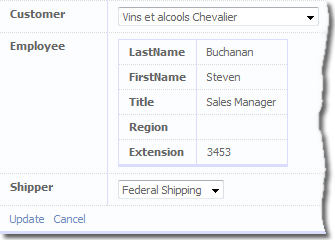
See if working below:

DetailsView_Edit FieldTemplate at work

Figure 1 - DetailsView_Edit FieldTemplate at work

Thursday, 7 August 2008

Dynamic Data and Field Templates - An Advanced FieldTemplate with a GridView ***UPDATED 2008/09/24***

  1. The Anatomy of a FieldTemplate.
  2. Your First FieldTemplate.
  3. An Advanced FieldTemplate.
  4. A Second Advanced FieldTemplate.
  5. An Advanced FieldTemplate with a GridView.
  6. An Advanced FieldTemplate with a DetailsView.
  7. An Advanced FieldTemplate with a GridView/DetailsView Project.

The Idea for this FieldTemplate came from Nigel Basel post on the Dynamic Data forum where he said he needed to have a GridView emended in another data control i.e. FormView so he could use the AjaxToolkit Tab control. So here it is with some explanation.

Files Required for Project

In this project we are going to convert a PageTemplate into a FieldTemplate so in your project you will need to copy the List.aspx and it’s code behind List.aspx.cs to the FieldTemplate folder. When copied rename the file to GridView_Edit.ascx and change the class name to GridView_EditField see Listings 1 & 2.

<%@ Page 
    Language="C#" 
    MasterPageFile="~/Site.master" 
    CodeFile="List.aspx.cs" 
    Inherits="List" %>

to

<%@ Control 
    Language="C#" 
    CodeFile="GridView_Edit.ascx.cs" 
    Inherits="GridView_EditField" %>

Listing 1 – Changing the class name of the GridView_Edit.ascx file

public partial class List : System.Web.UI.Page
{
...
}

to

public partial class GridView_EditField : FieldTemplateUserControl
{
...
}

Listing 2 - Changing the class name of the GridView_Edit.ascx.cs code behind file

Now in the GridView_Edit.ascx file trim out all the page relavent code:

i.e. remove the following tags (and their closing tags where applicable)

<asp:Content
<asp:UpdatePanel
<ContentTemplate>
<%@ Register 
    src="~/DynamicData/Content/FilterUserControl.ascx" 
    tagname="DynamicFilter" 
    tagprefix="asp" %>

<asp:DynamicDataManager 
    runat="server" 
    ID="DynamicDataManager1" 
    AutoLoadForeignKeys="true" />

Also remove from the GridView the columns tags and everything in them, and then add the following properties to the GridView:

AutoGenerateColumns="true"
AutoGenerateDeleteButton="true"
AutoGenerateEditButton="true"

and you should end up with something like Listing 3.

<%@ Control 
    Language="C#" 
    CodeFile="GridView_Edit.ascx.cs" 
    Inherits="GridView_EditField" %>

<%@ Register 
    src="~/DynamicData/Content/GridViewPager.ascx" 
    tagname="GridViewPager" 
    tagprefix="asp" %>

<asp:DynamicDataManager 
    runat="server" 
    ID="DynamicDataManager1" 
    AutoLoadForeignKeys="true" />

<asp:ScriptManagerProxy 
    runat="server" 
    ID="ScriptManagerProxy1" />

<asp:ValidationSummary 
    runat="server" 
    ID="ValidationSummary1" 
    EnableClientScript="true"
    HeaderText="List of validation errors" />
    
<asp:DynamicValidator 
    runat="server" 
    ID="GridViewValidator" 
    ControlToValidate="GridView1" 
    Display="None" />

<asp:GridView 
    runat="server" 
    ID="GridView1" 
    DataSourceID="GridDataSource"
    AllowPaging="True" 
    AllowSorting="True" 
    AutoGenerateColumns="true"
    AutoGenerateDeleteButton="true"
    AutoGenerateEditButton="true"
    CssClass="gridview">

    <PagerStyle CssClass="footer"/> 
           
    <PagerTemplate>
        <asp:GridViewPager runat="server" />
    </PagerTemplate>
    
    <EmptyDataTemplate>
        There are currently no items in this table.
    </EmptyDataTemplate>
    
</asp:GridView>

<asp:LinqDataSource 
    runat="server" 
    ID="GridDataSource" 
    EnableDelete="true">
</asp:LinqDataSource>

Listing 3 – the finished GridView_Edit.ascx file

Now we’ll trim down the GridView_Edit.ascx.cs, the first things to remove are the following methods and event handlers:

protected void Page_Load(object sender, EventArgs e)
protected void OnFilterSelectedIndexChanged(object sender, EventArgs e)

This will leave us with just the Page_Init to fill in see Listing 4 for it.

protected void Page_Init(object sender, EventArgs e)
{
    var metaChildColumn = Column as MetaChildrenColumn;
    var attribute = Column.Attributes.OfType<ShowColumnsAttribute>().SingleOrDefault();

    if (attribute != null)
    {
        if (!attribute.EnableDelete)
            EnableDelete = false;
        if (!attribute.EnableUpdate)
            EnableUpdate = false;
        if (attribute.DisplayColumns.Length > 0)
            DisplayColumns = attribute.DisplayColumns;
    }

    var metaForeignKeyColumn = metaChildColumn.ColumnInOtherTable as MetaForeignKeyColumn;

    if (metaChildColumn != null && metaForeignKeyColumn != null)
    {
        GridDataSource.ContextTypeName = metaChildColumn.ChildTable.DataContextType.Name;
        GridDataSource.TableName = metaChildColumn.ChildTable.Name;

        // enable update, delete and insert
        GridDataSource.EnableDelete = EnableDelete;
        GridDataSource.EnableInsert = EnableInsert;
        GridDataSource.EnableUpdate = EnableUpdate;
        GridView1.AutoGenerateDeleteButton = EnableDelete;
        GridView1.AutoGenerateEditButton = EnableUpdate;

        // get an instance of the MetaTable
        table = GridDataSource.GetTable();

        // Generate the columns as we can't rely on 
        // DynamicDataManager to do it for us.
        GridView1.ColumnsGenerator = new FieldTemplateRowGenerator(table, DisplayColumns);

        // setup the GridView's DataKeys
        String[] keys = new String[metaChildColumn.ChildTable.PrimaryKeyColumns.Count];
        int i = 0;
        foreach (var keyColumn in metaChildColumn.ChildTable.PrimaryKeyColumns)
        {
            keys[i] = keyColumn.Name;
            i++;
        }
        GridView1.DataKeyNames = keys;

        GridDataSource.AutoGenerateWhereClause = true;
    }
    else
    {
        // throw an error if set on column other than MetaChildrenColumns
        throw new InvalidOperationException("The GridView FieldTemplate can only be used with MetaChildrenColumns");
    }
}

Listing 4 – the Page_Init ***UPDATED 2008/09/24***

UPDATED 2008/09/24: Here I’ve completely remove the creation of the WHERE parameter into the OnDataBinding event handler see Listing 4a to handle multiple FK-PK relationships.
protected override void OnDataBinding(EventArgs e)
{
    base.OnDataBinding(e);

    var metaChildrenColumn = Column as MetaChildrenColumn;
    var metaForeignKeyColumn = metaChildrenColumn.ColumnInOtherTable as MetaForeignKeyColumn;

    // get the association attributes associated with MetaChildrenColumns
    var association = metaChildrenColumn.Attributes.
        OfType<System.Data.Linq.Mapping.AssociationAttribute>().FirstOrDefault();

    if (metaForeignKeyColumn != null && association != null)
    {

        // get keys ThisKey and OtherKey into Pairs
        var keys = new Dictionary<String, String>();
        var seperator = new char[] { ',' };
        var thisKeys = association.ThisKey.Split(seperator);
        var otherKeys = association.OtherKey.Split(seperator);
        for (int i = 0; i < thisKeys.Length; i++)
        {
            keys.Add(otherKeys[i], thisKeys[i]);
        }

        // setup the where clause 
        // support composite foreign keys
        foreach (String fkName in metaForeignKeyColumn.ForeignKeyNames)
        {
            // get the current pk column
            var fkColumn = metaChildrenColumn.ChildTable.GetColumn(fkName);

            // setup parameter
            var param = new Parameter();
            param.Name = fkColumn.Name;
            param.Type = fkColumn.TypeCode;

            // get the PK value for this FK column using the fk pk pairs
            param.DefaultValue = Request.QueryString[keys[fkName]];

            // add the where clause
            GridDataSource.WhereParameters.Add(param);
        }
    }
    // doing the work of this above because we can't
    // set the DynamicDataManager table or where values
    //DynamicDataManager1.RegisterControl(GridView1, false);
}

Listing 4a – OnDataBinding event handler ***ADDED 2008/09/24*** 

UPDATED 2008/08/11: This update removes the need for the Attribute defined in Listing 6 the GridView_Edit.ascx FieldTemplate now supports getting foreign key(s) automatically and support Clustered/Composite Keys. :D See this post from Zwitterion here Re: Dynamic child details on a dynymic details or edit page? where her mentions the Column.ColumnInOtherTable which gave me the idea for the above changes :D
UPDATED 2008/08/08: I’ve updated the above code in reply to a post where Zwitterion points out that I make the assumption that the child’s FK column is the same name as the parents PK column. so I’ve added an Attribute to fix this. And now I’ve added some more error handling to cover misuse of FieldTemplate

And now we will need to implement the GridViewColumnGenerator to fill in the rows as the DynamicDataManager would have done.

public class GridViewColumnGenerator : IAutoFieldGenerator
{
    protected MetaTable _table;

    public GridViewColumnGenerator(MetaTable table)
    {
        _table = table;
    }

    public ICollection GenerateFields(Control control)
    {
        List<DynamicField> oFields = new List<DynamicField>();

            foreach (var column in _table.Columns)
            {
                // carry on the loop at the next column  
                // if scaffold table is set to false or DenyRead
                if (!column.Scaffold)
                    continue;

                DynamicField field = new DynamicField();

                field.DataField = column.Name;
                oFields.Add(field);
            }
        return oFields;
    }
}
Listing 5 – the GridViewColumnGenerator class

In Listing 5 we have the GridViewColumnGenerator class which you can just tag onto the end the GridView_Edit.ascx.cs file as it is only used here.

[AttributeUsage(AttributeTargets.Property, AllowMultiple = false)]
public class GridViewTemplateAttribute : Attribute
{
    public String ForeignKeyColumn { get; private set; }

    public GridViewTemplateAttribute(string foreignKeyColumn)
    {
        ForeignKeyColumn = foreignKeyColumn;
    }
}

Listing 6 – GridViewTemplateAttribute for the above ***UPDATE 2008/08/08 *** :D

Note: This GridViewColumnGenerator class would need to be changed to the FilteredFieldsManager of the my permissions add on for Dynamic Data that I did on my blog here and here
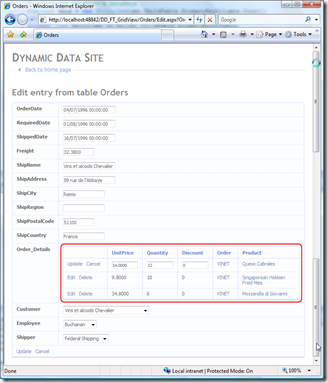
GridView_Edit FieldTemplate in action

Figure 1 GridView_Edit FieldTemplate in action

!Important: Because you will need to apply UIHint metadata to the ChildrenColumn you wish to use this with you will also need to copy the FieldTemplate Children.ascx to GridView.ascx as in the previous post in this series, to have the column show in non edit/insert modes.

[UIHint("GridView")]
public object Order_Details { get; set; }

Listing 7 – Metadata

Until next time smile_teeth