Sunday, 5 October 2008

Dynamic Data Custom Pages: Dynamic/Templated Grid with Insert (Using ListView)

These articles are now under the title of Custom PageTemplates:

  1. Custom PageTemplates Part 1 - Custom PageTemplates with Ajax Control Toolkit Tabs
  2. Custom PageTemplates Part 2 - A variation of Part 1 with the Details and SubGrid in Tabs
  3. Custom PageTemplates Part 3 - Dynamic/Templated Grid with Insert (Using ListView)
  4. Custom PageTemplates Part 4 - Dynamic/Templated FromView

What are we trying to achieve here, let me start with an screen shot. Apparently a GridView with Insert, well actually its a ListView and not a big deal we can already do ListViews with Dynamic Data. Well this is a Dynamic ListView not a new control but a ListView with dynamically generated columns (templates actually). So what I wanted to achieve here was all the flexibility of the ListView with the dynamicness (I know not a real word) of the GridView under Dynamic Data.

Apparently a GridView with Insert

Figure 1 – Apparently a GridView with Insert

Steps to build this Custom PageTemplate

  1. Using a Custom Page generated by the Wizard as a basis for the Custom PageTemplate
  2. How to build a Column Generator Class for the ListView
  3. Adding the facility to Load Custom Templates at Runtime

Using a Custom Page generated by the Wizard as a basis for the Custom PageTemplate

I’m not going to do a step by step cut and paste of how to take a page generated by the Wizard and making it into a custom PageTemplate. What I am going to do is just show you the aspx page.

<%@ Page 
    Language="C#" 
    MasterPageFile="~/Site.master" 
    CodeFile="ListViewPage.aspx.cs" 
    Inherits="ListViewPage" %>

<%@ Register 
    Src="~/DynamicData/Content/ListViewPager.ascx" 
    TagName="ListViewPager"
    TagPrefix="asp" %>
    
<%@ Register 
    Src="~/DynamicData/Content/DynamicLinkControl.ascx" 
    TagName="DynamicLink"
    TagPrefix="asp" %>
    
<%@ Register 
    src="~/DynamicData/Content/FilterUserControl.ascx" 
    tagname="DynamicFilter" 
    tagprefix="asp" %>

<asp:Content 
    ID="Content1" 
    ContentPlaceHolderID="ContentPlaceHolder1" 
    Runat="Server">
    
    <asp:DynamicDataManager 
        ID="DynamicDataManager1" 
        runat="server" 
        AutoLoadForeignKeys="true" />

    <h2><%= table.DisplayName%></h2>

    <asp:ScriptManagerProxy 
        runat="server" 
        ID="ScriptManagerProxy1" />

    <asp:UpdatePanel 
        ID="UpdatePanel1" 
        runat="server">
        <ContentTemplate>
        
            <asp:ValidationSummary 
                ID="ValidationSummary_Edit" 
                EnableClientScript="true"
                HeaderText="List of validation errors" 
                ValidationGroup="ListView_Edit" 
                runat="server" />
                
            <asp:ValidationSummary 
                ID="ValidationSummary_Insert" 
                EnableClientScript="true"
                HeaderText="List of validation errors" 
                ValidationGroup="ListView_Insert" 
                runat="server" />
                
            <asp:DynamicValidator 
                ID="Validator_Edit" 
                Display="None" 
                ValidationGroup="ListView_Edit"
                ControlToValidate="ListView1" 
                runat="server" />
                
            <asp:DynamicValidator 
                ID="Validator_Insert" 
                Display="None" 
                ValidationGroup="ListView_Insert"
                ControlToValidate="ListView1" 
                runat="server" />

            <asp:FilterRepeater 
                ID="FilterRepeater" 
                runat="server">
                <ItemTemplate>
                    <asp:Label 
                        runat="server" 
                        Text='<%# Eval("DisplayName") %>' 
                        AssociatedControlID="DynamicFilter$DropDownList1" />
                    <asp:DynamicFilter 
                        runat="server" 
                        ID="DynamicFilter" 
                        OnSelectedIndexChanged="OnFilterSelectedIndexChanged" />
                </ItemTemplate>
                <FooterTemplate>
                    <br />
                    <br />
                </FooterTemplate>
            </asp:FilterRepeater>

            <asp:ListView 
                ID="ListView1" 
                DataSourceID="ListViewDataSource" 
                runat="server">
            </asp:ListView>
            
            <asp:LinqDataSource 
                ID="ListViewDataSource" 
                runat="server" 
                EnableDelete="true">
                <WhereParameters>
                    <asp:DynamicControlParameter ControlID="FilterRepeater" />
                </WhereParameters>
            </asp:LinqDataSource>

        </ContentTemplate>
    </asp:UpdatePanel>
</asp:Content>

Listing 1 – ListviewPage.aspx PageTemplate

As you can see (if you’ve ever created a custom page with the wizard) I’ve removed all the templates from the ListView and renamed all the ID’s appropriately (the existing naming would have worked but I like everything to be tidy).

The second thing to notice is that there are two ValidationSummarys and two DynamicValidators and from their naming you should be able to tell that one set is for editing and the other for inserting. This is to resolve the conflict Update and Insert buttons on validation (this is generated by the wizard).

Next I’ve removed all the table and context specific settings from the LinqDataSource and so the page is about ready.

How to build a Column Generator Class for the ListView

There is no ColumnGenerator or RowGenerators methods on the ListView class, this is because it is a templated control. After a little research I found the ITemplate interface (which I’d used in my earlier examples) here the MSDN article I used to develop this Creating Web Server Control Templates Programmatically.

The templates that the ListView will accepts are:

  • LayoutTemplate
  • ItemTemplate
  • EditItemTemplate
  • InsertItemTemplate
  • EmptyDataTemplate
  • AlternatingItemTemplate
  • EmptyItemTemplate
  • GroupSeparatorTemplate
  • GroupTemplate
  • ItemSeparatorTemplate
  • SelectedItemTemplate

So of the above Templates which do we need to implement to get a column generator working?

  • LayoutTemplate the layout
  • ItemTemplate each row
  • EditItemTemplate the edit row
  • InsertItemTemplate the insert row
  • EmptyDataTemplate only required if you set the InsertItemPosition to none

These are the Templates that are required to be implement the column generator.

Next creating the column generator using the ITemplate interface. The ITemplate interface requires only one method to be implemented:

public void InstantiateIn(Control container)

We could create a ITemplate interface class for each Template we need but what I decided to do was to create on class that would do all the Templates requires for the ListView, Listing 2 contain the InstantiateIn method.

public void InstantiateIn(Control container)
{
    IParserAccessor accessor = container;
    // get all the all scaffold columns 
    // except Long String Columns
    // SubGridViewsAttribute and column order
    var columnDetails = from c in _table.Columns
                        where c.Scaffold && !c.IsLongString
                        select new ListViewColumn()
                        {
                            Column = c,
                            SubGridMetaData = c.Attributes.OfType<SubGridViewsAttribute>().FirstOrDefault(),
                            Order = c.Attributes.OfType<SubGridViewsAttribute>().FirstOrDefault() != null
                            && c.Attributes.OfType<SubGridViewsAttribute>().FirstOrDefault().Order > 0
                            ? c.Attributes.OfType<SubGridViewsAttribute>().FirstOrDefault().Order
                            : int.MaxValue,
                        };

    // sort according to Order first and column name second
    // note if SubGridViewsAttribute is null or the attribute
    // has no value for Order then just sort but column display name
    columnDetails = from sg in columnDetails
                    orderby sg.Order, sg.Column.DisplayName
                    select sg;

    // call the appropriate template generator
    switch (_type)
    {
        case TemplateType.LayoutTemplate:
            GetLayoutTemplate(accessor, columnDetails);
            break;
        case TemplateType.ItemTemplate:
            GetItemTemplate(accessor, columnDetails, TemplateMode.Normal);
            break;
        case TemplateType.AlternatingItemTemplate:
            GetItemTemplate(accessor, columnDetails, TemplateMode.Alternate);
            break;
        case TemplateType.EditItemTemplate:
            GetItemTemplate(accessor, columnDetails, TemplateMode.Edit);
            break;
        case TemplateType.InsertItemTemplate:
            GetItemTemplate(accessor, columnDetails, TemplateMode.Insert);
            break;
        case TemplateType.SelectedItemTemplate:
            GetItemTemplate(accessor, columnDetails, TemplateMode.Selected);
            break;
        case TemplateType.GroupTemplate:
            GetGroupTemplate(accessor, columnDetails);
            break;
        case TemplateType.GroupSeparatorTemplate:
            GetGroupSeparatorTemplate(accessor, columnDetails);
            break;
        case TemplateType.ItemSeparatorTemplate:
            GetItemSeparatorTemplate(accessor, columnDetails);
            break;
        case TemplateType.EmptyDataTemplate:
            GetEmptyDataTemplate(accessor, columnDetails);
            break;
        case TemplateType.EmptyItemTemplate:
            GetEmptyItemTemplate(accessor, columnDetails);
            break;
        default:
            break;
    }
}

Listing 2 – InstantiateIn method

Yes I know I’ve implemented the InstantiateIn method to cover all the Template types, but I thought if the scaffolding is there for the other Templates then it would be a simple matted to implement them if needed at a later date.

So now the individual Template generators are left to be built.

private void GetLayoutTemplate(IParserAccessor accessor, IEnumerable<ListViewColumn> columnDetails)
{
    // make sure there are some children columns
    if (columnDetails.Count() > 0)
    {
        // HtmlTable/HtmlTableRow/HtmlTableCell 
        // create table
        var htmlTable = new HtmlTable();
        htmlTable.Attributes.Add("class", "listview");

        // add table to accessor
        accessor.AddParsedSubObject(htmlTable);

        // create header row
        var headerRow = new HtmlTableRow();

        // create empty header cell
        // NOTE: you could move the command cell to after the
        //       foreach column generator code if you wanted
        //       the command buttons to be at the end of the row
        var commandCell = new HtmlTableCell("th");
        headerRow.Cells.Add(commandCell);

        // add a column heading for each column
        foreach (ListViewColumn columnDetail in columnDetails)
        {
            //<asp:LinkButton 
            //    ID="OrderDateLinkButton" 
            //    CommandName="Sort" 
            //    CommandArgument="OrderDate"
            //runat="server"> OrderDate </asp:LinkButton>

            var cell = new HtmlTableCell("th");
            var linkButton = new LinkButton()
            {
                ID = columnDetail.Column.Name + "LinkButton",
                CommandName = "Sort",
                CommandArgument = columnDetail.Column.Name,
                Text = columnDetail.Column.DisplayName,
            };
            cell.Controls.Add(linkButton);
            headerRow.Cells.Add(cell);
        }
        htmlTable.Rows.Add(headerRow);

        //<tbody>
        //    <tr id="itemPlaceHolder" runat="server">
        //    </tr>
        //</tbody>
        // create the table body and item place holder
        var itemPlaceholder = new HtmlTableRow();
        itemPlaceholder.ID = "itemPlaceholder";
        itemPlaceholder.Attributes.Add("runat", "Server");
        htmlTable.Rows.Add(itemPlaceholder);

        //<tfoot>
        //    <tr class="footer">
        //        <td colspan="14">
        //            <asp:ListViewPager ID="ListViewDataPager" runat="server"></asp:ListViewPager>
        //        </td>
        //    </tr>
        //</tfoot>
        // create the footer
        var footerRow = new HtmlTableRow();
        footerRow.Attributes.Add("class", "footer");

        // set column span to number od columns
        // plus 1 to account for the command column
        var footerCell = new HtmlTableCell();

        // get column span
        int columnSpan = columnDetails.Count() + 1;
        footerCell.Attributes.Add("colspan", columnSpan.ToString());

        // get the path to the ListViewPager
        var listViewPagerPath = _table.Model.DynamicDataFolderVirtualPath + "Content/ListViewPager.ascx";
        // load ListViewPager control
        var listViewPager = _page.LoadControl(listViewPagerPath);
        listViewPager.ID = "ListViewDataPager";
        footerCell.Controls.Add(listViewPager);
        footerRow.Cells.Add(footerCell);
        htmlTable.Rows.Add(footerRow);

    }
    // if there are no children columns don't
    // bother to set the accessor to anything
}

Listing 3 - GetLayoutTemplate

In Listing 3 the GetLayoutTemplate generates a template the same as the declarative template in the wizard generated page:

  • Column headers with sort links
  • Item Place Holder
  • Footer with the ListViewPager (which needs copying from a wizard generated website)
Note: It’s worth pointing out that the command column is added to the header in the standard left position you could move it to the right by moving it to after the foreach loop.
private void GetItemTemplate(IParserAccessor accessor, IEnumerable<ListViewColumn> columnDetails, TemplateMode templateMode)
{
    // make sure there are some children columns
    if (columnDetails.Count() > 0)
    {
        // set the dynamic control mode to read only
        DataBoundControlMode mode = DataBoundControlMode.ReadOnly;
        String validationGroup;

        // create a spacer
        var litSpacer = new Literal();
        litSpacer.Text = @"&nbsp;";

        // create new row for template
        var row = new HtmlTableRow();

        // add row to accessor
        accessor.AddParsedSubObject(row);

        // create the cell to hold the command buttons
        // NOTE: you could move the command cell to after the
        //       foreach column generator code if you wanted
        //       the command buttons to be at the end of the row
        //       you would also need to modify the LayoutTemplate code
        var commandCell = new HtmlTableCell();
        commandCell.Attributes.Add("class", "nowrap");
        row.Cells.Add(commandCell);

        // set appropriate variable depending
        // on what mode the row is to be in
        switch (templateMode)
        {
            case TemplateMode.Edit:
                mode = DataBoundControlMode.Edit;
                validationGroup = "ListView_Edit";

                //Update Link
                //<asp:LinkButton 
                //    ID="UpdateLinkButton" 
                //    ValidationGroup="ListView_Edit" 
                //    CommandName="Update"
                //runat="server"> Update </asp:LinkButton>
                var lbUpdate = new LinkButton()
                    {
                        //ID = "UpdateLinkButton",
                        CommandName = "Update",
                        Text = "Update",
                        ValidationGroup = validationGroup,
                    };
                commandCell.Controls.Add(lbUpdate);
                commandCell.Controls.Add(litSpacer);

                //Cancel Link
                //<asp:LinkButton 
                //    ID="CancelLinkButton" 
                //    CausesValidation="false" 
                //    CommandName="Cancel"
                //    runat="server"> Cancel </asp:LinkButton>
                var lbCancel = new LinkButton()
                {
                    //ID = "UpdateLinkButton",
                    CommandName = "Cancel",
                    Text = "Cancel",
                };
                commandCell.Controls.Add(lbCancel);
                break;
            case TemplateMode.Insert:
                mode = DataBoundControlMode.Insert;
                validationGroup = "ListView_Insert";

                //Insert Link
                //<asp:LinkButton 
                //    ID="InsertLinkButton" 
                //    ValidationGroup="ListView_Insert" 
                //    CommandName="Insert"
                //    runat="server"> Insert </asp:LinkButton>
                var lkbInsert = new LinkButton()
                {
                    //ID = "InsertLinkButton",
                    CommandName = "Insert",
                    Text = "Insert",
                    ValidationGroup = validationGroup,
                };
                commandCell.Controls.Add(lkbInsert);
                commandCell.Controls.Add(litSpacer);

                //Cancel Link
                //<asp:LinkButton 
                //    ID="CancelLinkButton" 
                //    CausesValidation="false" 
                //    CommandName="Cancel"
                //    runat="server"> Cancel </asp:LinkButton>
                var lkbCancel = new LinkButton()
                {
                    //ID = "CancelLinkButton",
                    CommandName = "Cancel",
                    Text = "Cancel",
                    CausesValidation = false,
                };
                commandCell.Controls.Add(lkbCancel);
                break;
            case TemplateMode.Selected:
                row.Attributes.Add("class", "selected");
goto case TemplateMode.Normal; case TemplateMode.Alternate: row.Attributes.Add("class", "alternate"); goto case TemplateMode.Normal; case TemplateMode.Normal: validationGroup = ""; //Edit Link //<asp:LinkButton // ID="EditLinkButton" // CausesValidation="false" // CommandName="Edit" // runat="server"> Edit </asp:LinkButton> var lkbEdit = new LinkButton() { //ID = "EditLinkButton", CommandName = "Edit", Text = "Edit", CausesValidation = false, }; commandCell.Controls.Add(lkbEdit); commandCell.Controls.Add(litSpacer); //Delete Link //<asp:LinkButton // ID="DeleteLinkButton" // CausesValidation="false" // CommandName="Delete" // OnClientClick='return confirm("Are you sure you want to delete this item?");' // runat="server"> Delete </asp:LinkButton> var lkbDelete = new LinkButton() { //ID = "DeleteLinkButton", CommandName = "Delete", Text = "Delete", CausesValidation = false, OnClientClick = "return confirm(\"Are you sure you want to delete this item?\");", }; commandCell.Controls.Add(lkbDelete); commandCell.Controls.Add(litSpacer); //Details Link - redirects to the details page //<asp:DynamicLink // ContextTypeName="NWDataContext" // TableName="Orders" // Action="Details" // Text="Details" // runat="server" /> var listViewPagerPath = _table.Model.DynamicDataFolderVirtualPath + "Content/DynamicLinkControl.ascx"; // NOTE: Need to cast // DynamicLinkControl.ascx to DynamicLinkControlInterface // which is just a dummy class allowing access to the // DynamicLinkControl's properties var dlcDetails = (DynamicLinkControlInterface)_page.LoadControl(listViewPagerPath); dlcDetails.ID = "DetailsLinkButton"; dlcDetails.ContextTypeName = _table.DataContextType.Name; dlcDetails.TableName = _table.Name; dlcDetails.Action = "Details"; dlcDetails.Text = "Details"; commandCell.Controls.Add(dlcDetails); break; default: validationGroup = ""; break; } // add a cell for each column in table foreach (ListViewColumn columnDetail in columnDetails) { // create new cell var cell = new HtmlTableCell(); // add cell to row row.Cells.Add(cell); // instantiate a DynamicControl for this Children Column var lvColumn = new DynamicControl(mode) { ID = columnDetail.Column.Name, ValidationGroup = validationGroup, // set data field to column name DataField = columnDetail.Column.Name, }; // add control to cell cell.Controls.Add(lvColumn); } } // if there are no children columns don't // bother to set the accessor to anything }

Listing 4 – GetItemTemplate

The GetItemTemplate handles the following templates Normal, Edit, Insert and Alternate and Selected.

Note: It’s worth pointing out that the command column is added to the header in the standard left position you could move it to the right by moving it to after the foreach loop.

The code in Listing 4 can be broken down into two sections the switch statement and the foreach loop.

The switch statement is used mainly to determine which command links to add to the command column/cell. The foreach loop is used to create the columns.

var dlcDetails = (DynamicLinkControlInterface)_page.LoadControl(listViewPagerPath);
dlcDetails.ID = "DetailsLinkButton";
dlcDetails.ContextTypeName = _table.DataContextType.Name;
dlcDetails.TableName = _table.Name;
dlcDetails.Action = "Details";
dlcDetails.Text = "Details";

See the above line of code where we cast the ListViewPager as a DynamicLinkControlInterface; here we needed to create a class that implements the properties of the DynamicLinkControl to allow us to set properties when the UserControl is loaded.

/// <summary>
/// This class is used like an interface
/// so that when the DynamicLinkControl control
/// is loaded it can be case as DynamicLinkControlInterface
/// to gain access to its properties
/// </summary>
public class DynamicLinkControlInterface : System.Web.UI.UserControl
Listing 5- DynamicLinkControlInterface class
/// <summary>
///  NOTE: Need to change 
///        System.Web.UI.UserControl to DynamicLinkControlInterface
///        which is just a dummy class allowing access to the
///        DynamicLinkControl's properties in ListViewColumnGenerator
/// </summary>
public partial class DynamicLinkControl : DynamicLinkControlInterface

Listing 6 - Modified DynamicLinkControl

Here you can see in Listing 5 and 6 the DynamicLinkControlInterface inherits UserControl and then DynamicLinkControl inherits DynamicLinkControlInterface thus allowing us to cast the DynamicLinkControl as DynamicLinkControlInterface allowing it’s properties to be set as runtime.

That’s the bones of the implementation.

Adding the facility to Load Custom Templates at Runtime

This was the simplest and hardest to get working:

protected void Page_Init(object sender, EventArgs e)
{
    DynamicDataManager1.RegisterControl(ListView1, true /*setSelectionFromUrl*/);

    // must get table before loading templates
    table = ListViewDataSource.GetTable();

    ListViewDataSource.EnableDelete = true;
    ListViewDataSource.EnableInsert = true;
    ListViewDataSource.EnableUpdate = true;

    // get tamplate path
    var listViewTemplatePath = table.Model.DynamicDataFolderVirtualPath + "Templates/ListView/" + table.Name + "/";

    // load layout template
    if (File.Exists(Server.MapPath(listViewTemplatePath + "LayoutTemplate.ascx")))
    {
        // set Item Placeholder ID
        ListView1.ItemPlaceholderID = layoutContainerId + "$" + itemPlaceHolderId;

        // add event handler to handle the loaded user control
        ListView1.LayoutTemplate = LoadTemplate(listViewTemplatePath + "LayoutTemplate.ascx");
    }
    else
        ListView1.LayoutTemplate = new ListViewColumnGenerator(table, Page, TemplateType.LayoutTemplate);

    // load item template
    if (File.Exists(Server.MapPath(listViewTemplatePath + "ItemTemplate.ascx")))
        ListView1.ItemTemplate = Page.LoadTemplate(listViewTemplatePath + "ItemTemplate.ascx");
    else
        ListView1.ItemTemplate = new ListViewColumnGenerator(table, Page, TemplateType.ItemTemplate);

    // load edit template
    if (File.Exists(Server.MapPath(listViewTemplatePath + "EditItemTemplate.ascx")))
        ListView1.EditItemTemplate = Page.LoadTemplate(listViewTemplatePath + "EditItemTemplate.ascx");
    else
        ListView1.EditItemTemplate = new ListViewColumnGenerator(table, Page, TemplateType.EditItemTemplate);

    // load insert template
    if (File.Exists(Server.MapPath(listViewTemplatePath + "InsertItemTemplate.ascx")))
        ListView1.InsertItemTemplate = Page.LoadTemplate(listViewTemplatePath + "InsertItemTemplate.ascx");
    else
        ListView1.InsertItemTemplate = new ListViewColumnGenerator(table, Page, TemplateType.InsertItemTemplate);

    // set the location of the insert row
    ListView1.InsertItemPosition = InsertItemPosition.LastItem;

    // load empty template
    ListView1.EmptyDataTemplate = new ListViewColumnGenerator(table, Page, TemplateType.EmptyDataTemplate);
}
Listing 7 – ListViewPages.aspx Page_Init

Listing 7 simply checks to see if a template exists in the ~/DynmaicData/Templates/FormView/<table> folder for the appropriate template and loads it, if not there it dynamically creates the template.

Note: If you create a custom template for the ListViewPage.aspx then you MUST create a template for all (Layout, Item, Edit and Insert) Templates.

Waht mde it the hardest was the one caveat that got me, which was the fact that a Template loaded from a UserControl, was that the UserControl becomes a NamingContainer, (this affects only the LayoutTemplate) you can find a workaround here on Mike Ormond's blog. However I found a more elegant way, all you need to do is set the UserControl’s ID in the Page_Init of the UserControl (see Listing 8) and then you can set the ListView1.ItemPlaceholderID to the UserControl ID plus the item placeholder ID (see Listing 9).

public partial class LayoutTemplate : System.Web.UI.UserControl
{
    protected void Page_Init(object sender, EventArgs e)
    {
        this.ID = "layoutTemplate";
    }
}

Listing 8 - LayoutTemplate code behind

// set Item Placeholder ID
ListView1.ItemPlaceholderID = "layoutTemplate$itemPlaceHolder";

Listing 9 – Excerpt from the Page_Init of the ListViewPage.aspx.cd page

In Listings 8 and 9 you can see that you can be certain of the NamingContainers ID and therefore set it with out messing about in code after loading the LayoutTemplate.

Project Download

The full project including the previous two articles in this series.

Monday, 29 September 2008

Dynamic Data Custom PageTemplates - A variation of Part 1 with the Details and SubGrid in Tabs

These articles are now under the title of Custom PageTemplates:

  • Custom PageTemplates Part 1 - Custom PageTemplates with Ajax Control Toolkit Tabs
  • Custom PageTemplates Part 2 - A variation of Part 1 with the Details and SubGrid in Tabs
  • Custom PageTemplates Part 3 - Dynamic/Templated Grid with Insert (Using ListView)
  • Custom PageTemplates Part 4 - Dynamic/Templated FromView
  • This article is the same as Part 1 in that it’s all the same code but with just a few changes. Here I’m going to include the DetailsView from Part 1 as the first tab of the tabbed sub grids.

    The main changes are:

    • The Details and the SubGrids are all generated in the ITemplate class DetailsSubGridsTemplate
    • A new PageTemplate TabbedEditWithSubGrids.aspx now only has a FormView
    • New FieldTemplates have been added, TableDetail.ascx and TableForm.ascx
    • A new Template folder structure has been added to separate all the different template types

    The Design

    I thought I'd explain what I wanted to achieve and then show the code, so here goes.

    What I wanted was the ability to have a compact form for dealing with related entities (i.e. a customer with all it’s related entities Orders, Addresses, Contacts etc) but I also wanted the main Form/Details to be customisable change the column and also be able to change the layout (to which end I’ve added two new FieldTemplates TableDetail.ascx and TableForm.ascx. TableDetail.ascx is just what you’d expect and is the same in appearance as the Edit.aspx page, TableForm.ascx on the other hand is fully customisable via templates (User Controls as mentioned in the previous article Part 1).

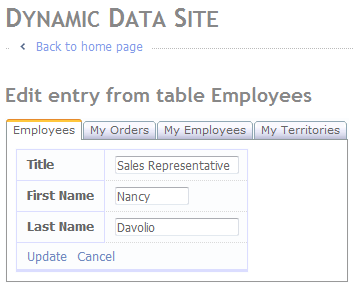
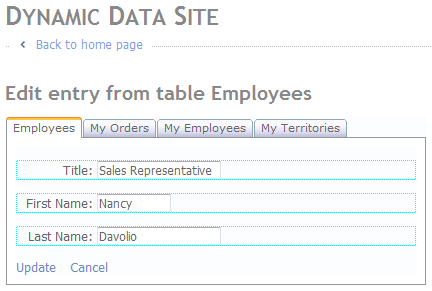
    So we should end up with something like this:

    TableDetail.ascx TableForm.ascx
    Figure 1 - TableDetail.ascx Figure 2 - TableForm.ascx

    As you can see Figure 1 is based on the standard Edit.aspx page template and Figure 2 is based on a custom template defined for each table. At runtime the ITemplate class DetailsSubGridsTemplate checks to see if a template exists for the current table and then gives the DynamicControl a UIHint for either TableDetail of TableForm.

    Hope that makes sense.

    The Implementation of ITemplate

    using System;
    using System.Collections.Generic;
    using System.Linq;
    using System.Web;
    using System.Web.UI;
    using System.Web.DynamicData;
    using System.Web.UI.WebControls;
    using AjaxControlToolkit;
    using System.IO;
    
    /// <summary>
    /// Creates an item template that renders any children columns in the passed in table as GridViews
    /// </summary>
    public class DetailsSubGridsTemplate : ITemplate
    {
        private MetaTable _table;
        private Page _page;
    
        public DetailsSubGridsTemplate(MetaTable table, Page page)
        {
            _table = table;
            _page = page;
        }
    
        public void InstantiateIn(Control container)
        {
            IParserAccessor acessor = container;
            // get all the children columns
            var subGridTables = from c in _table.Columns.OfType<MetaChildrenColumn>()
                                select new SubDetails()
                                {
                                    Column = c,
                                    SubGridMetaData = c.Attributes.OfType<SubGridViewsAttribute>().FirstOrDefault(),
                                    Order = c.Attributes.OfType<SubGridViewsAttribute>().FirstOrDefault() != null
                                    && c.Attributes.OfType<SubGridViewsAttribute>().FirstOrDefault().Order > 0
                                    ? c.Attributes.OfType<SubGridViewsAttribute>().FirstOrDefault().Order
                                    : int.MaxValue,
                                };
    
            // sort the according to Order first and column name second
            // note if SubGridViewsAttribute is not allied or the attrivute
            // has no value for Order then just sort but column name
            subGridTables = from sg in subGridTables
                            orderby sg.Order, sg.Column.Name
                            select sg;
    
            // make sure there are some children columns
            if (subGridTables.Count() > 0)
            {
                // create tab container to hold each children column
                var tabContainer = new TabContainer();
                tabContainer.ID = "tabContainer";
    
                // enable auto poastback so selected tab is remembered
                //tabContainer.AutoPostBack = true;
                tabContainer.EnableViewState = true;
    
                // add the tab container to the page
                acessor.AddParsedSubObject(tabContainer);
    
                // Add DetailsView =======================================================================
                // add tab pannel to hold the parent table
                var tabPanelParent = new TabPanel();
                tabPanelParent.ID = "tpParent" + _table.Name;
    
                // add the tab panel
                tabContainer.Tabs.Add(tabPanelParent);
    
                // set the tab header maybe later add an attribute?
                tabPanelParent.HeaderText = _table.DisplayName;
    
                //Instantiate a DynamicControl for this Children Column
                var parentDetails = new DynamicControl(DataBoundControlMode.Edit)
                {
                    ID = "tpParent",
    
                    // set data field to the first column name
                    // any column will do not used
                    DataField = _table.Columns[0].Name
                };
    
                // if a template exists then use the TableForm control
                String itemTemplate = _table.Model.DynamicDataFolderVirtualPath + "Templates/FormViewEdit/" + _table.Name + ".ascx";
                String path = _page.Server.MapPath(itemTemplate);
                if (File.Exists(path))
                    parentDetails.UIHint = "TableForm";
                else
                    // else use TableDetail
                    parentDetails.UIHint = "TableDetail";
    
                // add the DynamicControl to the tab panel
                tabPanelParent.Controls.Add(parentDetails);
                // End DetailsView =======================================================================
    
                // add a tab panel for each children table
                foreach (SubDetails SubGridDetails in subGridTables)
                {
                    var tabPanel = new AjaxControlToolkit.TabPanel();
                    tabPanel.ID = "tp" + SubGridDetails.Column.Name;
    
                    // add the tab panel
                    tabContainer.Tabs.Add(tabPanel);
    
                    var subGridAttributes = SubGridDetails.Column.Attributes.OfType<SubGridViewsAttribute>().SingleOrDefault();
                    // set the Tab's name to be the tables display name 
                    // or table Name if no attribute is present
                    if (subGridAttributes != null && subGridAttributes.TabName.Length > 0)
                        tabPanel.HeaderText = subGridAttributes.TabName;
                    else
                        tabPanel.HeaderText = SubGridDetails.Column.ChildTable.DisplayName;
    
                    //Instantiate a DynamicControl for this Children Column
                    var childrenGrid = new DynamicControl(DataBoundControlMode.Edit)
                    {
                        ID = SubGridDetails.Column.Name,
    
                        // set UIHint
                        UIHint = "ChildrenGrid",
    
                        // set data field to column name
                        DataField = SubGridDetails.Column.Name
                    };
    
                    // add the DynamicControl to the tab panel
                    tabPanel.Controls.Add(childrenGrid);
                }
                // set the tab pannels index to 0 which
                // forces the first tab to be selected
                if (!_page.IsPostBack)
                    tabContainer.ActiveTabIndex = 0;
            }
            else
            {
                // Add DetailsView =======================================================================
                //Instantiate a DynamicControl for this Children Column
                var parentDetails = new DynamicControl(DataBoundControlMode.Edit)
                {
                    ID = "tpParent",
    
                    // set data field to the first column name
                    // any column will do not used
                    DataField = _table.Columns[0].Name
                };
    
                // if a template exists then use the TableForm control
                String itemTemplate = _table.Model.DynamicDataFolderVirtualPath + "Templates/FormViewEdit/" + _table.Name + ".ascx";
                String path = _page.Server.MapPath(itemTemplate);
                if (File.Exists(path))
                    parentDetails.UIHint = "TableForm";
                else
                    // else use TableDetail
                    parentDetails.UIHint = "TableDetail";
    
                // add the DynamicControl to the tab panel
                acessor.AddParsedSubObject(parentDetails);
                // End DetailsView =======================================================================
    
                // if no children columns
                // add label to show no grids
                var label = new Label();
                label.Text = "There are no SubGrids";
                label.CssClass = "droplist";
    
                // add the label to the page
                acessor.AddParsedSubObject(label);
            }
        }
    
        private class SubDetails
        {
            /// <summary>
            /// Column to display
            /// </summary>
            public MetaChildrenColumn Column { get; set; }
    
            /// <summary>
            /// MetaData if any from the original column
            /// </summary>
            public SubGridViewsAttribute SubGridMetaData { get; set; }
    
            /// <summary>
            /// Holds the sort order value
            /// </summary>
            public int Order { get; set; }
        }
    }

    Listing 1 – DetailsSubGridsTemplate ITemplate class

    As you can see the bulk of the class is the same as the ITemplate class from the previous article (Part 6) the two main changes are, one is the tests for the number of records in the DetailsSubGridsTemplate, this is because there are always tabs if there is one or more children tables. And the second change is the addition of the code to add the Details/Form of the parent table to the first tab or if not children tables are present to the page.

    Field Templates

    <%@ Control 
        Language="C#" 
        CodeFile="TableDetail.ascx.cs" 
        Inherits="TableDetailField" %>
    
    <asp:DynamicDataManager 
        ID="DynamicDataManager1" 
        runat="server" 
        AutoLoadForeignKeys="true" />
        
    <asp:ValidationSummary ID="ValidationSummary1" 
        D="ValidationSummary1" 
        runat="server" 
        EnableClientScript="true"
        HeaderText="List of validation errors" />
        
    <asp:DynamicValidator 
        runat="server" 
        ID="DetailsViewValidator" 
        ControlToValidate="DetailsView1"
        Display="None" />
        
    <asp:DetailsView 
        ID="DetailsView1" 
        runat="server" 
        DataSourceID="DetailsDataSource" 
        DefaultMode="Edit"
        AutoGenerateEditButton="True" 
        OnItemCommand="DetailsView1_ItemCommand" 
        OnItemUpdated="DetailsView1_ItemUpdated"
        CssClass="detailstable" 
        FieldHeaderStyle-CssClass="bold">
    </asp:DetailsView>
    
    <asp:LinqDataSource 
        ID="DetailsDataSource" 
        runat="server" 
        EnableUpdate="true">
        <WhereParameters>
            <asp:DynamicQueryStringParameter />
        </WhereParameters>
    </asp:LinqDataSource>

    Listing 2 - TableDetail.ascx

    using System;
    using System.Linq;
    using System.Web.DynamicData;
    using System.Web.UI.WebControls;
    
    public partial class TableDetailField : FieldTemplateUserControl
    {
        protected MetaTable table;
    
        public String[] DisplayColumns { get; set; }
    
        protected void Page_Init(object sender, EventArgs e)
        {
            DynamicDataManager1.RegisterControl(DetailsView1);
            table = DetailsDataSource.GetTable();
    
            var attribute = Table.Attributes.OfType<ShowColumnsAttribute>().SingleOrDefault();
    
            if (attribute != null)
                DisplayColumns = attribute.DisplayColumns;
    
            DetailsView1.RowsGenerator = new FieldTemplateRowGenerator(table, DisplayColumns);
        }
    
        protected void DetailsView1_ItemCommand(object sender, DetailsViewCommandEventArgs e)
        {
            if (e.CommandName == DataControlCommands.CancelCommandName)
            {
                Response.Redirect(table.ListActionPath);
            }
        }
    
        protected void DetailsView1_ItemUpdated(object sender, DetailsViewUpdatedEventArgs e)
        {
            if (e.Exception == null || e.ExceptionHandled)
            {
                Response.Redirect(table.ListActionPath);
            }
        }
    }

    Listing 3 - TableDetail.ascx.cs

    Listings 2 and 3 comprise the TableDetail FieltTempalte which uses the DisplayColumns property of the ShowColumnsAttribute to determin which columns to show.

    <%@ Control 
        Language="C#" 
        CodeFile="TableForm.ascx.cs" 
        Inherits="TableDetailField" %>
    
    <asp:DynamicDataManager 
        ID="DynamicDataManager1" 
        runat="server" 
        AutoLoadForeignKeys="true" />
        
    <asp:ValidationSummary 
        ID="ValidationSummary1" 
        runat="server" 
        EnableClientScript="true"
        HeaderText="List of validation errors" />
        
    <asp:DynamicValidator 
        runat="server" 
        ID="DetailsViewValidator" 
        ControlToValidate="FormView1"
        Display="None" />
    
    <asp:FormView 
        ID="FormView1" 
        DefaultMode="Edit" 
        DataSourceID="FormDataSource"
        OnItemCommand="Edit_ItemCommand" 
        OnItemUpdated="Edit_ItemUpdated" 
        runat="server">
        <ItemTemplate>
        </ItemTemplate>
        <EditItemTemplate>
        </EditItemTemplate>
    </asp:FormView>
    
    <asp:LinqDataSource 
        ID="FormDataSource" 
        runat="server" 
        EnableDelete="true">
    </asp:LinqDataSource>

    Listing 4 – TableForm.ascx

    using System;
    using System.IO;
    using System.Linq;
    using System.Web.DynamicData;
    using System.Web.UI.WebControls;
    
    public partial class TableDetailField : FieldTemplateUserControl
    {
        protected MetaTable table;
    
        public String[] DisplayColumns { get; set; }
    
        protected void Page_Init(object sender, EventArgs e)
        {
            DynamicDataManager1.RegisterControl(FormView1);
    
            table = FormDataSource.GetTable();
    
            var attribute = Column.Attributes.OfType<ShowColumnsAttribute>().SingleOrDefault();
    
            if (attribute != null)
                DisplayColumns = attribute.DisplayColumns;
    
            // load item template
            table = FormDataSource.GetTable();
            String itemTemplate = table.Model.DynamicDataFolderVirtualPath + "Templates/FormViewEdit/" + table.Name + ".ascx";
            if (File.Exists(Server.MapPath(itemTemplate)))
            {
                FormView1.EditItemTemplate = LoadTemplate(itemTemplate);
            }
            else
            {
                throw new InvalidOperationException("The TableForm FieldTemplate requires an EditItemTamplate in the " + table.Model.DynamicDataFolderVirtualPath + "Template/FormViewEdit folder");
            }
        }
    
        protected void Edit_ItemUpdated(object sender, FormViewUpdatedEventArgs e)
        {
            if ((e.Exception == null))
            {
                Edit_RedirectToList();
            }
        }
    
        protected void Edit_ItemCommand(object sender, FormViewCommandEventArgs e)
        {
            if ((e.CommandName == DataControlCommands.CancelCommandName))
            {
                Edit_RedirectToList();
            }
        }
    
        protected void Edit_RedirectToList()
        {
            MetaTable table = FormDataSource.GetTable();
            String returnUrl = Request.QueryString["returnUrl"];
    
            if ((returnUrl == null))
            {
                Response.Redirect(table.ListActionPath);
            }
            else
            {
                Response.Redirect(returnUrl);
            }
        }
    }

    Listing 5 – TableForm.ascx.cs

    Listings 4 and 5 makeup the TableForm FieldTemplate which requires a template in the ~/DynamicData/Template/FormViewEdit folder otherwise it throws an InvalidOperationException.

    Both the above FieldTemplates only require access to the MetaTable table to generate their output. The most notable feature is that they are both configured using the DynamicDataManager just like a PageTemplate.

    A couple of TableForm template examples

    <%@ Control 
        Language="C#" 
        AutoEventWireup="true" 
        CodeFile="Employees.ascx.cs" 
        Inherits="Employees" %>
        
    <div style="width: 400px;">
        <p class="droplist" style="border: dotted 1px cyan;">
            <span style="display:inline-block; height: 16px; text-align: right; vertical-align: middle; width: 80px;">
                Title:&nbsp;
            </span>
            <span style="height: 16px; text-align: left; vertical-align: middle;">
                <asp:DynamicControl 
                    ID="Title" 
                    DataField="Title" 
                    Mode="Edit" 
                    runat="server">
                </asp:DynamicControl>
            </span>
        </p>
        <p class="droplist" style="border: dotted 1px cyan;">
            <span style="display:inline-block; height: 16px; text-align: right; vertical-align: middle; width: 80px;">
                First Name:&nbsp;
            </span>
            <span style="height: 16px; text-align: left; vertical-align: middle;">
                <asp:DynamicControl 
                    ID="FirstName" 
                    DataField="FirstName" 
                    Mode="Edit" 
                    runat="server">
                </asp:DynamicControl>
            </span>
        </p>
        <p class="droplist" style="border: dotted 1px cyan;">
            <span style="display:inline-block; height: 16px; text-align: right; vertical-align: middle; width: 80px;">
                Last Name:&nbsp;
            </span>
            <span style="height: 16px; text-align: left; vertical-align: middle;">
                <asp:DynamicControl 
                    ID="LastName" 
                    DataField="LastName" 
                    Mode="Edit" 
                    runat="server">
                </asp:DynamicControl>
            </span>
        </p>
        <div class="droplist">
        <asp:LinkButton 
            ID="UpdateLinkButton" 
            CommandName="Update" 
            runat="server">
            Update
        </asp:LinkButton>&nbsp;
        <asp:LinkButton 
            ID="CancelLinkButton" 
            CausesValidation="false" 
            CommandName="Cancel" 
            runat="server">
            Cancel
        </asp:LinkButton>
        </div>
    </div>

    Listing 6 – Example 1 of a template for the Employees table

    <%@ Control 
        Language="C#" 
        AutoEventWireup="true" 
        CodeFile="Copy of Employees.ascx.cs" 
        Inherits="Employees" %>
    
    <table class="detailstable">
        <tr>
            <th>Title</th>
            <td><asp:DynamicControl 
                    ID="Title" 
                    DataField="Title" 
                    Mode="Edit" 
                    runat="server">
                </asp:DynamicControl></td>
        </tr>
        <tr>
            <th>First Name</th>
            <td><asp:DynamicControl 
                    ID="FirstName" 
                    DataField="FirstName" 
                    Mode="Edit" 
                    runat="server">
                </asp:DynamicControl></td>
        </tr>
        <tr>
            <th>Last Name</th>
            <td><asp:DynamicControl 
                ID="LastName" 
                DataField="LastName" 
                Mode="Edit" 
                runat="server">
            </asp:DynamicControl></td>
        </tr>
        <tr>
            <td colspan="2">
                <asp:LinkButton 
                    ID="UpdateLinkButton" 
                    CommandName="Update" 
                    runat="server">
                    Update
                </asp:LinkButton>
                <asp:LinkButton 
                    ID="CancelLinkButton" 
                    CausesValidation="false" 
                    CommandName="Cancel" 
                    runat="server">
                    Cancel
                </asp:LinkButton>
            </td>
        </tr>
    </table>
    

    Listing 7 – Example 2 of a template for the Employees table

    Listing 6 and 7 are the FieldTemplates used in Figures 1 and 2.

    Download Project

    I know there are no big explanations here but Part 6 should cover most things passed over here.

    Part 8 will cover Dynamic/Templated Grid/Details with Insert (Using ListView), this will replace the List PageTemplate and allow insert in the grid but also allow you to supply a template for each mode; Item, Edit, Insert, Footer and Header.

    Back soon smile_teeth