Showing posts with label Custom Pages. Show all posts

Friday, 24 October 2008

Dynamic Data - Hiding Tables on the Default.aspx page

This is just a write up of an answer to a question on the Dynamic Data forum, so here's the solution.

First of all we need an attribute class:

[AttributeUsage(AttributeTargets.Class)]
public class HideTableInDefaultAttribute : Attribute
{
    public Boolean Hide { get; private set; }

    public HideTableInDefaultAttribute(Boolean hide)
    {
        Hide = hide;
    }
    // this will allow us to have a default set to false
    public static HideTableInDefaultAttribute Default = 
        new HideTableInDefaultAttribute(false);
}

Listing 1 - HideTableIndefaultAttribute

And now the code in the Default.aspx:

protected void Page_Load(object sender, EventArgs e)
{
    System.Collections.IList visibleTables = Global.DefaultModel.VisibleTables;
    if (visibleTables.Count == 0)
        throw new InvalidOperationException(
            @"There are no accessible tables. 
            Make sure that at least one data model is 
            registered in Global.asax and scaffolding is 
            enabled or implement custom pages.");

    //Menu1.DataSource = visibleTables;
    //Menu1.DataBind();

    // Hiding tables
    var tablesMain = (from t in Global.DefaultModel.VisibleTables
                     where !t.Attributes.OfType<HideTableInDefaultAttribute>().
                        DefaultIfEmpty(HideTableInDefaultAttribute.Default).First().Hide
                     orderby t.DisplayName
                     select t).ToList();

    Menu1.DataSource = tablesMain;
    Menu1.DataBind();

}

Listing 2 - Default.aspx Page_Load event handler

Note in the where clause the DefaultIfEmpty which allows you to specify the default value to return if no value found. This means that you will always get a value and the default value will have the Hide property set to false because of the Default keyword in the Attribute definition.

Now some sample metadata:

// note the differance in the result of using 
// ScaffoldTable(false) over HideTableInDefault(true)
[ScaffoldTable(false)]
public partial class Category
{
}

[HideTableInDefault(true)]
public partial class EmployeeTerritory 
{
}

[HideTableInDefault(true)]
public partial class Product
{
}

Listing 3 - sample metadata

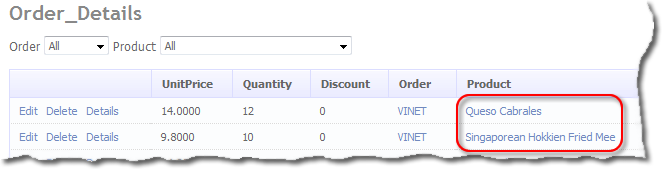
Limited Tables list from Northwind

Figure 1 - Limited Tables list from Northwind

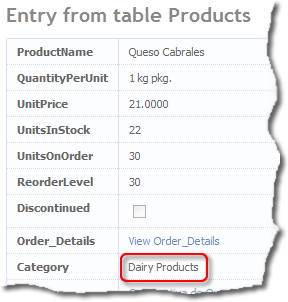
See how the Products column has a foreign key link

Figure 2 - See how the Products column has a foreign key link

Note that the Category column has no link

Figure 3 - Note that the Category column has no link

If you look at each of the above Figures you will see the differences between a ScaffoldTable(false) and a HideTableInDefault(true). It's also worth noting that if you omit a table from the Model you either get a ForeignKey column of no column if it was a children column, so this makes using the above two methods the best way of hiding tables in the Default.aspx page.

Download Project

Note: You will need to change the Connection String in the web.config Big Grin

Monday, 29 September 2008

Dynamic Data Custom PageTemplates - A variation of Part 1 with the Details and SubGrid in Tabs

These articles are now under the title of Custom PageTemplates:

  • Custom PageTemplates Part 1 - Custom PageTemplates with Ajax Control Toolkit Tabs
  • Custom PageTemplates Part 2 - A variation of Part 1 with the Details and SubGrid in Tabs
  • Custom PageTemplates Part 3 - Dynamic/Templated Grid with Insert (Using ListView)
  • Custom PageTemplates Part 4 - Dynamic/Templated FromView
  • This article is the same as Part 1 in that it’s all the same code but with just a few changes. Here I’m going to include the DetailsView from Part 1 as the first tab of the tabbed sub grids.

    The main changes are:

    • The Details and the SubGrids are all generated in the ITemplate class DetailsSubGridsTemplate
    • A new PageTemplate TabbedEditWithSubGrids.aspx now only has a FormView
    • New FieldTemplates have been added, TableDetail.ascx and TableForm.ascx
    • A new Template folder structure has been added to separate all the different template types

    The Design

    I thought I'd explain what I wanted to achieve and then show the code, so here goes.

    What I wanted was the ability to have a compact form for dealing with related entities (i.e. a customer with all it’s related entities Orders, Addresses, Contacts etc) but I also wanted the main Form/Details to be customisable change the column and also be able to change the layout (to which end I’ve added two new FieldTemplates TableDetail.ascx and TableForm.ascx. TableDetail.ascx is just what you’d expect and is the same in appearance as the Edit.aspx page, TableForm.ascx on the other hand is fully customisable via templates (User Controls as mentioned in the previous article Part 1).

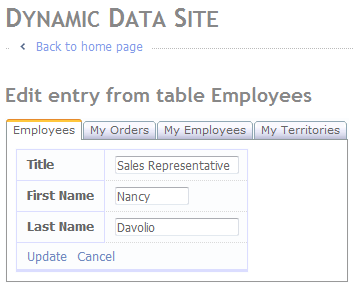
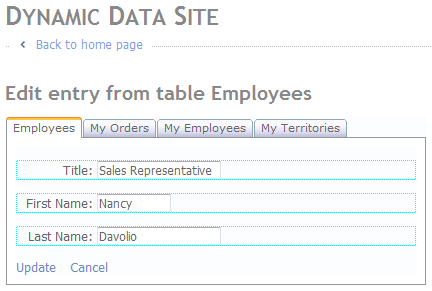
    So we should end up with something like this:

    TableDetail.ascx TableForm.ascx
    Figure 1 - TableDetail.ascx Figure 2 - TableForm.ascx

    As you can see Figure 1 is based on the standard Edit.aspx page template and Figure 2 is based on a custom template defined for each table. At runtime the ITemplate class DetailsSubGridsTemplate checks to see if a template exists for the current table and then gives the DynamicControl a UIHint for either TableDetail of TableForm.

    Hope that makes sense.

    The Implementation of ITemplate

    using System;
    using System.Collections.Generic;
    using System.Linq;
    using System.Web;
    using System.Web.UI;
    using System.Web.DynamicData;
    using System.Web.UI.WebControls;
    using AjaxControlToolkit;
    using System.IO;
    
    /// <summary>
    /// Creates an item template that renders any children columns in the passed in table as GridViews
    /// </summary>
    public class DetailsSubGridsTemplate : ITemplate
    {
        private MetaTable _table;
        private Page _page;
    
        public DetailsSubGridsTemplate(MetaTable table, Page page)
        {
            _table = table;
            _page = page;
        }
    
        public void InstantiateIn(Control container)
        {
            IParserAccessor acessor = container;
            // get all the children columns
            var subGridTables = from c in _table.Columns.OfType<MetaChildrenColumn>()
                                select new SubDetails()
                                {
                                    Column = c,
                                    SubGridMetaData = c.Attributes.OfType<SubGridViewsAttribute>().FirstOrDefault(),
                                    Order = c.Attributes.OfType<SubGridViewsAttribute>().FirstOrDefault() != null
                                    && c.Attributes.OfType<SubGridViewsAttribute>().FirstOrDefault().Order > 0
                                    ? c.Attributes.OfType<SubGridViewsAttribute>().FirstOrDefault().Order
                                    : int.MaxValue,
                                };
    
            // sort the according to Order first and column name second
            // note if SubGridViewsAttribute is not allied or the attrivute
            // has no value for Order then just sort but column name
            subGridTables = from sg in subGridTables
                            orderby sg.Order, sg.Column.Name
                            select sg;
    
            // make sure there are some children columns
            if (subGridTables.Count() > 0)
            {
                // create tab container to hold each children column
                var tabContainer = new TabContainer();
                tabContainer.ID = "tabContainer";
    
                // enable auto poastback so selected tab is remembered
                //tabContainer.AutoPostBack = true;
                tabContainer.EnableViewState = true;
    
                // add the tab container to the page
                acessor.AddParsedSubObject(tabContainer);
    
                // Add DetailsView =======================================================================
                // add tab pannel to hold the parent table
                var tabPanelParent = new TabPanel();
                tabPanelParent.ID = "tpParent" + _table.Name;
    
                // add the tab panel
                tabContainer.Tabs.Add(tabPanelParent);
    
                // set the tab header maybe later add an attribute?
                tabPanelParent.HeaderText = _table.DisplayName;
    
                //Instantiate a DynamicControl for this Children Column
                var parentDetails = new DynamicControl(DataBoundControlMode.Edit)
                {
                    ID = "tpParent",
    
                    // set data field to the first column name
                    // any column will do not used
                    DataField = _table.Columns[0].Name
                };
    
                // if a template exists then use the TableForm control
                String itemTemplate = _table.Model.DynamicDataFolderVirtualPath + "Templates/FormViewEdit/" + _table.Name + ".ascx";
                String path = _page.Server.MapPath(itemTemplate);
                if (File.Exists(path))
                    parentDetails.UIHint = "TableForm";
                else
                    // else use TableDetail
                    parentDetails.UIHint = "TableDetail";
    
                // add the DynamicControl to the tab panel
                tabPanelParent.Controls.Add(parentDetails);
                // End DetailsView =======================================================================
    
                // add a tab panel for each children table
                foreach (SubDetails SubGridDetails in subGridTables)
                {
                    var tabPanel = new AjaxControlToolkit.TabPanel();
                    tabPanel.ID = "tp" + SubGridDetails.Column.Name;
    
                    // add the tab panel
                    tabContainer.Tabs.Add(tabPanel);
    
                    var subGridAttributes = SubGridDetails.Column.Attributes.OfType<SubGridViewsAttribute>().SingleOrDefault();
                    // set the Tab's name to be the tables display name 
                    // or table Name if no attribute is present
                    if (subGridAttributes != null && subGridAttributes.TabName.Length > 0)
                        tabPanel.HeaderText = subGridAttributes.TabName;
                    else
                        tabPanel.HeaderText = SubGridDetails.Column.ChildTable.DisplayName;
    
                    //Instantiate a DynamicControl for this Children Column
                    var childrenGrid = new DynamicControl(DataBoundControlMode.Edit)
                    {
                        ID = SubGridDetails.Column.Name,
    
                        // set UIHint
                        UIHint = "ChildrenGrid",
    
                        // set data field to column name
                        DataField = SubGridDetails.Column.Name
                    };
    
                    // add the DynamicControl to the tab panel
                    tabPanel.Controls.Add(childrenGrid);
                }
                // set the tab pannels index to 0 which
                // forces the first tab to be selected
                if (!_page.IsPostBack)
                    tabContainer.ActiveTabIndex = 0;
            }
            else
            {
                // Add DetailsView =======================================================================
                //Instantiate a DynamicControl for this Children Column
                var parentDetails = new DynamicControl(DataBoundControlMode.Edit)
                {
                    ID = "tpParent",
    
                    // set data field to the first column name
                    // any column will do not used
                    DataField = _table.Columns[0].Name
                };
    
                // if a template exists then use the TableForm control
                String itemTemplate = _table.Model.DynamicDataFolderVirtualPath + "Templates/FormViewEdit/" + _table.Name + ".ascx";
                String path = _page.Server.MapPath(itemTemplate);
                if (File.Exists(path))
                    parentDetails.UIHint = "TableForm";
                else
                    // else use TableDetail
                    parentDetails.UIHint = "TableDetail";
    
                // add the DynamicControl to the tab panel
                acessor.AddParsedSubObject(parentDetails);
                // End DetailsView =======================================================================
    
                // if no children columns
                // add label to show no grids
                var label = new Label();
                label.Text = "There are no SubGrids";
                label.CssClass = "droplist";
    
                // add the label to the page
                acessor.AddParsedSubObject(label);
            }
        }
    
        private class SubDetails
        {
            /// <summary>
            /// Column to display
            /// </summary>
            public MetaChildrenColumn Column { get; set; }
    
            /// <summary>
            /// MetaData if any from the original column
            /// </summary>
            public SubGridViewsAttribute SubGridMetaData { get; set; }
    
            /// <summary>
            /// Holds the sort order value
            /// </summary>
            public int Order { get; set; }
        }
    }

    Listing 1 – DetailsSubGridsTemplate ITemplate class

    As you can see the bulk of the class is the same as the ITemplate class from the previous article (Part 6) the two main changes are, one is the tests for the number of records in the DetailsSubGridsTemplate, this is because there are always tabs if there is one or more children tables. And the second change is the addition of the code to add the Details/Form of the parent table to the first tab or if not children tables are present to the page.

    Field Templates

    <%@ Control 
        Language="C#" 
        CodeFile="TableDetail.ascx.cs" 
        Inherits="TableDetailField" %>
    
    <asp:DynamicDataManager 
        ID="DynamicDataManager1" 
        runat="server" 
        AutoLoadForeignKeys="true" />
        
    <asp:ValidationSummary ID="ValidationSummary1" 
        D="ValidationSummary1" 
        runat="server" 
        EnableClientScript="true"
        HeaderText="List of validation errors" />
        
    <asp:DynamicValidator 
        runat="server" 
        ID="DetailsViewValidator" 
        ControlToValidate="DetailsView1"
        Display="None" />
        
    <asp:DetailsView 
        ID="DetailsView1" 
        runat="server" 
        DataSourceID="DetailsDataSource" 
        DefaultMode="Edit"
        AutoGenerateEditButton="True" 
        OnItemCommand="DetailsView1_ItemCommand" 
        OnItemUpdated="DetailsView1_ItemUpdated"
        CssClass="detailstable" 
        FieldHeaderStyle-CssClass="bold">
    </asp:DetailsView>
    
    <asp:LinqDataSource 
        ID="DetailsDataSource" 
        runat="server" 
        EnableUpdate="true">
        <WhereParameters>
            <asp:DynamicQueryStringParameter />
        </WhereParameters>
    </asp:LinqDataSource>

    Listing 2 - TableDetail.ascx

    using System;
    using System.Linq;
    using System.Web.DynamicData;
    using System.Web.UI.WebControls;
    
    public partial class TableDetailField : FieldTemplateUserControl
    {
        protected MetaTable table;
    
        public String[] DisplayColumns { get; set; }
    
        protected void Page_Init(object sender, EventArgs e)
        {
            DynamicDataManager1.RegisterControl(DetailsView1);
            table = DetailsDataSource.GetTable();
    
            var attribute = Table.Attributes.OfType<ShowColumnsAttribute>().SingleOrDefault();
    
            if (attribute != null)
                DisplayColumns = attribute.DisplayColumns;
    
            DetailsView1.RowsGenerator = new FieldTemplateRowGenerator(table, DisplayColumns);
        }
    
        protected void DetailsView1_ItemCommand(object sender, DetailsViewCommandEventArgs e)
        {
            if (e.CommandName == DataControlCommands.CancelCommandName)
            {
                Response.Redirect(table.ListActionPath);
            }
        }
    
        protected void DetailsView1_ItemUpdated(object sender, DetailsViewUpdatedEventArgs e)
        {
            if (e.Exception == null || e.ExceptionHandled)
            {
                Response.Redirect(table.ListActionPath);
            }
        }
    }

    Listing 3 - TableDetail.ascx.cs

    Listings 2 and 3 comprise the TableDetail FieltTempalte which uses the DisplayColumns property of the ShowColumnsAttribute to determin which columns to show.

    <%@ Control 
        Language="C#" 
        CodeFile="TableForm.ascx.cs" 
        Inherits="TableDetailField" %>
    
    <asp:DynamicDataManager 
        ID="DynamicDataManager1" 
        runat="server" 
        AutoLoadForeignKeys="true" />
        
    <asp:ValidationSummary 
        ID="ValidationSummary1" 
        runat="server" 
        EnableClientScript="true"
        HeaderText="List of validation errors" />
        
    <asp:DynamicValidator 
        runat="server" 
        ID="DetailsViewValidator" 
        ControlToValidate="FormView1"
        Display="None" />
    
    <asp:FormView 
        ID="FormView1" 
        DefaultMode="Edit" 
        DataSourceID="FormDataSource"
        OnItemCommand="Edit_ItemCommand" 
        OnItemUpdated="Edit_ItemUpdated" 
        runat="server">
        <ItemTemplate>
        </ItemTemplate>
        <EditItemTemplate>
        </EditItemTemplate>
    </asp:FormView>
    
    <asp:LinqDataSource 
        ID="FormDataSource" 
        runat="server" 
        EnableDelete="true">
    </asp:LinqDataSource>

    Listing 4 – TableForm.ascx

    using System;
    using System.IO;
    using System.Linq;
    using System.Web.DynamicData;
    using System.Web.UI.WebControls;
    
    public partial class TableDetailField : FieldTemplateUserControl
    {
        protected MetaTable table;
    
        public String[] DisplayColumns { get; set; }
    
        protected void Page_Init(object sender, EventArgs e)
        {
            DynamicDataManager1.RegisterControl(FormView1);
    
            table = FormDataSource.GetTable();
    
            var attribute = Column.Attributes.OfType<ShowColumnsAttribute>().SingleOrDefault();
    
            if (attribute != null)
                DisplayColumns = attribute.DisplayColumns;
    
            // load item template
            table = FormDataSource.GetTable();
            String itemTemplate = table.Model.DynamicDataFolderVirtualPath + "Templates/FormViewEdit/" + table.Name + ".ascx";
            if (File.Exists(Server.MapPath(itemTemplate)))
            {
                FormView1.EditItemTemplate = LoadTemplate(itemTemplate);
            }
            else
            {
                throw new InvalidOperationException("The TableForm FieldTemplate requires an EditItemTamplate in the " + table.Model.DynamicDataFolderVirtualPath + "Template/FormViewEdit folder");
            }
        }
    
        protected void Edit_ItemUpdated(object sender, FormViewUpdatedEventArgs e)
        {
            if ((e.Exception == null))
            {
                Edit_RedirectToList();
            }
        }
    
        protected void Edit_ItemCommand(object sender, FormViewCommandEventArgs e)
        {
            if ((e.CommandName == DataControlCommands.CancelCommandName))
            {
                Edit_RedirectToList();
            }
        }
    
        protected void Edit_RedirectToList()
        {
            MetaTable table = FormDataSource.GetTable();
            String returnUrl = Request.QueryString["returnUrl"];
    
            if ((returnUrl == null))
            {
                Response.Redirect(table.ListActionPath);
            }
            else
            {
                Response.Redirect(returnUrl);
            }
        }
    }

    Listing 5 – TableForm.ascx.cs

    Listings 4 and 5 makeup the TableForm FieldTemplate which requires a template in the ~/DynamicData/Template/FormViewEdit folder otherwise it throws an InvalidOperationException.

    Both the above FieldTemplates only require access to the MetaTable table to generate their output. The most notable feature is that they are both configured using the DynamicDataManager just like a PageTemplate.

    A couple of TableForm template examples

    <%@ Control 
        Language="C#" 
        AutoEventWireup="true" 
        CodeFile="Employees.ascx.cs" 
        Inherits="Employees" %>
        
    <div style="width: 400px;">
        <p class="droplist" style="border: dotted 1px cyan;">
            <span style="display:inline-block; height: 16px; text-align: right; vertical-align: middle; width: 80px;">
                Title:&nbsp;
            </span>
            <span style="height: 16px; text-align: left; vertical-align: middle;">
                <asp:DynamicControl 
                    ID="Title" 
                    DataField="Title" 
                    Mode="Edit" 
                    runat="server">
                </asp:DynamicControl>
            </span>
        </p>
        <p class="droplist" style="border: dotted 1px cyan;">
            <span style="display:inline-block; height: 16px; text-align: right; vertical-align: middle; width: 80px;">
                First Name:&nbsp;
            </span>
            <span style="height: 16px; text-align: left; vertical-align: middle;">
                <asp:DynamicControl 
                    ID="FirstName" 
                    DataField="FirstName" 
                    Mode="Edit" 
                    runat="server">
                </asp:DynamicControl>
            </span>
        </p>
        <p class="droplist" style="border: dotted 1px cyan;">
            <span style="display:inline-block; height: 16px; text-align: right; vertical-align: middle; width: 80px;">
                Last Name:&nbsp;
            </span>
            <span style="height: 16px; text-align: left; vertical-align: middle;">
                <asp:DynamicControl 
                    ID="LastName" 
                    DataField="LastName" 
                    Mode="Edit" 
                    runat="server">
                </asp:DynamicControl>
            </span>
        </p>
        <div class="droplist">
        <asp:LinkButton 
            ID="UpdateLinkButton" 
            CommandName="Update" 
            runat="server">
            Update
        </asp:LinkButton>&nbsp;
        <asp:LinkButton 
            ID="CancelLinkButton" 
            CausesValidation="false" 
            CommandName="Cancel" 
            runat="server">
            Cancel
        </asp:LinkButton>
        </div>
    </div>

    Listing 6 – Example 1 of a template for the Employees table

    <%@ Control 
        Language="C#" 
        AutoEventWireup="true" 
        CodeFile="Copy of Employees.ascx.cs" 
        Inherits="Employees" %>
    
    <table class="detailstable">
        <tr>
            <th>Title</th>
            <td><asp:DynamicControl 
                    ID="Title" 
                    DataField="Title" 
                    Mode="Edit" 
                    runat="server">
                </asp:DynamicControl></td>
        </tr>
        <tr>
            <th>First Name</th>
            <td><asp:DynamicControl 
                    ID="FirstName" 
                    DataField="FirstName" 
                    Mode="Edit" 
                    runat="server">
                </asp:DynamicControl></td>
        </tr>
        <tr>
            <th>Last Name</th>
            <td><asp:DynamicControl 
                ID="LastName" 
                DataField="LastName" 
                Mode="Edit" 
                runat="server">
            </asp:DynamicControl></td>
        </tr>
        <tr>
            <td colspan="2">
                <asp:LinkButton 
                    ID="UpdateLinkButton" 
                    CommandName="Update" 
                    runat="server">
                    Update
                </asp:LinkButton>
                <asp:LinkButton 
                    ID="CancelLinkButton" 
                    CausesValidation="false" 
                    CommandName="Cancel" 
                    runat="server">
                    Cancel
                </asp:LinkButton>
            </td>
        </tr>
    </table>
    

    Listing 7 – Example 2 of a template for the Employees table

    Listing 6 and 7 are the FieldTemplates used in Figures 1 and 2.

    Download Project

    I know there are no big explanations here but Part 6 should cover most things passed over here.

    Part 8 will cover Dynamic/Templated Grid/Details with Insert (Using ListView), this will replace the List PageTemplate and allow insert in the grid but also allow you to supply a template for each mode; Item, Edit, Insert, Footer and Header.

    Back soon smile_teeth

    Thursday, 25 September 2008

    Dynamic Data Custom PageTemplates with Ajax Control Toolkit Tabs UPDATED: 2008/09/27

    These articles are now under the title of Custom PageTemplates:

    Custom PageTemplates Part 1 - Custom PageTemplates with Ajax Control Toolkit Tabs Custom PageTemplates Part 2 - A variation of Part 1 with the Details and SubGrid in Tabs Custom PageTemplates Part 3 - Dynamic/Templated Grid with Insert (Using ListView) Custom PageTemplates Part 4 - Dynamic/Templated FromView

    I’ve been working for a little while now to get a generic page with a DetailsView showing the parent record and a set of tabs showing all the child records similar to Figure 1.
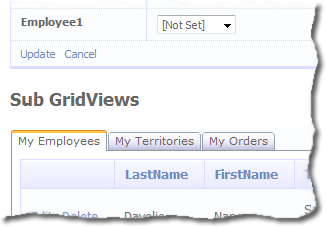
    A Detail/Edit page with all ChildrenColumn as sub grids in a tab control 

    Figure 1 – A Detail/Edit page with all ChildrenColumn as sub grids in a tab control

    I wanted something that was easy to implement on your own custom page and reused my existing FieldTemplate ParentGrid, I tried several methods to achieve this and I’m going to show the two most successful methods.

    Both methods use a FormView as the control to embed the tabs and grids:

    • Creating an external ItemTemplate and load it into the FormView at runtime
    • Have a dynamic ItemTemplate that implements ITemplate.

    Making the Custom Page with a FormView

    For this sample I’m going to make a custom generic Edit page, so first we need to make a copy of the Edit.aspx page and rename it to EditSubGridViews.aspx rename the class as well to EditSubGridViews in both the aspx file and the code behind.

    <asp:UpdatePanel ID="UpdatePanel2" runat="server">
        <ContentTemplate>
        
            <h3>Sub GridViews</h3>
            
            <asp:FormView 
                ID="FormView1" 
                runat="server" 
                DataSourceID="DetailsDataSource">
                <ItemTemplate>
                </ItemTemplate>
            </asp:FormView>
            
        </ContentTemplate>
    </asp:UpdatePanel>

    Listing 1 – The added the FormView and UpdatePanel

    Add Listing 1’s code after the end of the current UpdatePanel.

    Note: The DataSourceID="DetailsDataSource" is set to the same data source as the DetailsView1

    In the code behind add the following line to the Page_Load event handler.

    DynamicDataManager1.RegisterControl(FormView1);

    This just registers the FormView with the DynamicDataManager no real magic here.

    // load item template
    table = DetailsDataSource.GetTable();
    String itemTemplate = table.Model.DynamicDataFolderVirtualPath + "Templates/" + table.Name + ".ascx";
    if (File.Exists(Server.MapPath(itemTemplate)))
        FormView1.ItemTemplate = LoadTemplate(itemTemplate);
    // note if no template is loaded then the FormView will show nothing
    

    Listing 2 – code to load the ItemTemplate

    This is the magic, you can create your own custom template as a UserControl to include just the ChildrenTables you want. Here we first of all get a reference to the table so that we reference the Model.DynamicDataFolderVirtualPath (which hold the virtual path to the Dynamic Data folder normally ~/DynamicData/) to build the path to our template. And if the template exists then load it into the FormView’s ItemTemplate. Obviously you could load any of the other FormView templates this way.

    Modifying the Route for Edit

    To use our new PageTemplate EditSubGridViews we could just have edited the current Edit page, but I thought it would be good to leave that as is and change the route.

    // The following statement supports separate-page mode, where the List, Detail, Insert, and 
    // Update tasks are performed by using separate pages. To enable this mode, uncomment the following 
    // route definition, and comment out the route definitions in the combined-page mode section that follows.
    routes.Add(new DynamicDataRoute("{table}/{action}.aspx") {
        Constraints = new RouteValueDictionary(new { action = "List|Details|Insert" }),
        Model = model
    });
    
    // add a route to EditSubGridViews
    routes.Add(new DynamicDataRoute("{table}/EditSubGridViews.aspx")
    {
        Action = PageAction.Edit,
        ViewName = "EditSubGridViews",
        Model = model
    });

    Listing 3 – Route to EditSubGridViews.aspx added to Global.asax 

    In the default root in the Global.asax file remove Edit from action = "List|Details|Edit|Insert" and add the route to EditSubGridViews from Listing 3.

    Create the FormView ItemTemplate

    To create a template file for FormView all you need to do is create a new UserControl in the folder. The first thing to do is create the Templates folder under the DynamicData folder.

    To create the folder from Visual Studio 2008 right click the DynamicData folder and click New Folder

    Select New Folder from the context menu

    Figure 2 – Select New Folder from the context menu

    Now right click the new folder and click Add New Item…
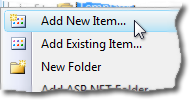
    Add New Item

    Figure 3 – Add New Item

    From the Add New Item dialogue box choose Web User Control and name it Employees.
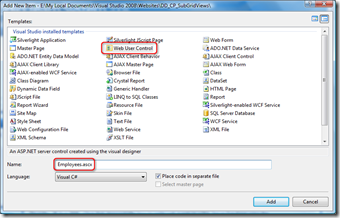
    Create the Web User Control

    Figure 4 – Create the Web User Control

    Templates folder under the DynamicData folder with the Employees template

    Figure 5 – Templates folder under the DynamicData folder with the Employees template

    Add the following mark-up to the new template:

    <ajaxToolkit:TabContainer ID="TabContainer1" runat="server">
        <ajaxToolkit:TabPanel ID="TabPanel1" HeaderText="My Employees" runat="server">
            <ContentTemplate>
                <asp:DynamicControl ID="DynamicControl1" DataField="Employees" UIHint="ChildrenGrid" Mode="Edit" runat="server">
                </asp:DynamicControl>
            </ContentTemplate>
        </ajaxToolkit:TabPanel>
        <ajaxToolkit:TabPanel ID="TabPanel3" HeaderText="My Orders" runat="server">
            <ContentTemplate>
                <asp:DynamicControl ID="DynamicControl3" DataField="Orders" UIHint="ChildrenGrid" Mode="Edit" runat="server">
                </asp:DynamicControl>
            </ContentTemplate>
        </ajaxToolkit:TabPanel>
    </ajaxToolkit:TabContainer>
    

    Listing 4 – ItemTemplate showing Employees and Orders ChildrenGrids

    Note: See this post series Dynamic Data and Advanced Field Templates for the ChildrenGrid details.

    The important setting here in the DynamicControls are UIHint and DataField, (ChildrenGrid is a FieldTemplate from a previous series of articles on FieldTemplates on my blog) in these parameters we are setting:

    • UIHint setting the FieldTemplate to be used.
    • DataField which field from the table to bind the FieldTemplate to.

    When you run the sample you will see something like Figure 6.
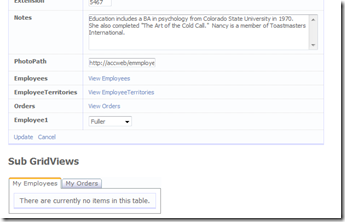
    Example output from EditSubGridViews.aspx

    Figure 6 – Example output from EditSubGridViews.aspx

    Creating a Dynamic ItemTemplate that Implements ITemplate

    ITemplate documentation can be found on the MSDN website here Creating Web Server Control Templates Programmatically.

    using System;
    using System.Collections.Generic;
    using System.Linq;
    using System.Web;
    using System.Web.UI;
    using System.Web.DynamicData;
    using System.Web.UI.WebControls;
    using AjaxControlToolkit;
    
    /// <summary>
    /// Creates an item template that renders any children columns in the passed in table as GridViews
    /// </summary>
    public class SubGridViewItemTemplate : ITemplate
    {
        private MetaTable _table;
        private Page _page;
    
        public SubGridViewItemTemplate(MetaTable table, Page page)
        {
            _table = table;
            _page = page;
        }
    
        public void InstantiateIn(Control container)
        {
            IParserAccessor acessor = container;
            // get all the children columns
            var subGridTables = from c in _table.Columns.OfType<MetaChildrenColumn>()
                                select new SubDetails()
                                {
                                    Column = c,
                                    SubGridMetaData = c.Attributes.OfType<SubGridViewsAttribute>().FirstOrDefault(),
                                    Order = c.Attributes.OfType<SubGridViewsAttribute>().FirstOrDefault() != null
                                    && c.Attributes.OfType<SubGridViewsAttribute>().FirstOrDefault().Order > 0
                                    ? c.Attributes.OfType<SubGridViewsAttribute>().FirstOrDefault().Order
                                    : int.MaxValue,
                                };
    
            // sort the according to Order first and column name second
            // note if SubGridViewsAttribute is not allied or the attrivute
            // has no value for Order then just sort but column name
            subGridTables = from sg in subGridTables
                            orderby sg.Order, sg.Column.Name
                            select sg;
    
            // make sure there are some children columns
            if (subGridTables.Count() > 0)
            {
                // check if more than one children column present
                if (subGridTables.Count() > 1)
                {
                    // create tab container to hold each children column
                    var tabContainer = new TabContainer();
                    tabContainer.ID = "tabContainer";
    
                    // add event handler
                    tabContainer.EnableViewState = true; // ***UPDATED 2008/09/27***
    
                    // add the tab container to the page
                    acessor.AddParsedSubObject(tabContainer);
    
                    // add a tab panel for each children table
                    foreach (SubDetails SubGridDetails in subGridTables)
                    {
                        var tabPanel = new AjaxControlToolkit.TabPanel();
                        tabPanel.ID = "tp" + SubGridDetails.Column.Name;
    
                        // add the tab panel
                        tabContainer.Tabs.Add(tabPanel);
    
                        var subGridAttributes = SubGridDetails.Column.Attributes.OfType<SubGridViewsAttribute>().SingleOrDefault();
                        // set the Tab's name to be the tables display name 
                        // or table Name if no attribute is present
                        if (subGridAttributes != null && subGridAttributes.TabName.Length > 0)
                            tabPanel.HeaderText = subGridAttributes.TabName;
                        else
                            tabPanel.HeaderText = SubGridDetails.Column.ChildTable.DisplayName;
    
                        //Instantiate a DynamicControl for this Children Column
                        var childrenGrid = new DynamicControl(DataBoundControlMode.Edit)
                        {
                            ID = SubGridDetails.Column.Name,
    
                            // set UIHint
                            UIHint = "ChildrenGrid",
    
                            // set data field to column name
                            DataField = SubGridDetails.Column.Name
                        };
    
                        // add the DynamicControl to the tab panel
                        tabPanel.Controls.Add(childrenGrid);
                    }
                    // set the tab pannels index to 0 which
                    // forces the first tab to be selected
                    if (!_page.IsPostBack)
                        tabContainer.ActiveTabIndex = 0;
                }
                else
                {
                    // if only one sub grid then don't bother with tabs
                    SubDetails SubGridDetails = subGridTables.FirstOrDefault();
                    var childrenGrid = new DynamicControl(DataBoundControlMode.Edit)
                    {
                        ID = SubGridDetails.Column.Name,
                        UIHint = "ChildrenGrid",
                        DataField = SubGridDetails.Column.Name
                    };
    
                    // add the grid to the page
                    acessor.AddParsedSubObject(childrenGrid);
                }
            }
            else
            {
                // if no children columns
                // add label to show no grids
                var label = new Label();
                label.Text = "There are no SubGrids";
                label.CssClass = "droplist";
    
                // add the label to the page
                acessor.AddParsedSubObject(label);
            }
        }
    
        private class SubDetails
        {
            /// <summary>
            /// Column to display
            /// </summary>
            public MetaChildrenColumn Column { get; set; }
    
            /// <summary>
            /// MetaData if any from the original column
            /// </summary>
            public SubGridViewsAttribute SubGridMetaData { get; set; }
    
            /// <summary>
            /// Holds the sort order value
            /// </summary>
            public int Order { get; set; }
        }
    }

    Listing 5 - SubGridViewItemTemplate

    Listing 5 is the class that implements ITemplate – SubGridViewItemTemplate, to summarise this generates a template in code at runtime. In this case the template consists of a TabContainer from the Ajax Control Toolkit with a TabPanel for each ChildrenColumn found in the _table passed in to the class in the constructor. The TabPanel in turn contains a DynamicControl with it’s UIHint set to ChildrenGrid.

    Personal Note: For me the key thing that Dynamic Data gives us is the DynamicField and DynamicControl which use FieldTemplates, these FielTemplates encapsulate all our field functionality in a central place. This is apart from all the other Dynamic Data goodness that we get from scaffolding etc. For this ITemplate class it remove ALL the complexity from the class and also makes it future proof, because who knows what fields my ChildrenGrid will face in the future? but I don’t need to worry be cause DynamicField and DynamicControl will handle it all.

    So an explanation of the code seems appropriate here.

    var subGridTables = from c in _table.Columns.OfType<MetaChildrenColumn>()
                        select new SubDetails()
                        {
                            Column = c,
                            SubGridMetaData = c.Attributes.OfType<SubGridViewsAttribute>().FirstOrDefault(),
                            Order = c.Attributes.OfType<SubGridViewsAttribute>().FirstOrDefault() != null
                            && c.Attributes.OfType<SubGridViewsAttribute>().FirstOrDefault().Order > 0 
                            ? c.Attributes.OfType<SubGridViewsAttribute>().FirstOrDefault().Order 
                            : int.MaxValue,
                        };
    
    // sort the according to Order first and column name second
    // note if SubGridViewsAttribute is not allied or the attrivute
    // has no value for Order then just sort but column name
    subGridTables = from sg in subGridTables
                    orderby sg.Order, sg.Column.Name
                    select sg;

    Listing 6 – Getting the ChildrenColumns

    These two Linq to Objects statements here firstly get a list of new objects and secondly sorts this list. It’s clear what the first two properties are in the SubDetails class but Order looks a little complex. What’s happening in setting Order is; if the SubGridViewsAttribute is not present or the Order property of SubGridViewsAttribute not set then the Order property of the new SubDetails object is set to int.MaxValue (this is because int can’t be null and by default is initialised to zero).

    The next chunk of code is pretty straight forward it just loops over the subGridTables collection and create the appropriate TabContainer and fills it with TabPanels each with it’s own DynamicControl. If however there is only one ChilcrenColumn in the _table then it just adds a single DynamicControl and finally if there are no ChildrenColumns in the _table then it adds a Label that says There are no SubGrids.

    Finally at the end of the class is the definition of the SubDetails class.

    Adding the SubGridViewItemTemplate a FormView

    The code to SubGridViewItemTemplate to a FormView is straight forward:

    FormView1.ItemTemplate = new SubGridViewItemTemplate(table);
    So to finish off the EditSubGridViews.aspx page we need to add a little more code:
    protected void Page_Init(object sender, EventArgs e)
    {
        DynamicDataManager1.RegisterControl(DetailsView1);
        DynamicDataManager1.RegisterControl(FormView1);
    
        // load item template
        table = DetailsDataSource.GetTable();
        String itemTemplate = table.Model.DynamicDataFolderVirtualPath + "Templates/" + table.Name + ".ascx";
        if (File.Exists(Server.MapPath(itemTemplate)))
        {
            FormView1.ItemTemplate = LoadTemplate(itemTemplate);
        }
        else
        {
            // generate the sub grid views if no template available
            table = DetailsDataSource.GetTable();
            FormView1.ItemTemplate = new SubGridViewItemTemplate(table);
        }
    }

    Listing 7 – adding the SubGridViewItemTemplate to EditSubGridViews.aspx

    Now if you supply a custom ItemTemplate for a table then that will be used to format the FormView otherwise it will auto generate the ItemTemplate for the table.

    I seem to have missed out the attribute class SubGridViewsAttribute so I'll list it here:

    [AttributeUsage(AttributeTargets.Property, AllowMultiple = false)]
    public class SubGridViewsAttribute : Attribute
    {
        public int Order { get; set; }
        public String TabName { get; set; }
        public SubGridViewsAttribute()
        {
        }
    }

    Listing 7 - SubGridViewsAttribute

    And now some sample metadata:

    [MetadataType(typeof(EmployeeMD))]
    public partial class Employee 
    { public class EmployeeMD { [SubGridViews( Order = 2, TabName = "My Employees")] public object Employees { get; set; } [SubGridViews( Order = 3, TabName = "My Territories")] public object EmployeeTerritories { get; set; } [SubGridViews( Order = 1, TabName = "My Orders")] public object Orders { get; set; } public object Employee1 { get; set; } } }

    Listing 8 - sample metadata showing order and tab name

    Now I think that’s neat smile_teeth

    Project Download

    *** UPDATES ***

    UPDATED 2008/09/26 :I’ve just discovered an issue which shows itself when you click on a tab other than the first tab and then click edit on a grid item. When you do this after postback the tab index has been reset back to 0, if you click the tab you had previously selected the row you clicked edit on is in edit mode.
    This is just to let you know I know about this BUG and am working on it.
    I’ll be back soon with an update smile_teeth
    UPDATED 2008/09/26 : Added tabContainer.AutoPostBack = true; to fix issue with tabs smile_teeth 
    UPDATED 2008/09/27 : A better fix is to add tabContainer.EnableViewState = true; to fix issue with tabs smile_teeth 

    Thursday, 31 July 2008

    Dynamic Data Custom Pages Part 5: I18N? Internationalisation Custom Page

    As far as I can see there are three (oops! four then and now a 5th) types of Custom Page:

    1. Custom Pages Part 1 - Standard Custom Page based on an existing PageTemplate and customised in the DynamicData\CustomPages folder.
    2. Custom Pages Part 2 - A completely Custom Page again in the DynamicData\CustomPages folder.
    3. Custom Pages Part 3 - Standard ASP.Net Page with Dynamic Data features added to take advantage of the FieldTemplates.
    4. Custom Pages Part 4 - A DetailsView and a GridView using Validation Groups
    5. Custom Pages Part 5 - I18N? Internationalisation Custom Page

    When answering this thread here LCID: how to scaffold language dependent fields from separate tables... by Zoltán Lantos from Hungary, I knocked together this CustomPage and thought it was worth blogging about and so add a 5th post the my Three post series on Custom Pages.

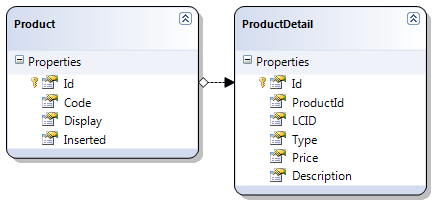
    The model

    Figure 1 – the model

    This works by filtering the LCID column by the users current culture, so there is a row in ProductDetails for each culture/language.

    The requirements for this little project were:

    1. Admin to be able to see in a tabbed like layout all the ProductDetails foreach culture.
    2. The normal user to be able to see their ProductDetails in their own culture.

    The FieldTemplates

    Here are the FieldTemplates for editing and displaying the records culture here.

    <%@ Control 
        Language="C#" 
        CodeFile="LCID_Edit.ascx.cs" 
        Inherits="LCID_EditField" %>
    
    <asp:DropDownList 
        runat="server" 
        ID="DropDownList1" 
        CssClass="droplist" 
        ondatabound="DropDownList1_DataBound">
    </asp:DropDownList>

    Listing 1 – LCID_Edit.ascx

    using System;
    using System.Collections.Specialized;
    using System.Globalization;
    using System.Linq;
    using System.Web.UI;
    using System.Web.UI.WebControls;
    
    public partial class LCID_EditField : System.Web.DynamicData.FieldTemplateUserControl
    {
        protected override void OnDataBinding(EventArgs e)
        {
            base.OnDataBinding(e);
    
            // use linq to get a list of cultures to display in the drop down list
            var cultures = from c in CultureInfo.GetCultures(CultureTypes.NeutralCultures)
                           select new
                           {
                               Lcid = c.TwoLetterISOLanguageName,
                               Name = c.TwoLetterISOLanguageName + " - " + c.EnglishName
                           };
    
            // setup the drop down list
            DropDownList1.DataSource = cultures;
            DropDownList1.DataValueField = "Lcid";
            DropDownList1.DataTextField = "Name";
            DropDownList1.DataBind();
        }
    
        protected void DropDownList1_DataBound(object sender, EventArgs e)
        {
            // check the FieldValueString is not null
            if (String.IsNullOrEmpty(FieldValueString))
            {
                // set it to the culture of the client session
                DropDownList1.SelectedValue = CultureInfo.CurrentCulture.TwoLetterISOLanguageName;
            }
            else
            {
                // set the drop down list to the current vlaue
                DropDownList1.SelectedValue = FieldValueString;
            }
        }
    
        protected override void ExtractValues(IOrderedDictionary dictionary)
        {
            // get selected value
            dictionary[Column.Name] = ConvertEditedValue(DropDownList1.SelectedValue);
        }
    
        public override Control DataControl
        {
            get
            {
                return DropDownList1;
            }
        }
    }

    Listing 2 – LCID_Edit.ascx.cs code behind file

    As you can see from the code above all we are doing is populating a DropDownList with all the cultures from CultureInfo.GetCultures of type CultureTypes.NeutralCultures using Linq smile_teeth to get them in an anonymous type.

    And here is the much simpler LCID.ascx FieldTemplate:

    protected override void OnDataBinding(EventArgs e)
    {
        base.OnDataBinding(e);
    
        // use linq to get a list of cultures to display in the drop down list
        var culture = CultureInfo.GetCultures(CultureTypes.NeutralCultures).SingleOrDefault(c => c.TwoLetterISOLanguageName == FieldValueString);
        Label1.Text = culture.TwoLetterISOLanguageName + " - " + culture.EnglishName;
    }

    Listing 3 – LCID.ascx FieldTemplate OnDataBinding event handler

    As you can see all the LCID.ascx is is a Label and the OnDataBinding event handler.

    The Metadata and Partial Classes

    I’m just going to paste them here and give detailed explanation as we go along
    using System;
    using System.Collections.Generic;
    using System.Linq;
    using System.Web;
    using System.ComponentModel;
    using System.ComponentModel.DataAnnotations;
    
    public partial class ProductsDataContext
    {
        // Implement the InsertProductDetail to do insert validation
        partial void InsertProductDetail(ProductDetail instance)
        {
            var DC = new ProductsDataContext();
            if (DC.ProductDetails.SingleOrDefault(pc => (pc.ProductId == instance.ProductId && pc.LCID == instance.LCID)) != null)
            {
                // Throw an exception if a match is found
                throw new ValidationException("Duplicate culture per Product is not permitted");
            }
            else
            {
                // finally send this to the DB
                this.ExecuteDynamicInsert(instance);
            }
        }
    }
    
    [MetadataType(typeof(ProductDetailMD))]
    public partial class ProductDetail
    {
        public class ProductDetailMD
        {
            [UIHint("LCID")]
            public object LCID { get; set; }
        }
    }

    Listing 4 – Metadata and Partial classes

    As you can see we two parts to the ProductsMD.cs file; the first part check for duplicate languages/culture on a product and the second part adds the UIHint to the LCID column.

    The Products Edit page

    Here’s a snapshot of the finished page:

    Screen shot of the finished page

    Figure 1 - Screen shot of the finished page

    There are three part to the page;

    1. A DetailsView for the Product
    2. A ListView for the “tab” control (it could be styled to look like tabs using css if you wanted to)
    3. A FromView and GridvView for the ProductDetails

    1. A DetailsView for the Product 

    Is strait forward enough and I started with a normal Edit.aspx Page Template and then added all the other components.

    2. A ListView for the “tab” control

    To do this at first I thought of using the Ajax Toolkit Tab control and embedding it in a ListView but that was a no go as you could not break apart the individual part between different ListView templates. So I finally opted for a ListView with LinkButtons as Select commands, each row only has a Select button in it.

    3. A FromView and GridvView for the ProductDetails

    The FormView is used for inserting and the GridView is used for editing and displaying ProductDetails.

    So here’s the code for the page and the code behind.

    <%@ Page Language="C#" MasterPageFile="~/Site.master" CodeFile="Edit.aspx.cs" Inherits="Edit" %>
    
    <asp:Content ID="Content1" ContentPlaceHolderID="ContentPlaceHolder1" runat="Server">
    
        <asp:DynamicDataManager 
            runat="server" 
            ID="DynamicDataManager1" 
            AutoLoadForeignKeys="true" />
            
        <h2>Edit entry from table <%= mtProducts.DisplayName %></h2>
        
        <asp:ScriptManagerProxy 
            runat="server" 
            ID="ScriptManagerProxy1" />
        
        <asp:UpdatePanel 
            runat="server" 
            ID="UpdatePanel1">
        
            <ContentTemplate>
                <asp:ValidationSummary 
                    runat="server" 
                    ID="ValidationSummary1" 
                    EnableClientScript="true"
                    HeaderText="List of validation errors" />
                    
                <asp:DynamicValidator 
                    runat="server" 
                    ID="DetailsViewValidator" 
                    ControlToValidate="DetailsView1"
                    Display="None" />
                    
                <asp:DetailsView 
                    runat="server" 
                    ID="DetailsView1" 
                    DataSourceID="ldsProducts"
                    DefaultMode="Edit" 
                    AutoGenerateEditButton="True" 
                    OnItemCommand="DetailsView1_ItemCommand"
                    OnItemUpdated="DetailsView1_ItemUpdated" 
                    CssClass="detailstable" 
                    FieldHeaderStyle-CssClass="bold" 
                    AutoGenerateRows="False" 
                    DataKeyNames="Id">
                    <FieldHeaderStyle CssClass="bold" />
                    <Fields>
                        <asp:DynamicField DataField="Code" />
                        <asp:DynamicField DataField="Display" />
                        <asp:DynamicField DataField="Inserted" />
                    </Fields>
                </asp:DetailsView>
                
                <asp:LinqDataSource 
                    runat="server" 
                    ID="ldsProducts" 
                    ContextTypeName="ProductsDataContext" 
                    TableName="Products" 
                    EnableUpdate="True">
                    <WhereParameters>
                        <asp:DynamicQueryStringParameter />
                    </WhereParameters>
                </asp:LinqDataSource>
                
                <h2>Cultures</h2>
    
                <asp:ListView 
                    runat="server" 
                    ID="lvLanguages" 
                    DataSourceID="ldsLanguages" 
                    DataKeyNames="LCID" 
                    OnItemCommand="lvLanguages_ItemCommand">
                    
                    <LayoutTemplate>
                        <div>
                            <span id="itemPlaceHolder" runat="server"></span>
                            <asp:LinkButton 
                                runat="server" 
                                ID="lvLanguagesInsert" 
                                CommandName="InsertProductDetail" 
                                CommandArgument="LCID" 
                                CausesValidation="false">
                                add new
                            </asp:LinkButton>
                            <asp:Label 
                                runat="server"
                                ID="InsertLabel" 
                                Visible="false"> 
                                <strong>add new</strong>
                            </asp:Label>
                        </div>
                    </LayoutTemplate>
                    
                    <ItemTemplate>
                        <asp:LinkButton 
                            runat="server" 
                            Text='<%# Eval("LCID") %>' 
                            CommandName="Select" 
                            CausesValidation="false">
                        </asp:LinkButton>
                    </ItemTemplate>
                    
                    <SelectedItemTemplate>
                     <strong><%# Eval("LCID") %></strong>
                    </SelectedItemTemplate>
                    
                </asp:ListView>
                
                <asp:LinqDataSource 
                    runat="server" 
                    ID="ldsLanguages" 
                    ContextTypeName="ProductsDataContext" 
                    TableName="ProductDetails" 
                    Where="ProductId == @ProductId" 
                    GroupBy="LCID" 
                    Select="new (key as LCID, it as ProductDetails)" 
                    OrderGroupsBy="key">
                    <WhereParameters>
                        <asp:ControlParameter 
                            ControlID="DetailsView1" 
                            Name="ProductId" 
                            PropertyName="SelectedValue" 
                            Type="Int32" />
                    </WhereParameters>
                </asp:LinqDataSource>
                
                <br /><br />
                
                <asp:DynamicValidator 
                    runat="server" 
                    ID="GridViewDynamicValidator" 
                    ControlToValidate="GridView1"
                    Display="None" />
                    
                <asp:GridView 
                    runat="server" 
                    ID="GridView1" 
                    AutoGenerateColumns="False" 
                    CssClass="gridview" 
                    DataKeyNames="Id" 
                    DataSourceID="ldsProductDetails" 
                    OnRowDeleted="GridView1_RowDeleted">
                    <Columns>
                        <asp:CommandField 
                            ShowEditButton="True" 
                            ShowDeleteButton="True" />
                        <asp:DynamicField DataField="LCID" />
                        <asp:DynamicField DataField="Type" />
                        <asp:DynamicField DataField="Price" />
                        <asp:DynamicField DataField="Description" />
                    </Columns>
                </asp:GridView>
                
                <asp:DynamicValidator 
                    runat="server" 
                    ID="ProductDetailDynamicValidator" 
                    ControlToValidate="fvProductDetail"
                    ValidationGroup="ProductDetailsList_Insert"
                    Display="None" />
                    
                <asp:FormView 
                    runat="server"
                    ID="fvProductDetail"
                    CssClass="gridview"
                    DefaultMode="Insert" 
                    Visible="false"
                    DataSourceID="ldsProductDetails" 
                    OnItemInserted="fvProductDetail_ItemInserted" 
                    onitemcommand="fvProductDetail_ItemCommand">
                    
                    <InsertItemTemplate>
                            <thead>
                                <tr>
                                    <th>
                                    </th>
                                    <th>
                                        LCID
                                    </th>
                                    <th>
                                        Type
                                    </th>
                                    <th>
                                        Price
                                    </th>
                                    <th>
                                        Description
                                    </th>
                                </tr>
                            </thead>
                            <tbody>
                                <tr>
                                    <td>
                                        <asp:LinkButton 
                                            runat="server" 
                                            ID="InsertLinkButton" 
                                            CommandName="Insert">
                                            Insert
                                        </asp:LinkButton>
                                        <asp:LinkButton 
                                            runat="server" 
                                            ID="CancelLinkButton" 
                                            CausesValidation="false" 
                                            CommandName="Cancel">
                                            Cancel
                                        </asp:LinkButton>
                                    </td>
                                    <td>
                                        <asp:DynamicControl 
                                            ID="DynamicControl1" 
                                            DataField="LCID" 
                                            Mode="Insert" 
                                            runat="server" />
                                    </td>
                                    <td>
                                        <asp:DynamicControl 
                                            ID="DynamicControl2" 
                                            DataField="Type" 
                                            Mode="Insert" 
                                            runat="server" />
                                    </td>
                                    <td>
                                        <asp:DynamicControl 
                                            ID="DynamicControl3" 
                                            DataField="Price" 
                                            Mode="Insert" 
                                            runat="server" />
                                    </td>
                                    <td>
                                        <asp:DynamicControl 
                                            ID="DynamicControl4" 
                                            DataField="Description" 
                                            Mode="Insert" 
                                            runat="server" />
                                    </td>
                                </tr>
                            </tbody>
                    </InsertItemTemplate>
                </asp:FormView>
                
                <asp:LinqDataSource 
                    runat="server" 
                    ID="ldsProductDetails" 
                    ContextTypeName="ProductsDataContext" 
                    TableName="ProductDetails" 
                    Where="LCID == @LCID &amp;&amp; ProductId == @ProductId" 
                    EnableDelete="True" 
                    EnableInsert="True" 
                    EnableUpdate="True" 
                    OnInserting="ldsProductDetails_Inserting">
                    <WhereParameters>
                        <asp:ControlParameter 
                            ControlID="lvLanguages" 
                            Name="LCID" 
                            PropertyName="SelectedValue" 
                            Type="String" />
                        <asp:ControlParameter 
                            ControlID="DetailsView1" 
                            Name="ProductId" 
                            PropertyName="SelectedValue" 
                            Type="Int32" />
                    </WhereParameters>
                </asp:LinqDataSource>
                
            </ContentTemplate>
        </asp:UpdatePanel>
    </asp:Content>
    

    Listing 5 – Edit.aspx Products page

    using System;
    using System.Web.DynamicData;
    using System.Web.UI.WebControls;
    
    public partial class Edit : System.Web.UI.Page
    {
        protected MetaTable mtProducts;
        protected MetaTable mtProductDetails;
    
        protected void Page_Init(object sender, EventArgs e)
        {
            DynamicDataManager1.RegisterControl(DetailsView1, true);
            DynamicDataManager1.RegisterControl(GridView1);
            DynamicDataManager1.RegisterControl(fvProductDetail);
        }
    
        protected void Page_Load(object sender, EventArgs e)
        {
            mtProducts = ldsProducts.GetTable();
            mtProductDetails = ldsProductDetails.GetTable();
            Title = mtProducts.DisplayName;
    
            // set the first item to be selected
            lvLanguages.SelectedIndex = 0;
        }
    
        protected void DetailsView1_ItemCommand(object sender, DetailsViewCommandEventArgs e)
        {
            // redirect to the List page when cancel clicked
            if (e.CommandName == DataControlCommands.CancelCommandName)
            {
                Response.Redirect(mtProducts.ListActionPath);
            }
        }
    
        protected void DetailsView1_ItemUpdated(object sender, DetailsViewUpdatedEventArgs e)
        {
            // redirect to the List page when update clicked
            if (e.Exception == null || e.ExceptionHandled)
            {
                Response.Redirect(mtProducts.ListActionPath);
            }
        }
    
        protected void lvLanguages_ItemCommand(object sender, ListViewCommandEventArgs e)
        {
            // toggel the view between Insert and Edit/Display
            var insertButton = (LinkButton)lvLanguages.FindControl("lvLanguagesInsert");
            var insertLabel = (Label)lvLanguages.FindControl("InsertLabel");
            if (e.CommandName == "InsertProductDetail")
            {
                GridView1.Visible = false;
                lvLanguages.SelectedIndex = -1;
                fvProductDetail.Visible = true;
                insertButton.Visible = false;
                insertLabel.Visible = true;
            }
            if (e.CommandName == "Select")
            {
                GridView1.Visible = true;
                lvLanguages.SelectedIndex = 0;
                fvProductDetail.Visible = false;
                insertButton.Visible = true;
                insertLabel.Visible = false;
            }
        }
    
        protected void GridView1_RowDeleted(object sender, GridViewDeletedEventArgs e)
        {
            // when an item is deleted the redirect back 
            // to the same page with the current id
            if (e.Exception == null || e.ExceptionHandled)
            {
                var s = DetailsView1.DataKey.Value.ToString();
                var s1 = mtProducts.GetActionPath(PageAction.Edit) + @"?Id=" + s;
                Response.Redirect(s1);
            }
        }
    
        protected void fvProductDetail_ItemInserted(object sender, FormViewInsertedEventArgs e)
        {
            // when an item is inserted the redirect back 
            // to the same page with the current id
            if (e.Exception == null || e.ExceptionHandled)
            {
                var s = DetailsView1.DataKey.Value.ToString();
                var s1 = mtProducts.GetActionPath(PageAction.Edit) + @"?Id=" + s;
                Response.Redirect(s1);
            }
        }
    
        protected void fvProductDetail_ItemCommand(object sender, FormViewCommandEventArgs e)
        {
            // on the cancel button being presed return the page normal state
            var insertButton = (LinkButton)lvLanguages.FindControl("lvLanguagesInsert");
            var insertLabel = (Label)lvLanguages.FindControl("InsertLabel");
            if (e.CommandName == "Cancel")
            {
                GridView1.Visible = true;
                lvLanguages.SelectedIndex = 0;
                fvProductDetail.Visible = false;
                insertButton.Visible = true;
                insertLabel.Visible = false;
            }
        }
    
        protected void ldsProductDetails_Inserting(object sender, LinqDataSourceInsertEventArgs e)
        {
            // add the ProductId from the DetailsView
            ((ProductDetail)e.NewObject).ProductId = (int)DetailsView1.DataKey.Value;
        }
    }

    Listing 6 – Edit.aspx.cs code behind for ProductDetails

    The comments should explain what is happening.

    Thanks for reading smile_teeth

    Note: That requirement number 2 should be trivial in that all you need is a custom page with a DetailView and a FormView and adding a WHERE parameter to the LinqDataSource limiting the data to the clients culture.

    UPDATE

    I’ve just had a thought and decided to add it here :D

    I’ve re done the ListView Tabs and added some tool tips:

    <asp:ListView 
        runat="server" 
        ID="lvLanguages" 
        DataSourceID="ldsLanguages" 
        DataKeyNames="LCID" 
        OnItemCommand="lvLanguages_ItemCommand">
        
        <LayoutTemplate>
            <div>
                <span id="itemPlaceHolder" runat="server"></span>
                <asp:LinkButton 
                    runat="server" 
                    ID="lvLanguagesInsert"
                    ToolTip="Insert new Product Decription"
                    CommandName="InsertProductDetail" 
                    CommandArgument="LCID" 
                    CausesValidation="false">
                    add new
                </asp:LinkButton>
                <asp:Label 
                    runat="server"
                    ID="InsertLabel" 
                    ToolTip="Insert new Product Decription"
                    Visible="false"> 
                    <strong>add new</strong>
                </asp:Label>
            </div>
        </LayoutTemplate>
        
        <ItemTemplate>
            <asp:LinkButton 
                runat="server" 
                Text='<%# Eval("LCID") %>' 
                CommandName="Select" 
                ToolTip='<%# Eval("Name") %>'
                CausesValidation="false">
            </asp:LinkButton>
        </ItemTemplate>
        
        <SelectedItemTemplate>
         <strong title='<%# Eval("Name") %>'><%# Eval("LCID") %></strong>
        </SelectedItemTemplate>
        
    </asp:ListView>
    
    <asp:LinqDataSource 
        runat="server" 
        ID="ldsLanguages"
        OnSelecting="ldsLanguages_Selecting">
        <WhereParameters>
        </WhereParameters>
    </asp:LinqDataSource>

    Listing 7 – Update ListView and associated LinqDataSource

    protected void ldsLanguages_Selecting(object sender, LinqDataSourceSelectEventArgs e)
    {
        var DC = new ProductsDataContext();
    
        var productCultures = from pdc in DC.ProductDetails
                              where pdc.ProductId == (int)DetailsView1.DataKey.Value
                              select pdc;
    
        var cultureDetails = from pd in productCultures.ToArray()
                             join pc in CultureInfo.GetCultures(CultureTypes.NeutralCultures) on 
                                pd.LCID equals pc.TwoLetterISOLanguageName
                             select new
                             {
                                 LCID = pd.LCID,
                                 Name = pc.EnglishName
                             };
    
        e.Result = cultureDetails;
    }

    Listing 8 – Selecting event handler for the ldsLanguages LinqDataSource

    What I’ve done is taken the data from the SQL tables and merged it with the CultureInfo to produce a list of cultures plus their English names. Note I’ve removed the WHERE parameters etc from the LinqDataSource and added the OnSelecting event handler.

    Yet another neat use of Linq smile_teeth Yes I could have done a separate article on this but I though it fitted well here.