Showing posts with label Linq to SQL. Show all posts

Sunday, 13 June 2010

Securing Dynamic Data 4 (Replay)

This is an updated version of the series Securing Dynamic Data Preview 4 from July 2009 here I playnto streamline the class libraries for the RTM version of Dynamic Data 4  and Visual Studio 2010.

This version is mostly the same as in Part 1 except I’ve done a great deal of refactoring and so I will list everything again here. The main difference is that there are now no user controls to replace the Delete buttons. Also I have changed the permissions system to be restrictive by default at Table level i.e. you must have a permission set on every table for the table to be seen, but a Column level you deny columns you don’t want to be seen.

Permissions Enums

The TableActions (renamed from TableDeny) enum Listing 1 has had a CombinedActions class Listing 2 added that combine sets of TableActions into logical security groups (i.e. ReadOnly equates to combining TablesActions Details and List to give an more descriptive was of assigning rights to a security Role).

/// <summary>
/// Table permissions enum, allows different
/// levels of permission to be set for each 
/// table on a per role bassis.
/// </summary>
[Flags]
public enum TableActions
{
    /// <summary>
    /// Default no permissions
    /// </summary>
    None = 0x00,
    /// <summary>
    /// Details page
    /// </summary>
    Details = 0x01,
    /// <summary>
    /// List page
    /// </summary>
    List = 0x02,
    /// <summary>
    /// Edit page
    /// </summary>
    Edit = 0x04,
    /// <summary>
    /// Insert page
    /// </summary>
    Insert = 0x08,
    /// <summary>
    /// Delete operations
    /// </summary>
    Delete = 0x10,
}

Listing 1 – TableActions

/// <summary>
/// Combines Table permissions enums
/// into logical security groups
/// i.e. ReadOnly combines TableActions
/// Details and List
/// </summary>
public static class CombinedActions
{
    /// <summary>
    /// Read Only access 
    /// TableActions.Details or 
    /// TableActions.List
    /// </summary>
    public const TableActions ReadOnly = 
        TableActions.Details | 
        TableActions.List;
    /// <summary>
    /// Read and Write access 
    /// TableActions.Details or 
    /// TableActions.List or
    /// TableActions.Edit
    /// </summary>
    public const TableActions ReadWrite = 
        TableActions.Details | 
        TableActions.List | 
        TableActions.Edit;
    /// <summary>
    /// Read Insert access 
    /// TableActions.Details or 
    /// TableActions.List or 
    /// TableActions.Insert
    /// 
    /// </summary>
    public const TableActions ReadInsert = 
        TableActions.Details | 
        TableActions.List | 
        TableActions.Insert;
    /// <summary>
    /// Read Insert and Delete access 
    /// TableActions.Details or 
    /// TableActions.List or 
    /// TableActions.Insert or 
    /// TableActions.Delete)
    /// </summary>
    public const TableActions ReadInsertDelete = 
        TableActions.Details | 
        TableActions.List | 
        TableActions.Insert | 
        TableActions.Delete;
    /// <summary>
    /// Read and Write access 
    /// TableActions.Details or 
    /// TableActions.List or 
    /// TableActions.Edit or 
    /// TableActions.Insert)
    /// </summary>
    public const TableActions ReadWriteInsert = 
        TableActions.Details | 
        TableActions.List | 
        TableActions.Edit | 
        TableActions.Insert;
    /// <summary>
    /// Full access 
    /// TableActions.Delete or
    /// TableActions.Details or 
    /// TableActions.Edit or 
    /// TableActions.Insert or 
    /// TableActions.List)
    /// </summary>
    public const TableActions Full = 
        TableActions.Delete | 
        TableActions.Details | 
        TableActions.Edit | 
        TableActions.Insert | 
        TableActions.List;
}

Listing 2 – CombinedActions

ColumnActions Listing 3  are used to deny either Write or Read access.

/// <summary>
/// Actions a Column can 
/// have assigned to itself.
/// </summary>
[Flags]
public enum ColumnActions
{
    /// <summary>
    /// Action on a column/property
    /// </summary>
    DenyRead = 1,
    /// <summary>
    /// Action on a column/property
    /// </summary>
    DenyWrite = 2,
}

Listing 3 – ColumnActions

Secure Dynamic Data Route Handler

The SecureDynamicDataRouteHandler has changed very little since the original article all I have added is the catch all tp.Permission == CombinedActions.Full in the if statement to streamline the code.

/// <summary>
/// The SecureDynamicDataRouteHandler enables the 
/// user to access a table based on the following:
/// the Roles and TableDeny values assigned to 
/// the SecureTableAttribute.
/// </summary>
public class SecureDynamicDataRouteHandler : DynamicDataRouteHandler
{
    /// <summary>
    /// Creates the handler.
    /// </summary>
    /// <param name="route">The route.</param>
    /// <param name="table">The table.</param>
    /// <param name="action">The action.</param>
    /// <returns>An IHttpHandler</returns>
    public override IHttpHandler CreateHandler(
        DynamicDataRoute route,
        MetaTable table,
        string action)
    {
        var httpContext = HttpContext.Current;
        if (httpContext != null && httpContext.User != null)
        {
            var usersRoles = Roles.GetRolesForUser(httpContext.User.Identity.Name);
            var tablePermissions = table.Attributes.OfType<SecureTableAttribute>();

            // if no permission exist then full access is granted
            if (tablePermissions.Count() == 0)
                return null;

            foreach (var tp in tablePermissions)
            {
                if (tp.HasAnyRole(usersRoles))
                {
                    // if no action is allowed return no route
                    var tpAction = tp.Permission.ToString().Split(new char[] { ',', ' ' }, 
                        StringSplitOptions.RemoveEmptyEntries);

                    if (tp.Permission == CombinedActions.Full || tpAction.Contains(action))
                        return base.CreateHandler(route, table, action);
                }
            }
        }
        return null;
    }
}

Listing 4 – Secure Dynamic Data Route Handler

This then covers all Edit, Insert and Details actions but not Delete.

Delete Actions

In the previous article we had a User Control that handled securing the Delete action, here we have a SecureLinkButton. All we do is override the Render method and test to see if the button is disabled via the users security roles.

/// <summary>
/// Secures the link button when used for delete actions
/// </summary>
public class SecureLinkButton : LinkButton
{
    private const String DISABLED_NAMES = "SecureLinkButtonDeleteCommandNames";
    private String[] delete = new String[] { "delete" };

    /// <summary>
    /// Raises the <see cref="E:System.Web.UI.Control.Init"/> event.
    /// </summary>
    /// <param name="e">
    /// An <see cref="T:System.EventArgs"/> 
    /// object that contains the event data.
    /// </param>
    protected override void OnInit(EventArgs e)
    {
        if (ConfigurationManager.AppSettings.AllKeys.Contains(DISABLED_NAMES))
            delete = ConfigurationManager.AppSettings[DISABLED_NAMES]
                .ToLower()
                .Split(new char[] { ',' }, StringSplitOptions.RemoveEmptyEntries);

        base.OnInit(e);
    }

    /// <summary>
    /// Renders the control to the specified HTML writer.
    /// </summary>
    /// <param name="writer">
    /// The <see cref="T:System.Web.UI.HtmlTextWriter"/> 
    /// object that receives the control content.
    /// </param>
    protected override void Render(HtmlTextWriter writer)
    {
        if (!IsDisabled())
            base.Render(writer);
        else
            writer.Write(String.Format("<a>{0}</a>", Text));
    }

    /// <summary>
    /// Determines whether this instance is disabled.
    /// </summary>
    /// <returns>
    /// 	<c>true</c> if this instance is 
    /// 	disabled; otherwise, <c>false</c>.
    /// </returns>
    private Boolean IsDisabled()
    {
        if (!delete.Contains(CommandName.ToLower()))
            return false;

        // get restrictions for the current
        // users access to this table
        var table = DynamicDataRouteHandler.GetRequestMetaTable(Context);
        var usersRoles = Roles.GetRolesForUser();
        var tableRestrictions = table.Attributes.OfType<SecureTableAttribute>();

        // restrictive permissions
        if (tableRestrictions.Count() == 0)
            return true;

        foreach (var tp in tableRestrictions)
        {
            // the LinkButton is considered disabled if delete is denied.
            var action = CommandName.ToEnum<TableActions>();
            if (tp.HasAnyRole(usersRoles) && (tp.Actions & action) == action)
                return false;
        }
        return true;
    }
}

Listing 5 – Secure Link Button

In more detail the IsDisabled method check to see if the LinkButtons CommandName is the same as the the “SecureLinkButtonDeleteCommandNames” application setting set in the web.config, note the default is “delete”. And then if the user does not have Delete permission then the button is disabled.

So how do we use this SecureLinkButton we add a tagMapping in the web.config file see Listing 6.

<configuration>
    <system.web>
        <pages>
            <controls>
                <!-- custom tag assignments -->
                <add tagPrefix="asp" namespace="NotAClue.Web.DynamicData" 
                    assembly="NotAClue.Web.DynamicData" />
            </controls>
            <!-- custom tag mappings -->
            <tagMapping>
                <add tagType="System.Web.UI.WebControls.LinkButton"
                    mappedTagType="NotAClue.Web.DynamicData.SecureLinkButton" />
            </tagMapping>
        </pages>
    </system.web>
</configuration>

Listing 6 – Tag Mapping in web.config

This means that our SecureLinkButton will replace the LinkButton throughout the site, however if you do not like this you can just rename each delete <asp:LinkButton to <asp:SecureLinkButton and then you will get the same effect and not add the tagMapping section to the web.config.

The Secure Meta Model

Here the two main parts are the SecureMetaTable and the three MetaColumn types (SecureMetaColumn, SecureMetaForeignKeyColumn and SecureMetaChildrenColumn)

SecureMetaTable

In the SecureMetaTable we override the GetScaffoldColumns method and filter the column list to where columns do not have a DenyRead action applied for any of the current users security roles.

SecureMetaColumn, SecureMetaForeignKeyColumn and SecureMetaChildrenColumn

With these types we do have to repeat ourselves a little as we override the IsReadOnly property to check to see if the column has a DenyWrite action applied for one of the users roles.
Note: Thanks to the ASP.NET team for listening and making this property virtual.

There is one issue I found and that is the default FieldTemplateFactory caches the DynamicControl model (ReadOnly, Edit and Insert) I did toy with adding the relevant code the default EntityTemplates see Listing 7, but decided again it.

protected void DynamicControl_Init(object sender, EventArgs e)
{
    DynamicControl dynamicControl = (DynamicControl)sender;
    dynamicControl.DataField = currentColumn.Name;

    // test for read-only column
    if (currentColumn.IsReadOnly)
        dynamicControl.Mode = DataBoundControlMode.ReadOnly;
}


Listing 7 – adding control mode code to the default EntityTemplates

Instead I decided to use a custom FieldTemplateFactory see Listing 8

public class SecureFieldTemplateFactory : FieldTemplateFactory
{
    public override IFieldTemplate CreateFieldTemplate(MetaColumn column,
        DataBoundControlMode mode, 
        string uiHint)
    {
        // code to fix caching issue
        if (column.IsReadOnly)
            mode = DataBoundControlMode.ReadOnly;

        return base.CreateFieldTemplate(column, mode, uiHint);
    }
}

Listing 8 – Secure Field Template Factory

The code here is simple we just check to see if the column is read-only (remembering that the SecureMetaColumns are already checking this for us) then set the Mode to DataBoundControlMode.ReadOnly. This nicely keeps our code DRY.

Secure Table and Column Attributes

These are essentially unchanged from the previous series of articles with just a little refactoring to make the code more readable.

!Important: For code see sample at end of article.

Putting It Together

Nearly all the work to get Secure Dynamic Data working is done simply in the Global.asax file.

Note: There are some changes you need to make to add Login etc but that is standard ASP.Net and specific to Dynamic Data.

Adding Security to Dynamic Data

Figure 1 – Adding Security to Dynamic Data

Also you need the tag mapping from Listing 6, there are some more bits we need to do but they are standard ASP.Net Security, so let’s get that done next.

!Important: To use this as we currently are you will need SQL Server 200x Express installed otherwise you will need to add a specific connection string and use Creating the Application Services Database for SQL Server to make your ASPNETDB database for membership and roles.
<authentication mode="Forms">
    <forms loginUrl="~/Login.aspx" protection="All" defaultUrl="~/Default.aspx" path="/"/>
</authentication>
<authorization>
    <deny users="?"/>
</authorization>
<membership>
    <providers>
        <remove name="AspNetSqlMembershipProvider"/>
        <add name="AspNetSqlMembershipProvider"
            type="System.Web.Security.SqlMembershipProvider, System.Web, Version=2.0.0.0, Culture=neutral, PublicKeyToken=b03f5f7f11d50a3a
            connectionStringName="LocalSqlServer"
            enablePasswordRetrieval="false"
            enablePasswordReset="true"
            requiresQuestionAndAnswer="true"
            applicationName="/"
            requiresUniqueEmail="false"
            passwordFormat="Hashed"
            maxInvalidPasswordAttempts="5"
            minRequiredPasswordLength="7"
            minRequiredNonalphanumericCharacters="0"
            passwordAttemptWindow="10"
            passwordStrengthRegularExpression=""/>
    </providers>
</membership>
<roleManager enabled="true" />

Listing 9 – Adding standard ASP.Net security to web.config

<location path="Site.css">
    <system.web>
        <authorization>
            <allow users="*"/>
        </authorization>
    </system.web>
</location>

Listing 10 – Allowing access to style sheet.

With SQL Server 200x Express edition installed you will get the ASPNETDB created automatically.

Note: I generally do this to create the ASPNETDB then move it to where I want it and setup a specific connection string. Also you can use the ASP.Net Configuration utility to create users and roles.
ASP.Net Configuration Utility
Figure 1 - ASP.Net Configuration Utility

Downloads

I think that is about it, so here is the download it contains three projects the Class Library and two sample projects one Entity Framework and one Linq to SQL. Have fun.

Sunday, 7 December 2008

Dynamic Data – Registering Multiple Models

There are two way to get multiple model into your site:

  1. Register Multiple DataContexts with the default Model.
  2. Register each DataContext with it’s own Model.

My Models:

ScreenShot149

Register Multiple DataContexts with the default Model.

This is the simplest approach you have multiple EDMX or DBML files, all you need to do is lines like so in the Global.ascx file:

model.RegisterContext(typeof(Table1DataContext), 
    new ContextConfiguration() { ScaffoldAllTables = true });
model.RegisterContext(typeof(Table2DataContext), 
    new ContextConfiguration() { ScaffoldAllTables = true });

Listing 1 – Adding a Context to the Model

Note: you are adding the DataContext/ObjectContext to the existing model

ScreenShot148

Figure 1 – Both Contexts in one model.

Register each DataContext with it’s own Model.

This is slightly more work, you are basically duplicating each line of code for one model to two.

public static void RegisterRoutes(RouteCollection routes)
{
    // Model1 ======================================================
    MetaModel model = new MetaModel();

    model.RegisterContext(typeof(Table1DataContext),
         new ContextConfiguration() { ScaffoldAllTables = true });

    routes.Add(new DynamicDataRoute("{table}/{action}.aspx")
    {
        Constraints = new RouteValueDictionary(new { action = "List|Details|Edit|Insert" }),
        Model = model
    });

    // Model2 ======================================================
    MetaModel model1 = new MetaModel();

    model1.RegisterContext(typeof(Table2DataContext),
        new ContextConfiguration() { ScaffoldAllTables = true });

    routes.Add(new DynamicDataRoute("Model1/{table}/{action}.aspx")
    {
        Constraints = new RouteValueDictionary(new { action = "List|Details|Edit|Insert" }),
        Model = model1
    });
}

Listing 2 – Creating multiple models

Note: See the DynamicDataRoute("Model1/{table}/{action}.aspx") it is important that you differentiate the route in some way especially if some of the tables are the same name.

ScreenShot150

Figure 2  - Model route

 ScreenShot151

Figure 3  - Model1 route

As you can see from Figures 1 & 2 just by adding a differentiating route you can guarantee that there will be no table name conflicts between you models.

That get your Models registered now how to access them:

<h2>My first set of tables</h2>

<br /><br />

<asp:GridView ID="Menu1" runat="server" AutoGenerateColumns="false"
    CssClass="gridview" AlternatingRowStyle-CssClass="even">
    <Columns>
        <asp:TemplateField HeaderText="Table Name" SortExpression="TableName">
            <ItemTemplate>
                <asp:HyperLink ID="HyperLink1" runat="server" NavigateUrl='<%#Eval("ListActionPath") %>'><%#Eval("DisplayName") %></asp:HyperLink>
            </ItemTemplate>
        </asp:TemplateField>
    </Columns>
</asp:GridView>
<br /><br />

<h2>My Second set of tables</h2>

<br /><br />

<asp:GridView ID="Menu2" runat="server" AutoGenerateColumns="false"
    CssClass="gridview" AlternatingRowStyle-CssClass="even">
    <Columns>
        <asp:TemplateField HeaderText="Table Name" SortExpression="TableName">
            <ItemTemplate>
                <asp:HyperLink ID="HyperLink1" runat="server" NavigateUrl='<%#Eval("ListActionPath") %>'><%#Eval("DisplayName") %></asp:HyperLink>
            </ItemTemplate>
        </asp:TemplateField>
    </Columns>
</asp:GridView>

Listing 3 – Add a second Menu to the Default.aspx

protected void Page_Load(object sender, EventArgs e)
{
    // Model 1
    System.Collections.IList visibleTables = 
MetaModel.Default.VisibleTables;
if (visibleTables.Count == 0) { throw new InvalidOperationException("There are no accessible tables."); } Menu1.DataSource = visibleTables; Menu1.DataBind(); // Model 2 System.Collections.IList visibleTables2 =
MetaModel.GetModel(typeof(Table2DataContext)).VisibleTables;
if (visibleTables.Count == 0) { throw new InvalidOperationException("There are no accessible tables."); } Menu2.DataSource = visibleTables2; Menu2.DataBind(); }

Listing 4 – Default.aspx.cs code behind

Model 1 is normal but Model 2 you are required to get the model using GetModel(typeof(DataContextName)) so what you should now see when you run the site is:

ScreenShot147

Figure 2 – Both Models shown


I know this is simple stuff and I know I have answered questions be for butI found I hadn’t an article on my blog smile_teeth

And here’s the download

Saturday, 2 August 2008

Dynamic Data and Field Templates - A Second Advanced FieldTemplate ***UPDATED***

  1. The Anatomy of a FieldTemplate.
  2. Your First FieldTemplate.
  3. An Advanced FieldTemplate.
  4. A Second Advanced FieldTemplate.
  5. An Advanced FieldTemplate with a GridView.
  6. An Advanced FieldTemplate with a DetailsView.
  7. An Advanced FieldTemplate with a GridView/DetailsView Project.

For this article we are going to convert the CascadingFilter from Dynamic Data Futures project this was thought of by Noimed in this thread.

Files Required for this Project

Here are all of the files we will need to copy to our project from the Dynamic Data Futures project:

From the sample website DynamicDataFuturesSample\DynamicData\Filters folder to the our projects DynamicData\FieldTemplates folder

  • Cascade.ascx
  • Cascade.ascx.cs

From the sample website DynamicDataFuturesSample root to our projects App_Code folder

  • CascadeAttribultes.cs

Plus we will need to add a reference to the DynamicDataFutures project or just copy the Microsoft.Web.DynamicData.dll to the bin folder of our project (you will need to create a bin folder manually if you just copy the dll).

What Cascading Filter does

Cascading filter in Edit/Insert modes, I pointed him to the previous post in this series and we eventually sorted it so it worked as a FieldTemplate. This returns the Primary Key of the parent table see Figure 1.
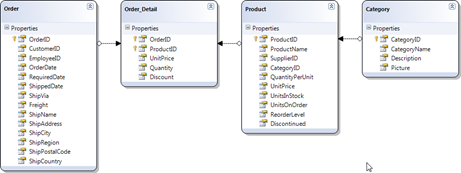
Order_Details relationships

Figure 1 - Order_Details relationships

In this diagram you can see that Product is grouped Category so the CascadingFilter user control would be ideal for picking the product on the Order_Detail Insert page.

Note: You can’t edit the Product on the Order_Detail form because the Primary Key of Order_Detail is OrderID combined with ProductID :D

So in our sample we will be filtering the Product by the Category.

Creating the Website Project and Adding the Files

The first thing to do will be to create a file based website and add the Northwind database to it. This can be done simply (if you have SQL Server Express 2005/2008 installed) by creating a App_Data folder and copying the Northwind.mdb file to it (the Northwind database can be downloaded from here).

Then add an App_Code folder to the website and add a new Linq to SQL classes item it call it NW.dbml and add at lease the above table to it.

Now copy the files listed in the “Files Required for this Project” and add the reference to Dynamic Data Futures project.

Lets add a reference to the Dynamic Data Futures project; I do this by first adding an existing project, you do this by clicking File->Add->Existing Project...
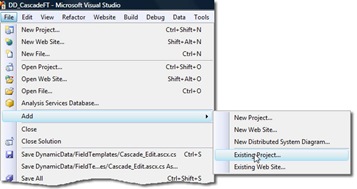
Adding an Existing project

Figure 2 - Adding an Existing project

Browse to the location you have you Dynamic Data Futures project and select the project file.

Now right click the website and choose Add Reference when the dialogue box pops up select the Projects tab and choose the Dynamic Data Futures project and click the OK button.

Your project should now look like Figure 3.
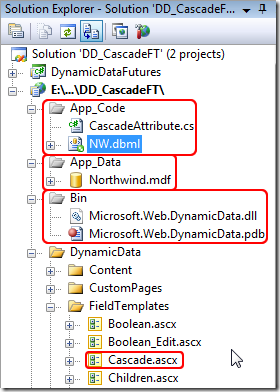
How the project should look after adding the files and references

Figure 3 – How the project should look after adding the files and references

Note: Don’t forget the add your data context to the Global.asax file and set ScaffoldAllTables to true

Modifying the added files

Remove the namespace for the CascadeAttribute.cs file and save that’s done.

Note: Removing the namespace is for file based website only in a Web Application Project you would need to change the namespace to match your applications.

And now lets sort out the Cascade filter. We start by renaming the Cascade.ascx to Cascade_Edit.ascx and then edit both files:

<%@ Control 
    Language="C#" 
    AutoEventWireup="true" 
    CodeFile="Cascade_Edit.ascx.cs" 
    Inherits="Cascade_EditField" %>
<%-- Controls will be added dynamically. See code file. --%>

Listing 1 – Cascade_Edit.ascx

Remove the DynamicDataFuturesSample. from the beginning of the Inherits Control property.

Then edit the Cascade_Edit.ascx.cs file:

namespace DynamicDataFuturesSample
{
    public partial class Cascade_Filter : FilterUserControlBase, ISelectionChangedAware
    {

Listing 2 – Cascade_Edit.ascx.cs

Remove the namespace from around the control class and change the inheritance from FilterUserControlBase, ISelectionChangedAware to FieldTemplateUserControl as in Listing 3.

public partial class Cascade_Filter : FieldTemplateUserControl
{

Listing 3 – Altered Cascade_Edit.ascx.cs

Remove the following section as this is for Filters

public override string SelectedValue
{
    get
    {
        return filterDropDown.SelectedValue;
    }
}

Listing 4 – Remove SelectedValue method

Open ForeignKey_Edit.ascx.cs and copy the following sections to the Cascading_Edit.ascx.cs

protected override void ExtractValues(IOrderedDictionary dictionary)
{
    //...
} public override Control DataControl { //...
}

Listing 5 – Methods to copy from ForeignKey_Edit.ascx.cs

Now Edit the ExtractValues and DataControl methods so they look like Listing 6.

protected override void ExtractValues(IOrderedDictionary dictionary)
{
    // If it's an empty string, change it to null
    string val = filterDropDown.SelectedValue;
    if (val == String.Empty)
        val = null;

    ExtractForeignKey(dictionary, val);
}

public override Control DataControl
{
    get
    {
        return filterDropDown;
    }
}

Listing 6 – Finished ExtractValues and DataControl methods

Note: You will also probably need to add the following using: using System.Collections.Specialized; for the IOrderedDictionary and using System.Web.UI; for the Control.

Adding the Metadata

We have to add the following telling the Cascade FieldTemplate what it needs, it need to know what table to use to filter the main parent table by, in this case the Category table. And we need the UIHint to tell Dynamic Data to use the Cascade FieldTemplate.

using System;
using System.ComponentModel;
using System.ComponentModel.DataAnnotations;
using Microsoft.Web.DynamicData;

[MetadataType(typeof(Order_DetailMD))]
public partial class Order_Detail
{
    public class Order_DetailMD
    {
        [Cascade("Category")]
        [UIHint("Cascade")]
        public object Product { get; set; }
    }
}

Listing 7 – the metadata

One last thing we need to add a Cascade.ascx FieldTemplate to the FieldTemplates folder as there is no way of Dynamic Data knowing what FieldTemplate to use in Read-Only mode. For this we will just copy ForeignKey.ascx as Cascade.ascx and change the class name from ForeignKeyField to CascadeField.

Add some Business Logic/Validation

Because we are using Order_Details table which has a composite primary key see below:
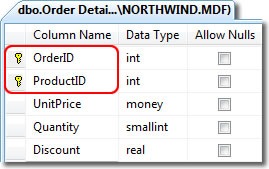
Order Details table

Figure 4 - Order Details table

So we need to add some business logic to validate this before insert.

public partial class NWDataContext
{
    partial void InsertOrder_Detail(Order_Detail instance)
    {
        var DC = new NWDataContext();
        var dk = DC.Order_Details.SingleOrDefault(
            od => od.OrderID == instance.OrderID && od.ProductID == instance.ProductID
            );

        if (dk != null)
        {
            // if a record is found throw an exception
            String error = "Duplicate Primary keys not allowed (OrderID={0} ProductID={1})";
            throw new ValidationException(String.Format(error, instance.OrderID, instance.ProductID));
        }
        else
        {
            // finnaly send to the database
            this.ExecuteDynamicInsert(instance);
        }
    }
}

Listing 8 – InsertOrder_Details partial method

This just checks the database to see if this is a duplicate primary key and if so generates a validation error.
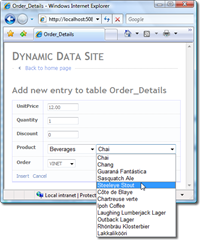
Cascade FieldTemplate in Action 

Figure 5 – Cascade FieldTemplate in Action
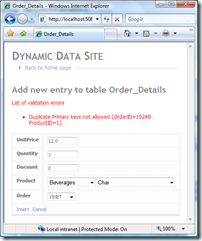
Business Logic in action

Figure 6 – Business Logic in action

Adding Sorting to the Filters DropDownList ***UPDATED***

In the Cascase.ascx.cd FilterControl and Cascade_Edit.ascx.cs FieldTemplate you will find a method GetChildListFilteredByParent this returns the values for the filtered DropDownList, but as you will see this list is an unordered list. To add sorting to this list we need to add a Linq OrderBy clause. As you will see the code in Listing 9 is making use of the Expression class to create an expression tree smile_confused these are not really hard to understand, it’s just that there are so few examples and tutorials for us to get our teeth into.

So what I’ve done here is add a OrderBy clause which does the trick :D

private IQueryable GetChildListFilteredByParent(object selectedParent)
{
    var query = filterTable.GetQuery(context);
    // this make more sense as the parameter now has the table name (filteredTable.Name)
    // note the change from "product" to filterTable.Name
    var parameter = Expression.Parameter(filterTable.EntityType, filterTable.Name);
    // product.Category
    var property = Expression.Property(parameter, filterTableColumnName);
    // selectedCategory
    var constant = Expression.Constant(selectedParent);
    // product.Category == selectedCategory
    var predicate = Expression.Equal(property, constant);
    // product => product.Category == selectedCategory
    var lambda = Expression.Lambda(predicate, parameter);
    // Products.Where(product => product.Category == selectedCategory)
    var whereCall = Expression.Call(typeof(Queryable), "Where", new Type[] { filterTable.EntityType }, query.Expression, lambda);


    //================================== Order by ================================
    if (filterTable.SortColumn != null)
    {
        // this make more sense as the parameter now has the table name (filteredTable.Name)
        // table.sortColumn
        var sortProperty = Expression.Property(parameter, filterTable.SortColumn.Name);

        // Column => Column.SortColumn
        var orderByLambda = Expression.Lambda(sortProperty, parameter);

        //.OrderBy(Column => Column.SortColumn)
        MethodCallExpression orderByCall = Expression.Call(
            typeof(Queryable),
            "OrderBy",
            new Type[] { filterTable.EntityType, filterTable.SortColumn.ColumnType },
            whereCall,
            orderByLambda);


        //{
        //Table(Product).
        //Where(Products => (Products.Category = value(Category))).
        //OrderBy(Products => Products.ProductName)
        //}
        return query.Provider.CreateQuery(orderByCall);
    }//================================== Order by ================================
    else
    {
        return query.Provider.CreateQuery(whereCall);
    }
}

Listing 9 - GetChildListFilteredByParent

The section between the OrderBy comments is mine gleaned from various bits on the Internet, and also I’ve change the return line of the method to return the orderByCall which was whereCall previously.

To make this work you will need to add a DisplayColumn attribute to the metadata with the sort column added see Listing 10.

[MetadataType(typeof(ProductMD))]
[DisplayColumn("ProductName","ProductName")]
public partial class Product{}

Figure 10 – SortColumn added to DisplayColumn

The second parameter of DisplayColumn is the SortColumn when this is added then the GroupBy will be added to the where clause.

Note: You can transplant this code strait into the Cascade Filter as well smile_teeth.
Note: It should be possible to sort the parent DropDownList using a similar method.

And that about wraps it up.

Until next time.smile_teeth

Thursday, 31 July 2008

Dynamic Data Custom Pages Part 5: I18N? Internationalisation Custom Page

As far as I can see there are three (oops! four then and now a 5th) types of Custom Page:

  1. Custom Pages Part 1 - Standard Custom Page based on an existing PageTemplate and customised in the DynamicData\CustomPages folder.
  2. Custom Pages Part 2 - A completely Custom Page again in the DynamicData\CustomPages folder.
  3. Custom Pages Part 3 - Standard ASP.Net Page with Dynamic Data features added to take advantage of the FieldTemplates.
  4. Custom Pages Part 4 - A DetailsView and a GridView using Validation Groups
  5. Custom Pages Part 5 - I18N? Internationalisation Custom Page

When answering this thread here LCID: how to scaffold language dependent fields from separate tables... by Zoltán Lantos from Hungary, I knocked together this CustomPage and thought it was worth blogging about and so add a 5th post the my Three post series on Custom Pages.

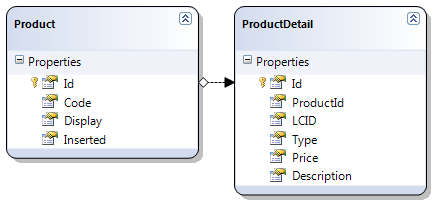
The model

Figure 1 – the model

This works by filtering the LCID column by the users current culture, so there is a row in ProductDetails for each culture/language.

The requirements for this little project were:

  1. Admin to be able to see in a tabbed like layout all the ProductDetails foreach culture.
  2. The normal user to be able to see their ProductDetails in their own culture.

The FieldTemplates

Here are the FieldTemplates for editing and displaying the records culture here.

<%@ Control 
    Language="C#" 
    CodeFile="LCID_Edit.ascx.cs" 
    Inherits="LCID_EditField" %>

<asp:DropDownList 
    runat="server" 
    ID="DropDownList1" 
    CssClass="droplist" 
    ondatabound="DropDownList1_DataBound">
</asp:DropDownList>

Listing 1 – LCID_Edit.ascx

using System;
using System.Collections.Specialized;
using System.Globalization;
using System.Linq;
using System.Web.UI;
using System.Web.UI.WebControls;

public partial class LCID_EditField : System.Web.DynamicData.FieldTemplateUserControl
{
    protected override void OnDataBinding(EventArgs e)
    {
        base.OnDataBinding(e);

        // use linq to get a list of cultures to display in the drop down list
        var cultures = from c in CultureInfo.GetCultures(CultureTypes.NeutralCultures)
                       select new
                       {
                           Lcid = c.TwoLetterISOLanguageName,
                           Name = c.TwoLetterISOLanguageName + " - " + c.EnglishName
                       };

        // setup the drop down list
        DropDownList1.DataSource = cultures;
        DropDownList1.DataValueField = "Lcid";
        DropDownList1.DataTextField = "Name";
        DropDownList1.DataBind();
    }

    protected void DropDownList1_DataBound(object sender, EventArgs e)
    {
        // check the FieldValueString is not null
        if (String.IsNullOrEmpty(FieldValueString))
        {
            // set it to the culture of the client session
            DropDownList1.SelectedValue = CultureInfo.CurrentCulture.TwoLetterISOLanguageName;
        }
        else
        {
            // set the drop down list to the current vlaue
            DropDownList1.SelectedValue = FieldValueString;
        }
    }

    protected override void ExtractValues(IOrderedDictionary dictionary)
    {
        // get selected value
        dictionary[Column.Name] = ConvertEditedValue(DropDownList1.SelectedValue);
    }

    public override Control DataControl
    {
        get
        {
            return DropDownList1;
        }
    }
}

Listing 2 – LCID_Edit.ascx.cs code behind file

As you can see from the code above all we are doing is populating a DropDownList with all the cultures from CultureInfo.GetCultures of type CultureTypes.NeutralCultures using Linq smile_teeth to get them in an anonymous type.

And here is the much simpler LCID.ascx FieldTemplate:

protected override void OnDataBinding(EventArgs e)
{
    base.OnDataBinding(e);

    // use linq to get a list of cultures to display in the drop down list
    var culture = CultureInfo.GetCultures(CultureTypes.NeutralCultures).SingleOrDefault(c => c.TwoLetterISOLanguageName == FieldValueString);
    Label1.Text = culture.TwoLetterISOLanguageName + " - " + culture.EnglishName;
}

Listing 3 – LCID.ascx FieldTemplate OnDataBinding event handler

As you can see all the LCID.ascx is is a Label and the OnDataBinding event handler.

The Metadata and Partial Classes

I’m just going to paste them here and give detailed explanation as we go along
using System;
using System.Collections.Generic;
using System.Linq;
using System.Web;
using System.ComponentModel;
using System.ComponentModel.DataAnnotations;

public partial class ProductsDataContext
{
    // Implement the InsertProductDetail to do insert validation
    partial void InsertProductDetail(ProductDetail instance)
    {
        var DC = new ProductsDataContext();
        if (DC.ProductDetails.SingleOrDefault(pc => (pc.ProductId == instance.ProductId && pc.LCID == instance.LCID)) != null)
        {
            // Throw an exception if a match is found
            throw new ValidationException("Duplicate culture per Product is not permitted");
        }
        else
        {
            // finally send this to the DB
            this.ExecuteDynamicInsert(instance);
        }
    }
}

[MetadataType(typeof(ProductDetailMD))]
public partial class ProductDetail
{
    public class ProductDetailMD
    {
        [UIHint("LCID")]
        public object LCID { get; set; }
    }
}

Listing 4 – Metadata and Partial classes

As you can see we two parts to the ProductsMD.cs file; the first part check for duplicate languages/culture on a product and the second part adds the UIHint to the LCID column.

The Products Edit page

Here’s a snapshot of the finished page:

Screen shot of the finished page

Figure 1 - Screen shot of the finished page

There are three part to the page;

  1. A DetailsView for the Product
  2. A ListView for the “tab” control (it could be styled to look like tabs using css if you wanted to)
  3. A FromView and GridvView for the ProductDetails

1. A DetailsView for the Product 

Is strait forward enough and I started with a normal Edit.aspx Page Template and then added all the other components.

2. A ListView for the “tab” control

To do this at first I thought of using the Ajax Toolkit Tab control and embedding it in a ListView but that was a no go as you could not break apart the individual part between different ListView templates. So I finally opted for a ListView with LinkButtons as Select commands, each row only has a Select button in it.

3. A FromView and GridvView for the ProductDetails

The FormView is used for inserting and the GridView is used for editing and displaying ProductDetails.

So here’s the code for the page and the code behind.

<%@ Page Language="C#" MasterPageFile="~/Site.master" CodeFile="Edit.aspx.cs" Inherits="Edit" %>

<asp:Content ID="Content1" ContentPlaceHolderID="ContentPlaceHolder1" runat="Server">

    <asp:DynamicDataManager 
        runat="server" 
        ID="DynamicDataManager1" 
        AutoLoadForeignKeys="true" />
        
    <h2>Edit entry from table <%= mtProducts.DisplayName %></h2>
    
    <asp:ScriptManagerProxy 
        runat="server" 
        ID="ScriptManagerProxy1" />
    
    <asp:UpdatePanel 
        runat="server" 
        ID="UpdatePanel1">
    
        <ContentTemplate>
            <asp:ValidationSummary 
                runat="server" 
                ID="ValidationSummary1" 
                EnableClientScript="true"
                HeaderText="List of validation errors" />
                
            <asp:DynamicValidator 
                runat="server" 
                ID="DetailsViewValidator" 
                ControlToValidate="DetailsView1"
                Display="None" />
                
            <asp:DetailsView 
                runat="server" 
                ID="DetailsView1" 
                DataSourceID="ldsProducts"
                DefaultMode="Edit" 
                AutoGenerateEditButton="True" 
                OnItemCommand="DetailsView1_ItemCommand"
                OnItemUpdated="DetailsView1_ItemUpdated" 
                CssClass="detailstable" 
                FieldHeaderStyle-CssClass="bold" 
                AutoGenerateRows="False" 
                DataKeyNames="Id">
                <FieldHeaderStyle CssClass="bold" />
                <Fields>
                    <asp:DynamicField DataField="Code" />
                    <asp:DynamicField DataField="Display" />
                    <asp:DynamicField DataField="Inserted" />
                </Fields>
            </asp:DetailsView>
            
            <asp:LinqDataSource 
                runat="server" 
                ID="ldsProducts" 
                ContextTypeName="ProductsDataContext" 
                TableName="Products" 
                EnableUpdate="True">
                <WhereParameters>
                    <asp:DynamicQueryStringParameter />
                </WhereParameters>
            </asp:LinqDataSource>
            
            <h2>Cultures</h2>

            <asp:ListView 
                runat="server" 
                ID="lvLanguages" 
                DataSourceID="ldsLanguages" 
                DataKeyNames="LCID" 
                OnItemCommand="lvLanguages_ItemCommand">
                
                <LayoutTemplate>
                    <div>
                        <span id="itemPlaceHolder" runat="server"></span>
                        <asp:LinkButton 
                            runat="server" 
                            ID="lvLanguagesInsert" 
                            CommandName="InsertProductDetail" 
                            CommandArgument="LCID" 
                            CausesValidation="false">
                            add new
                        </asp:LinkButton>
                        <asp:Label 
                            runat="server"
                            ID="InsertLabel" 
                            Visible="false"> 
                            <strong>add new</strong>
                        </asp:Label>
                    </div>
                </LayoutTemplate>
                
                <ItemTemplate>
                    <asp:LinkButton 
                        runat="server" 
                        Text='<%# Eval("LCID") %>' 
                        CommandName="Select" 
                        CausesValidation="false">
                    </asp:LinkButton>
                </ItemTemplate>
                
                <SelectedItemTemplate>
                 <strong><%# Eval("LCID") %></strong>
                </SelectedItemTemplate>
                
            </asp:ListView>
            
            <asp:LinqDataSource 
                runat="server" 
                ID="ldsLanguages" 
                ContextTypeName="ProductsDataContext" 
                TableName="ProductDetails" 
                Where="ProductId == @ProductId" 
                GroupBy="LCID" 
                Select="new (key as LCID, it as ProductDetails)" 
                OrderGroupsBy="key">
                <WhereParameters>
                    <asp:ControlParameter 
                        ControlID="DetailsView1" 
                        Name="ProductId" 
                        PropertyName="SelectedValue" 
                        Type="Int32" />
                </WhereParameters>
            </asp:LinqDataSource>
            
            <br /><br />
            
            <asp:DynamicValidator 
                runat="server" 
                ID="GridViewDynamicValidator" 
                ControlToValidate="GridView1"
                Display="None" />
                
            <asp:GridView 
                runat="server" 
                ID="GridView1" 
                AutoGenerateColumns="False" 
                CssClass="gridview" 
                DataKeyNames="Id" 
                DataSourceID="ldsProductDetails" 
                OnRowDeleted="GridView1_RowDeleted">
                <Columns>
                    <asp:CommandField 
                        ShowEditButton="True" 
                        ShowDeleteButton="True" />
                    <asp:DynamicField DataField="LCID" />
                    <asp:DynamicField DataField="Type" />
                    <asp:DynamicField DataField="Price" />
                    <asp:DynamicField DataField="Description" />
                </Columns>
            </asp:GridView>
            
            <asp:DynamicValidator 
                runat="server" 
                ID="ProductDetailDynamicValidator" 
                ControlToValidate="fvProductDetail"
                ValidationGroup="ProductDetailsList_Insert"
                Display="None" />
                
            <asp:FormView 
                runat="server"
                ID="fvProductDetail"
                CssClass="gridview"
                DefaultMode="Insert" 
                Visible="false"
                DataSourceID="ldsProductDetails" 
                OnItemInserted="fvProductDetail_ItemInserted" 
                onitemcommand="fvProductDetail_ItemCommand">
                
                <InsertItemTemplate>
                        <thead>
                            <tr>
                                <th>
                                </th>
                                <th>
                                    LCID
                                </th>
                                <th>
                                    Type
                                </th>
                                <th>
                                    Price
                                </th>
                                <th>
                                    Description
                                </th>
                            </tr>
                        </thead>
                        <tbody>
                            <tr>
                                <td>
                                    <asp:LinkButton 
                                        runat="server" 
                                        ID="InsertLinkButton" 
                                        CommandName="Insert">
                                        Insert
                                    </asp:LinkButton>
                                    <asp:LinkButton 
                                        runat="server" 
                                        ID="CancelLinkButton" 
                                        CausesValidation="false" 
                                        CommandName="Cancel">
                                        Cancel
                                    </asp:LinkButton>
                                </td>
                                <td>
                                    <asp:DynamicControl 
                                        ID="DynamicControl1" 
                                        DataField="LCID" 
                                        Mode="Insert" 
                                        runat="server" />
                                </td>
                                <td>
                                    <asp:DynamicControl 
                                        ID="DynamicControl2" 
                                        DataField="Type" 
                                        Mode="Insert" 
                                        runat="server" />
                                </td>
                                <td>
                                    <asp:DynamicControl 
                                        ID="DynamicControl3" 
                                        DataField="Price" 
                                        Mode="Insert" 
                                        runat="server" />
                                </td>
                                <td>
                                    <asp:DynamicControl 
                                        ID="DynamicControl4" 
                                        DataField="Description" 
                                        Mode="Insert" 
                                        runat="server" />
                                </td>
                            </tr>
                        </tbody>
                </InsertItemTemplate>
            </asp:FormView>
            
            <asp:LinqDataSource 
                runat="server" 
                ID="ldsProductDetails" 
                ContextTypeName="ProductsDataContext" 
                TableName="ProductDetails" 
                Where="LCID == @LCID &amp;&amp; ProductId == @ProductId" 
                EnableDelete="True" 
                EnableInsert="True" 
                EnableUpdate="True" 
                OnInserting="ldsProductDetails_Inserting">
                <WhereParameters>
                    <asp:ControlParameter 
                        ControlID="lvLanguages" 
                        Name="LCID" 
                        PropertyName="SelectedValue" 
                        Type="String" />
                    <asp:ControlParameter 
                        ControlID="DetailsView1" 
                        Name="ProductId" 
                        PropertyName="SelectedValue" 
                        Type="Int32" />
                </WhereParameters>
            </asp:LinqDataSource>
            
        </ContentTemplate>
    </asp:UpdatePanel>
</asp:Content>

Listing 5 – Edit.aspx Products page

using System;
using System.Web.DynamicData;
using System.Web.UI.WebControls;

public partial class Edit : System.Web.UI.Page
{
    protected MetaTable mtProducts;
    protected MetaTable mtProductDetails;

    protected void Page_Init(object sender, EventArgs e)
    {
        DynamicDataManager1.RegisterControl(DetailsView1, true);
        DynamicDataManager1.RegisterControl(GridView1);
        DynamicDataManager1.RegisterControl(fvProductDetail);
    }

    protected void Page_Load(object sender, EventArgs e)
    {
        mtProducts = ldsProducts.GetTable();
        mtProductDetails = ldsProductDetails.GetTable();
        Title = mtProducts.DisplayName;

        // set the first item to be selected
        lvLanguages.SelectedIndex = 0;
    }

    protected void DetailsView1_ItemCommand(object sender, DetailsViewCommandEventArgs e)
    {
        // redirect to the List page when cancel clicked
        if (e.CommandName == DataControlCommands.CancelCommandName)
        {
            Response.Redirect(mtProducts.ListActionPath);
        }
    }

    protected void DetailsView1_ItemUpdated(object sender, DetailsViewUpdatedEventArgs e)
    {
        // redirect to the List page when update clicked
        if (e.Exception == null || e.ExceptionHandled)
        {
            Response.Redirect(mtProducts.ListActionPath);
        }
    }

    protected void lvLanguages_ItemCommand(object sender, ListViewCommandEventArgs e)
    {
        // toggel the view between Insert and Edit/Display
        var insertButton = (LinkButton)lvLanguages.FindControl("lvLanguagesInsert");
        var insertLabel = (Label)lvLanguages.FindControl("InsertLabel");
        if (e.CommandName == "InsertProductDetail")
        {
            GridView1.Visible = false;
            lvLanguages.SelectedIndex = -1;
            fvProductDetail.Visible = true;
            insertButton.Visible = false;
            insertLabel.Visible = true;
        }
        if (e.CommandName == "Select")
        {
            GridView1.Visible = true;
            lvLanguages.SelectedIndex = 0;
            fvProductDetail.Visible = false;
            insertButton.Visible = true;
            insertLabel.Visible = false;
        }
    }

    protected void GridView1_RowDeleted(object sender, GridViewDeletedEventArgs e)
    {
        // when an item is deleted the redirect back 
        // to the same page with the current id
        if (e.Exception == null || e.ExceptionHandled)
        {
            var s = DetailsView1.DataKey.Value.ToString();
            var s1 = mtProducts.GetActionPath(PageAction.Edit) + @"?Id=" + s;
            Response.Redirect(s1);
        }
    }

    protected void fvProductDetail_ItemInserted(object sender, FormViewInsertedEventArgs e)
    {
        // when an item is inserted the redirect back 
        // to the same page with the current id
        if (e.Exception == null || e.ExceptionHandled)
        {
            var s = DetailsView1.DataKey.Value.ToString();
            var s1 = mtProducts.GetActionPath(PageAction.Edit) + @"?Id=" + s;
            Response.Redirect(s1);
        }
    }

    protected void fvProductDetail_ItemCommand(object sender, FormViewCommandEventArgs e)
    {
        // on the cancel button being presed return the page normal state
        var insertButton = (LinkButton)lvLanguages.FindControl("lvLanguagesInsert");
        var insertLabel = (Label)lvLanguages.FindControl("InsertLabel");
        if (e.CommandName == "Cancel")
        {
            GridView1.Visible = true;
            lvLanguages.SelectedIndex = 0;
            fvProductDetail.Visible = false;
            insertButton.Visible = true;
            insertLabel.Visible = false;
        }
    }

    protected void ldsProductDetails_Inserting(object sender, LinqDataSourceInsertEventArgs e)
    {
        // add the ProductId from the DetailsView
        ((ProductDetail)e.NewObject).ProductId = (int)DetailsView1.DataKey.Value;
    }
}

Listing 6 – Edit.aspx.cs code behind for ProductDetails

The comments should explain what is happening.

Thanks for reading smile_teeth

Note: That requirement number 2 should be trivial in that all you need is a custom page with a DetailView and a FormView and adding a WHERE parameter to the LinqDataSource limiting the data to the clients culture.

UPDATE

I’ve just had a thought and decided to add it here :D

I’ve re done the ListView Tabs and added some tool tips:

<asp:ListView 
    runat="server" 
    ID="lvLanguages" 
    DataSourceID="ldsLanguages" 
    DataKeyNames="LCID" 
    OnItemCommand="lvLanguages_ItemCommand">
    
    <LayoutTemplate>
        <div>
            <span id="itemPlaceHolder" runat="server"></span>
            <asp:LinkButton 
                runat="server" 
                ID="lvLanguagesInsert"
                ToolTip="Insert new Product Decription"
                CommandName="InsertProductDetail" 
                CommandArgument="LCID" 
                CausesValidation="false">
                add new
            </asp:LinkButton>
            <asp:Label 
                runat="server"
                ID="InsertLabel" 
                ToolTip="Insert new Product Decription"
                Visible="false"> 
                <strong>add new</strong>
            </asp:Label>
        </div>
    </LayoutTemplate>
    
    <ItemTemplate>
        <asp:LinkButton 
            runat="server" 
            Text='<%# Eval("LCID") %>' 
            CommandName="Select" 
            ToolTip='<%# Eval("Name") %>'
            CausesValidation="false">
        </asp:LinkButton>
    </ItemTemplate>
    
    <SelectedItemTemplate>
     <strong title='<%# Eval("Name") %>'><%# Eval("LCID") %></strong>
    </SelectedItemTemplate>
    
</asp:ListView>

<asp:LinqDataSource 
    runat="server" 
    ID="ldsLanguages"
    OnSelecting="ldsLanguages_Selecting">
    <WhereParameters>
    </WhereParameters>
</asp:LinqDataSource>

Listing 7 – Update ListView and associated LinqDataSource

protected void ldsLanguages_Selecting(object sender, LinqDataSourceSelectEventArgs e)
{
    var DC = new ProductsDataContext();

    var productCultures = from pdc in DC.ProductDetails
                          where pdc.ProductId == (int)DetailsView1.DataKey.Value
                          select pdc;

    var cultureDetails = from pd in productCultures.ToArray()
                         join pc in CultureInfo.GetCultures(CultureTypes.NeutralCultures) on 
                            pd.LCID equals pc.TwoLetterISOLanguageName
                         select new
                         {
                             LCID = pd.LCID,
                             Name = pc.EnglishName
                         };

    e.Result = cultureDetails;
}

Listing 8 – Selecting event handler for the ldsLanguages LinqDataSource

What I’ve done is taken the data from the SQL tables and merged it with the CultureInfo to produce a list of cultures plus their English names. Note I’ve removed the WHERE parameters etc from the LinqDataSource and added the OnSelecting event handler.

Yet another neat use of Linq smile_teeth Yes I could have done a separate article on this but I though it fitted well here.