- Part 1 - FileImage_Edit FieldTemplate
- Part 2 - FileImage_Edit FieldTemplate
This post come from this thread Anyone know how to use the FileImageAPI Edit Funtionality? on ASP.Net Dynamic Data forum in which proposed two solutions to the issue the in DynamicDataFutures there was no FileImage_Edit FieldTemplate.
Here are my proposed solutions:
- Get a list of images from the specified folder [ImageUrl("~/images/{0}.png")] and let the user choose
- Let the user upload the file to the [ImageUrl("~/images/{0}.png")] folder and the pass the filename to the DB field.
Solution 1
<%@ Control Language="C#" AutoEventWireup="true" CodeFile="FileImage1_Edit.ascx.cs"
    Inherits="FileImage1_Edit" %>
<asp:RadioButtonList ID="RadioButtonList1" runat="server"
    RepeatDirection="Horizontal"
    RepeatLayout="Flow">
</asp:RadioButtonList>
Listing 1 - FileImage.ascx
using System;
using System.Collections.Specialized;
using System.IO;
using System.Linq;
using System.Web.DynamicData;
using System.Web.UI;
using System.Web.UI.WebControls;
using Microsoft.Web.DynamicData;

public partial class FileImage1_Edit : FieldTemplateUserControl
{
    public override Control DataControl
    {
        get
        {
            return RadioButtonList1;
        }
    }

    protected override void OnDataBinding(EventArgs e)
    {
        base.OnDataBinding(e);

        //check if image exists
        if (FieldValue == null)
            return;

        //format image url
        string url;
        var imageUrlAttribute = MetadataAttributes.OfType<ImageUrlAttribute>().FirstOrDefault();
        if (imageUrlAttribute == null || String.IsNullOrEmpty(imageUrlAttribute.UrlFormat))
            return;

        // get images folder
        String imagesDir = imageUrlAttribute.UrlFormat.Substring(0, imageUrlAttribute.UrlFormat.LastIndexOf("/") + 1);

        // get a list of images in the ImageUrlAttribute folder
        var dirInfo = new DirectoryInfo(Server.MapPath(imagesDir));
        var imagesFolder = ResolveUrl(imagesDir);
        var files = dirInfo.GetFiles();

        var imageFormat = MetadataAttributes.OfType <ImageFormatAttribute>().FirstOrDefault();

        if (imageFormat != null)
        {// use attributed DisplayWidth and DisplayHeight to size the images
            foreach (FileInfo file in files)
            {
                String img = String.Format
                    (
                        "<img src='{0}' alt='{1}' width='{2}' height='{3}' />",
                        imagesFolder + file.Name,
                        file.Name.Substring(0, file.Name.LastIndexOf(".")),
                        imageFormat.DisplayWidth,
                        imageFormat.DisplayHeight
                    );
                // embed image in the radio button
                var li = new ListItem(img, file.Name);
                this.RadioButtonList1.Items.Add(li);
            }
        }
        else
        { // if no ImageFormatAttribute don't resize images
            foreach (FileInfo file in files)
            {
                String img = String.Format
                    (
                        "<img src='{0}' alt='{1}' />",
                        imagesFolder + file.Name,
                        file.Name.Substring(0, file.Name.LastIndexOf("."))
                    );
                // embed image in the radio button
                var li = new ListItem(img, file.Name);
                this.RadioButtonList1.Items.Add(li);
            }
        }
    }

    protected override void ExtractValues(IOrderedDictionary dictionary)
    {
        dictionary[Column.Name] = RadioButtonList1.SelectedValue;
    }

    protected void RadioButtonList1_DataBound(object sender, EventArgs e)
    {
        if (FieldValue != null)
        {// if FieldValue has a value then set currently selected image
            var selectedImage = ((String)FieldValue).Substring(0, ((String)FieldValue).LastIndexOf("."));
            for (int i = 0; i < RadioButtonList1.Items.Count; i++)
            {
                // set select image
                if (selectedImage == RadioButtonList1.Items[i].Value)
                {
                    RadioButtonList1.Items[i].Selected = true;
                    break; // break out of the loop only one can be selected.
                }
            }
        }
    }
}
Listing 2 - CodeBehind for FileImage_Edit.ascx
In the OnDataBinding event handler we setup RadioButtonList1 with embedded images form the folder specified in ImageUrlAttribute. When the ListItem is created the value string is set to the filename including extension, so only the filename and not the path is stored. Then in the RadioButtonList1_DataBound event handler the currently selected image is set if FieldValue is not null. In the ExtractValues method of the FieldTemplate it is a simple matter of getting the RadioButtonList1.SelectedValue to return the user selected image.
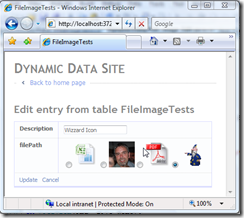
Figure 1 – Select Image Method
Solution 2
In this solution I decided that FileImage_Edit FieldTemplate needed to handle both scenarios, so I have created some more Attributes.
using System;
using System.Text;

// attribute to determin what mode the FileImage_Edit is in
// the default is Select.
[AttributeUsage(AttributeTargets.Property, AllowMultiple = false)]
public sealed class FileImageAttribute : Attribute
{
    public FileImageAttribute(EditorType edit)
    {
        Edit = edit;
    }

    public EditorType Edit { get; set; }

    // Editor Type
    public enum EditorType
    {
        Select,
        Upload
    }
}

// a way of specifying which extension type to accept
[AttributeUsage(AttributeTargets.Property, AllowMultiple = false)]
public sealed class FileImageTypesAttribute : Attribute
{
    public FileImageTypesAttribute()
    {
        ImageTypes = DefaultExtensions;
    }

    public FileImageTypesAttribute(params String[] imageTypes)

        if (imageTypes.Length > 0)
        {
            ImageTypes = imageTypes;
        }
        else
        {
            ImageTypes = DefaultExtensions;
        }
    }

    public String[] ImageTypes { get; set; }

    // default extensions
    public static String[] DefaultExtensions
    {
        get { return new String[] { "gif", "png", "jpeg", "jpg" }; }
    }

    public String ToString()
    {
        StringBuilder extensions = new StringBuilder();

        foreach (var ext in ImageTypes)
        {
            extensions.Append(ext + ", ");
        }
        return extensions.ToString().Substring(0, extensions.Length - 2);
    }
}
Listing 3 - FileImageAttributes.cs
Here we have two new attribute form the FileImage_Edit FieldTemplate.
- FileImageAttribute - this allows the selecting of one of two edit modes Select and Upload
e.g. [FileImage(FileImageAttribute.EditorType.Upload)] which set the control to use the FileUpload to get new files and save them in to the folder specified by ImageUrlAttribute which is now REQUIRED otherwise an error is generated.
- FileImageTypesAttribute - Allows the specifying of a list of file extensions to match the uploaded file against.
Next in the FileImage_Edit.ascx we add a PlaceHolder with an Image, a FileUpload control and a CustomValidator to handle any errors generated by the FieldTemplate when uploading files.
The kinds of error we want to trap are:
- Any upload error such as file not found etc.
- File types that don't match any of the file extensions supplied.
- If a file is not an image file.
These error type need to be displayed in the same way other errors are shown in Dynamic Data.
<%@ Control Language="C#" AutoEventWireup="true" CodeFile="FileImage_Edit.ascx.cs"
    Inherits="FileImage_Edit" %>
<asp:RadioButtonList ID="RadioButtonList1" runat="server"
    RepeatDirection="Horizontal"
    RepeatLayout="Flow">
</asp:RadioButtonList>
<asp:PlaceHolder ID="PlaceHolderImage" runat="server" Visible="false">
    <asp:Image ID="ImageEdit" runat="server" /><br />
</asp:PlaceHolder>
<asp:FileUpload ID="FileUploadEdit" runat="server" Visible="false" />
<asp:CustomValidator ID="CustomValidator1" runat="server"
    ErrorMessage="">
</asp:CustomValidator>
Listing 4 - new FileImage_Edit.ascx
using System;
using System.Collections.Specialized;
using System.IO;
using System.Linq;
using System.Web.DynamicData;
using System.Web.UI;
using System.Web.UI.WebControls;
using Microsoft.Web.DynamicData;

public partial class FileImage_Edit : FieldTemplateUserControl
{
    public override Control DataControl
    {
        get
        {
            return RadioButtonList1;
        }
    }

    protected void Page_Load(object sender, EventArgs e)
    {
        // add CustomValidator1's event handler
        CustomValidator1.ServerValidate += new ServerValidateEventHandler(CustomValidator1_ServerValidate);
        RadioButtonList1.DataBound += new EventHandler(RadioButtonList1_DataBound);
    }

    void CustomValidator1_ServerValidate(object source, ServerValidateEventArgs args)
    {
        var fileImage = MetadataAttributes.OfType<FileImageAttribute>().FirstOrDefault();

        if (fileImage.Edit == FileImageAttribute.EditorType.Select)
            return; // don't bother with the validator if in Select mode

        var imageUrlMetadata = MetadataAttributes.OfType<ImageUrlAttribute>().FirstOrDefault();
        if (FileUploadEdit.HasFile && imageUrlMetadata != null && !String.IsNullOrEmpty(imageUrlMetadata.UrlFormat))
        {
            String imagesDir = imageUrlMetadata.UrlFormat.Substring(0, imageUrlMetadata.UrlFormat.LastIndexOf("/") + 1);
            if (String.IsNullOrEmpty(imagesDir)) imagesDir = "~/images";

            String path = Server.MapPath(imagesDir);
            String fileExtension = FileUploadEdit.FileName.Substring(FileUploadEdit.FileName.LastIndexOf(".") + 1).ToLower();
            var extensions = MetadataAttributes.OfType<FileImageTypesAttribute>().FirstOrDefault();

            String[] allowedExtensions = extensions.ImageTypes.Length > 0
                ? extensions.ImageTypes : FileImageTypesAttribute.DefaultExtensions;

            if (allowedExtensions.Contains(fileExtension))
            {
                var bytes = FileUploadEdit.FileBytes;
                try
                {
                    var a = System.Drawing.Image.FromStream(new MemoryStream(bytes));
                }
                catch
                {
                    // catch any error when user tries to load a file that
                    // is not an image recognised by System.Drawing
                    args.IsValid = false;
                    CustomValidator1.ErrorMessage = "Not an Image, must be one of the following types: " + extensions.ToString();
                }
            }
            else
            {
                // Raise an error if the files extensionf does not match the allowed extensions
                args.IsValid = false;
                CustomValidator1.ErrorMessage = "Not correct Image type, must be one of the following types: " + extensions.ToString();
            }
        }
        else
        {
            // no file to download you decide wether this is a valid error
            // to throw comment out
            if (!FileUploadEdit.HasFile)
            {
                args.IsValid = false;
                CustomValidator1.ErrorMessage = "No file to download";
            }

            // the ImageUrlAttribute is required to work in either select or upload edit mode
            if (imageUrlMetadata == null || String.IsNullOrEmpty(imageUrlMetadata.UrlFormat))
            {
                args.IsValid = false;
                CustomValidator1.ErrorMessage = "ImageUrl attribute missing.";
            }
        }
    }

    protected override void OnDataBinding(EventArgs e)
    {
        base.OnDataBinding(e);

        var fileImage = MetadataAttributes.OfType<FileImageAttribute>().FirstOrDefault();
        var imageUrlMetadata = MetadataAttributes.OfType<ImageUrlAttribute>().FirstOrDefault();

        if (imageUrlMetadata == null || String.IsNullOrEmpty(imageUrlMetadata.UrlFormat))
        {
            CustomValidator1.IsValid = false;
            CustomValidator1.ErrorMessage = String.Format("An ImageUrlAttribute is required on the column '{0}' for the FileImage_Edit FieldTemplate to work.", Column.Name);
            return; // the ImageUrlAttribute is a required attribute need to throw an error
        }

        // get images folder
        String imagesDir = imageUrlMetadata.UrlFormat.Substring(0, imageUrlMetadata.UrlFormat.LastIndexOf("/") + 1);
        if (String.IsNullOrEmpty(imagesDir))
            imagesDir = "~/images";

        var imageFormat = MetadataAttributes.OfType<ImageFormatAttribute>().FirstOrDefault();

        switch (fileImage.Edit)
        {
            case FileImageAttribute.EditorType.Upload:
                FileUploadEdit.Visible = true;
                if (FieldValue == null)
                    return;
                String fileName = (String)FieldValue;
                ImageEdit.ImageUrl = imagesDir + "/" + fileName;


                if (imageFormat != null)
                {
                    ImageEdit.Width = imageFormat.DisplayWidth;
                    ImageEdit.Height = imageFormat.DisplayHeight;
                }
                PlaceHolderImage.Visible = true;
                break;
            case FileImageAttribute.EditorType.Select:
            default:
                FileUploadEdit.Visible = false;

                var dirInfo = new DirectoryInfo(Server.MapPath(imagesDir));
                if (!dirInfo.Exists)
                    dirInfo.Create(); // if directory does not exist then create it

                // get a list of images in the ImageUrlAttribute folder
                var imagesFolder = ResolveUrl(imagesDir);
                var files = dirInfo.GetFiles();

                if (imageFormat != null)
                {// size image to ImageFormatAttribute
                    foreach (FileInfo file in files)
                    {
                        String img = String.Format
                            (
                                "<img src='{0}' alt='{1}' width='{2}' height='{3}' />",
                                imagesFolder + file.Name,
                                file.Name.Substring(0, file.Name.LastIndexOf(".")),
                                imageFormat.DisplayWidth,
                                imageFormat.DisplayHeight
                            );
                        // embed image in the radio button
                        var li = new ListItem(img, file.Name);
                        this.RadioButtonList1.Items.Add(li);
                    }
                }
                else
                {// if no ImageFormatAttribute supplied the do not resize image
                    foreach (FileInfo file in files)
                    {
                        String img = String.Format
                            (
                                "<img src='{0}' alt='{1}' />",
                                imagesFolder + file.Name,
                                file.Name.Substring(0, file.Name.LastIndexOf("."))
                            );
                        // embed image in the radio button
                        var li = new ListItem(img, file.Name);
                        this.RadioButtonList1.Items.Add(li);
                    }
                }
                break;
        }
    }

    protected override void ExtractValues(IOrderedDictionary dictionary)
    {
        // get Edit type Select or Upload
        var fileImage = MetadataAttributes.OfType<FileImageAttribute>().FirstOrDefault();
        switch (fileImage.Edit)
        {
            case FileImageAttribute.EditorType.Upload:
                var imageUrlMetadata = MetadataAttributes.OfType<ImageUrlAttribute>().FirstOrDefault();

                if (FileUploadEdit.HasFile && imageUrlMetadata != null && !String.IsNullOrEmpty(imageUrlMetadata.UrlFormat))
                {
                    // get the
                    String imagesDir = imageUrlMetadata.UrlFormat.Substring(0, imageUrlMetadata.UrlFormat.LastIndexOf("/") + 1);
                    if (String.IsNullOrEmpty(imagesDir))
                        imagesDir = "~/images";

                    // resolve full path c:\... etc
                    String path = Server.MapPath(imagesDir);

                    // get files extension without the dot
                    String fileExtension = FileUploadEdit.FileName.Substring(FileUploadEdit.FileName.LastIndexOf(".") + 1).ToLower();

                    // get allowed extensions
                    var extensions = MetadataAttributes.OfType<FileImageTypesAttribute>().FirstOrDefault();
                    String[] allowedExtensions = extensions.ImageTypes.Length > 0
                        ? extensions.ImageTypes : FileImageTypesAttribute.DefaultExtensions;

                    if (allowedExtensions.Contains(fileExtension))
                    {
                        // try to upload the file showing error if it fails
                        try
                        {
                            FileUploadEdit.PostedFile.SaveAs(path + "\\" + FileUploadEdit.FileName);
                            ImageEdit.ImageUrl = imagesDir + "/" + FileUploadEdit.FileName;
                            ImageEdit.AlternateText = FileUploadEdit.FileName;
                            dictionary[Column.Name] = FileUploadEdit.FileName;
                        }
                        catch (Exception ex)
                        {
                            // display error
                            CustomValidator1.IsValid = false;
                            CustomValidator1.ErrorMessage = ex.Message;
                            dictionary[Column.Name] = null;
                        }
                    }
                }
                else
                {
                    // retrun null if no file or ImageUrlAttribute is null or empty
                    dictionary[Column.Name] = null;
                }
                break;
            case FileImageAttribute.EditorType.Select:
            default:
                // return currently selected item
                dictionary[Column.Name] = RadioButtonList1.SelectedValue;
                break;
        }
    }

    protected void RadioButtonList1_DataBound(object sender, EventArgs e)
    {
        var fileImage = MetadataAttributes.OfType<FileImageAttribute>().FirstOrDefault();
        if (FieldValue != null && fileImage.Edit == FileImageAttribute.EditorType.Select)
        {
            //var selectedImage = (String)FieldValue;
            RadioButtonList1.Enabled = true;

            for (int i = 0; i < RadioButtonList1.Items.Count; i++)
            {
                // set select image
                if ((String)FieldValue == RadioButtonList1.Items[i].Value)
                {
                    RadioButtonList1.Items[i].Selected = true;
                    break;
                }
            }
        }
    }
}
Listing 5 - the code behind for FileImage_Edit.aspx
The code from Listing 5 has been split into two sections by the switch statement as you can see it is switching on fileImage.Edit which is of type FileImageAttribute.EditorType and select drops through to default so if no attribute is set then select will be used.
switch (fileImage.Edit)
{
    case FileImageAttribute.EditorType.Upload:
        // do upload stuff here
        break;
    case FileImageAttribute.EditorType.Select:
    default:
        // do select stuff here
        break;
}
Listing 6 - switch code snippet
using System.ComponentModel;
using System.ComponentModel.DataAnnotations;
using Microsoft.Web.DynamicData;

[MetadataType(typeof(FileImageTestMD))]
public partial class FileImageTest : INotifyPropertyChanging, INotifyPropertyChanged
{
    public class FileImageTestMD
    {
        public object Id { get; set; }
        public object Description { get; set; }

        [UIHint("FileImage")]
        [ImageUrl("~/images/{0}")] // now REQUIRED
        [ImageFormat(80, 80)] // now display in edit is not used but could be
        [FileImage(FileImageAttribute.EditorType.Upload)]
        [FileImageTypes("gif", "png", "jpeg", "jpg")]
        public object filePath { get; set; }
    }
}
Listing 7 - Metadata classes
You can see form the Metadata classes how the new attributes are used.
Note: This uses the latest Dynamic Data Runtime and Futures, you can get them from
here
Oh yes and thanks to
Marcin Dobosz's for his help on the
CustomValidator.
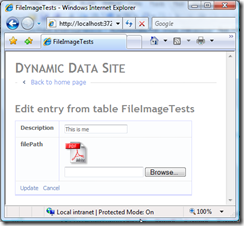
Figure 2 – Upload File Method