Showing posts with label DynamicDataFutures. Show all posts

Wednesday, 3 September 2008

Dynamic Data Futures – Part 1 Adding Advanced Filters ***UPDATED***

  1. Part 1 - Getting Dynamic Data Futures filters working in a File Based Website.
  2. Part 2 - Create the AnyColumn filter from the Dynamic Data Futures Integer filter.
  3. Part 3 – Creating the AnyColumnAutocomplete filter.

Getting Dynamic Data Futures filters working in File Based Website

1. Adding Dynamic Data Futures to your Website

From the File menu of you file based website select Add –> Existing Project… (see Figure 1) and browse to the folder where you unzipped the Dynamic Data Futures to, and select the DynamicDataFutures.csproj file this will add the Futures project and none of the samples.

Adding an Existing Project to the file based website

Figure 1 – Adding an Existing Project to the file based website

2. Adding a Reference to Dynamic Data Futures and AjaxToolkit

Right mouse click the website root and click Add Reference…

Adding a reference to the website

Figure 2  - Adding a reference to the website

When the dialogue box pops up choose the Projects Tab and select the DynamicDataFutures project and click OK.

Now you will need to do the same for the AjaxToolkit, only this time you need to click the Browse tab and navigate to the folder where you have downloaded and extracted the AjaxToolkit to, select the DLL in the sample website’s bin folder and click OK.

Selecting the AjaxToolkit DLL

Figure 3 – Selecting the AjaxToolkit DLL

3. Adding the new Filter User Controls to the website

Right mouse click the DynamicData folder in your Dynamic Data Website and select New Folder, name the folder Filters.
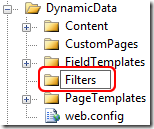
Adding the Filters Folder

Figure 4 – Adding the Filters Folder

New right mouse click the newly created folder and select Add Existing Items…
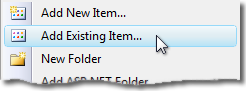
Add Existing Items

Figure 5 - Add Existing Items

Browse to the folder containing DynamicDataFutures project and then navigate to the DynamicData\Filters folder in the samples website

Selecting the Filter files (excluding the designer files)

Figure 6 – Selecting the Filter files (excluding the designer files)

Now select all except the .designer.cs files and click Add.

Now we will need to copy the following files:

Copy the following to the App_Code folder.

  • AutocompleteFilter.asmx.cs
  • CascadeAttribute.cs

Copy the following to the root of the website.

  • AutocompleteFilter.asmx
  • AutocompleteStyle.css
  • AjaxToolkitFixes.css

4. Converting Web Application files to work in a file based Website

We are going to use some advanced search and replace (not just because I like showing off) to demonstrate these features in Visual Studio 2008:

  • Search and replace using simple regular expression.
  • Replace by file extension.
  • Replace in files in a particular folder.

Things that need to be changes:

  • Namespaces needs to be removed from the Inherits property of the control tag in the ascx files.
  • CodeBehind changes to CodeFile
  • Namespace surrounding the user control class in the ascx.cs files.

To Find and Replace in only the DynamicData\Filters folder:

Find and Replace if Files in a specific folder

Figure 7 – Find and Replace if Files in a specific folder

Using Figure 6 use the following steps with each of the Search Patterns.

  1. Enter the text to search for.
  2. If you need to do it in all the sub-folders.
  3. Click to set the folder to find file in (see Figure 7).
  4. Note the Match case option is not checked (when searching for CodeBehind you may miss codebehind or Codebehind or codeBehind with it checked).
  5. Check when using Regular Expressions or Wild Cards.
  6. The files extension or pattern to match.
  7. Click to start the Find and Replace.

Setting the Search Folders

Figure 8 – Setting the Search Folders

  1. Click the up folder button until you see some folders below then navigate to you website and the DynamicData folder.
  2. Click the add button to add the folder to the list of folders to search in (we are only interested in the Filters folder here).
  3. The folder is added to the Selected folders list.

Search Patterns:

start without the Regular expression checkbox unchecked.

  1. Find Inherits="DynamicDataFuturesSample. and Replace with Inherits="
  2. Find CodeBehind and Replace with CodeFile

Check the Regular expression checkbox for this.

  1. Find namespace DynamicDataFuturesSample\n\{\n Replace with "" nothing.
  2. Find namespace DynamicDataFuturesSample \{\n Replace with "" nothing (Note the space instead of the \n).
  3. Find \n\} and replace with nothing.
  4. Note: Note there is only ever one } preceded by a linefeed except if you have two classes in the same file, also if you repeat the search after doing a CTRL+K and CTRL-D to reformat the code, then you will again remove the last brace in the file.
  5. The hit CTRL+K and CTRL-D to reformat the code in each file before saving it.

And now manually edit the following three files removing namespace and changing NOT CodeBehind to CodeFile in AutocompleteFilter.asmx.

  1. AutocompleteFilter.asmx.cs
  2. AutocompleteFilter.asmx
  3. CascadeAttribute.cs

5. Making the Necessary Changes to allow Advanced Filter to Work

To make Dynamic Data Futures work with the website we will need to make the following changes to the List and ListDetails pages:

  • Add a Tag Mapping in the web.config.
  • Register the Dynamic Data Futures assembly and tag in the web.config.
  • Change each PageTemplates FilterRepeater a little.
  • Edit the Site.master to add a link to the AutocompleteStyle.css file ***UPDATED***
Note: The Tag mapping is a great idea and I didn’t know it was there until DynamicDataFutures added the ImprovedDynamicValidator.

So add the Tag Mapping to the pages collection in configuration->system.web->pages see Listing 1.

<configuration>
...
<system.web>
...
<
pages>
<controls>
...
</
controls>
<tagMapping>
...
</tagMapping>

Listing 1 – Where to add the Tag Mapping

Listing 2 shows the Tag Mapping to be added, as you can see the classes including full namespace are show in tagType and mappedTagType.

<add tagType="System.Web.DynamicData.FilterRepeater" 
     mappedTagType="Microsoft.Web.DynamicData.AdvancedFilterRepeater" />

Listing 2 – The Tag Mapping

This sorts out the FilterRepeater being replaced by the AdvancedFilterRepeater.

<add tagPrefix="asp" 
     namespace="Microsoft.Web.DynamicData" 
     assembly="Microsoft.Web.DynamicData"/>

Listing 3 – Register the Dynamic Data Futures assembly and tag

Listing 3 add a registration for the Dynamic Data Futures assembly and tag in the web.config.

<add namespace="AjaxControlToolkit" 
     assembly="AjaxControlToolkit" 
     tagPrefix="ajaxToolkit"/>

Listing 4 – Add Ajax Toolkit to the website

Note: You need to add the AjaxToolkit and Dynamic Data Futures assemblies and tags to the controls collection, the AjaxToolkit is need as some of the other Filters require it.

Next in the List.aspx and ListDetails.aspx PageTemplates you need to add the DelegatingFilter and remove the DynamicFilter and also remove the AssociatedControlID="DynamicFilter$DropDownList1" from the Label control above the DynamicFilter making the whole FilterRepeater (aliased AdvancedFilterRepeater via Tag Mapping) look like Listing 5.

<asp:FilterRepeater ID="FilterRepeater" runat="server">
    <ItemTemplate>
        <asp:Label runat="server" Text='<%# Eval("DisplayName") %>' />
        <asp:DelegatingFilter 
            runat="server" 
            ID="DynamicFilter" 
            OnSelectionChanged="OnFilterSelectedIndexChanged" />
    </ItemTemplate>
    <FooterTemplate>
        <br />
        <br />
    </FooterTemplate>
</asp:FilterRepeater>

Listing 5 – The finished FilterRepeater.

Note: It would have been nice to map the DynamicFilter to DelegatingFilter also but the parameters are not the same between controls, I suppose you could always rename them in the DynamicDataFutures source and then map it. But then when a new version DynamicDataFutures is released you would need to remember to rename the properties again.
The DynamicFilter has OnSelectedIndexChanged and the DelegatingFilter has OnSelectionChanged, if they were the same you could also use the tag mapping.

Add the following line to the Site.master head tag

<head runat="server">
    <title>Dynamic Data Site</title>
    <link href="~/Site.css" rel="stylesheet" type="text/css" />
    <link href="AutocompleteStyle.css" rel="stylesheet" type="text/css" />
<link href="AjaxToolkitFixes.css" rel="stylesheet" type="text/css" />
</head>

Listing 6  - adding a link to the Site.master head

UPDATED: Forget to add a link to the AjaxToolkitFixes.css and AutocompleteStyle.css in the Site.master file.

6. Now to Test the AdvancedFilterRepeater and new Filters

To test this out we need to add a Metadata file to our website, see Listing 6.

using System;
using System.Collections.Generic;
using System.ComponentModel;
using System.ComponentModel.DataAnnotations;
using System.Linq;
using System.Web;
using Microsoft.Web.DynamicData;

[MetadataType(typeof(Order_Detail_MD))]
public partial class Order_Detail
{
    public class Order_Detail_MD
    {
        // Use the Cascade.ascx filter control. 
        //
        // Specify that the list of items in the products filter should be
        // filtered by the Product.Category foreign key column.
        [Filter(FilterControl = "Cascade")]
        [Cascade("Category")]
        public object Product { get; set; }

        // Don't show the Order filter
        [Filter(Enabled = false)]
        public object Order { get; set; }
    }
}

Listing 7 – Order_Details Metadata

Run the website and go to Order_Details table and you should have the Cascade filter there and also the Orders filter should be missing also, see Figure 9.

Cascade filter in operation

Figure 9 – Cascade filter in operation

The next step is to add our own filter the AnyColumn filter which of course will filter any column.

Thursday, 3 July 2008

Dynamic Data: Part 1 - FileImage_Edit FieldTemplate

  1. Part 1 - FileImage_Edit FieldTemplate
  2. Part 2 - FileImage_Edit FieldTemplate

This post come from this thread Anyone know how to use the FileImageAPI Edit Funtionality? on ASP.Net Dynamic Data forum in which proposed two solutions to the issue the in DynamicDataFutures there was no FileImage_Edit FieldTemplate.

Here are my proposed solutions:

  1. Get a list of images from the specified folder [ImageUrl("~/images/{0}.png")] and let the user choose
  2. Let the user upload the file to the [ImageUrl("~/images/{0}.png")] folder and the pass the filename to the DB field.

Solution 1

<%@ Control Language="C#" AutoEventWireup="true" CodeFile="FileImage1_Edit.ascx.cs"
    Inherits="FileImage1_Edit" %>
<asp:RadioButtonList ID="RadioButtonList1" runat="server" 
    RepeatDirection="Horizontal"
    RepeatLayout="Flow">
</asp:RadioButtonList>

Listing 1 - FileImage.ascx

using System;
using System.Collections.Specialized;
using System.IO;
using System.Linq;
using System.Web.DynamicData;
using System.Web.UI;
using System.Web.UI.WebControls;
using Microsoft.Web.DynamicData;

public partial class FileImage1_Edit : FieldTemplateUserControl
{
    public override Control DataControl
    {
        get
        {
            return RadioButtonList1;
        }
    }

    protected override void OnDataBinding(EventArgs e)
    {
        base.OnDataBinding(e);

        //check if image exists
        if (FieldValue == null)
            return;

        //format image url
        string url;
        var imageUrlAttribute = MetadataAttributes.OfType<ImageUrlAttribute>().FirstOrDefault();
        if (imageUrlAttribute == null || String.IsNullOrEmpty(imageUrlAttribute.UrlFormat))
            return;

        // get images folder
        String imagesDir = imageUrlAttribute.UrlFormat.Substring(0, imageUrlAttribute.UrlFormat.LastIndexOf("/") + 1);

        // get a list of images in the ImageUrlAttribute folder
        var dirInfo = new DirectoryInfo(Server.MapPath(imagesDir));
        var imagesFolder = ResolveUrl(imagesDir);
        var files = dirInfo.GetFiles();

        var imageFormat = MetadataAttributes.OfType <ImageFormatAttribute>().FirstOrDefault();

        if (imageFormat != null)
        {// use attributed DisplayWidth and DisplayHeight to size the images
            foreach (FileInfo file in files)
            {
                String img = String.Format
                    (
                        "<img src='{0}' alt='{1}' width='{2}' height='{3}' />",
                        imagesFolder + file.Name,
                        file.Name.Substring(0, file.Name.LastIndexOf(".")),
                        imageFormat.DisplayWidth,
                        imageFormat.DisplayHeight
                    );
                // embed image in the radio button
                var li = new ListItem(img, file.Name);
                this.RadioButtonList1.Items.Add(li);
            }
        }
        else
        { // if no ImageFormatAttribute don't resize images
            foreach (FileInfo file in files)
            {
                String img = String.Format
                    (
                        "<img src='{0}' alt='{1}' />",
                        imagesFolder + file.Name,
                        file.Name.Substring(0, file.Name.LastIndexOf("."))
                    );
                // embed image in the radio button
                var li = new ListItem(img, file.Name);
                this.RadioButtonList1.Items.Add(li);
            }
        }
    }

    protected override void ExtractValues(IOrderedDictionary dictionary)
    {
        dictionary[Column.Name] = RadioButtonList1.SelectedValue;
    }

    protected void RadioButtonList1_DataBound(object sender, EventArgs e)
    {
        if (FieldValue != null)
        {// if FieldValue has a value then set currently selected image
            var selectedImage = ((String)FieldValue).Substring(0, ((String)FieldValue).LastIndexOf("."));
            for (int i = 0; i < RadioButtonList1.Items.Count; i++)
            {
                // set select image 
                if (selectedImage == RadioButtonList1.Items[i].Value)
                {
                    RadioButtonList1.Items[i].Selected = true;
                    break; // break out of the loop only one can be selected.
                }
            }
        }
    }
}

Listing 2 - CodeBehind for FileImage_Edit.ascx

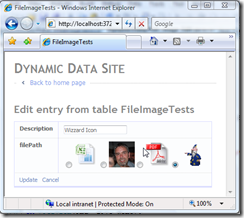
In the OnDataBinding event handler we setup RadioButtonList1 with embedded images form the folder specified in ImageUrlAttribute. When the ListItem is created the value string is set to the filename including extension, so only the filename and not the path is stored. Then in the RadioButtonList1_DataBound event handler the currently selected image is set if FieldValue is not null. In the ExtractValues method of the FieldTemplate it is a simple matter of getting the RadioButtonList1.SelectedValue to return the user selected image.

Select Image Method 

Figure 1 – Select Image Method

Solution 2

In this solution I decided that FileImage_Edit FieldTemplate needed to handle both scenarios, so I have created some more Attributes.

using System;
using System.Text;

// attribute to determin what mode the FileImage_Edit is in
// the default is Select.
[AttributeUsage(AttributeTargets.Property, AllowMultiple = false)]
public sealed class FileImageAttribute : Attribute
{
    public FileImageAttribute(EditorType edit)
    {
        Edit = edit;
    }

    public EditorType Edit { get; set; }

    // Editor Type
    public enum EditorType
    {
        Select,
        Upload
    }
}

// a way of specifying which extension type to accept
[AttributeUsage(AttributeTargets.Property, AllowMultiple = false)]
public sealed class FileImageTypesAttribute : Attribute
{
    public FileImageTypesAttribute()
    {
        ImageTypes = DefaultExtensions;
    }
    
    public FileImageTypesAttribute(params String[] imageTypes)
    
        if (imageTypes.Length > 0)
        {
            ImageTypes = imageTypes;
        }
        else
        {
            ImageTypes = DefaultExtensions;
        }
    }

    public String[] ImageTypes { get; set; }

    // default extensions
    public static String[] DefaultExtensions
    {
        get { return new String[] { "gif", "png", "jpeg", "jpg" }; }
    }

    public String ToString()
    {
        StringBuilder extensions = new StringBuilder();

        foreach (var ext in ImageTypes)
        {
            extensions.Append(ext + ", ");
        }
        return extensions.ToString().Substring(0, extensions.Length - 2);
    }
}

Listing 3 - FileImageAttributes.cs

Here we have two new attribute form the FileImage_Edit FieldTemplate.

  • FileImageAttribute - this allows the selecting of one of two edit modes Select and Upload
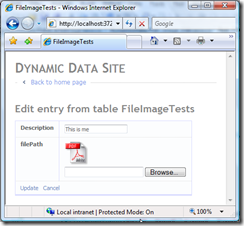
    e.g. [FileImage(FileImageAttribute.EditorType.Upload)] which set the control to use the FileUpload to get new files and save them in to the folder specified by ImageUrlAttribute which is now REQUIRED otherwise an error is generated.
  • FileImageTypesAttribute - Allows the specifying of a list of file extensions to match the uploaded file against.

Next in the FileImage_Edit.ascx we add a PlaceHolder with an Image, a FileUpload control and a CustomValidator to handle any errors generated by the FieldTemplate when uploading files.

The kinds of error we want to trap are:

  • Any upload error such as file not found etc.
  • File types that don't match any of the file extensions supplied.
  • If a file is not an image file.

These error type need to be displayed in the same way other errors are shown in Dynamic Data.

<%@ Control Language="C#" AutoEventWireup="true" CodeFile="FileImage_Edit.ascx.cs"
    Inherits="FileImage_Edit" %>
<asp:RadioButtonList ID="RadioButtonList1" runat="server" 
    RepeatDirection="Horizontal"
    RepeatLayout="Flow">
</asp:RadioButtonList>
<asp:PlaceHolder ID="PlaceHolderImage" runat="server" Visible="false">
    <asp:Image ID="ImageEdit" runat="server" /><br />
</asp:PlaceHolder>
<asp:FileUpload ID="FileUploadEdit" runat="server" Visible="false" />
<asp:CustomValidator ID="CustomValidator1" runat="server" 
    ErrorMessage="">
</asp:CustomValidator>

Listing 4 - new FileImage_Edit.ascx

using System;
using System.Collections.Specialized;
using System.IO;
using System.Linq;
using System.Web.DynamicData;
using System.Web.UI;
using System.Web.UI.WebControls;
using Microsoft.Web.DynamicData;

public partial class FileImage_Edit : FieldTemplateUserControl
{
    public override Control DataControl
    {
        get
        {
            return RadioButtonList1;
        }
    }

    protected void Page_Load(object sender, EventArgs e)
    {
        // add CustomValidator1's event handler
        CustomValidator1.ServerValidate += new ServerValidateEventHandler(CustomValidator1_ServerValidate);
        RadioButtonList1.DataBound += new EventHandler(RadioButtonList1_DataBound);
    }

    void CustomValidator1_ServerValidate(object source, ServerValidateEventArgs args)
    {
        var fileImage = MetadataAttributes.OfType<FileImageAttribute>().FirstOrDefault();

        if (fileImage.Edit == FileImageAttribute.EditorType.Select)
            return; // don't bother with the validator if in Select mode

        var imageUrlMetadata = MetadataAttributes.OfType<ImageUrlAttribute>().FirstOrDefault();
        if (FileUploadEdit.HasFile && imageUrlMetadata != null && !String.IsNullOrEmpty(imageUrlMetadata.UrlFormat))
        {
            String imagesDir = imageUrlMetadata.UrlFormat.Substring(0, imageUrlMetadata.UrlFormat.LastIndexOf("/") + 1);
            if (String.IsNullOrEmpty(imagesDir)) imagesDir = "~/images";

            String path = Server.MapPath(imagesDir);
            String fileExtension = FileUploadEdit.FileName.Substring(FileUploadEdit.FileName.LastIndexOf(".") + 1).ToLower();
            var extensions = MetadataAttributes.OfType<FileImageTypesAttribute>().FirstOrDefault();

            String[] allowedExtensions = extensions.ImageTypes.Length > 0
                ? extensions.ImageTypes : FileImageTypesAttribute.DefaultExtensions;

            if (allowedExtensions.Contains(fileExtension))
            {
                var bytes = FileUploadEdit.FileBytes;
                try
                {
                    var a = System.Drawing.Image.FromStream(new MemoryStream(bytes));
                }
                catch
                {
                    // catch any error when user tries to load a file that 
                    // is not an image recognised by System.Drawing
                    args.IsValid = false;
                    CustomValidator1.ErrorMessage = "Not an Image, must be one of the following types: " + extensions.ToString();
                }
            }
            else
            {
                // Raise an error if the files extensionf does not match the allowed extensions
                args.IsValid = false;
                CustomValidator1.ErrorMessage = "Not correct Image type, must be one of the following types: " + extensions.ToString();
            }
        }
        else
        {
            // no file to download you decide wether this is a valid error
            // to throw comment out
            if (!FileUploadEdit.HasFile)
            {
                args.IsValid = false;
                CustomValidator1.ErrorMessage = "No file to download";
            }

            // the ImageUrlAttribute is required to work in either select or upload edit mode
            if (imageUrlMetadata == null || String.IsNullOrEmpty(imageUrlMetadata.UrlFormat))
            {
                args.IsValid = false;
                CustomValidator1.ErrorMessage = "ImageUrl attribute missing.";
            }
        }
    }

    protected override void OnDataBinding(EventArgs e)
    {
        base.OnDataBinding(e);

        var fileImage = MetadataAttributes.OfType<FileImageAttribute>().FirstOrDefault();
        var imageUrlMetadata = MetadataAttributes.OfType<ImageUrlAttribute>().FirstOrDefault();

        if (imageUrlMetadata == null || String.IsNullOrEmpty(imageUrlMetadata.UrlFormat))
        {
            CustomValidator1.IsValid = false;
            CustomValidator1.ErrorMessage = String.Format("An ImageUrlAttribute is required on the column '{0}' for the FileImage_Edit FieldTemplate to work.", Column.Name);
            return; // the ImageUrlAttribute is a required attribute need to throw an error
        }

        // get images folder
        String imagesDir = imageUrlMetadata.UrlFormat.Substring(0, imageUrlMetadata.UrlFormat.LastIndexOf("/") + 1);
        if (String.IsNullOrEmpty(imagesDir))
            imagesDir = "~/images";

        var imageFormat = MetadataAttributes.OfType<ImageFormatAttribute>().FirstOrDefault();

        switch (fileImage.Edit)
        {
            case FileImageAttribute.EditorType.Upload:
                FileUploadEdit.Visible = true;
                if (FieldValue == null)
                    return;
                String fileName = (String)FieldValue;
                ImageEdit.ImageUrl = imagesDir + "/" + fileName;


                if (imageFormat != null)
                {
                    ImageEdit.Width = imageFormat.DisplayWidth;
                    ImageEdit.Height = imageFormat.DisplayHeight;
                }
                PlaceHolderImage.Visible = true;
                break;
            case FileImageAttribute.EditorType.Select:
            default:
                FileUploadEdit.Visible = false;

                var dirInfo = new DirectoryInfo(Server.MapPath(imagesDir));
                if (!dirInfo.Exists)
                    dirInfo.Create(); // if directory does not exist then create it

                // get a list of images in the ImageUrlAttribute folder
                var imagesFolder = ResolveUrl(imagesDir);
                var files = dirInfo.GetFiles();

                if (imageFormat != null)
                {// size image to ImageFormatAttribute
                    foreach (FileInfo file in files)
                    {
                        String img = String.Format
                            (
                                "<img src='{0}' alt='{1}' width='{2}' height='{3}' />",
                                imagesFolder + file.Name,
                                file.Name.Substring(0, file.Name.LastIndexOf(".")),
                                imageFormat.DisplayWidth,
                                imageFormat.DisplayHeight
                            );
                        // embed image in the radio button
                        var li = new ListItem(img, file.Name);
                        this.RadioButtonList1.Items.Add(li);
                    }
                }
                else
                {// if no ImageFormatAttribute supplied the do not resize image
                    foreach (FileInfo file in files)
                    {
                        String img = String.Format
                            (
                                "<img src='{0}' alt='{1}' />",
                                imagesFolder + file.Name,
                                file.Name.Substring(0, file.Name.LastIndexOf("."))
                            );
                        // embed image in the radio button
                        var li = new ListItem(img, file.Name);
                        this.RadioButtonList1.Items.Add(li);
                    }
                }
                break;
        }
    }

    protected override void ExtractValues(IOrderedDictionary dictionary)
    {
        // get Edit type Select or Upload
        var fileImage = MetadataAttributes.OfType<FileImageAttribute>().FirstOrDefault();
        switch (fileImage.Edit)
        {
            case FileImageAttribute.EditorType.Upload:
                var imageUrlMetadata = MetadataAttributes.OfType<ImageUrlAttribute>().FirstOrDefault();

                if (FileUploadEdit.HasFile && imageUrlMetadata != null && !String.IsNullOrEmpty(imageUrlMetadata.UrlFormat))
                {
                    // get the 
                    String imagesDir = imageUrlMetadata.UrlFormat.Substring(0, imageUrlMetadata.UrlFormat.LastIndexOf("/") + 1);
                    if (String.IsNullOrEmpty(imagesDir))
                        imagesDir = "~/images";

                    // resolve full path c:\... etc
                    String path = Server.MapPath(imagesDir);

                    // get files extension without the dot
                    String fileExtension = FileUploadEdit.FileName.Substring(FileUploadEdit.FileName.LastIndexOf(".") + 1).ToLower();

                    // get allowed extensions
                    var extensions = MetadataAttributes.OfType<FileImageTypesAttribute>().FirstOrDefault();
                    String[] allowedExtensions = extensions.ImageTypes.Length > 0
                        ? extensions.ImageTypes : FileImageTypesAttribute.DefaultExtensions;

                    if (allowedExtensions.Contains(fileExtension))
                    {
                        // try to upload the file showing error if it fails
                        try
                        {
                            FileUploadEdit.PostedFile.SaveAs(path + "\\" + FileUploadEdit.FileName);
                            ImageEdit.ImageUrl = imagesDir + "/" + FileUploadEdit.FileName;
                            ImageEdit.AlternateText = FileUploadEdit.FileName;
                            dictionary[Column.Name] = FileUploadEdit.FileName;
                        }
                        catch (Exception ex)
                        {
                            // display error
                            CustomValidator1.IsValid = false;
                            CustomValidator1.ErrorMessage = ex.Message;
                            dictionary[Column.Name] = null;
                        }
                    }
                }
                else
                {
                    // retrun null if no file or ImageUrlAttribute is null or empty
                    dictionary[Column.Name] = null;
                }
                break;
            case FileImageAttribute.EditorType.Select:
            default:
                // return currently selected item
                dictionary[Column.Name] = RadioButtonList1.SelectedValue;
                break;
        }
    }

    protected void RadioButtonList1_DataBound(object sender, EventArgs e)
    {
        var fileImage = MetadataAttributes.OfType<FileImageAttribute>().FirstOrDefault();
        if (FieldValue != null && fileImage.Edit == FileImageAttribute.EditorType.Select)
        {
            //var selectedImage = (String)FieldValue;
            RadioButtonList1.Enabled = true;

            for (int i = 0; i < RadioButtonList1.Items.Count; i++)
            {
                // set select image 
                if ((String)FieldValue == RadioButtonList1.Items[i].Value)
                {
                    RadioButtonList1.Items[i].Selected = true;
                    break;
                }
            }
        }
    }
}

Listing 5 - the code behind for FileImage_Edit.aspx

The code from Listing 5 has been split into two sections by the switch statement as you can see it is switching on fileImage.Edit which is of type FileImageAttribute.EditorType and select drops through to default so if no attribute is set then select will be used.

switch (fileImage.Edit)
{
    case FileImageAttribute.EditorType.Upload:
        // do upload stuff here 
        break;
    case FileImageAttribute.EditorType.Select:
    default:
        // do select stuff here
        break;
}
Listing 6 - switch code snippet
using System.ComponentModel;
using System.ComponentModel.DataAnnotations;
using Microsoft.Web.DynamicData;

[MetadataType(typeof(FileImageTestMD))]
public partial class FileImageTest : INotifyPropertyChanging, INotifyPropertyChanged
{
    public class FileImageTestMD
    {
        public object Id { get; set; }
        public object Description { get; set; }
[UIHint("FileImage")] [ImageUrl("~/images/{0}")] // now REQUIRED [ImageFormat(80, 80)] // now display in edit is not used but could be [FileImage(FileImageAttribute.EditorType.Upload)] [FileImageTypes("gif", "png", "jpeg", "jpg")] public object filePath { get; set; } } }

Listing 7 - Metadata classes

You can see form the Metadata classes how the new attributes are used.

Note: This uses the latest Dynamic Data Runtime and Futures, you can get them from here
Oh yes and thanks to Marcin Dobosz's for his help on the CustomValidator.

Upload File Method

Figure 2 – Upload File Method

Saturday, 28 June 2008

DynamicData: Database Based Permissions - Part 5

**** OOPS ****

  1. Part 1 - Create the database tables.
  2. Part 2 - Add a User Interface to modify the permissions.
  3. Part 3 - User Marcin's InMemoryMetadataProvider to add the database based permissions to the Metadata at runtime.
  4. Part 4 - Add components from A DynamicData Attribute Based Permission Solution using User Roles to consume the database based metadata.
  5. Part 5 - Oops! Table Names with Spaces in them and Pluralization.

Oops! Table Names with Spaces in them and Pluralization smile_embaressed

This is a fix for the issue brought to light by António Borges from Portugal when he was implementing Database Based Permissions add on to a Dynamic Data website, with my project as a starting point. He noticed that although the user Fred had the correct permissions for the Orders table, he seemed to have full permissions to the Order_Details table even though in the admin interface it showed as restricted in the same way as the Orders table.

This turned out to be an issue similar to Pluralization which adds and removed S's (which I like). It turns out that when you drop a table on a Linq to SQL Classes design surface and the table name has spaces in it the designer adds an "_" underscore in place of the space (makes sense as you can't have a class name with a space in it) but because I was populating the tables with T-SQL I was getting the table names in a raw SQL state (I hadn't noticed this before even though I have been using Northwind with Linq to SQL since early betas of it in VD 2005).

So the fix it to populate the tables in code using Linq to SQL (which I also like :D) this will take information from the MetaModel which has table and column names which match the Linq to SQL Classes. I have also taken the opportunity to move some of the inline code in the Global.asax file to a separate class which I have imaginatively called the DatabaseMetadata class. Please see below:

using System;
using System.Linq;
using System.Web.DynamicData;
using Microsoft.Web.DynamicData;

public static class DatabaseMetadata
{
    /// <summary>
    /// Adds and Removes table and column info for the metadata tables
    /// </summary>
    /// <param name="model">Referances the model for the site</param>
    /// <param name="ADC">DataContext of the Attributes model</param>
    public static void UpdateAttributesTables(this MetaModel model, AttributesDataContext ADC)
    {
        // import tables and columns from MetaModel
        foreach (var table in model.Tables)
        {
            // if no table then
            if (ADC.AttributesTables.SingleOrDefault(at => at.TableName == table.Name) == null)
            {
                var t = new AttributesTable()
                {
                    TableName = table.Name
                };
                ADC.AttributesTables.InsertOnSubmit(t);
            }
            foreach (var column in table.Columns)
            {
                // if no column then
                if (ADC.AttributesColumns.SingleOrDefault(ac => ac.TableName == table.Name &&
                    ac.ColumnName == column.Name) == null)
                {
                    var c = new AttributesColumn()
                    {
                        TableName = table.Name,
                        ColumnName = column.Name
                    };
                    ADC.AttributesColumns.InsertOnSubmit(c);
                }
            }
        }

        // remove data from attributes table and columns 
        // where tables have been removed from the model
        var tableInADC = ADC.AttributesTables;
        var tableInModel = model.Tables;
        foreach (var table in tableInADC)
        {
            if (tableInModel.SingleOrDefault(mt => mt.Name == table.TableName) == null)
            {
                // remove column permissions
                var acp = from c in ADC.AttributesColumnPermissions
                          where c.TableName == table.TableName
                          select c;
                ADC.AttributesColumnPermissions.DeleteAllOnSubmit(acp);

                // remove columns
                var ac = from c in ADC.AttributesColumns
                         where c.TableName == table.TableName
                         select c;
                ADC.AttributesColumns.DeleteAllOnSubmit(ac);

                // remove table permissions
                var atp = from t in ADC.AttributesTablePermissions
                          where t.TableName == table.TableName
                          select t;
                ADC.AttributesTablePermissions.DeleteAllOnSubmit(atp);

                // remove table
                ADC.AttributesTables.DeleteOnSubmit(table);
            }
        }

        // finally submit changes
        ADC.SubmitChanges();
    }

    /// <summary>
    /// Imports Database Table Attributes
    /// </summary>
    /// <param name="model">Referances the model for the site</param>
    /// <param name="ADC">DataContext of the Attributes model</param>
    public static void ImportTableAttributes(this MetaModel model, AttributesDataContext ADC)
    {
        var tableAttributes = ADC.AttributesTablePermissions;
        if (tableAttributes.Count() > 0)
        {
            foreach (var ta in tableAttributes)
            {
                var table = model.Tables.SingleOrDefault(t => t.Name == ta.TableName);
                String[] roles = ta.Roles.Split(new Char[] { ',' });
                if (table != null)
                    InMemoryMetadataManager.AddTableAttributes
                        (
                            table.EntityType,
                            new TablePermissionsAttribute(ta.Permission, roles)
                        );
            }
        }
    }

    /// <summary>
    /// Imports Database Column Attributes
    /// </summary>
    /// <param name="model">Referances the model for the site</param>
    /// <param name="ADC">DataContext of the Attributes model</param>
    public static void ImportColumnAttributes(this MetaModel model, AttributesDataContext ADC)
    {
        var columnAttributes = ADC.AttributesColumnPermissions;
        if (columnAttributes.Count() > 0)
        {
            foreach (var col in columnAttributes)
            {
                var table = model.Tables.SingleOrDefault(t => t.Name == col.TableName);
                var column = table.EntityType.GetProperties().SingleOrDefault(c => c.Name == col.ColumnName);
                String[] roles = col.Roles.Split(new Char[] { ',' });
                if (table != null)
                    InMemoryMetadataManager.AddColumnAttributes
                        (
                            column,
                            new ColumnPermissionsAttribute(col.Permission, roles)
                        );
            }
        }
    }
}

Listing 1 - DatabaseMetadata Class

//model.RegisterContext(typeof(NWDataContext), new ContextConfiguration() { ScaffoldAllTables = true });
model.RegisterContext(typeof(NWDataContext), new ContextConfiguration()
{
    ScaffoldAllTables = true,
    MetadataProviderFactory =
        (
            type => new InMemoryMetadataTypeDescriptionProvider
                (
                    type, new AssociatedMetadataTypeTypeDescriptionProvider(type)
                )
        )
});

// get data context for attributes
var ADC = new AttributesDataContext();

// get any new tables and their column into the AttributesDataContext
ADC.UpdateAttributesTables(model);

// import Database Table Attributes
model.ImportTableAttributes(ADC);

// Import Database Column Attributes
model.ImportColumnAttributes(ADC);

attributesModel.RegisterContext(typeof(AttributesDataContext), new ContextConfiguration() { ScaffoldAllTables = true });

Listing 2 - excerpt from the Global.asax file changes is BOLD

The beauty of Linq to SQL is that the code reads so easily, I don't think much if any explanation is needed. Just note about the new functionality the UpdateAttributesTables extension method populates the attribute tables (Tables and Columns) in the AttributesDataContext much like the T-SQL did in Part 1 but now it will add any new tables you add to the MetaModel and also if a table is removed from the MetaModel it is removed and ALL record associated with it including any attributes you created.

I have also updated the project files for download.

SQL Server 2005 version

SQL Server 2008 version

Sunday, 22 June 2008

DynamicData: Database Based Permissions - Part 4

**** UPDATED ****

  1. Part 1 - Create the database tables.
  2. Part 2 - Add a User Interface to modify the permissions.
  3. Part 3 - User Marcin's InMemoryMetadataProvider to add the database based permissions to the Metadata at runtime.
  4. Part 4 - Add components from A DynamicData Attribute Based Permission Solution using User Roles to consume the database based metadata.
  5. Part 5 - Oops! Table Names with Spaces in them and Pluralization. 

Attribute Based Permissions added to Consume the Databased Based Metadata

I've added all the attribute based permissions login from my previous series A DynamicData Attribute Based Permission Solution using User Roles and zipped up the finished project files.

Here are the project files for Visual Studio 2008 with database in SQL Server 2005 and 2008, I've updated both downloads to use DynamicDataExtensions see below and to fix a small bug see Part 3 updates in bold.

Download for SQL server 2005

Download for SQL Server 2008

Note: I must emphasize that when you update the Table or Column attributes tables that the application MUST be restarted, see Marcin Dobosz's Dynamic Data samples: Custom metadata providers article on his blog under the section Truly dynamic metadata.

The user names and passwords:

Are now shown on the Login screen.

Yes the password is password, I know it's not good practice but it's only for demo  purposes.

Other changes I'm now making use of the DynamicDataExtensions (soon to be renamed DynamicDataFutures) and in particular the following FieldTemplates Enumeration.ascx & Enumeration_Edit.ascx instead of my own ColumnPermissions and TablePermissions. Further to the above I've added more users (see login page) and added more permissions to table and columns.

Thanks to David Ebbo for the above suggestions.