Wednesday, 9 July 2008

Part 1 - Standard Custom Page Dynamic Data and Custom Pages

As far as I can see there are three (oops! four then) types of Custom Page:

  1. Custom Pages Part 1 - Standard Custom Page based on an existing PageTemplate and customised in the DynamicData\CustomPages folder.
  2. Custom Pages Part 2 - A completely Custom Page again in the DynamicData\CustomPages folder.
  3. Custom Pages Part 3 - Standard ASP.Net Page with Dynamic Data features added to take advantage of the FieldTemplates.
  4. Custom Pages Part 4 - A DetailsView and a GridView using Validation Groups
  5. Custom Pages Part 5 - I18N? Internationalisation Custom Page  

Creating a Standard Custom Page

To customise a standard PageTemplate all you do is create a folder with the name of the entity collection (e.g. Order entity would have the folder Orders).
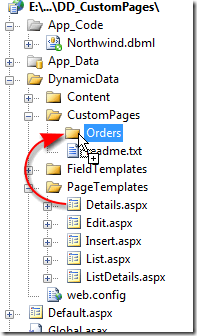
 Copy PageTemplate to CustomPages folder

Figure 1 – Copy PageTemplate to CustomPages folder

All you do then is copy the PageTemplate you want to modify to the CustomPages sub-folder.

 Copying Details.aspx to the CustomPages <TableName>folder

Figure 2 - Copying Details.aspx to the CustomPages <TableName>folder

Customising the Standard Custom Page

For out first step we will wire up the LinqDataSource to the Orders Table/Entity set, this will cause the column of the DetailsView to be updated see below.

<Fields>
    <asp:BoundField DataField="OrderID" HeaderText="OrderID" InsertVisible="False" ReadOnly="True" SortExpression="OrderID" />
    <asp:BoundField DataField="CustomerID" HeaderText="CustomerID" SortExpression="CustomerID" />
    <asp:BoundField DataField="EmployeeID" HeaderText="EmployeeID" SortExpression="EmployeeID" />
    ...
<asp:BoundField DataField="ShipPostalCode" HeaderText="ShipPostalCode" SortExpression="ShipPostalCode" /> <asp:BoundField DataField="ShipCountry" HeaderText="ShipCountry" SortExpression="ShipCountry" /> </Fields>

Listing 1 – Columns collection from the Details.aspx

Now to edit his to take advantage of DynamicData:

<Fields>
    <asp:DynamicField DataField="OrderID" />
    <asp:DynamicField DataField="Customer" />
    <asp:DynamicField DataField="Employee" />
    ...
<asp:DynamicField DataField="ShipPostalCode" /> <asp:DynamicField DataField="ShipCountry" /> </Fields>

Listing 2 – Updated columns collection from the Details.aspx

Here what I did was search and replace BoundField with DynamicField and remove all other unneeded properties (I used regular expressions to remove the extra fields here is the expression HeaderText=\".*\" SortExpression=\".*\" and replaced with an empty string), (these should come from the metadata from the column) then rearrange the order and replace the columns I didn’t want displaying with columns that I did (i.e. ShipVia with Shipper, CustomerID with Customer, etc) you can find the names of the EntitySet and EntityRef in the designer.cs/designer.vb file under the dbml file of your LinqToSql classes just drop the ‘_’ underscore at the beginning (you will see the actual property for each later on but this bit at the beginning always gets me what I want).

private EntitySet<Order_Detail> _Order_Details;
private EntityRef<Customer> _Customer;
private EntityRef<Employee> _Employee;
private EntityRef<Shipper> _Shipper;

Listing 3 – from Northwind.designer.cs file

If we run the DynamicData website now we will get what seems similar to the default Details.aspx page, but missing the Edit and Delete links.

Now whart we need is to add Edit and Delete functionality again.

<asp:TemplateField>
    <ItemTemplate>
        <asp:HyperLink ID="EditHyperLink" runat="server"
            NavigateUrl='<%# table.GetActionPath(PageAction.Edit, GetDataItem()) %>'
            Text="Edit" />
        <asp:LinkButton ID="DeleteLinkButton" runat="server" CommandName="Delete" CausesValidation="false"
            OnClientClick='return confirm("Are you sure you want to delete this item?");'
            Text="Delete" />
    </ItemTemplate>
</asp:TemplateField>

Listing 4 – copied from the original List.aspx

Here I’ve copied and pasted the TemplateField from the original List.aspx page to get the same functionality for Edit, Details and Delete.

Adding Master Details page funtionality

Now we add a GridView and LinqDataSource to the page for the Order_Details, (which all I did was copy the one from the List.aspx PageTemplate and then edit it).

<asp:GridView ID="GridView1" runat="server" DataSourceID="GridDataSource"
    AllowPaging="True" AllowSorting="True" CssClass="gridview">
    <Columns>
        <asp:TemplateField>
            <ItemTemplate>
                <asp:HyperLink ID="EditHyperLink" runat="server"
                    NavigateUrl='<%# table.GetActionPath(PageAction.Edit, GetDataItem()) %>'
                Text="Edit" />&nbsp;<asp:LinkButton ID="DeleteLinkButton" runat="server" CommandName="Delete"
                    CausesValidation="false" Text="Delete"
                    OnClientClick='return confirm("Are you sure you want to delete this item?");'
                />&nbsp;<asp:HyperLink ID="DetailsHyperLink" runat="server"
                    NavigateUrl='<%# table.GetActionPath(PageAction.Details, GetDataItem()) %>'
                    Text="Details" />
            </ItemTemplate>
        </asp:TemplateField>
    </Columns>

    <PagerStyle CssClass="footer"/>        
    <PagerTemplate>
        <asp:GridViewPager runat="server" />
    </PagerTemplate>
    <EmptyDataTemplate>
        There are currently no items in this table.
    </EmptyDataTemplate>
</asp:GridView>

<asp:LinqDataSource ID="GridDataSource" runat="server" EnableDelete="true">
    <WhereParameters>
        <asp:DynamicControlParameter ControlID="FilterRepeater" />
    </WhereParameters>
</asp:LinqDataSource>
<br />

Listing 5 – Extra GridView and LinqDataSource which I copied from the List.aspx PageTemplate

Linking the two GridViews together is done in the customising of the LinqDataSource switch to design view of the Details.aspx page and find the new LinqDataSource and click on the tasks button:
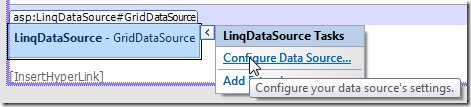
LinqDataSource Tasks

Figure 3 – Configuring the LinqDataSource

Follow the wizard through and select Order_Details as the source table and then click on the Where button. Then configure the where expression to limit the list to the record in the DetailsView.

Configure the where expression

Figure 4 - Configure the where expression

Say yes to updating the GridViews column when asked. Then edit the GridView’s columns collection the same way we did the DetailsView’s fileds collection, edit the columns so that any EntitySets/EntityRefs are shown instead of their foreign keys.

Now if we run the app and choose Orders and then Details we will see something like this:

Order Details page with Order_Details at the bottom

Figure 5 – Output from our custom Details.aspx page

Note: I’ve left the OrderID in both the DetailsView and the GridView just to show that we are getting the correct records, you can remove them once you are happy that that is happening.

We need to ad a new class level variable:

protected MetaTable table1;

Then the Page_Init must updated:

protected void Page_Init(object sender, EventArgs e)
{
    DynamicDataManager1.RegisterControl(DetailsView1, true);
    DynamicDataManager1.RegisterControl(GridView1, false);
}

Listing 6 – Updated Page_Init

Also in the Page_Load event handler add the following line right after one for that default table so that its metadata for the second table can be referenced:

table1 = GridDataSource.GetTable();

and then in the NavigateUrl declaration change table to table1

Note: Creating table1 and assigning it through GridDataSource.GetTable() give us a reference to the GridView’s table. Which then allows us to get the correct URL from table1.GetActionPath(PageAction.Edit, GetDataItem())

We need to put the edit capability back into the GridView to do this all we have to do is copy them from the List.aspx PageTemplate and then add them to the beginning of the Columns collection:

<asp:TemplateField>
    <ItemTemplate>
        <asp:HyperLink ID="EditHyperLink" runat="server"
            NavigateUrl='<%# table1.GetActionPath(PageAction.Edit, GetDataItem()) %>'
        Text="Edit" />&nbsp;<asp:LinkButton ID="DeleteLinkButton" runat="server" CommandName="Delete"
            CausesValidation="false" Text="Delete"
            OnClientClick='return confirm("Are you sure you want to delete this item?");'
        />&nbsp;<asp:HyperLink ID="DetailsHyperLink" runat="server"
            NavigateUrl='<%# table1.GetActionPath(PageAction.Details, GetDataItem()) %>'
            Text="Details" />
    </ItemTemplate>
</asp:TemplateField>

Listing 6 – Adding the Edit, Delete and Details functionality

As you can see from running the app again the Edit, Delete and Details functionality is back.

With Edit, Delete and Details functionality

Figure 6 – With Edit, Delete and Details functionality

And we finish off by adding paging to the DetailsView

<asp:DetailsView ID="DetailsView1" runat="server" DataSourceID="DetailsDataSource"
    OnItemDeleted="DetailsView1_ItemDeleted" CssClass="detailstable" FieldHeaderStyle-CssClass="bold"
    AutoGenerateRows="False" DataKeyNames="OrderID" AllowPaging="True">
    <PagerSettings Mode="NextPreviousFirstLast" />

Listing 7 – Adding paging to the DetailsView

I think that will do for this part of the series, we can add other features to the page in the next edition.

Monday, 7 July 2008

Dynamic Data: Part 2 - FileImage_Edit FieldTemplate

  1. Part 1 - FileImage_Edit FieldTemplate
  2. Part 2 - FileImage_Edit FieldTemplate

I've had some more ideas:

  1. Image Aspect Ratio lock, keeping the proportions of the image the same when resized.
  2. Doing the same as DynamicDataFutures disabling EnablePartialRendering when the FileImage is in an Edit or Insert page.

So here's the new helper class FileImageHelper.

using System;
using System.Text;
using System.Web.DynamicData;
using System.Web.UI;
public static class FileImageHelper
{
    public static void UpdateHeightWidth(ref int scaleWidth, ref int scaleHeight, String fileName)
    {
        System.Drawing.Image image = System.Drawing.Image.FromFile(fileName);
        float originalHeight = image.Height;
        float originalWidth = image.Width;
        float height = 0;
        float width = 0;
        if (scaleWidth > 0 && scaleHeight == 0)
        {
            //scale to width only
            //calculate height based on width keeping correct proportions
            height = originalHeight * (scaleWidth / originalWidth);
            scaleHeight = (int)height;
        }
        else if (scaleHeight > 0 && scaleWidth == 0)
        {
            //scale to height only
            //calculate height based on width keeping correct proportions
            width = originalWidth * (scaleHeight / originalHeight);
            scaleWidth = (int)width;
        }
        //else scale to both dims sent
    }

    /// <summary>
    /// If the given table contains a column that has a UI Hint with the value "DbImage", finds the ScriptManager
    /// for the current page and disables partial rendering
    /// </summary>
    /// <param name="page"></param>
    /// <param name="table"></param>
    public static void DisablePartialRenderingForUpload(Page page, MetaTable table)
    {
        foreach (var column in table.Columns)
        {
            // TODO this depends on the name of the field template, need to fix
            if (String.Equals(column.UIHint, "DBImage", StringComparison.OrdinalIgnoreCase)
                || String.Equals(column.UIHint, "FileImage", StringComparison.OrdinalIgnoreCase))
            {
                var sm = ScriptManager.GetCurrent(page);
                if (sm != null)
                {
                    sm.EnablePartialRendering = false;
                }
                break;
            }
        }
    }
}

1. Image Aspect Ratio lock

This is facilitated but the helper method UpdateHeightWidth which is used to return the correct scaled image dimensions by taking the width, height and full path to the image fileName. The method only changes the scale dimensions if one is set to zero. If one of the two scale dimensions is set to zero then is is calculated from the original dimensions.

An snippet of code shows its use:

int width = 0;
int height = 0;
if (imageFormat != null)
{
    width = imageFormat.DisplayWidth;
    height = imageFormat.DisplayHeight;
}
FileImageHelper.UpdataHeightWidth(ref width, ref height, Server.MapPath(imagesDir + "/" + fileName));
if (width > 0 && height > 0)
{
    ImageEdit.Width = width;
    ImageEdit.Height = height;
}

In this snippet of code we create the width and height set them to 0 and then if there is an ImageFormatAttribute get the DisplayWidth and DisplayHeight into width and height, then we call UpdateHeightWidth method which will update the dimensions the the correct size for keeping the aspect ratios the same. In my project I've modified both the FileImage and FileImage_Edit to use this.

2. Dealing with EnablePartialRendering and FileUpload

My version of DisablePartialRenderingForUpload is only modified slightly by adding a test for UIHint FileImage and is placed instead of the current line in Edit.aspx and Insert.aspx see below.

//DynamicDataFutures.DisablePartialRenderingForUpload(this, table);
FileImageHelper.DisablePartialRenderingForUpload(this, table);
Note: This line MUST be in the Page_Init event handler as the EnablePartialRendering cannot be changed after the Init event.

FileImage_Edit file based website download

Note: This has an SQL Server 2008 version of Northwind if using an earlier version of SQL Server just replace the Northwind DB with a compatible version and add the following table FileImageTest

USE [Northwind]
GO

/****** Object:  Table [dbo].[FileImageTest]    Script Date: 07/08/2008 12:01:45 ******/
SET ANSI_NULLS ON
GO

SET QUOTED_IDENTIFIER ON
GO

CREATE TABLE [dbo].[FileImageTest](
    [Id] [int] IDENTITY(1,1) NOT NULL,
    [Description] [nvarchar](50) NOT NULL,
    [filePath] [nvarchar](256) NOT NULL,
 CONSTRAINT [PK_FileImageTest] PRIMARY KEY CLUSTERED 
(
    [Id] ASC
)WITH (PAD_INDEX  = OFF, 
STATISTICS_NORECOMPUTE = OFF,
IGNORE_DUP_KEY = OFF,
ALLOW_ROW_LOCKS = ON,
ALLOW_PAGE_LOCKS = ON) ON [PRIMARY] ) ON [PRIMARY] GO

Happy Coding smile_teeth

Thursday, 3 July 2008

Dynamic Data: Part 1 - FileImage_Edit FieldTemplate

  1. Part 1 - FileImage_Edit FieldTemplate
  2. Part 2 - FileImage_Edit FieldTemplate

This post come from this thread Anyone know how to use the FileImageAPI Edit Funtionality? on ASP.Net Dynamic Data forum in which proposed two solutions to the issue the in DynamicDataFutures there was no FileImage_Edit FieldTemplate.

Here are my proposed solutions:

  1. Get a list of images from the specified folder [ImageUrl("~/images/{0}.png")] and let the user choose
  2. Let the user upload the file to the [ImageUrl("~/images/{0}.png")] folder and the pass the filename to the DB field.

Solution 1

<%@ Control Language="C#" AutoEventWireup="true" CodeFile="FileImage1_Edit.ascx.cs"
    Inherits="FileImage1_Edit" %>
<asp:RadioButtonList ID="RadioButtonList1" runat="server" 
    RepeatDirection="Horizontal"
    RepeatLayout="Flow">
</asp:RadioButtonList>

Listing 1 - FileImage.ascx

using System;
using System.Collections.Specialized;
using System.IO;
using System.Linq;
using System.Web.DynamicData;
using System.Web.UI;
using System.Web.UI.WebControls;
using Microsoft.Web.DynamicData;

public partial class FileImage1_Edit : FieldTemplateUserControl
{
    public override Control DataControl
    {
        get
        {
            return RadioButtonList1;
        }
    }

    protected override void OnDataBinding(EventArgs e)
    {
        base.OnDataBinding(e);

        //check if image exists
        if (FieldValue == null)
            return;

        //format image url
        string url;
        var imageUrlAttribute = MetadataAttributes.OfType<ImageUrlAttribute>().FirstOrDefault();
        if (imageUrlAttribute == null || String.IsNullOrEmpty(imageUrlAttribute.UrlFormat))
            return;

        // get images folder
        String imagesDir = imageUrlAttribute.UrlFormat.Substring(0, imageUrlAttribute.UrlFormat.LastIndexOf("/") + 1);

        // get a list of images in the ImageUrlAttribute folder
        var dirInfo = new DirectoryInfo(Server.MapPath(imagesDir));
        var imagesFolder = ResolveUrl(imagesDir);
        var files = dirInfo.GetFiles();

        var imageFormat = MetadataAttributes.OfType <ImageFormatAttribute>().FirstOrDefault();

        if (imageFormat != null)
        {// use attributed DisplayWidth and DisplayHeight to size the images
            foreach (FileInfo file in files)
            {
                String img = String.Format
                    (
                        "<img src='{0}' alt='{1}' width='{2}' height='{3}' />",
                        imagesFolder + file.Name,
                        file.Name.Substring(0, file.Name.LastIndexOf(".")),
                        imageFormat.DisplayWidth,
                        imageFormat.DisplayHeight
                    );
                // embed image in the radio button
                var li = new ListItem(img, file.Name);
                this.RadioButtonList1.Items.Add(li);
            }
        }
        else
        { // if no ImageFormatAttribute don't resize images
            foreach (FileInfo file in files)
            {
                String img = String.Format
                    (
                        "<img src='{0}' alt='{1}' />",
                        imagesFolder + file.Name,
                        file.Name.Substring(0, file.Name.LastIndexOf("."))
                    );
                // embed image in the radio button
                var li = new ListItem(img, file.Name);
                this.RadioButtonList1.Items.Add(li);
            }
        }
    }

    protected override void ExtractValues(IOrderedDictionary dictionary)
    {
        dictionary[Column.Name] = RadioButtonList1.SelectedValue;
    }

    protected void RadioButtonList1_DataBound(object sender, EventArgs e)
    {
        if (FieldValue != null)
        {// if FieldValue has a value then set currently selected image
            var selectedImage = ((String)FieldValue).Substring(0, ((String)FieldValue).LastIndexOf("."));
            for (int i = 0; i < RadioButtonList1.Items.Count; i++)
            {
                // set select image 
                if (selectedImage == RadioButtonList1.Items[i].Value)
                {
                    RadioButtonList1.Items[i].Selected = true;
                    break; // break out of the loop only one can be selected.
                }
            }
        }
    }
}

Listing 2 - CodeBehind for FileImage_Edit.ascx

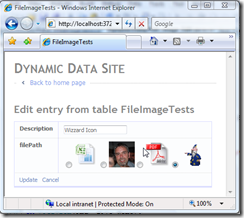
In the OnDataBinding event handler we setup RadioButtonList1 with embedded images form the folder specified in ImageUrlAttribute. When the ListItem is created the value string is set to the filename including extension, so only the filename and not the path is stored. Then in the RadioButtonList1_DataBound event handler the currently selected image is set if FieldValue is not null. In the ExtractValues method of the FieldTemplate it is a simple matter of getting the RadioButtonList1.SelectedValue to return the user selected image.

Select Image Method 

Figure 1 – Select Image Method

Solution 2

In this solution I decided that FileImage_Edit FieldTemplate needed to handle both scenarios, so I have created some more Attributes.

using System;
using System.Text;

// attribute to determin what mode the FileImage_Edit is in
// the default is Select.
[AttributeUsage(AttributeTargets.Property, AllowMultiple = false)]
public sealed class FileImageAttribute : Attribute
{
    public FileImageAttribute(EditorType edit)
    {
        Edit = edit;
    }

    public EditorType Edit { get; set; }

    // Editor Type
    public enum EditorType
    {
        Select,
        Upload
    }
}

// a way of specifying which extension type to accept
[AttributeUsage(AttributeTargets.Property, AllowMultiple = false)]
public sealed class FileImageTypesAttribute : Attribute
{
    public FileImageTypesAttribute()
    {
        ImageTypes = DefaultExtensions;
    }
    
    public FileImageTypesAttribute(params String[] imageTypes)
    
        if (imageTypes.Length > 0)
        {
            ImageTypes = imageTypes;
        }
        else
        {
            ImageTypes = DefaultExtensions;
        }
    }

    public String[] ImageTypes { get; set; }

    // default extensions
    public static String[] DefaultExtensions
    {
        get { return new String[] { "gif", "png", "jpeg", "jpg" }; }
    }

    public String ToString()
    {
        StringBuilder extensions = new StringBuilder();

        foreach (var ext in ImageTypes)
        {
            extensions.Append(ext + ", ");
        }
        return extensions.ToString().Substring(0, extensions.Length - 2);
    }
}

Listing 3 - FileImageAttributes.cs

Here we have two new attribute form the FileImage_Edit FieldTemplate.

  • FileImageAttribute - this allows the selecting of one of two edit modes Select and Upload
    e.g. [FileImage(FileImageAttribute.EditorType.Upload)] which set the control to use the FileUpload to get new files and save them in to the folder specified by ImageUrlAttribute which is now REQUIRED otherwise an error is generated.
  • FileImageTypesAttribute - Allows the specifying of a list of file extensions to match the uploaded file against.

Next in the FileImage_Edit.ascx we add a PlaceHolder with an Image, a FileUpload control and a CustomValidator to handle any errors generated by the FieldTemplate when uploading files.

The kinds of error we want to trap are:

  • Any upload error such as file not found etc.
  • File types that don't match any of the file extensions supplied.
  • If a file is not an image file.

These error type need to be displayed in the same way other errors are shown in Dynamic Data.

<%@ Control Language="C#" AutoEventWireup="true" CodeFile="FileImage_Edit.ascx.cs"
    Inherits="FileImage_Edit" %>
<asp:RadioButtonList ID="RadioButtonList1" runat="server" 
    RepeatDirection="Horizontal"
    RepeatLayout="Flow">
</asp:RadioButtonList>
<asp:PlaceHolder ID="PlaceHolderImage" runat="server" Visible="false">
    <asp:Image ID="ImageEdit" runat="server" /><br />
</asp:PlaceHolder>
<asp:FileUpload ID="FileUploadEdit" runat="server" Visible="false" />
<asp:CustomValidator ID="CustomValidator1" runat="server" 
    ErrorMessage="">
</asp:CustomValidator>

Listing 4 - new FileImage_Edit.ascx

using System;
using System.Collections.Specialized;
using System.IO;
using System.Linq;
using System.Web.DynamicData;
using System.Web.UI;
using System.Web.UI.WebControls;
using Microsoft.Web.DynamicData;

public partial class FileImage_Edit : FieldTemplateUserControl
{
    public override Control DataControl
    {
        get
        {
            return RadioButtonList1;
        }
    }

    protected void Page_Load(object sender, EventArgs e)
    {
        // add CustomValidator1's event handler
        CustomValidator1.ServerValidate += new ServerValidateEventHandler(CustomValidator1_ServerValidate);
        RadioButtonList1.DataBound += new EventHandler(RadioButtonList1_DataBound);
    }

    void CustomValidator1_ServerValidate(object source, ServerValidateEventArgs args)
    {
        var fileImage = MetadataAttributes.OfType<FileImageAttribute>().FirstOrDefault();

        if (fileImage.Edit == FileImageAttribute.EditorType.Select)
            return; // don't bother with the validator if in Select mode

        var imageUrlMetadata = MetadataAttributes.OfType<ImageUrlAttribute>().FirstOrDefault();
        if (FileUploadEdit.HasFile && imageUrlMetadata != null && !String.IsNullOrEmpty(imageUrlMetadata.UrlFormat))
        {
            String imagesDir = imageUrlMetadata.UrlFormat.Substring(0, imageUrlMetadata.UrlFormat.LastIndexOf("/") + 1);
            if (String.IsNullOrEmpty(imagesDir)) imagesDir = "~/images";

            String path = Server.MapPath(imagesDir);
            String fileExtension = FileUploadEdit.FileName.Substring(FileUploadEdit.FileName.LastIndexOf(".") + 1).ToLower();
            var extensions = MetadataAttributes.OfType<FileImageTypesAttribute>().FirstOrDefault();

            String[] allowedExtensions = extensions.ImageTypes.Length > 0
                ? extensions.ImageTypes : FileImageTypesAttribute.DefaultExtensions;

            if (allowedExtensions.Contains(fileExtension))
            {
                var bytes = FileUploadEdit.FileBytes;
                try
                {
                    var a = System.Drawing.Image.FromStream(new MemoryStream(bytes));
                }
                catch
                {
                    // catch any error when user tries to load a file that 
                    // is not an image recognised by System.Drawing
                    args.IsValid = false;
                    CustomValidator1.ErrorMessage = "Not an Image, must be one of the following types: " + extensions.ToString();
                }
            }
            else
            {
                // Raise an error if the files extensionf does not match the allowed extensions
                args.IsValid = false;
                CustomValidator1.ErrorMessage = "Not correct Image type, must be one of the following types: " + extensions.ToString();
            }
        }
        else
        {
            // no file to download you decide wether this is a valid error
            // to throw comment out
            if (!FileUploadEdit.HasFile)
            {
                args.IsValid = false;
                CustomValidator1.ErrorMessage = "No file to download";
            }

            // the ImageUrlAttribute is required to work in either select or upload edit mode
            if (imageUrlMetadata == null || String.IsNullOrEmpty(imageUrlMetadata.UrlFormat))
            {
                args.IsValid = false;
                CustomValidator1.ErrorMessage = "ImageUrl attribute missing.";
            }
        }
    }

    protected override void OnDataBinding(EventArgs e)
    {
        base.OnDataBinding(e);

        var fileImage = MetadataAttributes.OfType<FileImageAttribute>().FirstOrDefault();
        var imageUrlMetadata = MetadataAttributes.OfType<ImageUrlAttribute>().FirstOrDefault();

        if (imageUrlMetadata == null || String.IsNullOrEmpty(imageUrlMetadata.UrlFormat))
        {
            CustomValidator1.IsValid = false;
            CustomValidator1.ErrorMessage = String.Format("An ImageUrlAttribute is required on the column '{0}' for the FileImage_Edit FieldTemplate to work.", Column.Name);
            return; // the ImageUrlAttribute is a required attribute need to throw an error
        }

        // get images folder
        String imagesDir = imageUrlMetadata.UrlFormat.Substring(0, imageUrlMetadata.UrlFormat.LastIndexOf("/") + 1);
        if (String.IsNullOrEmpty(imagesDir))
            imagesDir = "~/images";

        var imageFormat = MetadataAttributes.OfType<ImageFormatAttribute>().FirstOrDefault();

        switch (fileImage.Edit)
        {
            case FileImageAttribute.EditorType.Upload:
                FileUploadEdit.Visible = true;
                if (FieldValue == null)
                    return;
                String fileName = (String)FieldValue;
                ImageEdit.ImageUrl = imagesDir + "/" + fileName;


                if (imageFormat != null)
                {
                    ImageEdit.Width = imageFormat.DisplayWidth;
                    ImageEdit.Height = imageFormat.DisplayHeight;
                }
                PlaceHolderImage.Visible = true;
                break;
            case FileImageAttribute.EditorType.Select:
            default:
                FileUploadEdit.Visible = false;

                var dirInfo = new DirectoryInfo(Server.MapPath(imagesDir));
                if (!dirInfo.Exists)
                    dirInfo.Create(); // if directory does not exist then create it

                // get a list of images in the ImageUrlAttribute folder
                var imagesFolder = ResolveUrl(imagesDir);
                var files = dirInfo.GetFiles();

                if (imageFormat != null)
                {// size image to ImageFormatAttribute
                    foreach (FileInfo file in files)
                    {
                        String img = String.Format
                            (
                                "<img src='{0}' alt='{1}' width='{2}' height='{3}' />",
                                imagesFolder + file.Name,
                                file.Name.Substring(0, file.Name.LastIndexOf(".")),
                                imageFormat.DisplayWidth,
                                imageFormat.DisplayHeight
                            );
                        // embed image in the radio button
                        var li = new ListItem(img, file.Name);
                        this.RadioButtonList1.Items.Add(li);
                    }
                }
                else
                {// if no ImageFormatAttribute supplied the do not resize image
                    foreach (FileInfo file in files)
                    {
                        String img = String.Format
                            (
                                "<img src='{0}' alt='{1}' />",
                                imagesFolder + file.Name,
                                file.Name.Substring(0, file.Name.LastIndexOf("."))
                            );
                        // embed image in the radio button
                        var li = new ListItem(img, file.Name);
                        this.RadioButtonList1.Items.Add(li);
                    }
                }
                break;
        }
    }

    protected override void ExtractValues(IOrderedDictionary dictionary)
    {
        // get Edit type Select or Upload
        var fileImage = MetadataAttributes.OfType<FileImageAttribute>().FirstOrDefault();
        switch (fileImage.Edit)
        {
            case FileImageAttribute.EditorType.Upload:
                var imageUrlMetadata = MetadataAttributes.OfType<ImageUrlAttribute>().FirstOrDefault();

                if (FileUploadEdit.HasFile && imageUrlMetadata != null && !String.IsNullOrEmpty(imageUrlMetadata.UrlFormat))
                {
                    // get the 
                    String imagesDir = imageUrlMetadata.UrlFormat.Substring(0, imageUrlMetadata.UrlFormat.LastIndexOf("/") + 1);
                    if (String.IsNullOrEmpty(imagesDir))
                        imagesDir = "~/images";

                    // resolve full path c:\... etc
                    String path = Server.MapPath(imagesDir);

                    // get files extension without the dot
                    String fileExtension = FileUploadEdit.FileName.Substring(FileUploadEdit.FileName.LastIndexOf(".") + 1).ToLower();

                    // get allowed extensions
                    var extensions = MetadataAttributes.OfType<FileImageTypesAttribute>().FirstOrDefault();
                    String[] allowedExtensions = extensions.ImageTypes.Length > 0
                        ? extensions.ImageTypes : FileImageTypesAttribute.DefaultExtensions;

                    if (allowedExtensions.Contains(fileExtension))
                    {
                        // try to upload the file showing error if it fails
                        try
                        {
                            FileUploadEdit.PostedFile.SaveAs(path + "\\" + FileUploadEdit.FileName);
                            ImageEdit.ImageUrl = imagesDir + "/" + FileUploadEdit.FileName;
                            ImageEdit.AlternateText = FileUploadEdit.FileName;
                            dictionary[Column.Name] = FileUploadEdit.FileName;
                        }
                        catch (Exception ex)
                        {
                            // display error
                            CustomValidator1.IsValid = false;
                            CustomValidator1.ErrorMessage = ex.Message;
                            dictionary[Column.Name] = null;
                        }
                    }
                }
                else
                {
                    // retrun null if no file or ImageUrlAttribute is null or empty
                    dictionary[Column.Name] = null;
                }
                break;
            case FileImageAttribute.EditorType.Select:
            default:
                // return currently selected item
                dictionary[Column.Name] = RadioButtonList1.SelectedValue;
                break;
        }
    }

    protected void RadioButtonList1_DataBound(object sender, EventArgs e)
    {
        var fileImage = MetadataAttributes.OfType<FileImageAttribute>().FirstOrDefault();
        if (FieldValue != null && fileImage.Edit == FileImageAttribute.EditorType.Select)
        {
            //var selectedImage = (String)FieldValue;
            RadioButtonList1.Enabled = true;

            for (int i = 0; i < RadioButtonList1.Items.Count; i++)
            {
                // set select image 
                if ((String)FieldValue == RadioButtonList1.Items[i].Value)
                {
                    RadioButtonList1.Items[i].Selected = true;
                    break;
                }
            }
        }
    }
}

Listing 5 - the code behind for FileImage_Edit.aspx

The code from Listing 5 has been split into two sections by the switch statement as you can see it is switching on fileImage.Edit which is of type FileImageAttribute.EditorType and select drops through to default so if no attribute is set then select will be used.

switch (fileImage.Edit)
{
    case FileImageAttribute.EditorType.Upload:
        // do upload stuff here 
        break;
    case FileImageAttribute.EditorType.Select:
    default:
        // do select stuff here
        break;
}
Listing 6 - switch code snippet
using System.ComponentModel;
using System.ComponentModel.DataAnnotations;
using Microsoft.Web.DynamicData;

[MetadataType(typeof(FileImageTestMD))]
public partial class FileImageTest : INotifyPropertyChanging, INotifyPropertyChanged
{
    public class FileImageTestMD
    {
        public object Id { get; set; }
        public object Description { get; set; }
[UIHint("FileImage")] [ImageUrl("~/images/{0}")] // now REQUIRED [ImageFormat(80, 80)] // now display in edit is not used but could be [FileImage(FileImageAttribute.EditorType.Upload)] [FileImageTypes("gif", "png", "jpeg", "jpg")] public object filePath { get; set; } } }

Listing 7 - Metadata classes

You can see form the Metadata classes how the new attributes are used.

Note: This uses the latest Dynamic Data Runtime and Futures, you can get them from here
Oh yes and thanks to Marcin Dobosz's for his help on the CustomValidator.

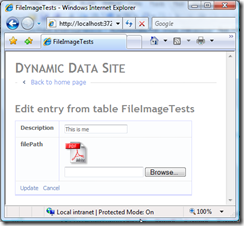
Upload File Method

Figure 2 – Upload File Method

Tuesday, 1 July 2008

Dynamic Data and Routes (Take 2)

Basic Routes

Most of what I writing about comes from this thread Manual Scaffolding and Routing on the DynamicData forum ASP.NET Dynamic Data.

The basic route takes the form:

routes.Add(new DynamicDataRoute("{table}/{action}.aspx")
{
    Constraints = new RouteValueDictionary(new { action = "List|Details|Edit|Insert" }),
    Model = model
});

Listing 1

or

routes.Add(new DynamicDataRoute("{table}.aspx")
{
    Action = PageAction.List,
    Model = model
});

Listing 2

In Listing 1 the first of the two routes above will handle any of the four actions "List|Details|Edit|Insert"  for any table

http://localhost:3759/DD_NWDBP/Orders/List.aspx

In the above Orders equates to {table} and List equates to {action}

In Listing 2 the second of the two routes, there is no {action} defined but only an Action and will only handle the "List" action, and will have a path similar to:

http://localhost:3759/DD_NWDBP/Orders.aspx

Orders equates to {table}

So the difference between Action and Constraints is:

David Ebbo said here: The quick summary is:

  • Setting Action sets the action to be used when the path doesn't contain {action}.  e.g. see the ListDetails.aspx routes in global.asax (commented out by default)

  • Setting Constraints limit the set of acceptable value for a variable like {action}.  So unlike Action, it only makes sense to have it when you do have {action} in the path.

Routes with Parameters

So lets add a route with a parameter:

routes.Add(new DynamicDataRoute("Orders/{Id}/{action}.aspx")
{
    Constraints = new RouteValueDictionary(new { action = "Details|Edit" }),
    Model = model
});

Listing 3

Here we have {Id} parameter for the Orders table this has a URL like:

http://localhost:3759/DD_NWDBP/Orders/10248/Details.aspx
Where 10248 is the primary key of the Order we see on the details page. What's really neat is that we can also dispense with the .aspx at the end making it:
routes.Add(new DynamicDataRoute("{table}/{Id}/{action}")
{
    Constraints = new RouteValueDictionary(new { action = "Details|Edit" }),
    Model = model
});

Which give the URL that common look that we see all the time now:

http://localhost:3759/DD_NWDBP/Orders/10248/Details

Now we can move things about a bit.

routes.Add(new DynamicDataRoute("{table}/{action}/{Id}")
{
    Constraints = new RouteValueDictionary(new { action = "Details|Edit" }),
    Model = model
});
The URL :
http://localhost:3759/DD_NWDBP/Orders/Details/10248

You could also move the other elements of the URL about and it will still work {Id}/{table}/{action}, the order you put these URL parameters is up to you, what ever works for your application.

Referring back to the ASP.NET Dynamic Data forum thread Manual Scaffolding and Routing Marcin proposed this solution the issue of having to create a route manually for each table.

foreach (MetaTable table in model.Tables)
{
    if (table.PrimaryKeyColumns.Count == 1)
    {
        string pkName = table.PrimaryKeyColumns[0].Name;
        string routeUrl = String.Format("{0}/Edit/{{{1}}}.aspx", table.Name, pkName);
        routes.Add(new DynamicDataRoute(routeUrl)
        {
            Model = model,
            Table = table.Name,
            Action = PageAction.Edit
        });
    }
}
Note: that Marcin uses Action = PageAction.Edit instead of Constraints this is because there is no {action} match in the string

This creates a series of routes of the form {Orders}/Edit/{OrderID}.aspx

This got me thinking what about Details the original question in the thread related to "a more Search engine friendly Url" so I posted:

foreach (MetaTable table in model.Tables)
{
    if (table.PrimaryKeyColumns.Count == 1)
    {
        string pkName = table.PrimaryKeyColumns[0].Name;
        string routeUrl = String.Format("{0}/{{action}}/{{{1}}}", table.Name, pkName);
        routes.Add(new DynamicDataRoute(routeUrl)
        {
            Model = model,
            Table = table.Name,
            Constraints = new RouteValueDictionary(new { action = "Details|Edit" }),
        });
    }
}

routes.Add(new DynamicDataRoute("{table}/{action}")
{
    Constraints = new RouteValueDictionary(new { action = "List|Insert" }),
    Model = model
});
Note: That I am using the Constraints instead of the Action this is because I have added an {action} match to the string, this allows the action to be matched to any action but constrained by the Constraints: 
Constraints = new RouteValueDictionary(new { action = "List|Insert" }).

Which as you can see makes the Action cover both Edit and Details but this only works with table that have a single column as primary key, what about compound primary keys with two or more columns? I came up with this:

// adding embedded PK parameters to routing
foreach (MetaTable table in model.Tables)
{
    string routeUrl = "";
    switch (table.PrimaryKeyColumns.Count)
    {
        case 1:
            string pkName = table.PrimaryKeyColumns[0].Name;
            routeUrl = String.Format("{0}/{{action}}/{{{1}}}", table.Name, pkName);
            break;
        case 2:
            string pkName1 = table.PrimaryKeyColumns[0].Name;
            string pkName2 = table.PrimaryKeyColumns[1].Name;
            routeUrl = String.Format("{0}/{{action}}/{{{1}}}/{{{2}}}", table.Name, pkName1, pkName2);
            break;
// adding more case statements here would allow many PK's } routes.Add(new DynamicDataRoute(routeUrl) { Model = model, Table = table.Name, Constraints = new RouteValueDictionary(new { action = "Details|Edit" }) }); } routes.Add(new DynamicDataRoute("{table}/{action}") { Constraints = new RouteValueDictionary(new { action = "List|Insert" }), Model = model });

And this again got me thinking; this will work but what if you have lots of tables then this will create lots of routes. This gave me the Idea what if you knew that a lot of your table have the same name for the primary key, say Id. so I came up with this:

// adding embedded PK parameters to routing
// add default route with PKname = Id
routes.Add(new DynamicDataRoute("{table}/{action}/{Id}")
{
    Constraints = new RouteValueDictionary(new { action = "Edit|Details"}),
    Model = model
});

// add a route for each unique table PK combination NOT PKname = Id
foreach (MetaTable table in model.Tables)
{

    if (table.PrimaryKeyColumns.Count == 1 && table.PrimaryKeyColumns[0].Name == "Id")
        continue; // if one PK and name = Id continue
    string routeUrl = "";
    switch (table.PrimaryKeyColumns.Count)
    {
        case 1:
            string pkName = table.PrimaryKeyColumns[0].Name;
            routeUrl = String.Format("{0}/{{action}}/{{{1}}}", table.Name, pkName);
            break;
        case 2:
            string pkName1 = table.PrimaryKeyColumns[0].Name;
            string pkName2 = table.PrimaryKeyColumns[1].Name;
            routeUrl = String.Format("{0}/{{action}}/{{{1}}}/{{{2}}}", table.Name, pkName1, pkName2);
            break;
    }

    routes.Add(new DynamicDataRoute(routeUrl)
    {
        Model = model,
        Table = table.Name,
        Constraints = new RouteValueDictionary(new { action = "Edit|Details"})
    });
}

routes.Add(new DynamicDataRoute("{table}/{action}")
{
    Constraints = new RouteValueDictionary(new { action = "List|Insert" }),
    Model = model
});

The first step is to create your common Routes and then when iterating through the list of tables in the MetaModel you skip out if the any table matches your common route.

I'm posting on this so it's where I can find it easily again and also because I think Routing is really neat. smile_teeth

Note: David Ebbo posted a great example of a custom route class here have a look it's a better solution than the above for embedding PK's into URL's