Saturday, 2 August 2008

Dynamic Data and Field Templates - A Second Advanced FieldTemplate ***UPDATED***

  1. The Anatomy of a FieldTemplate.
  2. Your First FieldTemplate.
  3. An Advanced FieldTemplate.
  4. A Second Advanced FieldTemplate.
  5. An Advanced FieldTemplate with a GridView.
  6. An Advanced FieldTemplate with a DetailsView.
  7. An Advanced FieldTemplate with a GridView/DetailsView Project.

For this article we are going to convert the CascadingFilter from Dynamic Data Futures project this was thought of by Noimed in this thread.

Files Required for this Project

Here are all of the files we will need to copy to our project from the Dynamic Data Futures project:

From the sample website DynamicDataFuturesSample\DynamicData\Filters folder to the our projects DynamicData\FieldTemplates folder

  • Cascade.ascx
  • Cascade.ascx.cs

From the sample website DynamicDataFuturesSample root to our projects App_Code folder

  • CascadeAttribultes.cs

Plus we will need to add a reference to the DynamicDataFutures project or just copy the Microsoft.Web.DynamicData.dll to the bin folder of our project (you will need to create a bin folder manually if you just copy the dll).

What Cascading Filter does

Cascading filter in Edit/Insert modes, I pointed him to the previous post in this series and we eventually sorted it so it worked as a FieldTemplate. This returns the Primary Key of the parent table see Figure 1.

Order_Details relationships

Figure 1 - Order_Details relationships

In this diagram you can see that Product is grouped Category so the CascadingFilter user control would be ideal for picking the product on the Order_Detail Insert page.

Note: You can’t edit the Product on the Order_Detail form because the Primary Key of Order_Detail is OrderID combined with ProductID :D

So in our sample we will be filtering the Product by the Category.

Creating the Website Project and Adding the Files

The first thing to do will be to create a file based website and add the Northwind database to it. This can be done simply (if you have SQL Server Express 2005/2008 installed) by creating a App_Data folder and copying the Northwind.mdb file to it (the Northwind database can be downloaded from here).

Then add an App_Code folder to the website and add a new Linq to SQL classes item it call it NW.dbml and add at lease the above table to it.

Now copy the files listed in the “Files Required for this Project” and add the reference to Dynamic Data Futures project.

Lets add a reference to the Dynamic Data Futures project; I do this by first adding an existing project, you do this by clicking File->Add->Existing Project...

Adding an Existing project

Figure 2 - Adding an Existing project

Browse to the location you have you Dynamic Data Futures project and select the project file.

Now right click the website and choose Add Reference when the dialogue box pops up select the Projects tab and choose the Dynamic Data Futures project and click the OK button.

Your project should now look like Figure 3.
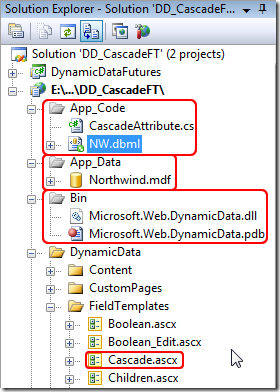
How the project should look after adding the files and references

Figure 3 – How the project should look after adding the files and references

Note: Don’t forget the add your data context to the Global.asax file and set ScaffoldAllTables to true

Modifying the added files

Remove the namespace for the CascadeAttribute.cs file and save that’s done.

Note: Removing the namespace is for file based website only in a Web Application Project you would need to change the namespace to match your applications.

And now lets sort out the Cascade filter. We start by renaming the Cascade.ascx to Cascade_Edit.ascx and then edit both files:

<%@ Control 
    Language="C#" 
    AutoEventWireup="true" 
    CodeFile="Cascade_Edit.ascx.cs" 
    Inherits="Cascade_EditField" %>
<%-- Controls will be added dynamically. See code file. --%>

Listing 1 – Cascade_Edit.ascx

Remove the DynamicDataFuturesSample. from the beginning of the Inherits Control property.

Then edit the Cascade_Edit.ascx.cs file:

namespace DynamicDataFuturesSample
{
    public partial class Cascade_Filter : FilterUserControlBase, ISelectionChangedAware
    {

Listing 2 – Cascade_Edit.ascx.cs

Remove the namespace from around the control class and change the inheritance from FilterUserControlBase, ISelectionChangedAware to FieldTemplateUserControl as in Listing 3.

public partial class Cascade_Filter : FieldTemplateUserControl
{

Listing 3 – Altered Cascade_Edit.ascx.cs

Remove the following section as this is for Filters

public override string SelectedValue
{
    get
    {
        return filterDropDown.SelectedValue;
    }
}

Listing 4 – Remove SelectedValue method

Open ForeignKey_Edit.ascx.cs and copy the following sections to the Cascading_Edit.ascx.cs

protected override void ExtractValues(IOrderedDictionary dictionary)
{
    //...
} public override Control DataControl { //...
}

Listing 5 – Methods to copy from ForeignKey_Edit.ascx.cs

Now Edit the ExtractValues and DataControl methods so they look like Listing 6.

protected override void ExtractValues(IOrderedDictionary dictionary)
{
    // If it's an empty string, change it to null
    string val = filterDropDown.SelectedValue;
    if (val == String.Empty)
        val = null;

    ExtractForeignKey(dictionary, val);
}

public override Control DataControl
{
    get
    {
        return filterDropDown;
    }
}

Listing 6 – Finished ExtractValues and DataControl methods

Note: You will also probably need to add the following using: using System.Collections.Specialized; for the IOrderedDictionary and using System.Web.UI; for the Control.

Adding the Metadata

We have to add the following telling the Cascade FieldTemplate what it needs, it need to know what table to use to filter the main parent table by, in this case the Category table. And we need the UIHint to tell Dynamic Data to use the Cascade FieldTemplate.

using System;
using System.ComponentModel;
using System.ComponentModel.DataAnnotations;
using Microsoft.Web.DynamicData;

[MetadataType(typeof(Order_DetailMD))]
public partial class Order_Detail
{
    public class Order_DetailMD
    {
        [Cascade("Category")]
        [UIHint("Cascade")]
        public object Product { get; set; }
    }
}

Listing 7 – the metadata

One last thing we need to add a Cascade.ascx FieldTemplate to the FieldTemplates folder as there is no way of Dynamic Data knowing what FieldTemplate to use in Read-Only mode. For this we will just copy ForeignKey.ascx as Cascade.ascx and change the class name from ForeignKeyField to CascadeField.

Add some Business Logic/Validation

Because we are using Order_Details table which has a composite primary key see below:

Order Details table

Figure 4 - Order Details table

So we need to add some business logic to validate this before insert.

public partial class NWDataContext
{
    partial void InsertOrder_Detail(Order_Detail instance)
    {
        var DC = new NWDataContext();
        var dk = DC.Order_Details.SingleOrDefault(
            od => od.OrderID == instance.OrderID && od.ProductID == instance.ProductID
            );

        if (dk != null)
        {
            // if a record is found throw an exception
            String error = "Duplicate Primary keys not allowed (OrderID={0} ProductID={1})";
            throw new ValidationException(String.Format(error, instance.OrderID, instance.ProductID));
        }
        else
        {
            // finnaly send to the database
            this.ExecuteDynamicInsert(instance);
        }
    }
}

Listing 8 – InsertOrder_Details partial method

This just checks the database to see if this is a duplicate primary key and if so generates a validation error.

Cascade FieldTemplate in Action 

Figure 5 – Cascade FieldTemplate in Action

Business Logic in action

Figure 6 – Business Logic in action

Adding Sorting to the Filters DropDownList ***UPDATED***

In the Cascase.ascx.cd FilterControl and Cascade_Edit.ascx.cs FieldTemplate you will find a method GetChildListFilteredByParent this returns the values for the filtered DropDownList, but as you will see this list is an unordered list. To add sorting to this list we need to add a Linq OrderBy clause. As you will see the code in Listing 9 is making use of the Expression class to create an expression tree smile_confused these are not really hard to understand, it’s just that there are so few examples and tutorials for us to get our teeth into.

So what I’ve done here is add a OrderBy clause which does the trick :D

private IQueryable GetChildListFilteredByParent(object selectedParent)
{
    var query = filterTable.GetQuery(context);
    // this make more sense as the parameter now has the table name (filteredTable.Name)
    // note the change from "product" to filterTable.Name
    var parameter = Expression.Parameter(filterTable.EntityType, filterTable.Name);
    // product.Category
    var property = Expression.Property(parameter, filterTableColumnName);
    // selectedCategory
    var constant = Expression.Constant(selectedParent);
    // product.Category == selectedCategory
    var predicate = Expression.Equal(property, constant);
    // product => product.Category == selectedCategory
    var lambda = Expression.Lambda(predicate, parameter);
    // Products.Where(product => product.Category == selectedCategory)
    var whereCall = Expression.Call(typeof(Queryable), "Where", new Type[] { filterTable.EntityType }, query.Expression, lambda);


    //================================== Order by ================================
    if (filterTable.SortColumn != null)
    {
        // this make more sense as the parameter now has the table name (filteredTable.Name)
        // table.sortColumn
        var sortProperty = Expression.Property(parameter, filterTable.SortColumn.Name);

        // Column => Column.SortColumn
        var orderByLambda = Expression.Lambda(sortProperty, parameter);

        //.OrderBy(Column => Column.SortColumn)
        MethodCallExpression orderByCall = Expression.Call(
            typeof(Queryable),
            "OrderBy",
            new Type[] { filterTable.EntityType, filterTable.SortColumn.ColumnType },
            whereCall,
            orderByLambda);


        //{
        //Table(Product).
        //Where(Products => (Products.Category = value(Category))).
        //OrderBy(Products => Products.ProductName)
        //}
        return query.Provider.CreateQuery(orderByCall);
    }//================================== Order by ================================
    else
    {
        return query.Provider.CreateQuery(whereCall);
    }
}

Listing 9 - GetChildListFilteredByParent

The section between the OrderBy comments is mine gleaned from various bits on the Internet, and also I’ve change the return line of the method to return the orderByCall which was whereCall previously.

To make this work you will need to add a DisplayColumn attribute to the metadata with the sort column added see Listing 10.

[MetadataType(typeof(ProductMD))]
[DisplayColumn("ProductName","ProductName")]
public partial class Product{}

Figure 10 – SortColumn added to DisplayColumn

The second parameter of DisplayColumn is the SortColumn when this is added then the GroupBy will be added to the where clause.

Note: You can transplant this code strait into the Cascade Filter as well smile_teeth.
Note: It should be possible to sort the parent DropDownList using a similar method.

And that about wraps it up.

Until next time.smile_teeth

Thursday, 31 July 2008

Dynamic Data Custom Pages Part 5: I18N? Internationalisation Custom Page

As far as I can see there are three (oops! four then and now a 5th) types of Custom Page:

  1. Custom Pages Part 1 - Standard Custom Page based on an existing PageTemplate and customised in the DynamicData\CustomPages folder.
  2. Custom Pages Part 2 - A completely Custom Page again in the DynamicData\CustomPages folder.
  3. Custom Pages Part 3 - Standard ASP.Net Page with Dynamic Data features added to take advantage of the FieldTemplates.
  4. Custom Pages Part 4 - A DetailsView and a GridView using Validation Groups
  5. Custom Pages Part 5 - I18N? Internationalisation Custom Page

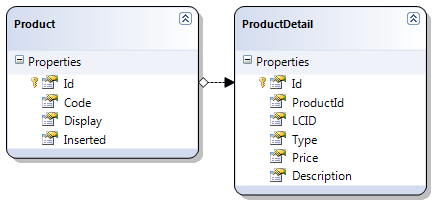
When answering this thread here LCID: how to scaffold language dependent fields from separate tables... by Zoltán Lantos from Hungary, I knocked together this CustomPage and thought it was worth blogging about and so add a 5th post the my Three post series on Custom Pages.

The model

Figure 1 – the model

This works by filtering the LCID column by the users current culture, so there is a row in ProductDetails for each culture/language.

The requirements for this little project were:

  1. Admin to be able to see in a tabbed like layout all the ProductDetails foreach culture.
  2. The normal user to be able to see their ProductDetails in their own culture.

The FieldTemplates

Here are the FieldTemplates for editing and displaying the records culture here.

<%@ Control 
    Language="C#" 
    CodeFile="LCID_Edit.ascx.cs" 
    Inherits="LCID_EditField" %>

<asp:DropDownList 
    runat="server" 
    ID="DropDownList1" 
    CssClass="droplist" 
    ondatabound="DropDownList1_DataBound">
</asp:DropDownList>

Listing 1 – LCID_Edit.ascx

using System;
using System.Collections.Specialized;
using System.Globalization;
using System.Linq;
using System.Web.UI;
using System.Web.UI.WebControls;

public partial class LCID_EditField : System.Web.DynamicData.FieldTemplateUserControl
{
    protected override void OnDataBinding(EventArgs e)
    {
        base.OnDataBinding(e);

        // use linq to get a list of cultures to display in the drop down list
        var cultures = from c in CultureInfo.GetCultures(CultureTypes.NeutralCultures)
                       select new
                       {
                           Lcid = c.TwoLetterISOLanguageName,
                           Name = c.TwoLetterISOLanguageName + " - " + c.EnglishName
                       };

        // setup the drop down list
        DropDownList1.DataSource = cultures;
        DropDownList1.DataValueField = "Lcid";
        DropDownList1.DataTextField = "Name";
        DropDownList1.DataBind();
    }

    protected void DropDownList1_DataBound(object sender, EventArgs e)
    {
        // check the FieldValueString is not null
        if (String.IsNullOrEmpty(FieldValueString))
        {
            // set it to the culture of the client session
            DropDownList1.SelectedValue = CultureInfo.CurrentCulture.TwoLetterISOLanguageName;
        }
        else
        {
            // set the drop down list to the current vlaue
            DropDownList1.SelectedValue = FieldValueString;
        }
    }

    protected override void ExtractValues(IOrderedDictionary dictionary)
    {
        // get selected value
        dictionary[Column.Name] = ConvertEditedValue(DropDownList1.SelectedValue);
    }

    public override Control DataControl
    {
        get
        {
            return DropDownList1;
        }
    }
}

Listing 2 – LCID_Edit.ascx.cs code behind file

As you can see from the code above all we are doing is populating a DropDownList with all the cultures from CultureInfo.GetCultures of type CultureTypes.NeutralCultures using Linq smile_teeth to get them in an anonymous type.

And here is the much simpler LCID.ascx FieldTemplate:

protected override void OnDataBinding(EventArgs e)
{
    base.OnDataBinding(e);

    // use linq to get a list of cultures to display in the drop down list
    var culture = CultureInfo.GetCultures(CultureTypes.NeutralCultures).SingleOrDefault(c => c.TwoLetterISOLanguageName == FieldValueString);
    Label1.Text = culture.TwoLetterISOLanguageName + " - " + culture.EnglishName;
}

Listing 3 – LCID.ascx FieldTemplate OnDataBinding event handler

As you can see all the LCID.ascx is is a Label and the OnDataBinding event handler.

The Metadata and Partial Classes

I’m just going to paste them here and give detailed explanation as we go along
using System;
using System.Collections.Generic;
using System.Linq;
using System.Web;
using System.ComponentModel;
using System.ComponentModel.DataAnnotations;

public partial class ProductsDataContext
{
    // Implement the InsertProductDetail to do insert validation
    partial void InsertProductDetail(ProductDetail instance)
    {
        var DC = new ProductsDataContext();
        if (DC.ProductDetails.SingleOrDefault(pc => (pc.ProductId == instance.ProductId && pc.LCID == instance.LCID)) != null)
        {
            // Throw an exception if a match is found
            throw new ValidationException("Duplicate culture per Product is not permitted");
        }
        else
        {
            // finally send this to the DB
            this.ExecuteDynamicInsert(instance);
        }
    }
}

[MetadataType(typeof(ProductDetailMD))]
public partial class ProductDetail
{
    public class ProductDetailMD
    {
        [UIHint("LCID")]
        public object LCID { get; set; }
    }
}

Listing 4 – Metadata and Partial classes

As you can see we two parts to the ProductsMD.cs file; the first part check for duplicate languages/culture on a product and the second part adds the UIHint to the LCID column.

The Products Edit page

Here’s a snapshot of the finished page:

Screen shot of the finished page

Figure 1 - Screen shot of the finished page

There are three part to the page;

  1. A DetailsView for the Product
  2. A ListView for the “tab” control (it could be styled to look like tabs using css if you wanted to)
  3. A FromView and GridvView for the ProductDetails

1. A DetailsView for the Product 

Is strait forward enough and I started with a normal Edit.aspx Page Template and then added all the other components.

2. A ListView for the “tab” control

To do this at first I thought of using the Ajax Toolkit Tab control and embedding it in a ListView but that was a no go as you could not break apart the individual part between different ListView templates. So I finally opted for a ListView with LinkButtons as Select commands, each row only has a Select button in it.

3. A FromView and GridvView for the ProductDetails

The FormView is used for inserting and the GridView is used for editing and displaying ProductDetails.

So here’s the code for the page and the code behind.

<%@ Page Language="C#" MasterPageFile="~/Site.master" CodeFile="Edit.aspx.cs" Inherits="Edit" %>

<asp:Content ID="Content1" ContentPlaceHolderID="ContentPlaceHolder1" runat="Server">

    <asp:DynamicDataManager 
        runat="server" 
        ID="DynamicDataManager1" 
        AutoLoadForeignKeys="true" />
        
    <h2>Edit entry from table <%= mtProducts.DisplayName %></h2>
    
    <asp:ScriptManagerProxy 
        runat="server" 
        ID="ScriptManagerProxy1" />
    
    <asp:UpdatePanel 
        runat="server" 
        ID="UpdatePanel1">
    
        <ContentTemplate>
            <asp:ValidationSummary 
                runat="server" 
                ID="ValidationSummary1" 
                EnableClientScript="true"
                HeaderText="List of validation errors" />
                
            <asp:DynamicValidator 
                runat="server" 
                ID="DetailsViewValidator" 
                ControlToValidate="DetailsView1"
                Display="None" />
                
            <asp:DetailsView 
                runat="server" 
                ID="DetailsView1" 
                DataSourceID="ldsProducts"
                DefaultMode="Edit" 
                AutoGenerateEditButton="True" 
                OnItemCommand="DetailsView1_ItemCommand"
                OnItemUpdated="DetailsView1_ItemUpdated" 
                CssClass="detailstable" 
                FieldHeaderStyle-CssClass="bold" 
                AutoGenerateRows="False" 
                DataKeyNames="Id">
                <FieldHeaderStyle CssClass="bold" />
                <Fields>
                    <asp:DynamicField DataField="Code" />
                    <asp:DynamicField DataField="Display" />
                    <asp:DynamicField DataField="Inserted" />
                </Fields>
            </asp:DetailsView>
            
            <asp:LinqDataSource 
                runat="server" 
                ID="ldsProducts" 
                ContextTypeName="ProductsDataContext" 
                TableName="Products" 
                EnableUpdate="True">
                <WhereParameters>
                    <asp:DynamicQueryStringParameter />
                </WhereParameters>
            </asp:LinqDataSource>
            
            <h2>Cultures</h2>

            <asp:ListView 
                runat="server" 
                ID="lvLanguages" 
                DataSourceID="ldsLanguages" 
                DataKeyNames="LCID" 
                OnItemCommand="lvLanguages_ItemCommand">
                
                <LayoutTemplate>
                    <div>
                        <span id="itemPlaceHolder" runat="server"></span>
                        <asp:LinkButton 
                            runat="server" 
                            ID="lvLanguagesInsert" 
                            CommandName="InsertProductDetail" 
                            CommandArgument="LCID" 
                            CausesValidation="false">
                            add new
                        </asp:LinkButton>
                        <asp:Label 
                            runat="server"
                            ID="InsertLabel" 
                            Visible="false"> 
                            <strong>add new</strong>
                        </asp:Label>
                    </div>
                </LayoutTemplate>
                
                <ItemTemplate>
                    <asp:LinkButton 
                        runat="server" 
                        Text='<%# Eval("LCID") %>' 
                        CommandName="Select" 
                        CausesValidation="false">
                    </asp:LinkButton>
                </ItemTemplate>
                
                <SelectedItemTemplate>
                 <strong><%# Eval("LCID") %></strong>
                </SelectedItemTemplate>
                
            </asp:ListView>
            
            <asp:LinqDataSource 
                runat="server" 
                ID="ldsLanguages" 
                ContextTypeName="ProductsDataContext" 
                TableName="ProductDetails" 
                Where="ProductId == @ProductId" 
                GroupBy="LCID" 
                Select="new (key as LCID, it as ProductDetails)" 
                OrderGroupsBy="key">
                <WhereParameters>
                    <asp:ControlParameter 
                        ControlID="DetailsView1" 
                        Name="ProductId" 
                        PropertyName="SelectedValue" 
                        Type="Int32" />
                </WhereParameters>
            </asp:LinqDataSource>
            
            <br /><br />
            
            <asp:DynamicValidator 
                runat="server" 
                ID="GridViewDynamicValidator" 
                ControlToValidate="GridView1"
                Display="None" />
                
            <asp:GridView 
                runat="server" 
                ID="GridView1" 
                AutoGenerateColumns="False" 
                CssClass="gridview" 
                DataKeyNames="Id" 
                DataSourceID="ldsProductDetails" 
                OnRowDeleted="GridView1_RowDeleted">
                <Columns>
                    <asp:CommandField 
                        ShowEditButton="True" 
                        ShowDeleteButton="True" />
                    <asp:DynamicField DataField="LCID" />
                    <asp:DynamicField DataField="Type" />
                    <asp:DynamicField DataField="Price" />
                    <asp:DynamicField DataField="Description" />
                </Columns>
            </asp:GridView>
            
            <asp:DynamicValidator 
                runat="server" 
                ID="ProductDetailDynamicValidator" 
                ControlToValidate="fvProductDetail"
                ValidationGroup="ProductDetailsList_Insert"
                Display="None" />
                
            <asp:FormView 
                runat="server"
                ID="fvProductDetail"
                CssClass="gridview"
                DefaultMode="Insert" 
                Visible="false"
                DataSourceID="ldsProductDetails" 
                OnItemInserted="fvProductDetail_ItemInserted" 
                onitemcommand="fvProductDetail_ItemCommand">
                
                <InsertItemTemplate>
                        <thead>
                            <tr>
                                <th>
                                </th>
                                <th>
                                    LCID
                                </th>
                                <th>
                                    Type
                                </th>
                                <th>
                                    Price
                                </th>
                                <th>
                                    Description
                                </th>
                            </tr>
                        </thead>
                        <tbody>
                            <tr>
                                <td>
                                    <asp:LinkButton 
                                        runat="server" 
                                        ID="InsertLinkButton" 
                                        CommandName="Insert">
                                        Insert
                                    </asp:LinkButton>
                                    <asp:LinkButton 
                                        runat="server" 
                                        ID="CancelLinkButton" 
                                        CausesValidation="false" 
                                        CommandName="Cancel">
                                        Cancel
                                    </asp:LinkButton>
                                </td>
                                <td>
                                    <asp:DynamicControl 
                                        ID="DynamicControl1" 
                                        DataField="LCID" 
                                        Mode="Insert" 
                                        runat="server" />
                                </td>
                                <td>
                                    <asp:DynamicControl 
                                        ID="DynamicControl2" 
                                        DataField="Type" 
                                        Mode="Insert" 
                                        runat="server" />
                                </td>
                                <td>
                                    <asp:DynamicControl 
                                        ID="DynamicControl3" 
                                        DataField="Price" 
                                        Mode="Insert" 
                                        runat="server" />
                                </td>
                                <td>
                                    <asp:DynamicControl 
                                        ID="DynamicControl4" 
                                        DataField="Description" 
                                        Mode="Insert" 
                                        runat="server" />
                                </td>
                            </tr>
                        </tbody>
                </InsertItemTemplate>
            </asp:FormView>
            
            <asp:LinqDataSource 
                runat="server" 
                ID="ldsProductDetails" 
                ContextTypeName="ProductsDataContext" 
                TableName="ProductDetails" 
                Where="LCID == @LCID &amp;&amp; ProductId == @ProductId" 
                EnableDelete="True" 
                EnableInsert="True" 
                EnableUpdate="True" 
                OnInserting="ldsProductDetails_Inserting">
                <WhereParameters>
                    <asp:ControlParameter 
                        ControlID="lvLanguages" 
                        Name="LCID" 
                        PropertyName="SelectedValue" 
                        Type="String" />
                    <asp:ControlParameter 
                        ControlID="DetailsView1" 
                        Name="ProductId" 
                        PropertyName="SelectedValue" 
                        Type="Int32" />
                </WhereParameters>
            </asp:LinqDataSource>
            
        </ContentTemplate>
    </asp:UpdatePanel>
</asp:Content>

Listing 5 – Edit.aspx Products page

using System;
using System.Web.DynamicData;
using System.Web.UI.WebControls;

public partial class Edit : System.Web.UI.Page
{
    protected MetaTable mtProducts;
    protected MetaTable mtProductDetails;

    protected void Page_Init(object sender, EventArgs e)
    {
        DynamicDataManager1.RegisterControl(DetailsView1, true);
        DynamicDataManager1.RegisterControl(GridView1);
        DynamicDataManager1.RegisterControl(fvProductDetail);
    }

    protected void Page_Load(object sender, EventArgs e)
    {
        mtProducts = ldsProducts.GetTable();
        mtProductDetails = ldsProductDetails.GetTable();
        Title = mtProducts.DisplayName;

        // set the first item to be selected
        lvLanguages.SelectedIndex = 0;
    }

    protected void DetailsView1_ItemCommand(object sender, DetailsViewCommandEventArgs e)
    {
        // redirect to the List page when cancel clicked
        if (e.CommandName == DataControlCommands.CancelCommandName)
        {
            Response.Redirect(mtProducts.ListActionPath);
        }
    }

    protected void DetailsView1_ItemUpdated(object sender, DetailsViewUpdatedEventArgs e)
    {
        // redirect to the List page when update clicked
        if (e.Exception == null || e.ExceptionHandled)
        {
            Response.Redirect(mtProducts.ListActionPath);
        }
    }

    protected void lvLanguages_ItemCommand(object sender, ListViewCommandEventArgs e)
    {
        // toggel the view between Insert and Edit/Display
        var insertButton = (LinkButton)lvLanguages.FindControl("lvLanguagesInsert");
        var insertLabel = (Label)lvLanguages.FindControl("InsertLabel");
        if (e.CommandName == "InsertProductDetail")
        {
            GridView1.Visible = false;
            lvLanguages.SelectedIndex = -1;
            fvProductDetail.Visible = true;
            insertButton.Visible = false;
            insertLabel.Visible = true;
        }
        if (e.CommandName == "Select")
        {
            GridView1.Visible = true;
            lvLanguages.SelectedIndex = 0;
            fvProductDetail.Visible = false;
            insertButton.Visible = true;
            insertLabel.Visible = false;
        }
    }

    protected void GridView1_RowDeleted(object sender, GridViewDeletedEventArgs e)
    {
        // when an item is deleted the redirect back 
        // to the same page with the current id
        if (e.Exception == null || e.ExceptionHandled)
        {
            var s = DetailsView1.DataKey.Value.ToString();
            var s1 = mtProducts.GetActionPath(PageAction.Edit) + @"?Id=" + s;
            Response.Redirect(s1);
        }
    }

    protected void fvProductDetail_ItemInserted(object sender, FormViewInsertedEventArgs e)
    {
        // when an item is inserted the redirect back 
        // to the same page with the current id
        if (e.Exception == null || e.ExceptionHandled)
        {
            var s = DetailsView1.DataKey.Value.ToString();
            var s1 = mtProducts.GetActionPath(PageAction.Edit) + @"?Id=" + s;
            Response.Redirect(s1);
        }
    }

    protected void fvProductDetail_ItemCommand(object sender, FormViewCommandEventArgs e)
    {
        // on the cancel button being presed return the page normal state
        var insertButton = (LinkButton)lvLanguages.FindControl("lvLanguagesInsert");
        var insertLabel = (Label)lvLanguages.FindControl("InsertLabel");
        if (e.CommandName == "Cancel")
        {
            GridView1.Visible = true;
            lvLanguages.SelectedIndex = 0;
            fvProductDetail.Visible = false;
            insertButton.Visible = true;
            insertLabel.Visible = false;
        }
    }

    protected void ldsProductDetails_Inserting(object sender, LinqDataSourceInsertEventArgs e)
    {
        // add the ProductId from the DetailsView
        ((ProductDetail)e.NewObject).ProductId = (int)DetailsView1.DataKey.Value;
    }
}

Listing 6 – Edit.aspx.cs code behind for ProductDetails

The comments should explain what is happening.

Thanks for reading smile_teeth

Note: That requirement number 2 should be trivial in that all you need is a custom page with a DetailView and a FormView and adding a WHERE parameter to the LinqDataSource limiting the data to the clients culture.

UPDATE

I’ve just had a thought and decided to add it here :D

I’ve re done the ListView Tabs and added some tool tips:

<asp:ListView 
    runat="server" 
    ID="lvLanguages" 
    DataSourceID="ldsLanguages" 
    DataKeyNames="LCID" 
    OnItemCommand="lvLanguages_ItemCommand">
    
    <LayoutTemplate>
        <div>
            <span id="itemPlaceHolder" runat="server"></span>
            <asp:LinkButton 
                runat="server" 
                ID="lvLanguagesInsert"
                ToolTip="Insert new Product Decription"
                CommandName="InsertProductDetail" 
                CommandArgument="LCID" 
                CausesValidation="false">
                add new
            </asp:LinkButton>
            <asp:Label 
                runat="server"
                ID="InsertLabel" 
                ToolTip="Insert new Product Decription"
                Visible="false"> 
                <strong>add new</strong>
            </asp:Label>
        </div>
    </LayoutTemplate>
    
    <ItemTemplate>
        <asp:LinkButton 
            runat="server" 
            Text='<%# Eval("LCID") %>' 
            CommandName="Select" 
            ToolTip='<%# Eval("Name") %>'
            CausesValidation="false">
        </asp:LinkButton>
    </ItemTemplate>
    
    <SelectedItemTemplate>
     <strong title='<%# Eval("Name") %>'><%# Eval("LCID") %></strong>
    </SelectedItemTemplate>
    
</asp:ListView>

<asp:LinqDataSource 
    runat="server" 
    ID="ldsLanguages"
    OnSelecting="ldsLanguages_Selecting">
    <WhereParameters>
    </WhereParameters>
</asp:LinqDataSource>

Listing 7 – Update ListView and associated LinqDataSource

protected void ldsLanguages_Selecting(object sender, LinqDataSourceSelectEventArgs e)
{
    var DC = new ProductsDataContext();

    var productCultures = from pdc in DC.ProductDetails
                          where pdc.ProductId == (int)DetailsView1.DataKey.Value
                          select pdc;

    var cultureDetails = from pd in productCultures.ToArray()
                         join pc in CultureInfo.GetCultures(CultureTypes.NeutralCultures) on 
                            pd.LCID equals pc.TwoLetterISOLanguageName
                         select new
                         {
                             LCID = pd.LCID,
                             Name = pc.EnglishName
                         };

    e.Result = cultureDetails;
}

Listing 8 – Selecting event handler for the ldsLanguages LinqDataSource

What I’ve done is taken the data from the SQL tables and merged it with the CultureInfo to produce a list of cultures plus their English names. Note I’ve removed the WHERE parameters etc from the LinqDataSource and added the OnSelecting event handler.

Yet another neat use of Linq smile_teeth Yes I could have done a separate article on this but I though it fitted well here.

Monday, 28 July 2008

Dynamic Data and Field Templates - An Advanced FieldTemplate

  1. The Anatomy of a FieldTemplate.
  2. Your First FieldTemplate.
  3. An Advanced FieldTemplate.
  4. A Second Advanced FieldTemplate.
  5. An Advanced FieldTemplate with a GridView.
  6. An Advanced FieldTemplate with a DetailsView.
  7. An Advanced FieldTemplate with a GridView/DetailsView Project. 

Well I say advanced... well here we go we are going to use the AutoCompleteFilter web service from Dynamic Data Futures example to make an AutoCompleteText_Edit FieldTemplate. What this will do is look up values in the column that we are editing for matches i.e. if we had a column for category names and we typed in con we may get list like Condiments, Confections, Containers etc.

Note: This does NOT work with foreign key fields it’s a text field only thing

I’ll be working with file based website project so there will be changes to make when we use the bits from the Dynamic Data Futures.

Step 1 – adding the AutocompleteFilter.asmx files and AutocompleteStyle.css

Copy the AutocompleteFilter.asmx and AutocompleteStyle.css to the root of the website and copy the AutocompleteFilter.asmx.cs to the App_Code folder.

Now we need to edit the AutocompleteFilter.asmx file:

<%@ WebService 
    Language="C#" 
    CodeBehind="~/AutocompleteFilterService.cs" 
    Class="DynamicDataFuturesSample.AutocompleteFilterService" %>

Listing 1 – the AutocompleteFilter.asmx

We need to remove the DynamicDataFuturesSample. namespace from the Class="DynamicDataFuturesSample.AutocompleteFilterService" so it reads Class="AutocompleteFilterService".

namespace DynamicDataFuturesSample
{

Listing 2 – namespace from the AutocompleteFilter.asmx.cs

Now remove the surrounding namespace from the AutocompleteFilter.asmx.cs file including the last “}” brace.

You can save and close both files.

Now to add the AutocompleteFilter style sheet to the master page and add the AutocompleteStyle.css style sheet to the head section of the page

<head runat="server">
    <title>Dynamic Data Site</title>
    <link href="~/Site.css" rel="stylesheet" type="text/css" />
    <link href="~/AutocompleteStyle.css" rel="stylesheet" type="text/css" />
</head>

Listing 3 – head section of the Site.master page with the AutocompleteStyle.css style sheet added

Step 2 – Adding a reference to the Dynamic Data Futures

You can achieve this in one of two ways

  1. Add a reference to the DLL created when the Dynamic Data Futures was compiled. Right mouse click on the root of the website and choose Add Reference and then click the browse tab and browse to the DLL and click OK.
  2. From the File menu add –> Existing Project and choose the Dynamic Data Futures project. When added, choose add reference from the root of the website and select the projects tab, choose Dynamic Data Futures project and click OK (useful when debugging).

Step 3 – Converting the Autocomplete.ascx from Daynamic Data Futures

Copy the Autocomplete.ascx and Autocomplete.ascx.cs files from the ~/DynamicData/Filter folder in the DynamicDataFuturesSample website to the ~/DynamicData/FieldTemplates folder in our website and then rename to TextAutocomplete_Edit.

Now as in step 1 we need to remove the namespace from the copied files:

<%@ Control 
    Language="C#" 
    AutoEventWireup="true"
    Inherits="DynamicDataFuturesSample.Autocomplete_Filter" 
    Codebehind="Autocomplete.ascx.cs" %>

Listing 4 – Control  tag of Autocomplete.ascx file

So remove the DynamicDataFuturesSample. from the Inherits property but also this time rename the Codebehind to CodeFile and change the name of the class and CodeFile/Codebehind see below

<%@ Control 
    Language="C#" 
    AutoEventWireup="true"
    Inherits="TextAutocomplete_EditField" 
    CodeFile="TextAutocomplete_Edit.ascx.cs" %>

Listing 5 – Control  tag of TextAutocomplete_Edit.ascx file

namespace DynamicDataFuturesSample
{
    public partial class Autocomplete_Filter : FilterUserControlBase
    {

Listing 6 - TextAutocomplete_Edit.ascx.cs file

Change Listing 6 to look like Listing 7 remembering to remove the closing brace “}” of the namespace.

public partial class TextAutocomplete_EditField : FieldTemplateUserControl
{

Listing 7 – Altered TextAutocomplete_Edit.ascx.cs file

Note the change of FilterUserControlBase to FieldTemplateUserControl.

Now go to the bottom of the TextAutocomplete_Edit.ascx file.

<script type="text/javascript">
    // Work around browser behavior of "auto-submitting" simple forms
    var frm = document.getElementById("aspnetForm");
    if (frm) {
        frm.onsubmit = function() { return false; };
    }
</script>
<%-- Prevent enter in textbox from causing the collapsible panel from operating --%>
<input type="submit" style="display:none;" />

Listing 8 – End of the TextAutocomplete_Edit.ascx

You will need to remove script altogether as it stops the LinkButtons on the DetailsView from posting back.

<%-- Prevent enter in textbox from causing the collapsible panel from operating –%>
<input type="submit" style="display:none;" />

Listing 9 – Modified end of the TextAutocomplete_Edit.ascx

Remove the Clear button from the user control

<asp:TextBox runat="server" ID="AutocompleteTextBox" Width="300" autocomplete="off"  />
<asp:HiddenField runat="server" ID="AutocompleteValue" />
<asp:Button runat="server" ID="ClearButton" OnClick="ClearButton_Click" Text="Clear" />
<ajaxToolkit:AutoCompleteExtender

Listing 10 – Remove the Clear Button
<asp:TextBox runat="server" ID="AutocompleteTextBox" Width="300" autocomplete="off"  />
<asp:HiddenField runat="server" ID="AutocompleteValue" />
<ajaxToolkit:AutoCompleteExtender

Listing 11 – Clear Button Removed

You can save and close the TextAutocomplete_Edit.ascx file

Now to hack the rest of the code in the code behind file.

Delete the following from the end of the control class:

public void ClearButton_Click(object sender, EventArgs e)
{
    // this would probably be better handled using client javascirpt
    AutocompleteValue.Value = String.Empty;
    AutocompleteTextBox.Text = String.Empty;
}

public override string SelectedValue
{
    get
    {
        return String.IsNullOrEmpty(AutocompleteValue.Value) ? null : AutocompleteValue.Value;
    }
}

Listing 12 – bits to remove from the end of the code behind

Now to finish the hacking :D

Remove the following from the Page_Init event handler

if (!Page.IsPostBack && !String.IsNullOrEmpty(InitialValue))
{
    // set the initial value of the filter if it's present in the request URL

    MetaTable parentTable = fkColumn.ParentTable;
    IQueryable query = parentTable.GetQuery();
    // multi-column PK values are seperated by commas
    var singleCall = LinqExpressionHelper.BuildSingleItemQuery(query, parentTable, InitialValue.Split(','));
    var row = query.Provider.Execute(singleCall);
    string display = parentTable.GetDisplayString(row);

    AutocompleteTextBox.Text = display;
    AutocompleteValue.Value = InitialValue;
}

Listing 13 – delete from Page_Init

Edit the remaining code to look like this adding the ExtractValues and DataControl methods and the OnDataBinding event handler:

public partial class TextAutocomplete_EditField : FieldTemplateUserControl
{
    protected void Page_Init(object sender, EventArgs e)
    {
        autoComplete1.ContextKey = AutocompleteFilterService.GetContextKey(Table);

        // modify behaviorID so it does not clash with other autocomplete extenders on the page
        autoComplete1.Animations = autoComplete1.Animations.Replace(autoComplete1.BehaviorID, AutocompleteTextBox.UniqueID);
        autoComplete1.BehaviorID = AutocompleteTextBox.UniqueID;
    }

    protected override void OnDataBinding(EventArgs e)
    {
        base.OnDataBinding(e);

        if (!String.IsNullOrEmpty(FieldValueString))
        {
            // set the initial value 
            AutocompleteTextBox.Text = FieldValueString;
        }
    }

    protected override void ExtractValues(System.Collections.Specialized.IOrderedDictionary dictionary)
    {
        dictionary[Column.Name] = AutocompleteTextBox.Text;
    }

    public override System.Web.UI.Control DataControl
    {
        get
        {
            return AutocompleteTextBox;
        }
    }
}

Listing 14 – Completed TextAutocomplete_Edit.ascx.cs

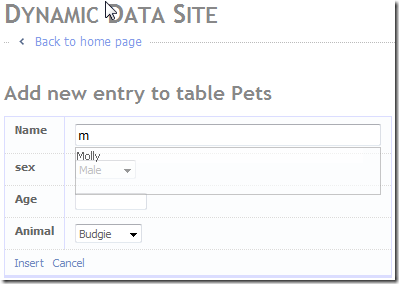
Use UIHint attribute to tell Dynamic Data to use TextAutocomplete for that field and run it hers what it should look like:

TextAutocomplete_Edit in action

Figure 1 – TextAutocomplete_Edit in action

Step 4 – Adding an Attribute

Here we will add an attribute to set the minimum number of characters typed before the auto complete is started (the default is 1 see MinimumPrefixLength in the TextAutocomplete_Edit.ascx file). Here’s the code for the attribute:

using System;

/// <summary>
/// Summary description for EnumerationTypeAttribute
/// </summary>
[AttributeUsage(AttributeTargets.Property, AllowMultiple = false)]
public class TextAutocompleteAttribute : Attribute
{
    public TextAutocompleteAttribute(int prefixLength)
    {
        AutocompletePrefixLength = prefixLength;
    }

    public int AutocompletePrefixLength { get; set; }
}

Listing 15 – TextAutoCompleteAttribute

The code in Listing 15 has only one property AutocompletePrefixLength which we will use to set the MinimumPrefixLength property of the Ajax Toolkit AutoCompleteExtender.

Edit the TextAutocomplete_Edit.ascx.cs’s Page_Init event handler so it looks like this:


protected void Page_Init(object sender, EventArgs e)
{
    // get the AutocompletePrefixLength if present
    var prefixLength = Column.Attributes.OfType<TextAutocompleteAttribute>().SingleOrDefault();

    // if present set MinimumPrefixLength
    if (prefixLength != null)
        autoComplete1.MinimumPrefixLength = prefixLength.AutocompletePrefixLength;

    autoComplete1.ContextKey = AutocompleteFilterService.GetContextKey(Table);

    // modify behaviorID so it does not clash with other autocomplete extenders on the page
    autoComplete1.Animations = autoComplete1.Animations.Replace(autoComplete1.BehaviorID, AutocompleteTextBox.UniqueID);
    autoComplete1.BehaviorID = AutocompleteTextBox.UniqueID;
}

Listing 16 – adding the code to read the attribute

The first line of code gets the attribute and then the IF statement tests to se if the value is not null and if so sets the AutoCompleteExtenders MinimumPrefixLength to it’s value.

That’s it on this one, until I get the time to write a FieldTemplate to handle SQL Server 2008’s Geography data type via Virtual Earth.