Monday, 15 September 2008

Dynamic Data: Part 3-FileUpload FieldTemplates

  1. Part 1 - FileImage_Edit FieldTemplate.
  2. Part 2 - FileImage_Edit FieldTemplate.
  3. Part 3 - FileUpload FiledTemplate.

FileUpload and FileUpload_Edit FiledTemplates

I thought this would complement the DBImage and FileImage FieldTemplates and so I thought what would you want to be able to do:

  • Upload a file to a specified folder.
  • Download the said file once uploaded.
  • Display an image for the file.
  • Control the download capability via attributes and user Roles.
  • Handle errors such as wrong file type or when file is missing from upload folder.

The FileUpload Attributes

In this example I’m creating on attribute to hold all the parameters to do with FileUpload.

[AttributeUsage(AttributeTargets.Property, AllowMultiple = false)]
public sealed class FileUploadAttribute : Attribute
{
    /// <summary>
    /// where to save files
    /// </summary>
    public String FileUrl { get; set; }

    /// <summary>
    /// File tyoe to allow upload
    /// </summary>
    public String[] FileTypes { get; set; }

    /// <summary>
    /// image type to use for displaying file icon
    /// </summary>
    public String DisplayImageType { get; set; }

    /// <summary>
    /// where to find file type icons
    /// </summary>
    public String DisplayImageUrl { get; set; }

    /// <summary>
    /// If present user must be a member of one
    /// of the roles to be able to download file
    /// </summary>
    public String[] HyperlinkRoles { get; set; }

    /// <summary>
    /// Used to Disable Hyperlink (Enabled by default)
    /// </summary>
    public Boolean DisableHyperlink { get; set; }

    /// <summary>
    /// helper method to check for roles in this attribute
    /// the comparison is case insensitive
    /// </summary>
    /// <param name="role"></param>
    /// <returns></returns>
    public bool HasRole(String[] roles)
    {
        if (HyperlinkRoles.Count() > 0)
        {
            var hasRole = from hr in HyperlinkRoles.AsEnumerable()
                          join r in roles.AsEnumerable()
                          on hr.ToLower() equals r.ToLower()
                          select true;

            return hasRole.Count() > 0;
        }
        return false;
    }

}
Listing 1 – FileUploadAttribute

You will notice in the Listing 1 that all the properties are using c# 3.0’s new Automatic Properties feature less typing; just type prop and hit tab twice and there is you property ready to be filled in.

The second thing you will see is the HasRoles method on this attribute, which takes an array of roles and checks to see if HyperlinkRoles property has any matches. It does this by joining the two arrays together in a Linq to Object query and then selects true for each match in the join. I’m sure this is more readable that the traditional nested foreach loops, it’s certainly neater :D.

The FileUpload FieldTemplate

This FiledTemplate will show the filename and associated icon.

FileUpload with icon

Figure 1- File and associated Icon

<%@ Control
    Language="C#"
    AutoEventWireup="true"
    CodeFile="FileUpload.ascx.cs"
    Inherits="FileImage" %>

<asp:Image ID="Image1" runat="server" />&nbsp;
<asp:Label ID="Label1" runat="server" Text="<%# FieldValueString %>"></asp:Label>
<asp:HyperLink ID="HyperLink1" runat="server"></asp:HyperLink>&nbsp;
<asp:CustomValidator
    ID="CustomValidator1"
    runat="server"
    ErrorMessage="">
</asp:CustomValidator>

Listing 2 – FileUpload.ascx file

As you can see from Listing 1 there are Image, Label and Hyperlink controls on the page. The Label and Hyperlink are mutually exclusive if the conditions are right then a Hyperlink will show so that the file can be downloaded else just a Label will show with the filename.

using System;
using System.IO;
using System.Linq;
using System.Web.DynamicData;
using System.Web.Security;
using System.Web.UI;
using Microsoft.Web.DynamicData;

public partial class FileImage : FieldTemplateUserControl
{

    public override Control DataControl
    {
        get
        {
            return Label1;
        }
    }

    protected override void OnDataBinding(EventArgs e)
    {
        base.OnDataBinding(e);

        //check if field has a value
        if (FieldValue == null)
            return;

        // get the file extension
        String extension = FieldValueString.Substring(
            FieldValueString.LastIndexOf(".") + 1,
            FieldValueString.Length - (FieldValueString.LastIndexOf(".") + 1));

        // get attributes
        var fileUploadAttributes = MetadataAttributes.OfType<FileUploadAttribute>().FirstOrDefault();
        String fileUrl = fileUploadAttributes.FileUrl;
        String displayImageUrl = fileUploadAttributes.DisplayImageUrl;
        String displayImageType = fileUploadAttributes.DisplayImageType;


        // check the file exists else throw validation error
        String filePath;
        if (fileUploadAttributes != null)
            filePath = String.Format(fileUrl, FieldValueString);
        else
            // if attribute not set use default
            filePath = String.Format("~/files/{0}", FieldValueString);

        // show the relavent control depending on metadata
        if (fileUploadAttributes.HyperlinkRoles.Length > 0)
        {
            // if there are roles then check: 
            // if user is in one of the roles supplied
            // or if the hyperlinks are disabled 
            // or if the file does not exist
            // then hide the link
            if (!fileUploadAttributes.HasRole(Roles.GetRolesForUser())  fileUploadAttributes.DisableHyperlink  !File.Exists(Server.MapPath(filePath)))
            {
                Label1.Text = FieldValueString;
                HyperLink1.Visible = false;
            }
            else
            {
                Label1.Visible = false;
                HyperLink1.Text = FieldValueString;
                HyperLink1.NavigateUrl = filePath;
            }
        }
        else
        {
            // if either hyperlinks are disabled or the
            // file does not exist then hide the link
            if (fileUploadAttributes.DisableHyperlink  !File.Exists(Server.MapPath(filePath)))
            {
                Label1.Text = FieldValueString;
                HyperLink1.Visible = false;
            }
            else
            {
                Label1.Visible = false;
                HyperLink1.Text = FieldValueString;
                HyperLink1.NavigateUrl = filePath;
            }
        }

        // check file exists on file system
        if (!File.Exists(Server.MapPath(filePath)))
        {
            CustomValidator1.ErrorMessage = String.Format("{0} does not exist", FieldValueString);
            CustomValidator1.IsValid = false;
        }

        // show the icon
        if (!String.IsNullOrEmpty(extension))
        {
            // set the file type image
            if (!String.IsNullOrEmpty(displayImageUrl))
            {
                Image1.ImageUrl = String.Format(displayImageUrl, extension + "." + displayImageType);
            }
            else
            {
                // if attribute not set the use default
                Image1.ImageUrl = String.Format("~/images/{0}", extension + "." + displayImageType);
            }

            Image1.AlternateText = extension + " file";

            // if you apply dimentions from DD Futures
            var imageFormat = MetadataAttributes.OfType<ImageFormatAttribute>().FirstOrDefault();
            if (imageFormat != null)
            {
                // if either of the dims is 0 don't set it
                // this will mean that the aspect will remain locked
                if (imageFormat.DisplayWidth != 0)
                    Image1.Width = imageFormat.DisplayWidth;
                if (imageFormat.DisplayHeight != 0)
                    Image1.Height = imageFormat.DisplayHeight;
            }
        }
        else
        {
            // if file has no extension then hide image
            Image1.Visible = false;
        }
    }
}

Listing 3 – FileUpload.ascx.cs file

In Listing 3 you can see that everything goes on in the OnDataBinding event handler.

The FileUpload_Edit FieldTemplate

<%@ Control
    Language="C#"
    AutoEventWireup="true"
    CodeFile="FileUpload_Edit.ascx.cs"
    Inherits="FileImage_Edit" %>
   
<asp:PlaceHolder ID="PlaceHolder1" runat="server" Visible="false">
    <asp:Image ID="Image1" runat="server" />&nbsp;
    <asp:Label ID="Label1" runat="server" Text="<%# FieldValueString %>"></asp:Label>
    <asp:HyperLink ID="HyperLink1" runat="server"></asp:HyperLink>&nbsp;
</asp:PlaceHolder>
<asp:FileUpload ID="FileUpload1" runat="server" />&nbsp;
<asp:CustomValidator
    ID="CustomValidator1"
    runat="server"
    ErrorMessage="">
</asp:CustomValidator>

Listing 4 – FileUpload_Edit.ascx file

In Listing 4 the PlaceHolder control is used to hide the Image, Label and Hyperlink when in insert mode or when there is no value to be shown.

using System;
using System.Collections.Specialized;
using System.IO;
using System.Linq;
using System.Web.DynamicData;
using System.Web.Security;
using System.Web.UI;
using Microsoft.Web.DynamicData;

public partial class FileImage_Edit : FieldTemplateUserControl
{
    public override Control DataControl
    {
        get
        {
            return Label1;
        }
    }

    protected override void OnDataBinding(EventArgs e)
    {
        base.OnDataBinding(e);

        //check if field has a value
        if (FieldValue == null)
            return;

        // when there is already a value in the FieldValue
        // then show the icon and label/hyperlink
        PlaceHolder1.Visible = true;

        // get the file extension
        String extension = FieldValueString.Substring(
            FieldValueString.LastIndexOf(".") + 1,
            FieldValueString.Length - (FieldValueString.LastIndexOf(".") + 1));

        // get attributes
        var fileUploadAttributes = MetadataAttributes.OfType<FileUploadAttribute>().FirstOrDefault();
        String fileUrl = fileUploadAttributes.FileUrl;
        String displayImageUrl = fileUploadAttributes.DisplayImageUrl;
        String displayImageType = fileUploadAttributes.DisplayImageType;
        String filePath;

        // check the file exists else throw validation error
        if (fileUploadAttributes != null)
            filePath = String.Format(fileUrl, FieldValueString);
        else
            // if attribute not set use default
            filePath = String.Format("~/files/{0}", FieldValueString);

        // show the relavent control depending on metadata
        if (fileUploadAttributes.HyperlinkRoles.Length > 0)
        {
            // if there are roles then check: 
            // if user is in one of the roles supplied
            // or if the hyperlinks are disabled 
            // or if the file does not exist
            // then hide the link
            if (!fileUploadAttributes.HasRole(Roles.GetRolesForUser())  fileUploadAttributes.DisableHyperlink  !File.Exists(Server.MapPath(filePath)))
            {
                Label1.Text = FieldValueString;
                HyperLink1.Visible = false;
            }
            else
            {
                Label1.Visible = false;
                HyperLink1.Text = FieldValueString;
                HyperLink1.NavigateUrl = filePath;
            }
        }
        else
        {
            // if either hyperlinks are disabled or the
            // file does not exist then hide the link
            if (fileUploadAttributes.DisableHyperlink  !File.Exists(Server.MapPath(filePath)))
            {
                Label1.Text = FieldValueString;
                HyperLink1.Visible = false;
            }
            else
            {
                Label1.Visible = false;
                HyperLink1.Text = FieldValueString;
                HyperLink1.NavigateUrl = filePath;
            }
        }

        // check file exists on file system
        if (!File.Exists(Server.MapPath(filePath)))
        {
            CustomValidator1.ErrorMessage = String.Format("{0} does not exist", FieldValueString);
            CustomValidator1.IsValid = false;
        }

        // show the icon
        if (!String.IsNullOrEmpty(extension))
        {
            // set the file type image
            if (!String.IsNullOrEmpty(displayImageUrl))
            {
                Image1.ImageUrl = String.Format(displayImageUrl, extension + "." + displayImageType);
            }
            else
            {
                // if attribute not set the use default
                Image1.ImageUrl = String.Format("~/images/{0}", extension + "." + displayImageType);
            }

            Image1.AlternateText = extension + " file";

            // if you apply dimentions from DD Futures
            var imageFormat = MetadataAttributes.OfType<ImageFormatAttribute>().FirstOrDefault();
            if (imageFormat != null)
            {
                // if either of the dims is 0 don't set it
                // this will mean that the aspect will remain locked
                if (imageFormat.DisplayWidth != 0)
                    Image1.Width = imageFormat.DisplayWidth;
                if (imageFormat.DisplayHeight != 0)
                    Image1.Height = imageFormat.DisplayHeight;
            }
        }
        else
        {
            // if file has no extension then hide image
            Image1.Visible = false;
        }
    }

    protected override void ExtractValues(IOrderedDictionary dictionary)
    {
        // get attributes
        var fileUploadAttributes = MetadataAttributes.OfType<FileUploadAttribute>().FirstOrDefault();

        String fileUrl;
        String[] extensions;
        if (fileUploadAttributes != null)
        {
            fileUrl = fileUploadAttributes.FileUrl;
            extensions = fileUploadAttributes.FileTypes;

            if (FileUpload1.HasFile)
            {
                // get the files folder
                String filesDir = fileUrl.Substring(0, fileUrl.LastIndexOf("/") + 1);

                // resolve full path c:\... etc
                String path = Server.MapPath(filesDir);

                // get files extension without the dot
                String fileExtension = FileUpload1.FileName.Substring(
                    FileUpload1.FileName.LastIndexOf(".") + 1).ToLower();

                // check file has an allowed file extension
                if (extensions.Contains(fileExtension))
                {
                    // try to upload the file showing error if it fails
                    try
                    {
                        FileUpload1.PostedFile.SaveAs(path + "\\" + FileUpload1.FileName);
                        Image1.ImageUrl = String.Format(fileUploadAttributes.DisplayImageUrl, fileExtension + ".png");
                        Image1.AlternateText = fileExtension + " file";
                        dictionary[Column.Name] = FileUpload1.FileName;
                    }
                    catch (Exception ex)
                    {
                        // display error
                        CustomValidator1.IsValid = false;
                        CustomValidator1.ErrorMessage = ex.Message;
                    }
                }
                else
                {
                    CustomValidator1.IsValid = false;
                    CustomValidator1.ErrorMessage = String.Format("{0} is not a valid file to upload", FieldValueString);
                }
            }
        }
    }
}
Listing 5 - FileUpload_Edit.ascx.cs file

In Listing 5 the OnDataBinding event handler is pretty much the same as the FileUpload.ascs.cs file. Here its the ExtractValues method that does the work of uploading and displaying errors, i.e. if the file type of the file to be uploaded does not match a file type specified in the metadata or there is an error during the upload.

Helper Class FileUploadHelper

public static class FileUploadHelper
{
    /// <summary>
    /// If the given table contains a column that has a UI Hint with the value "DbImage", finds the ScriptManager
    /// for the current page and disables partial rendering
    /// </summary>
    /// <param name="page"></param>
    /// <param name="table"></param>
    public static void DisablePartialRenderingForUpload(Page page, MetaTable table)
    {
        foreach (var column in table.Columns)
        {
            // TODO this depends on the name of the field template, need to fix
            if (String.Equals(
                column.UIHint, "DBImage", StringComparison.OrdinalIgnoreCase)
                String.Equals(column.UIHint, "FileImage", StringComparison.OrdinalIgnoreCase)
                String.Equals(column.UIHint, "FileUpload", StringComparison.OrdinalIgnoreCase))
            {
                var sm = ScriptManager.GetCurrent(page);
                if (sm != null)
                {
                    sm.EnablePartialRendering = false;
                }
                break;
            }
        }
    }
}

Listing 6 - FileUploadHelper

This is just a modified version of the Dynamic Data Futures DisablePartialRenderingForUpload method the only difference is that I’ve added support for both my file upload capable FieldTemplates FileImage and FileUpload.

Finally Some Sample Metadata

[MetadataType(typeof(FileImageTestMD))]
public partial class FileImageTest : INotifyPropertyChanging, INotifyPropertyChanged
{
    public class FileImageTestMD
    {
        public object Id { get; set; }
        public object Description { get; set; }
        [UIHint("FileUpload")]
        [FileUpload(
            FileUrl = "~/files/{0}",
            FileTypes = new String[] { "pdf", "xls", "doc", "xps" },
            DisplayImageType = "png",
            DisableHyperlink = false,
            HyperlinkRoles=new String[] { "Admin", "Accounts" },
            DisplayImageUrl = "~/images/{0}")]
        [ImageFormat(22, 0)]
        public object filePath { get; set; }
    }
}

Listing 7 – sample metadata

The FileUpload Project

Note: Please note that the ASPNETDB.MDF supplied in this website is SQL 2008 Express and will not work with SQL 2005 and earlier, you will need to set your own up. Or you can just strip out the login capability from the site.master and web.config.

Enjoy smile_teeth

Tuesday, 9 September 2008

Dynamic Data Futures – Part 3 – AnyColumnAutocomplete Filter

  1. Part 1 - Getting Dynamic Data Futures filters working in a File Based Website.
  2. Part 2 - Create the AnyColumn filter from the Dynamic Data Futures Integer filter.
  3. Part 3 – Creating the AnyColumnAutocomplete filter.

Creating the AnyColumnAutocomplete filter

This version of the Autocomplete filter was adapted in response to this article on the Dynamic Data forum by levalencia.

The issue is that the Autocomplete filter and AutocompleteFilter web service is designed to work with Foreign Key columns, I thought this would be like the previous article in this series and be quite simple, instead it turned out to be a bit more complicated smile_thinking.

Making the AnyColumnAutocomplete FieldTemplate.

The issue initially was that the Autocomplete filter was assuming MetaForeignKeyColumn fkColumn and then referencing the ParentTable from it this meant that we needed a new FieldTemplate no just some tweaking.

protected void Page_Init(object sender, EventArgs e)
{
    var fkColumn = Column as MetaForeignKeyColumn;

    //// dynamically build the context key so the web service knows which table we're talking about
    autoComplete1.ContextKey = AutocompleteFilterService.GetContextKey(fkColumn.ParentTable);
    ...
}

Listing 1 – Autocomplete filter Page_Init

And then in the AutocompleteFilter web service has no reference to the column this meant that either we create a new web service of modify the current I decided to modify it as there were only a few new methods needed to handle the non foreign key columns.

So without any further ado here’s the changes to the FieldTemplate to make the AnyColumnAutocomplete filter.

We remove the line:

var fkColumn = Column as MetaForeignKeyColumn;

and replace all referenced to fkColumn.PartentTable with Column.Table or Column

e.g. change

MetaTable parentTable = fkColumn.ParentTable;
to
MetaTable parentTable = Column.Table;

And change the following line

autoComplete1.ContextKey = AutocompleteFilterService.GetContextKey(fkColumn.ParentTable);

to

autoComplete1.ContextKey = AutocompleteFilterService.GetContextKey(Column);

And that's the changes to make the AnyColumnAutocomplete filter.

Now the changes to the AutocompleteFilter web service

The first change to the AutocompleteFilter web service was to add an overloaded GetContextKey that takes a MetaTable as remember this line from above:

autoComplete1.ContextKey = AutocompleteFilterService.GetContextKey(Column);

So the overloaded method takes a MetaColumn as it’s parameter not MetaTable:

public static string GetContextKey(MetaColumn column)
{
    return String.Format("{0}#{1}#{2}", column.Table.DataContextType.FullName, column.Table.Name, column.Name);
}

Listing 2 – GetContextKey method

Note: That from the column it gets similar properties as the original but also get the Column.Name

Next the changes to the GetCompletionList which returns the list of results.

[System.Web.Services.WebMethod]
[System.Web.Script.Services.ScriptMethod]
public string[] GetCompletionList(string prefixText, int count, string contextKey) {
    MetaTable table = GetTable(contextKey);

    IQueryable queryable = BuildFilterQuery(table, prefixText, count);

    return queryable.Cast<object>().Select(row => CreateAutoCompleteItem(table, row)).ToArray();
}

Listing 3 – GetCompletionList original method

[System.Web.Services.WebMethod]
[System.Web.Script.Services.ScriptMethod]
public string[] GetCompletionList(string prefixText, int count, string contextKey)
{
    MetaTable table;
    String[] param = contextKey.Split('#');

    if (param.Length > 2)
    {
        table = GetTable(contextKey);
        var list = BuildFilterQuery(table, prefixText, count, param[2]);

        return list;
    }
    else
    {
        table = GetTable(contextKey);
        IQueryable queryable = BuildFilterQuery(table, prefixText, count);

        return queryable.Cast<object>().Select(row => CreateAutoCompleteItem(table, row)).ToArray();
    }
}

Listing 4 – GetCompletionList modified method

In the modified version we split the contectKey into param local variable and check the number of entries to determine whether it’s dealing with ForeignKey column or any other column.

Also note the minor change to the GetTable method where the number of parameters is check and added a check for 2 OR 3 paramers.

Debug.Assert(param.Length == 2  param.Length == 3, String.Format("The context key '{0}' is invalid", contextKey));

After this I have added another overloaded method for the BuildFilterQuery which also takes the column name.

private static String[] BuildFilterQuery(
    MetaTable table,
    string prefixText,
    int maxCount,
    String columnName)
{
    var column = table.GetColumn(columnName);

    // query = {Table(Customer)}
    var query = table.GetQuery();

    // row
    // entityParam = {row}
    var entityParam = Expression.Parameter(column.Table.EntityType, "row");

    // row.DisplayName
    //var property = Expression.Property(entityParam, columnName);
    //property = {row.City}
    var property = Expression.Property(entityParam, column.EntityTypeProperty);

    // row => row.Property
    // columnLambda = {row => row.City}
    var columnLambda = Expression.Lambda(property, entityParam);

    // "prefix"
    // constant = {"Lo"}
    var constant = Expression.Constant(prefixText);

    // row.DisplayName.StartsWith("prefix")
    // startsWithCall = {row.City.StartsWith("Lo")}
    var startsWithCall = Expression.Call(
        property,
        typeof(string).GetMethod("StartsWith", new Type[] { typeof(string) }),
        constant);

    // row => row.DisplayName.StartsWith("prefix")
    // whereLambda = {row => row.City.StartsWith("Lo")}
    var whereLambda = Expression.Lambda(startsWithCall, entityParam);

    // Customers.Where(row => row.DisplayName.StartsWith("prefix"))
    // whereCall = {Table(Customer).Where(row => row.City.StartsWith("Lo"))}
    var whereCall = Expression.Call(
        typeof(Queryable),
        "Where",
        new Type[] { table.EntityType },
        query.Expression,
        whereLambda);

    // query.Select(row => row.Property)
    // selectCall = {Table(Customer).Where(row => row.City.StartsWith("Lo")).Select(row => row.City)}
    var selectCall = Expression.Call(
        typeof(Queryable),
        "Select",
        new Type[] { query.ElementType, columnLambda.Body.Type },
        whereCall,
        columnLambda);

    // query.Select(row => row.Property).Distinct
    // distinctCall = {Table(Customer).Where(row => row.City.StartsWith("Lo")).Select(row => row.City).Distinct()}
    var distinctCall = Expression.Call(
        typeof(Queryable),
        "Distinct",
        new Type[] { column.EntityTypeProperty.PropertyType },
        selectCall);

    // Customers.Where(row => row.DisplayName.StartsWith("prefix")).Take(20)
    // distinctCall = {Table(Customer).Where(row => row.City.StartsWith("Lo")).Select(row => row.City).Distinct().Take(20)}
    var takeCall = Expression.Call(
        typeof(Queryable),
        "Take",
        new Type[] { typeof(String) },
        distinctCall,
        Expression.Constant(maxCount));

    var result = query.Provider.CreateQuery(takeCall);
    List<String> list = new List<string>();
    foreach (var item in result)
    {
        list.Add(AutoCompleteExtender.CreateAutoCompleteItem(item.ToString(), item.ToString()));
    }

    return list.ToArray();
    //return query.Provider.CreateQuery(distinctCall);
}

Listing 5 – overloaded BuildFilterQuery method

Listing 5 essentially does what Sample 1 does; which get the first two cities from the Customer table where they begin with “Br” and makes sure they are distinct.

var DC = new NWDataContext();
var q = (from c in DC.Customers
        where c.City.StartsWith("Br")
        select c.City).Distinct().Take(2);

Sample 1 – getting the first 2 customer whose City starts with “Br”

And then returns an array that is ready to pass back to the AjaxToolkit Autocomplete control.

And here’s the Metadata classes

[MetadataType(typeof(Customer_MD))]
public partial class Customer
{
    public class Customer_MD
    {
        [Filter(FilterControl = "AnyColumnAutocomplete")]
        public object City { get; set; }
    }
}

Listing 6 – metadata classes

Website project file (not including Dynamic Data Futures project)

Hope this helps smile_teeth

Saturday, 6 September 2008

Dynamic Data and Field Templates - An Advanced FieldTemplate with a GridView/DetailsView Project ***UPDATED***

  1. The Anatomy of a FieldTemplate.
  2. Your First FieldTemplate.
  3. An Advanced FieldTemplate.
  4. A Second Advanced FieldTemplate.
  5. An Advanced FieldTemplate with a GridView.
  6. An Advanced FieldTemplate with a DetailsView.
  7. An Advanced FieldTemplate with a GridView/DetailsView Project.

Here is the file based website zipped up no Northwind database you’ll need to provide that yourself as I’m on SQL Server 2008 now :D

UPDATED: I’ve updated the GridView/DetailsView Project it now has ParentDetails and the ChildrenGrid FieldTemplate’s
ParentDetails
no longet support Insert but does support Update as before. Before you try it test it with the Northwind database and this project.

Changes to the project both FieldTemplate now support an attribute that sets which columns to display and now share the IAutoFieldGenerator.

Hope this helps [:D]

Friday, 5 September 2008

Dynamic Data Futures – Part 2 - AnyColumn Filter

  1. Part 1 - Getting Dynamic Data Futures filters working in a File Based Website.
  2. Part 2 - Create the AnyColumn filter from the Dynamic Data Futures Integer filter.
  3. Part 3 – Creating the AnyColumnAutocomplete filter.

Create the AnyColumn filter from the Dynamic Data Futures Integer filter

No need to create a new filter once you've got the filters from Dynamic Data Future working in your site all you need to do is add the filter attribute Integer to the property you want filtered see below:

[MetadataType(typeof(Customer_MD))]
public partial class Customer
{
    public class Customer_MD
    {
        [Filter(FilterControl = "Integer")]
        public object ContactName { get; set; }
    }
}

I was thinking I had to some stuff to make the Integer filter to work with other column type and you don't when I look back at my code smile_embaressed

Hope this helps smile_teeth

Thursday, 4 September 2008

Dynamic Data Compound Column *** UPDATED 2008/11/08 ***

I answered this Re: Display multiple fields in custom FieldTemplateUserControl question in the Dynamic Data forum whilst away and didn’t have the time to do a full write up of it so here it is.

What the question was:

Adult wrote “I want to display multiple fields in one custom FieldTemplateUserControl. For example i have property X and Y. Currently they show on separate row when i edit or insert.
Do i need to create new property to return anonymous class with just this 2 property and in custom control,read values.What about inserting? Anyone done it?”

So here’s the partial class I added to deal with the new property Coordinate:

using System.ComponentModel;
using System.ComponentModel.DataAnnotations;

[MetadataType(typeof(TestPointMD))]
public partial class TestPoint
{
    [ScaffoldColumn(true)]
    public Point Coordinate
    {
        get
        {
            return new Point(this.X, this.Y);
        }
        set
        {
            this.X = value.X;
            this.Y = value.Y;
        }
    }

    public class TestPointMD
    {
        public object Id { get; set; }
        public object Name { get; set; }
        [ScaffoldColumn(false)]
        public object X { get; set; }
        [ScaffoldColumn(false)]
        public object Y { get; set; }
    }
}

[Serializable]
public class Point
{
    public Point(int x, int y)
    {
        X = x;
        Y = y;
    }

    public int X { get; set; }
    public int Y { get; set; }

    public String ToString()
    {
        return X + ", " + Y;
    }
}

Listing 1 – Partial methods for my model

Listing 1 consists of three parts:

  1. The partial class with the Coordinate property added.
  2. The Metadata class setting the ScaffoldColumn attribute to false for the individual column we don’t want to show.
  3. And last the Point class that we are using in the Coordinate property Note the Serializable attribute which is needed for the FieldTemplate to be able to return values.
Note: The lack of UIHint in the metadata or partial class as we are going to create a FieldTemplate called Point and Point_Edit.

The next part are the FieldTemplates Point and Point_Edit.

<%@ Control 
    Language="C#" 
    CodeFile="Point.ascx.cs" 
    Inherits="PointField" %>

<asp:Literal 
    runat="server" 
    ID="Literal1" />

Listing 2 – Point.ascx

using System;
using System.Web.UI;

public partial class PointField : System.Web.DynamicData.FieldTemplateUserControl
{
    public override Control DataControl
    {
        get
        {
            return Literal1;
        }
    }

    protected override void OnDataBinding(EventArgs e)
    {
        var p = FieldValue as Point;
        Literal1.Text = p.ToString();
        base.OnDataBinding(e);
    }
}

Listing 3 – Point.ascx.cs

Listings 2 and 3 are based on the Text.ascx FieldTemplate the main difference is that the value of the literal is set via the Point class’s ToString() method.

<%@ Control 
    Language="C#" 
    CodeFile="Point_Edit.ascx.cs" 
    Inherits="Point_EditField" %>

<asp:TextBox 
    ID="TextBoxX" 
    runat="server" 
    CssClass="droplist">
</asp:TextBox>
<asp:TextBox 
    ID="TextBoxY" 
    runat="server" 
    CssClass="droplist">
</asp:TextBox>

Listing 4 – Point_Edit.ascx

using System;
using System.Collections.Specialized;
using System.Web.UI;

public partial class Point_EditField : System.Web.DynamicData.FieldTemplateUserControl
{
    protected void Page_Load(object sender, EventArgs e)
    {
        TextBoxX.MaxLength = Column.MaxLength;
        TextBoxY.MaxLength = Column.MaxLength;
        if (Column.MaxLength < 20)
        {
            TextBoxX.Columns = Column.MaxLength;
            TextBoxY.Columns = Column.MaxLength;
        }
        TextBoxX.ToolTip = Column.Description;
        TextBoxY.ToolTip = Column.Description;
    }

    protected override void OnDataBinding(EventArgs e)
    {
        var p = FieldValue as Point;
        if (p != null)
        {
            TextBoxX.Text = p.X.ToString();
            TextBoxY.Text = p.Y.ToString();
        }
        base.OnDataBinding(e);
    }

    protected override void ExtractValues(IOrderedDictionary dictionary)
    {
        int x;
        int y;
        int.TryParse(TextBoxX.Text, out x);
        int.TryParse(TextBoxY.Text, out y);
        var p = new Point(x, y);
        dictionary[Column.Name] = p;
    }

    public override Control DataControl
    {
        get
        {
            return TextBoxX;
        }
    }
}

Listing 5 – Point_Edit.ascx.cs

Here in Listings 4 and 5 we create again from the Text_Edit FieldTemplate our Point_Edit FieldTemplate everything in this apart from the ExtractValues method is the same as the FieldTemplate it is based on but just doubled up on the two TextBoxes we have used. In the ExtractValues method we create and populate a new instance of the Point class set it’s X and Y properties and then put it in the dictionary passed into the method.

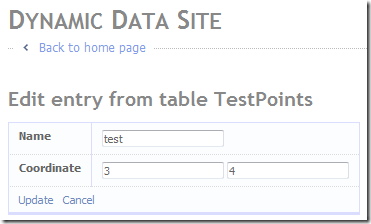
Point FieldTemplate in action

Figure 1 – Point FieldTemplate in action

This seems to work really well for this type of compound property. At a later date I would like to try this with Point being a User Defended Type in SQL Server 2005/2008, this would get rid of the need for the compound property and would mean only a new FieldTemplate was required.

UPDATED: Issue re: this post Grouping Columns into class to pass into FieldTemplate sporadic problem on the ASP.Net Dynamic Data Forum

The combined property does get assigned, but when the update check is on, it ends up being overwritten by the original values of the individual fields.  Basically, pretty random results.  I think it’s best to avoid using custom properties, especially since they’re not supported in EF.

See Scott’s sample http://www.codeplex.com/aspnet/Release/ProjectReleases.aspx?ReleaseId=14473.
UPDATED: See Rick’s post on on a simple two column display here Improving the FK field display: Showing two fields in Foreign Key columns with EF not quite a clever at this can be but if you want to display two column compunded together sutch as FirstName and LastName in the FK this this ones for you.

Some Pictures and Musings from my Vacation

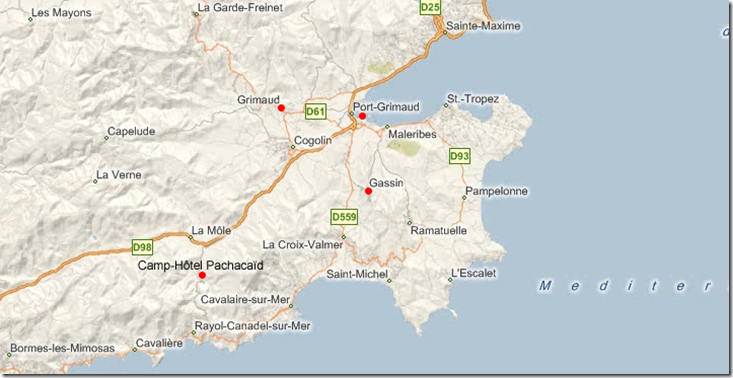
Just got back from holiday/vacation in the south of France (Near St.Tropez, La Mole to be exact) and I thought I’d bore you with some of my panoramic pictures and let you to drool over them (and me too I wish I was back there).

We took a three day drive there and back and had two week in the sun and we hardly ever saw a cloud in the sky. It was the best holiday ever for sun, but the traffic was terrible you had to get up early if you wanted to get to a beach or to one of the local towns i.e. St.-Tropez, Sainte-Maxime. The camp site was nice and clean although the slides (according to my wife and my daughter) weren’t that brilliant (I went on once and got stuck a couple of time on the way down, I thought it may be my weight but my daughter Sarah said she did too and she is only 7½ stone)

Sadly we’re back in not so sunny England in fact it’s rained most days since we got back :(

Camp-Hôtel Pachacaïd near La Môle

Camp-Hôtel Pachacaïd near La Môle

Camp-Hôtel Pachacaïd view from top of the camp site

Camp-Hôtel Pachacaïd view from top of the camp site

Camp-Hôtel Pachacaïd Pool

Camp-Hôtel Pachacaïd Pool

Port De Grimaud plage

Port De Grimaud plage

DSC00783

Gassin looking out over St.Tropez Golfe

Grimaud Chatau 6

The view from Grimaud Châteaux

All pictures were taken with my Sony Ericsson K800i mobile phone and then turned into panoramic shots with MAGIX PanoramaStudio.

I’ve not worked out how to put the panoramic viewer into the blog yet :D

I’d like to thank my Mum for giving us the funds and the loan of her car to go away, without which we would have been stuck.

Anyway again I’ve got to get a job now as the funds are running out from my redundancy, it’s that or sign on for benefits. Still you’d have thought there would be a job out there for someone like me; who likes to show other people how to do things.

So if there are any potential employers here’s my e-mail address: steve@notaclue.net drop me an e-mail smile_teeth

For my next post I’m going to cover creating a Time Control to allow users to enter a time value like they can in some Windows Forms applications with spinners or by text and having automatic validation e.g. you will not be able to enter an invalid time like 24:00:60 PM it would revert to 12:00:59 PM.

I’ll be back soon :D

Wednesday, 3 September 2008

Dynamic Data and Field Templates - An Advanced FieldTemplate with a DetailsView ***UPDATED 2008/09/24***

  1. The Anatomy of a FieldTemplate.
  2. Your First FieldTemplate.
  3. An Advanced FieldTemplate.
  4. A Second Advanced FieldTemplate.
  5. An Advanced FieldTemplate with a GridView.
  6. An Advanced FieldTemplate with a DetailsView.
  7. An Advanced FieldTemplate with a GridView/DetailsView Project.

In this addition the FieldTemplates series I was asked to produce one that looked back up the relationship with the parent table to get some or all of the properties.

The basis for this FieldTemplate is the previous GridView_Edit FieldTemplate. This time I’m just going to post the files and then discuss the alterations, so here goes:

<%@ Control 
    Language="C#" 
    CodeFile="DetailsView_Edit.ascx.cs" 
    Inherits="DetailsView_EditField" %>

<asp:ValidationSummary ID="ValidationSummary1" 
    D="ValidationSummary1" 
    runat="server" 
    EnableClientScript="true"
    HeaderText="List of validation errors" />
    
<asp:DynamicValidator 
    runat="server" 
    ID="DetailsViewValidator" 
    ControlToValidate="DetailsView1"
    Display="None" />
    
<asp:DetailsView 
    ID="DetailsView1" 
    runat="server" 
    DataSourceID="DetailsDataSource"
    CssClass="detailstable"
    AutoGenerateDeleteButton="true"
    AutoGenerateEditButton="true"
    AutoGenerateInsertButton="true"
    FieldHeaderStyle-CssClass="bold">
    
</asp:DetailsView>

<asp:LinqDataSource 
    ID="DetailsDataSource" 
    runat="server" 
    EnableDelete="true">
</asp:LinqDataSource>

Listing 1 - DetailsView_Edit.ascx

using System;
using System.Data;
using System.Configuration;
using System.Collections;
using System.Collections.Generic;
using System.Linq;
using System.Web;
using System.Web.Security;
using System.Web.UI;
using System.Web.UI.WebControls;
using System.Web.UI.WebControls.WebParts;
using System.Web.UI.HtmlControls;
using System.Xml.Linq;
using System.Web.DynamicData;

public partial class ParentDetails_EditField : FieldTemplateUserControl
{
    protected MetaTable parentTable;
    protected MetaTable childTable;

    public Boolean EnableDelete { get; set; }
    //public Boolean EnableInsert { get; set; }
    public Boolean EnableUpdate { get; set; }

    public String[] DisplayColumns { get; set; }

    public ParentDetails_EditField()
    {
        // set default values
        EnableDelete = true;
        EnableUpdate = true;
        //EnableInsert = false;
    }

    protected void Page_Init(object sender, EventArgs e)
    {
        var attribute = Column.Attributes.OfType<ShowColumnsAttribute>().SingleOrDefault();

        if (attribute != null)
        {
            if (!attribute.EnableDelete)
                EnableDelete = false;
            if (!attribute.EnableUpdate)
                EnableUpdate = false;
            //if (!attribute.EnableInsert)
            //    EnableInsert = false;
            if (attribute.DisplayColumns.Length > 0)
                DisplayColumns = attribute.DisplayColumns;
        }

        var metaForeignKeyColumn = Column as MetaForeignKeyColumn;

        if (metaForeignKeyColumn != null)
        {
            childTable = metaForeignKeyColumn.Table;

            // setup data source
            DetailsDataSource.ContextTypeName = metaForeignKeyColumn.ParentTable.DataContextType.Name;
            DetailsDataSource.TableName = metaForeignKeyColumn.ParentTable.Name;

            // enable update, delete and insert
            DetailsDataSource.EnableDelete = EnableDelete;
            DetailsDataSource.EnableInsert = false; // EnableInsert;
            DetailsDataSource.EnableUpdate = EnableUpdate;
            DetailsView1.AutoGenerateDeleteButton = EnableDelete;
            DetailsView1.AutoGenerateInsertButton = false; // EnableInsert;
            DetailsView1.AutoGenerateEditButton = EnableUpdate;

            // get an instance of the MetaTable
            parentTable = DetailsDataSource.GetTable();

            // Generate the columns as we can't rely on 
            // DynamicDataManager to do it for us.
            DetailsView1.RowsGenerator = new FieldTemplateRowGenerator(parentTable, DisplayColumns);

            // setup the GridView's DataKeys
            String[] keys = new String[metaForeignKeyColumn.ParentTable.PrimaryKeyColumns.Count];
            int i = 0;
            foreach (var keyColumn in metaForeignKeyColumn.ParentTable.PrimaryKeyColumns)
            {
                keys[i] = keyColumn.Name;
                i++;
            }
            DetailsView1.DataKeyNames = keys;

            // enable AutoGenerateWhereClause so that the WHERE 
            // clause is generated from the parameters collection
            DetailsDataSource.AutoGenerateWhereClause = true;

            // doing the work of this above because we can't
            // set the DynamicDataManager table or where values
            //DynamicDataManager1.RegisterControl(DetailsView1, false);
        }
        else
        {
            // throw an error if set on column other than MetaChildrenColumns
            throw new InvalidOperationException("The GridView FieldTemplate can only be used with MetaChildrenColumns");
        }
    }

    protected override void OnDataBinding(EventArgs e)
    {
        base.OnDataBinding(e);

        // get the fk column
        var metaForeignKeyColumn = Column as MetaForeignKeyColumn;

        // get the association attributes associated with MetaChildrenColumns
        var association = metaForeignKeyColumn.Attributes.
            OfType<System.Data.Linq.Mapping.AssociationAttribute>().FirstOrDefault();

        if (metaForeignKeyColumn != null && association != null)
        {
            // get keys ThisKey and OtherKey into dictionary
            var keys = new Dictionary<String, String>();
            var seperator = new char[] { ',' };
            var thisKeys = association.ThisKey.Split(seperator);
            var otherKeys = association.OtherKey.Split(seperator);
            for (int i = 0; i < thisKeys.Length; i++)
            {
                keys.Add(thisKeys[i], otherKeys[i]);
            }

            // setup the where clause 
            // support composite foreign keys
            foreach (String fkName in metaForeignKeyColumn.ForeignKeyNames)
            {
                // get the current FK column
                var fkColumn = metaForeignKeyColumn.Table.GetColumn(fkName);
                // get the current PK column
                var pkColumn = metaForeignKeyColumn.ParentTable.GetColumn(keys[fkName]);

                // setup parameter
                var param = new Parameter();
                param.Name = pkColumn.Name;
                param.Type = pkColumn.TypeCode;

                // get the value for this FK column
                param.DefaultValue = GetColumnValue(fkColumn).ToString();

                // add the where clause
                DetailsDataSource.WhereParameters.Add(param);
            }
        }
    }
}

Listing 2 - DetailsView_Edit.ascx.cs ***UPDATED 2008/09/24***

UPDATED 2008/09/24: The OnDataBinding event handler has been updated to handle multiple PK-FK relationships.

As you can see from examining the above file the main thing is the change of the GridView to DetailsView, however you will notice that part of the code has been remove from the Page_Init the OnDataBinding. This is because we are coming at this from the other end the value for the ForeignKey to link the DetailsView to the parent control is no longer in the Request.QueryString and so we have to extract it in the OnDataBinding event handler as access to column values is not valid untill OnDataBinding.

You will also I’ve added some properties to enable features of the DetailsView either declaratively or via attributes:

[AttributeUsage(AttributeTargets.Property, AllowMultiple = false)]
public class DetailsViewTemplateAttribute : Attribute
{
    public DetailsViewTemplateAttribute(params String[] displayColumns)
    {
        DisplayColumns = displayColumns;
    }

    public String[] DisplayColumns { get; set; }
    public Boolean EnableDelete { get; set; }
    public Boolean EnableInsert { get; set; }
    public Boolean EnableUpdate { get; set; }
}

Listing 3 - DetailsViewTemplateAttribute.cs

[MetadataType(typeof(OrderMD))]
public partial class Order
{
    public class OrderMD
    {
        [UIHint("DetailsView")]
        [DetailsViewTemplate
            (
                "Title",
                "FirstName",
                "LastName", 
                "Region",
                "Extension", 
                EnableDelete=false, 
                EnableUpdate=false, 
                EnableInsert=false
            )]
        public object Employee { get; set; }
    }
}

Listing 4 – Northwind Partials and Metadata

As you can see from Listing 3 and Listing 4 you are able to enable or disable Update, Delete or Insert on the DetailsView FieldTemplate and also specify which columns you want to appear in the particular instance.

public class DetailsViewRowGenerator : IAutoFieldGenerator
{
    protected MetaTable _table;
    protected String[] _displayColumns;

    public DetailsViewRowGenerator(MetaTable table, String[] displayColumns)
    {
        _table = table;
        _displayColumns = displayColumns;
    }

    public ICollection GenerateFields(Control control)
    {
        List<DynamicField> oFields = new List<DynamicField>();

        foreach (var column in _table.Columns)
        {
            // carry on the loop at the next column  
            // if scaffold table is set to false or DenyRead
            if (!column.Scaffold)
                continue;

            if (_displayColumns != null && !_displayColumns.Contains(column.Name))
                continue;

            DynamicField f = new DynamicField();

            f.DataField = column.Name;
            oFields.Add(f);
        }
        return oFields;
    }
}

Listing 5 – DetailsViewRowGenerator (tagged on to the end of the DetailsView_Edit.ascx.cs file)

And finally the DetailsViewRowGenerator wether to show some or all of the columns in the parent table, the most important line here is:

if (_displayColumns != null && !_displayColumns.Contains(column.Name))
    continue;

which test first to see of any columns have been specified and if so the check to see if the current column is not present in the list and then drops the column appropriately, otherwise the IAutoFieldGenerator implementation is pretty much the same as the GridView FieldTemplate.

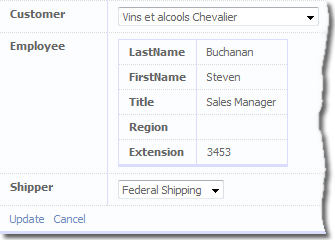
See if working below:

DetailsView_Edit FieldTemplate at work

Figure 1 - DetailsView_Edit FieldTemplate at work

Dynamic Data Futures – Part 1 Adding Advanced Filters ***UPDATED***

  1. Part 1 - Getting Dynamic Data Futures filters working in a File Based Website.
  2. Part 2 - Create the AnyColumn filter from the Dynamic Data Futures Integer filter.
  3. Part 3 – Creating the AnyColumnAutocomplete filter.

Getting Dynamic Data Futures filters working in File Based Website

1. Adding Dynamic Data Futures to your Website

From the File menu of you file based website select Add –> Existing Project… (see Figure 1) and browse to the folder where you unzipped the Dynamic Data Futures to, and select the DynamicDataFutures.csproj file this will add the Futures project and none of the samples.

Adding an Existing Project to the file based website

Figure 1 – Adding an Existing Project to the file based website

2. Adding a Reference to Dynamic Data Futures and AjaxToolkit

Right mouse click the website root and click Add Reference…

Adding a reference to the website

Figure 2  - Adding a reference to the website

When the dialogue box pops up choose the Projects Tab and select the DynamicDataFutures project and click OK.

Now you will need to do the same for the AjaxToolkit, only this time you need to click the Browse tab and navigate to the folder where you have downloaded and extracted the AjaxToolkit to, select the DLL in the sample website’s bin folder and click OK.

Selecting the AjaxToolkit DLL

Figure 3 – Selecting the AjaxToolkit DLL

3. Adding the new Filter User Controls to the website

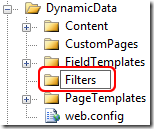
Right mouse click the DynamicData folder in your Dynamic Data Website and select New Folder, name the folder Filters.

Adding the Filters Folder

Figure 4 – Adding the Filters Folder

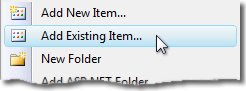
New right mouse click the newly created folder and select Add Existing Items…

Add Existing Items

Figure 5 - Add Existing Items

Browse to the folder containing DynamicDataFutures project and then navigate to the DynamicData\Filters folder in the samples website

Selecting the Filter files (excluding the designer files)

Figure 6 – Selecting the Filter files (excluding the designer files)

Now select all except the .designer.cs files and click Add.

Now we will need to copy the following files:

Copy the following to the App_Code folder.

  • AutocompleteFilter.asmx.cs
  • CascadeAttribute.cs

Copy the following to the root of the website.

  • AutocompleteFilter.asmx
  • AutocompleteStyle.css
  • AjaxToolkitFixes.css

4. Converting Web Application files to work in a file based Website

We are going to use some advanced search and replace (not just because I like showing off) to demonstrate these features in Visual Studio 2008:

  • Search and replace using simple regular expression.
  • Replace by file extension.
  • Replace in files in a particular folder.

Things that need to be changes:

  • Namespaces needs to be removed from the Inherits property of the control tag in the ascx files.
  • CodeBehind changes to CodeFile
  • Namespace surrounding the user control class in the ascx.cs files.

To Find and Replace in only the DynamicData\Filters folder:

Find and Replace if Files in a specific folder

Figure 7 – Find and Replace if Files in a specific folder

Using Figure 6 use the following steps with each of the Search Patterns.

  1. Enter the text to search for.
  2. If you need to do it in all the sub-folders.
  3. Click to set the folder to find file in (see Figure 7).
  4. Note the Match case option is not checked (when searching for CodeBehind you may miss codebehind or Codebehind or codeBehind with it checked).
  5. Check when using Regular Expressions or Wild Cards.
  6. The files extension or pattern to match.
  7. Click to start the Find and Replace.

Setting the Search Folders

Figure 8 – Setting the Search Folders

  1. Click the up folder button until you see some folders below then navigate to you website and the DynamicData folder.
  2. Click the add button to add the folder to the list of folders to search in (we are only interested in the Filters folder here).
  3. The folder is added to the Selected folders list.

Search Patterns:

start without the Regular expression checkbox unchecked.

  1. Find Inherits="DynamicDataFuturesSample. and Replace with Inherits="
  2. Find CodeBehind and Replace with CodeFile

Check the Regular expression checkbox for this.

  1. Find namespace DynamicDataFuturesSample\n\{\n Replace with "" nothing.
  2. Find namespace DynamicDataFuturesSample \{\n Replace with "" nothing (Note the space instead of the \n).
  3. Find \n\} and replace with nothing.
  4. Note: Note there is only ever one } preceded by a linefeed except if you have two classes in the same file, also if you repeat the search after doing a CTRL+K and CTRL-D to reformat the code, then you will again remove the last brace in the file.
  5. The hit CTRL+K and CTRL-D to reformat the code in each file before saving it.

And now manually edit the following three files removing namespace and changing NOT CodeBehind to CodeFile in AutocompleteFilter.asmx.

  1. AutocompleteFilter.asmx.cs
  2. AutocompleteFilter.asmx
  3. CascadeAttribute.cs

5. Making the Necessary Changes to allow Advanced Filter to Work

To make Dynamic Data Futures work with the website we will need to make the following changes to the List and ListDetails pages:

  • Add a Tag Mapping in the web.config.
  • Register the Dynamic Data Futures assembly and tag in the web.config.
  • Change each PageTemplates FilterRepeater a little.
  • Edit the Site.master to add a link to the AutocompleteStyle.css file ***UPDATED***
Note: The Tag mapping is a great idea and I didn’t know it was there until DynamicDataFutures added the ImprovedDynamicValidator.

So add the Tag Mapping to the pages collection in configuration->system.web->pages see Listing 1.

<configuration>
...
<system.web>
...
<
pages>
<controls>
...
</
controls>
<tagMapping>
...
</tagMapping>

Listing 1 – Where to add the Tag Mapping

Listing 2 shows the Tag Mapping to be added, as you can see the classes including full namespace are show in tagType and mappedTagType.

<add tagType="System.Web.DynamicData.FilterRepeater" 
     mappedTagType="Microsoft.Web.DynamicData.AdvancedFilterRepeater" />

Listing 2 – The Tag Mapping

This sorts out the FilterRepeater being replaced by the AdvancedFilterRepeater.

<add tagPrefix="asp" 
     namespace="Microsoft.Web.DynamicData" 
     assembly="Microsoft.Web.DynamicData"/>

Listing 3 – Register the Dynamic Data Futures assembly and tag

Listing 3 add a registration for the Dynamic Data Futures assembly and tag in the web.config.

<add namespace="AjaxControlToolkit" 
     assembly="AjaxControlToolkit" 
     tagPrefix="ajaxToolkit"/>

Listing 4 – Add Ajax Toolkit to the website

Note: You need to add the AjaxToolkit and Dynamic Data Futures assemblies and tags to the controls collection, the AjaxToolkit is need as some of the other Filters require it.

Next in the List.aspx and ListDetails.aspx PageTemplates you need to add the DelegatingFilter and remove the DynamicFilter and also remove the AssociatedControlID="DynamicFilter$DropDownList1" from the Label control above the DynamicFilter making the whole FilterRepeater (aliased AdvancedFilterRepeater via Tag Mapping) look like Listing 5.

<asp:FilterRepeater ID="FilterRepeater" runat="server">
    <ItemTemplate>
        <asp:Label runat="server" Text='<%# Eval("DisplayName") %>' />
        <asp:DelegatingFilter 
            runat="server" 
            ID="DynamicFilter" 
            OnSelectionChanged="OnFilterSelectedIndexChanged" />
    </ItemTemplate>
    <FooterTemplate>
        <br />
        <br />
    </FooterTemplate>
</asp:FilterRepeater>

Listing 5 – The finished FilterRepeater.

Note: It would have been nice to map the DynamicFilter to DelegatingFilter also but the parameters are not the same between controls, I suppose you could always rename them in the DynamicDataFutures source and then map it. But then when a new version DynamicDataFutures is released you would need to remember to rename the properties again.
The DynamicFilter has OnSelectedIndexChanged and the DelegatingFilter has OnSelectionChanged, if they were the same you could also use the tag mapping.

Add the following line to the Site.master head tag

<head runat="server">
    <title>Dynamic Data Site</title>
    <link href="~/Site.css" rel="stylesheet" type="text/css" />
    <link href="AutocompleteStyle.css" rel="stylesheet" type="text/css" />
<link href="AjaxToolkitFixes.css" rel="stylesheet" type="text/css" />
</head>

Listing 6  - adding a link to the Site.master head

UPDATED: Forget to add a link to the AjaxToolkitFixes.css and AutocompleteStyle.css in the Site.master file.

6. Now to Test the AdvancedFilterRepeater and new Filters

To test this out we need to add a Metadata file to our website, see Listing 6.

using System;
using System.Collections.Generic;
using System.ComponentModel;
using System.ComponentModel.DataAnnotations;
using System.Linq;
using System.Web;
using Microsoft.Web.DynamicData;

[MetadataType(typeof(Order_Detail_MD))]
public partial class Order_Detail
{
    public class Order_Detail_MD
    {
        // Use the Cascade.ascx filter control. 
        //
        // Specify that the list of items in the products filter should be
        // filtered by the Product.Category foreign key column.
        [Filter(FilterControl = "Cascade")]
        [Cascade("Category")]
        public object Product { get; set; }

        // Don't show the Order filter
        [Filter(Enabled = false)]
        public object Order { get; set; }
    }
}

Listing 7 – Order_Details Metadata

Run the website and go to Order_Details table and you should have the Cascade filter there and also the Orders filter should be missing also, see Figure 9.

Cascade filter in operation

Figure 9 – Cascade filter in operation

The next step is to add our own filter the AnyColumn filter which of course will filter any column.

Tuesday, 2 September 2008

Normal Service Resumed

Hi I’m back from my vacation, and back to the task of getting a job...

I have a few things I was working on whilst away (yes I know that’s sad, but when I have am idea I have to give it a go or I’ll forget) and I’ll publish them soon.

  1. How to get the new Advanced Filters component of DD Futures working in a file based website.
  2. Making an Any Column Filter (Works on any column not just FK columns)
  3. Adding Insert facility to my GridView FieldTemplate.
  4. A Time entry control and FieldTemplate.
    Time Control and FieldTemplate

Hope this is useful.

And to any potential employers drop me an e-mail to steve@notaclue.net

Steve :D