Tuesday, 28 June 2011

Autocomplete ForeignKey Field Template Now on NuGet

I have just added the ForeignKey field template based on the old Futures Autocomplete filter to NuGet at NotAClue.DynamicData.AutocompleteForeignKey 

NotAClue.DynamicData.AutocompleteForeignKeySample

Autocomplete in action

All you need is to add a UIHint attribute to the to set the field template,

Note: only works on Foreign Key columns

you can als0 set the number of characters you need to type before autocomplete kicks in.

[UIHint("Autocomplete", null, "MinimumPrefixLength",2)]
public Supplier Supplier { get; set; }

By setting the MinimumPrefixLength in the UIHint’s ControlParameters.

Monday, 27 June 2011

My Classic Cascading Filters and Field Templates on NuGet

I’ve just released my classic Cascading Filters and Field Templates on NuGet for ease of install supports both Entity Framework and Linq to SQL.

DynamicDataCascade100x100

Dynamic Data Filters and Field Templates

Sample Metadata
[MetadataTypeAttribute(typeof(Vehicle.VehicleMetadata))]
public partial class Vehicle
{
    internal sealed class VehicleMetadata
    {
        public int Id { get; set; }
        public int ManufacturerId { get; set; }
        public int VehicleTypeId { get; set; }
        public int ModelId { get; set; }
        public int StyleId { get; set; }

        [Display(Order = 0)]
        public String Name { get; set; }

        /// <summary>
        /// Note for cascade to work correctly
        /// fields must be in cascade order Parent->Child
        /// </summary>
        [FilterUIHint("CascadingForeignKey")]
        [UIHint("CascadingForeignKey")]
        [Filter(Order = 0)]
        [Display(Order = 1)]
        public Manufacturer Manufacturer { get; set; }

        [FilterUIHint("CascadingForeignKey")]
        [UIHint("CascadingForeignKey")]
        [Cascade("Manufacturer")]
        [Filter(Order = 1)]
        [Display(Order = 2)]
        public VehicleType VehicleType { get; set; }

        [FilterUIHint("CascadingForeignKey")]
        [UIHint("CascadingForeignKey")]
        [Cascade("VehicleType")]
        [Filter(Order = 2)]
        [Display(Order = 3)]
        public Model Model { get; set; }

        [FilterUIHint("CascadingForeignKey")]
        [UIHint("CascadingForeignKey")]
        [Cascade("Model")]
        [Filter(Order = 3)]
        [Display(Order = 4)]
        public Style Style { get; set; }

    }
}
Note: For cascading to work each child must follow in order Parent->Child note the Ordering of both filters and fields to facilitate the cascade.

Next up are hierarchical cascade field templates

Thursday, 23 June 2011

Links to Sample Down :(

It would appear that Live.com have done some reorganisation of my SkyDrive for me Disappointed smile and now ALL the links to my samples are broken, you can see my public folder here Public

Sorry for this but it is out of my control.

Anyway on a positive note I plan to have all my old samples update to .Net 4 and on NuGet as we go forward, I will post a pole with a list of proposed samples to get a vote what people want most.

Wednesday, 22 June 2011

Filter NuGet Package updated

Thirteen Dynamic Data Custom Filters has been updated to Dynamic Data 15 Custom Filters and the PackageId is now “DynamicData.CustomFilters”, makes more sense than “DynamicData.ThirteenFilters” especially it now had 15 filters instead of 13.

I have added

  • GreaterThanOrEqual
  • LessThanOrEqual
Sample Metadata
[MetadataTypeAttribute(typeof(Product.ProductMetadata))]
public partial class Product
{
    internal sealed class ProductMetadata
    {
        [FilterUIHint("MultiForeignKey")]
        public Category Category { get; set; }

        public Nullable<int> CategoryID { get; set; }

        public bool Discontinued { get; set; }

        public EntityCollection<Order_Detail> Order_Details { get; set; }

        public int ProductID { get; set; }

        public string ProductName { get; set; }

        public string QuantityPerUnit { get; set; }

        public Nullable<short> ReorderLevel { get; set; }

        public Supplier Supplier { get; set; }

        public Nullable<int> SupplierID { get; set; }

        [FilterUIHint("GreaterThanOrEqual")]
        public Nullable<decimal> UnitPrice { get; set; }

        [FilterUIHint("LessThanOrEqual")]
        public Nullable<short> UnitsInStock { get; set; }

        public Nullable<short> UnitsOnOrder { get; set; }
    }
}

Much fun I expect there will be more soon.

Tuesday, 21 June 2011

More NuGet

I have just put up the the first instalment of my Dynamic Data Extensions this version (V1.0) we have

  • HideColumnIn attribute see A New Way To Do Column Generation in Dynamic Data 4
  • ShowColumnOnlyIn attribute does what it says on the tin shows column in particular page templates
  • Filter attribute (I have only implemented the Order property as yet) this allows you to set the filter order.

Dynamic Data Extensions

Dynamic Data Extensions

Search for DynamicData.Extensions on NuGet

Example Metadata

[MetadataTypeAttribute(typeof(Order.OrderMetadata))]
public partial class Order
{
    internal sealed class OrderMetadata
    {
        public string CustomerID { get; set; }
        public Nullable<int> EmployeeID { get; set; }
        public Nullable<int> ShipVia { get; set; }

        [ShowColumnOnlyIn(PageTemplate.List)]
        [ScaffoldColumn(true)]
        public int OrderID { get; set; }

        public Nullable<DateTime> OrderDate { get; set; }

        [HideColumnIn(PageTemplate.List | PageTemplate.Insert)]
        public Nullable<DateTime> RequiredDate { get; set; }

        [HideColumnIn(PageTemplate.List | PageTemplate.Insert)]
        public Nullable<DateTime> ShippedDate { get; set; }
        public Nullable<decimal> Freight { get; set; }
        public string ShipName { get; set; }
        public string ShipAddress { get; set; }
        public string ShipCity { get; set; }
        public string ShipCountry { get; set; }
        public string ShipRegion { get; set; }
        public string ShipPostalCode { get; set; }

        [Filter(Order=2)]
        public Customer Customer { get; set; }
        [Filter(Order = 1)]
        public Employee Employee { get; set; }
        [Filter(Order = 3)]
        public Shipper Shipper { get; set; }

        public EntityCollection<Order_Detail> Order_Details { get; set; }
    }
}

Here you can see all three custom attributes in action.

  • The HideColumnInAttribute hides columns in page templates (note the use of the ‘|’ OR operator to allows multiple pages to be selected.
  • The ShowColumnOnlyInAttribute does the opposite and only shows columns in selected pages.
  • The FilterAttribute here sets the order to display the filters on the list page (Note there are other properties on Filter that are not yet implemented).

Next up on NuGet are both of my original cascade and my hierarchical cascading field templates.

Friday, 10 June 2011

A Second NuGet Package for Dynamic Data

Dynamic Data 15 Custom Filters is now on NuGet  this package add thirteen filters to your Web Application Project see Five Cool Filters for Dynamic Data 4 I have added some more filters to that list;

  • AutoComplete – is ForeignKey filter but pre-filters results by what users has typed in.
  • Contains – equivalent to T-SQL LIKE ‘%text%’
  • DateFrom – All Dates greater than or equal to the selected date.
  • DateRange – A range of dates
  • DateTo – Less than or equal to the selected date.
  • EndsWith – Ends with entered text.
  • GreaterThan – Greater than entered value
  • LessThan – Less than entered value
  • MultiForeignKey – allows multiple ForeignKey values to be selected.
  • Range – a range of values
  • StartWith – Starts with entered text.
  • Where – is equal to entered text
  • WhereDropdownList – a dropdown list of values from column to filter by.

This has a few more exciting bits that NuGet offers Dependencies and Framework Assembly References

Dependencies, here this package there is dependency upon Ajax Control Toolkit

<dependencies>
    <dependency id="AjaxControlToolkit" version="4.1.50508" />
</dependencies>

Framework Assembly References – is requirement for an assembly reference from the GAC

<frameworkAssemblies>
    <frameworkAssembly assemblyName="System.Data.Entity" targetFramework="net40" />
</frameworkAssemblies>

This give great flexibility without resorting to PowerShell.

NuGet truly is awesome!

NuGet for Dynamic Data – First Package

I have just added my first NuGet package, and you may no know what NuGet is? so what is NuGet it’s a Package management add on for Visual Studio 2010 and above (maybe more as it is integrated with Windows PowerShell).

Install NuGet

Figure 1 – Install NuGet

See Installing NuGet and then you will need NuGet.exe Command Line and or NuGet Package Explorer v1.1 this is the GUI version (and unlike Scott Hanselman I like the GUI and try to avoid the DOS as much as possible I’m with Phil Haack on that see NuGet In Depth: Empowering Open Source on the .NET Platform on Channel9) and can do a lot of what the command line tool does.

You can get loads on information on NuGet Docs.

OK so I’m going to assume your all setup and ready to go.

Creating the Package

NuGet has some Package Conventions and we should follow them (I’ll not explain them just go and have a read as documentation can be updated from time to time) for out package lets first of all look at what we want to package.

For this Package I want to package up Scott Hunter’s old Sample for Displaying Images from the Database using Dynamic Data (DBImage) and it’s update Sample for Displaying Images Updated + Screencast note the latest version of this is in the old Dynamic Data Futures VS2008 SP1 RTM for DD 3.51 SP1.

Embedded image field template

Figure 2 – Embedded image field template

This consists of several parts;

  • Read-Only field template
  • Edit field template
  • Image Format attribute
  • Linq extension methods
  • Image http handler.
  • Web.Config settings

I have decided to keep things simple for out first NuGet Package and all the above will go into one package some of the above could be shared and as such we could spilt it between several packages and have dependencies but we will keep it simple for now.

so to build our package there are some things we need to know like where do we put our files;

Package folder structure

Figure 3 – Simple Package folder structure

As you can see I have broken the folder structure into three parts, the first part is quite simple, it’s the readme file which will give basic information about the package.

Content (files to be copied on install)

Here you can have three types of file;

The “.transform” files transform web.config or app.config files by adding/merging their content with the project’s configuration file.

While the “.pp” files are files that are transformed as they are copied to the project in the same folder structure they have in the package. These files are a little more complex than the configuration files, as they have Visual Studio project properties in the code and these are used to transform the code files during install ((see Configuration File and Source Code Transformations and the Specifying Source Code Transformations section for more info).

Lib Folder

This folder contains any DLLs that are required, not that the “net40” subfolder this indicates that the DLL supports .Net 4 you could have several version that support different versions of the .Net framework here we will just support .Net 4.

Next

Note this is just the basic of where you need to put files for your package to work.

now we have out files ready in a folder structure we need to create our “nuspec” file, this is an XML file containing details (the manifest) about the package you can manually create this or you can use NuGet Package Explorer to create this see Using A GUI (Package Explorer) to build packages once created you can manually edit the “nuspec” file manually if you like.

You then place your “nuspec” file in the root of the package folder structure or if you follow Using A GUI (Package Explorer) to build packages you can add them directly.

Once done you just publish and it works!

Next steps

The real power come with PowerShell scripts see Scaffolding – ASP.NET, NuGet, Entity Framework Code First and More with Steve Sanderson he shows what you can really do.

I am going to add more complex post here as I discover new and interesting feature of NuGet.

Thursday, 31 March 2011

Custom Entity Templates – Dynamic Data 4

In Dynamic Data 4 we have Entity Templates these are great for customizing layout of tables (see Walkthrough: Customizing Table Layout Using Entity Templates).  At the moment you will have to create a Custom Entity template for each table, but not only that you will need to create a set of three (Template, Template_Edit and Template_Insert) and that can be useful to have different layout for each view.

But what if you want something different from the Default, (see Grouping Fields on Details, Edit and Insert with Dynamic Data 4, VS2010 and .Net 4.0 RC1 my first custom Entity Template which then had to replace the Default and also had to have all three defined) but not on all your tables just on a selected few?

I was inspired by Brian Pritchard’s post on the forum: How to reduce code duplication when using Entity Template's for only having to create a single template that would switch between Read-Only, Edit and Insert modes.

I want to go a little further:

  1. Override the Default Entity Template with some sort of UIHint attribute.
  2. An only have to specify one template to keep things DRY
  3. Detect if an Edit or Insert version of a template exists and use that.

So now we know out goal, let’s layout the ingredients for this recipe:

  1. An attribute to allow us to change the default Entity Template for any given Table.
  2. Custom entity factory to allow us to override normal entity behaviour like Brian Pritchard’s.
  3. A Custom dynamic Entity Template.

The Attribute

I thought I would be able to use UIHint at class level but alas we have to hand craft our own, I want some of the same feature of UIHint specifically the Control Parameters collection so that we can pass extra information into our custom Entity Templates with out creating a plethora extra attribute each specific to it’s one Entity Template. (I’ve used the Control Parameters collection before in Dynamic Data Custom Field Template – Values List, Take 2.

The Attribute is relatively straight forward, the only complication is the BuildControlParametersDictionary method which takes the Object array passed in using the params key word into a Key, Value Dictionary with some validation. Note we have also set this attribute to be only useable at Class level.

[AttributeUsage(AttributeTargets.Class, AllowMultiple = false)]
public class EntityUIHintAttribute : Attribute
{
    private IDictionary _controlParameters;

    public IDictionary ControlParameters
    {
        get { return this._controlParameters; }
    }

    /// 
    /// Gets or sets the UI hint.
    /// 
    /// The UI hint.
    public String UIHint { get; private set; }

    public EntityUIHintAttribute(string uiHint) : this(uiHint, new object[0]) { }

    public EntityUIHintAttribute(string uiHint, params object[] controlParameters)
    {
        UIHint = uiHint;
        _controlParameters = BuildControlParametersDictionary(controlParameters);
    }

    public override object TypeId
    {
        get { return this; }
    }

    private IDictionary BuildControlParametersDictionary(object[] objArray)
    {
        IDictionary dictionary = new Dictionary();
        if ((objArray != null) && (objArray.Length != 0))
        {
            if ((objArray.Length % 2) != 0)
                throw new InvalidOperationException(string.Format(CultureInfo.CurrentCulture, "Need even number of control parameters.", new object[0]));

            for (int i = 0; i < objArray.Length; i += 2)
            {
                object obj2 = objArray[i];
                object obj3 = objArray[i + 1];
                if (obj2 == null)
                    throw new InvalidOperationException(string.Format(CultureInfo.CurrentCulture, "Control parameter key is null.", new object[] { i }));

                string key = obj2 as string;
                if (key == null)
                    throw new InvalidOperationException(string.Format(CultureInfo.CurrentCulture, "Control parameter key is not a string.", new object[] { i, objArray[i].ToString() }));

                if (dictionary.ContainsKey(key))
                    throw new InvalidOperationException(string.Format(CultureInfo.CurrentCulture, "Control parameter key occurs more than once.", new object[] { i, key }));

                dictionary[key] = obj3;
            }
        }
        return dictionary;
    }
}

Listing 1 – EntityUIHintAttribute

Now we need a method to use this attribute to change the default Entity Template, this factory need to do two things:

  1. Change the Default Entity Template based on out new EntityUIHint attribute.
  2. Intercept the template mode so that single Entity Template can be used with out having to have three versions.
public class AdvancedEntityTemplateFactory : System.Web.DynamicData.EntityTemplateFactory
{
    public override string BuildEntityTemplateVirtualPath(string templateName, DataBoundControlMode mode)
    {
        var path = base.BuildEntityTemplateVirtualPath(templateName, mode);
        var editPath = base.BuildEntityTemplateVirtualPath(templateName, DataBoundControlMode.Edit);;
        var defaultPath = base.BuildEntityTemplateVirtualPath(templateName, DataBoundControlMode.ReadOnly); ;

        if (File.Exists(HttpContext.Current.Server.MapPath(path)))
            return path;

        if (mode == DataBoundControlMode.Insert && File.Exists(HttpContext.Current.Server.MapPath(editPath)))
            return editPath;

        if (mode != DataBoundControlMode.ReadOnly && File.Exists(HttpContext.Current.Server.MapPath(defaultPath)))
            return defaultPath;

        return path;
    }

    public override EntityTemplateUserControl CreateEntityTemplate(MetaTable table, DataBoundControlMode mode, string uiHint)
    {
        var et = table.GetAttribute();
        if (et != null && !String.IsNullOrEmpty(et.UIHint))
            return base.CreateEntityTemplate(table, mode, et.UIHint);

        return base.CreateEntityTemplate(table, mode, uiHint);
    }

    public override string GetEntityTemplateVirtualPath(MetaTable table, DataBoundControlMode mode, string uiHint)
    {
        var et = table.GetAttribute();
        if (et != null && !String.IsNullOrEmpty(et.UIHint))
            return base.GetEntityTemplateVirtualPath(table, mode, et.UIHint);

        return base.GetEntityTemplateVirtualPath(table, mode, uiHint);
    }
}

Listing 2 – AdvancedEntityTemplateFactory

Listing 1 shows us out AdvancedEntityTemplateFactory, we fulfil task 1. in the methods CreateEntityTemplate and GetEntityTemplateVirtualPath where we check for the presence of a EntityUIHintAttribute and if we find one then set the name of the template to the UIHint property.

Task 2. is dealt with in the BuildEntityTemplateVirtualPath where we check to see if the file exists, if so we just return the path as is, otherwise we strip out the  _Edit or _Insert from the path and return.

The last thing we need is to wire up the AdvancedEntityTemplateFactory in Global.asax.cs

DefaultModel.EntityTemplateFactory = new AdvancedEntityTemplateFactory();

just before the RegisterContext in RegisterRoutes method.

The Custom Entity Template
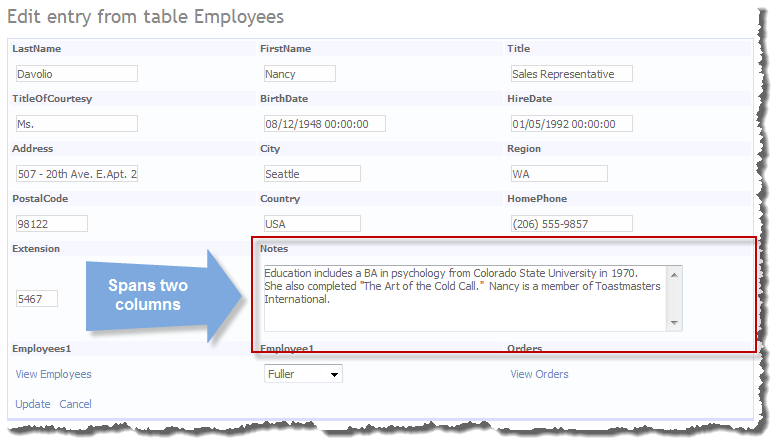
Multi Column Entity Template

Figure 1 – Multi Column Entity Template

This entity template will be a multi column temp[late designed to give you a little more screen for your money Big Grin I have decided to pass the main parameters in via the EntityUIHint attribute’s Control Parameters, in Figure 2 you can see them in pairs.

Control Parameters

Figure 2 – Control Parameters

“Columns”, 3 sets the number of column the MultiColumn entity template will show.

The next two pairs are the Title and Field CSS classes.

I’ve also decided to add the ability for some columns to span more then one cell in the table.

[AttributeUsage(AttributeTargets.Property)]
public class MultiColumnAttribute : Attribute
{
    /// 
    /// Gets or sets the column span.
    /// 
    /// The column span.
    public int ColumnSpan { get; private set; }

    public static MultiColumnAttribute Default = new MultiColumnAttribute();

    public MultiColumnAttribute() 
    { 
        ColumnSpan = 1;
    }

    public MultiColumnAttribute(int columnSpan)
    {
        ColumnSpan = columnSpan;
    }
}

Listing 3 – MultiColumnAttribute

The use of Default for when we use the DefaultIfEmpty method in Linq (see my Writing Attributes and Extension Methods for Dynamic Data more info) this allows us to get an attribute even if one is not specified so now with thi sline of code

var totalNoOfCells = metaColumns.Select(c => c.GetAttributeOrDefault<MultiColumnAttribute>().ColumnSpan).Sum();

we can get the total number of cell required with some columns having a span of more than on column see Figure 1.

Finally our Multi Column entity template is completed in Listing 4

public partial class MultiColumnEntityTemplate : System.Web.DynamicData.EntityTemplateUserControl
{
    private const string COLUMNS = "Columns";
    private const string TITLE_CSS_CLASS = "TitleCssClass";
    private const string FIELD_CSS_CLASS = "FieldCssClass";

    protected override void OnLoad(EventArgs e)
    {
        // get columns from table
        var metaColumns = Table.GetScaffoldColumns(Mode, ContainerType).ToList();

        // do not render any HTML table if there are no columns returned
        if (metaColumns.Count == 0)
            return;

        // default the HTML table columns and CSS class names
        int columns = 2;
        String titleCssClass = String.Empty;
        String fieldCssClass = String.Empty;

        // Get the CssClass for the title & Field from the attribute
        var entityUHint = Table.GetAttribute();
        if (entityUHint != null)
        {
            if (entityUHint.ControlParameters.Keys.Contains(COLUMNS))
                columns = (int)entityUHint.ControlParameters[COLUMNS];
            if (entityUHint.ControlParameters.Keys.Contains(TITLE_CSS_CLASS))
                titleCssClass = entityUHint.ControlParameters[TITLE_CSS_CLASS].ToString();
            if (entityUHint.ControlParameters.Keys.Contains(FIELD_CSS_CLASS))
                fieldCssClass = entityUHint.ControlParameters[FIELD_CSS_CLASS].ToString();
        }

        // start in the left column
        int col = 0;

        // create the header & data cells
        var headerRow = new HtmlTableRow();
        if (!String.IsNullOrEmpty(titleCssClass))
            headerRow.Attributes.Add("class", titleCssClass);
        var dataRow = new HtmlTableRow();
        if (!String.IsNullOrEmpty(fieldCssClass))
            dataRow.Attributes.Add("class", fieldCssClass);

        // step through each of the columns to be added to the table
        foreach (var metaColumn in metaColumns)
        {
            // get the MultiColumn attribute for the column
            var multiColumn = metaColumn.GetAttributeOrDefault();
            if (multiColumn.ColumnSpan > columns)
                throw new InvalidOperationException(String.Format("MultiColumn attribute specifies that this 
                    field occupies {0} columns, but the EntityUIHint attribute for the class only allocates {1} 
                    columns in the HTML table.", multiColumn.ColumnSpan, columns));

            // check if there are sufficient columns left in the current row
            if (col + multiColumn.ColumnSpan > columns)
            {
                // save this header row
                this.Controls.Add(headerRow);
                headerRow = new HtmlTableRow();
                if (!String.IsNullOrEmpty(titleCssClass))
                    headerRow.Attributes.Add("class", titleCssClass);

                // save this data row
                this.Controls.Add(dataRow);
                dataRow = new HtmlTableRow();
                if (!String.IsNullOrEmpty(fieldCssClass))
                    dataRow.Attributes.Add("class", fieldCssClass);

                // need to start a new row
                col = 0;
            }

            // add the header cell
            var th = new HtmlTableCell();
            var label = new Label();
            label.Text = metaColumn.DisplayName;
            //if (Mode != System.Web.UI.WebControls.DataBoundControlMode.ReadOnly)
            //    label.PreRender += Label_PreRender;

            th.InnerText = metaColumn.DisplayName;
            if (multiColumn.ColumnSpan > 1)
                th.ColSpan = multiColumn.ColumnSpan;
            headerRow.Cells.Add(th);

            // add the data cell
            var td = new HtmlTableCell();
            var dynamicControl = new DynamicControl(Mode);
            dynamicControl.DataField = metaColumn.Name;
            dynamicControl.ValidationGroup = this.ValidationGroup;

            td.Controls.Add(dynamicControl);
            if (multiColumn.ColumnSpan > 1)
                td.ColSpan = multiColumn.ColumnSpan;
            dataRow.Cells.Add(td);

            // record how many columns we have used
            col += multiColumn.ColumnSpan;
        }
        this.Controls.Add(headerRow);
        this.Controls.Add(dataRow);
    }
}

Listing 4 – MultiColumnEntityTemplate

Updated: MultiColumnEntityTemplate updated by Phil Wigglesworth who kindly found a bug and fixed it, the bug was shown when there were no enough columns left on a row, this caused a crash. So thanks again to Phil.
Also we will need some styles to make out new Multi Column entity template look good.

TR.SmallTitle
{
    background-color: #F7F7FF;
}
TR.SmallTitle TD
{
    font-size: 0.8em !important;
    font-weight: bold;
    background-color: #F7F7FF;
    padding: 2px !important;
}

Listing 5 – CSS styles

Hope this expand your use of Entity Templates.

P.S. I’ll do an updated version of the Grouping entity template.

Download

Sunday, 16 January 2011

Setting the Initial Sort Order – Dynamic Data

This is just a quick note on a post I made on the Dynamic Data Forum to answer a question where setting the DisplayColumnAttribute should set the default sort order of the GridView on the List page but didn’t. Here’s how I solved it with a hint or two from Marcin Dobosz.

[MetadataType(typeof(Orders_Metadata ))]
[DisplayColumn("OrderID", "OrderID", true)]
public partial class Orders
{
    public class Orders_Metadata
    {       
        // ...
    }
}

Listing 1 – Example Metadata

Assuming you have a table with the DisplayColumnAttribute set you could put this on your List page: 

table = GridDataSource.GetTable();

// set default sort
if (!IsPostBack && table.SortColumn != null)
    GridView1.Sort(table.SortColumn.Name, table.SortDescending ? SortDirection.Descending : SortDirection.Ascending);

Listing 2 – Add to Page_Init (.Net 3.5)

// set default sort
if (!IsPostBack && table.SortColumn != null)
{
    var order = new OrderByExpression()
    {
        DataField = table.SortColumn.Name,
        Direction = table.SortDescending ? SortDirection.Descending : SortDirection.Ascending,
    };
    GridQueryExtender.Expressions.Add(order);
}

Listing 3 – Add to Page_Init (.Net 4)

public static T GetAttribute<T>(this MetaTable table) where T : Attribute
{
    return table.Attributes.OfType<T>().FirstOrDefault();
}

Listing 3 – you will also need this extension method see Writing Attributes and Extension Methods for Dynamic Data

Add your DisplayColumnAttribute (see Listing 1) to the table you want sorted (note: it must have the second string constant even if it’s the same name, as the second string it the one that the sort is done on, and the third value if true causes the sort to be descending). Then in Listing 2 you get the attribute using the extension method from Listing 3 and apply the relevant sort.

This is here mainly so I can find it again! HappyWizard

Thursday, 13 January 2011

Adding a Multi-Column Search to the Default List page in Dynamic Data (UPDATED)

This will extend the default filters that Dynamic Data provides by adding a free text search box the will search multiple text fields on the same page. I have done this in a few projects now as one off but after this post Custom filters & searches within DD in Visual Web Developer 2010 on the Dynamic Data Forum I decided to document it here.

Multi Column Search

Figure 1 – Multi Column Search

Here in Figure 1 you can see the multi column search box, in this example the search is on FistName, LastName, Address, City and Country, it will even allow search across entities e.g. on Orders Employee.LastName etc. which make it very flexible.

Things we will need to do

  • Attribute to tell the system which columns to search on.
  • Add mark-up to show the UI on the List page.
  • Code to wire up the UI and QueryExtender.

The Attribute

This attribute will be added to the Class/Table not it’s columns and will have only one property Columns.

[AttributeUsage(AttributeTargets.Class)]
public class MultiColumnSearchAttribute : Attribute
{
    public String[] Columns { get; private set; }

    public MultiColumnSearchAttribute(params String[] columns)
    {
        Columns = columns;
    }
}

Listing 1 – MultiColumnSearchAttribute

and we apply it as in Listing 2 The Employee table show standard multi-column search but the Order table shows how we can search across entity boundaries you can see this in Figure 2.

[MetadataTypeAttribute(typeof(Employee.EmployeeMetadata))]
[MultiColumnSearch(
    "LastName", 
    "FirstName", 
    "Address", 
    "City", 
    "Country")]
public partial class Employee
{
    internal sealed class EmployeeMetadata
    {
        //...
    }
}

[MetadataTypeAttribute(typeof(Order.OrderMetadata))]
[MultiColumnSearch(
    "Employee.LastName", 
    "Employee.FirstName", 
    "Customer.CompanyName", 
    "Customer.ContactName", 
    "Shipper.CompanyName")]
public partial class Order
{
    internal sealed class OrderMetadata
    {
        //...
    }
}

Listing 2 – sample metadata

Cross Entity Search

Figure 2 – cross entity search

Adding UI Mark-Up

I have added the multi column search UI in between the validators and the QueryableFilterRepeater see Listing 3

<asp:DynamicValidator runat="server" ID="GridViewValidator" ControlToValidate="GridView1"
    Display="None" CssClass="DDValidator" />

<fieldset id="MultiSearchFieldSet" class="DD" runat="server" visible="false">
    <legend>Full Text Search</legend>
    <asp:TextBox ID="txbMultiColumnSearch" CssClass="DDTextBox" runat="server" />
    <asp:Button ID="btnMultiColumnSearchSubmit" CssClass="DDControl" runat="server" Text="Search"
        OnClick="btnMultiColumnSearch_Click" />
    <asp:Button ID="btnMultiColumnSearchClear" CssClass="DDControl" runat="server" Text="Clear"
        OnClick="btnMultiColumnSearch_Click" />
</fieldset>
<br />

<asp:QueryableFilterRepeater runat="server" ID="FilterRepeater">

Listing 3 – Multi Column Search UI

Code to wire up the UI and QueryExtender

/// <summary>
/// Setups the multi column search.
/// </summary>
private void SetupMultiColumnSearch()
{
    // get multi column search attribute
    var multiColumnSearch = table.GetAttribute<MultiColumnSearchAttribute>();

    if (multiColumnSearch != null)
    {
        var searchExpression = new SearchExpression()
            {
                DataFields = multiColumnSearch.Columns.ToCsvString(),
                SearchType = SearchType.Contains
            };
        
        // create control parameter
        var controlParameter = new ControlParameter() { ControlID = txbMultiColumnSearch.ID };
        
        // add control parameter to search expression
        searchExpression.Parameters.Add(controlParameter);

        // set context
        searchExpression.SetContext(GridQueryExtender, Context, GridDataSource);

        // add search expression to query extender
        GridQueryExtender.Expressions.Add(searchExpression);

        // make multicolumn search field set visible
        MultiSearchFieldSet.Visible = true;
    }
}

Listing 5 – SetupMultiColumnSearch method

In Listing 5 (which is called from the Page_Init method) we get the attribute and the SearchExpression the if both are not null we add the fields to the SearchExpressions DataFileds property, then we make the whole thing visible.

Note: Much thanks to David Ebbo who sorted out the issue I had had with adding the search expression in code rather than declaratively.

protected void btnMultiColumnSearch_Click(object sender, EventArgs e)
{
    var button = (Button)sender;
    if (button.ID == btnMultiColumnSearchClear.ID)
        txbMultiColumnSearch.Text = String.Empty;
}

Listing 6 – button event

And lastly we need an event to fire when the clear button is fired.

Note: I have both buttons wired-up to this handler as I also add session history here so that when you search on something and go to another page when you return you get the same search, but I also want it cleared if I click the clear button.

Download

Wednesday, 8 December 2010

Filter History for Dynamic Data 4

I did a AJAX History in a Dynamic Data Website article back in February 2009 to make filter respect the back button in the browser, this however was not enough for my customers they wanted the filter to be remembered even when they came back to the page without using the back button.

So I decided to store the filter info in Session state for this sample sample (but you could also use a database I have where the client wanted the filters to be remembered across sessions and by user).

I’m adding this extension to the previous sample from Five Cool Filters for Dynamic Data 4 (which now has a couple more filters added) to give history across all the filters.

Extension Methods

So to the code there are two extension methods for this sample AddFilterValueToSession which you can guess adds a filters current value to session and GetFilterValuesFromSession which retrieves an Dictionary of values for the specified table.

/// <summary>
/// Adds the filters current value to the session.
/// </summary>
/// <param name="page">The page.</param>
/// <param name="column">The column.</param>
/// <param name="value">The value.</param>
public static void AddFilterValueToSession(this Page page, MetaColumn column, Object value)
{
    Dictionary<String, Object> filterValues;
    var objectName = column.Table.DataContextPropertyName;

    // get correct column name 
    var columnName = column.Name;
    if (column is MetaForeignKeyColumn)
        columnName = ((MetaForeignKeyColumn)column).ForeignKeyNames.ToCommaSeparatedString();

    // check to see if we already have a session object
    if (page.Session[objectName] != null)
        filterValues = (Dictionary<String, Object>)page.Session[objectName];
    else
        filterValues = new Dictionary<String, Object>();

    // add new filter value to session object
    if (filterValues.Keys.Contains(columnName))
        filterValues[columnName] = value;
    else
        filterValues.Add(columnName, value);

    // add back to session
    if (page.Session[objectName] != null)
        page.Session[objectName] = filterValues;
    else
        page.Session.Add(objectName, filterValues);
}

Listing 1 – AddFilterValueToSession

If you follow the code and comments you will see that first we try to get the session object for this table from session and if it is not there we simply create one. Then we add/update the value for this column and finally save back to session.

Note: that Listing 1 uses an extension method ToCommaSeperatedString() this just simplifies the code for us by removing reusable code.
Updated: As ValZ posted in the comments I have updated the GetFilterValuesFromSession extension method to make sure any links from other List pages are honoured, for instance if you go to the Suppliers page and click on View Products link but already have a filter value that will now be honoured. I’ve also used IDictionary so we don’t have to cast the default values that are passed in.
/// <summary>
/// Gets the filter values from session.
/// </summary>
/// <param name="page">The page.</param>
/// <param name="table">The table.</param>
/// <param name="defaultValues">The default values.</param>
/// <returns>An IDictionary of filter values from the session.</returns>
public static IDictionary<String, Object> GetFilterValuesFromSession(this Page page, 
    MetaTable table, 
    IDictionary<String, Object> defaultValues)
{
    var queryString = new StringBuilder();
    var objectName = table.DataContextPropertyName;
    if (page.Session[objectName] != null)
    {
        var sessionFilterValues = new Dictionary<String, Object>((Dictionary<String, Object>)page.Session[objectName]);
        foreach (string key in defaultValues.Keys)
        {
            if (!sessionFilterValues.Keys.Contains(key) || sessionFilterValues[key] == null)
                sessionFilterValues.Add(key, defaultValues[key]);
            else
                sessionFilterValues[key] = defaultValues[key];
        }
        var t = (Dictionary<String, Object>)page.Session[objectName];
        return sessionFilterValues;
    }
    else
        return defaultValues;
}

Listing 2 – GetFilterValuesFromSession

In Listing 2 we simply get the Dictionary object back from session and then return it.

Applying to the Filters

Listing 3 is a for the ForeignKey filter, here call the AddFilterValueToSession extension method passing in the Column and value from the DropdownList.

protected void DropDownList1_SelectedIndexChanged(object sender, EventArgs e)
{
    OnFilterChanged();
    Page.AddFilterValueToSession(Column, DropDownList1.SelectedValue);
}

Listing 3 – ForeignKey filter

Every filter in that sample has this applied and there are several different examples in there.

Extracting the Filter Values

Now all we need is to get the values and pass them back to the filters each time we arrive at a List page. In Listing 4 I have updated the Page_Init method,  I first attempt to get the filter values from session if none are found I fall back to default List page behaviour.

protected void Page_Init(object sender, EventArgs e)
{
    table = DynamicDataRouteHandler.GetRequestMetaTable(Context);

    var defaultValues = Page.GetFilterValuesFromSession(table, table.GetColumnValuesFromRoute(Context));
    GridView1.SetMetaTable(table, defaultValues);

    GridDataSource.EntityTypeFilter = table.EntityType.Name;
}

Listing 4 – Updating the List page

Now if we switch back to the ForeignKey filter and the Page_Init method Listing 5 you will see that I have not had to change anything here, because we are adding the default values in the List page they will arrive in each filter via the DefaultValue property.

protected void Page_Init(object sender, EventArgs e)
{
    if (!Page.IsPostBack)
    {
        if (!Column.IsRequired)
        {
            DropDownList1.Items.Add(new ListItem("[Not Set]", NullValueString));
        }
        PopulateListControl(DropDownList1);

        // Set the initial value if there is one
        string initialValue = DefaultValue;
        if (!String.IsNullOrEmpty(initialValue))
        {
            DropDownList1.SelectedValue = initialValue;
            // optional add auto filters to history
            Page.AddFilterValueToSession(Column, initialValue);
        }
    }
}

Listing 5 – updating the filter

Updated: I’ve also added a optional Page.AddFilterValueToSession(Column, initialValue); to each filter so that filter values passed in in query string can be added to history, NOTE: I’ve only added this to the ForeignKey filter so it’s easy to remove if not required.

I’ll show one complex example of setting up the values in a filter, we will look at me DateRange filter for this. First look at Listing 6 here I am concatenating both values together separated by ‘|’.

protected void btnRangeButton_Click(object sender, EventArgs e)
{
    var button = (Button)sender;
    if (button.ID == btnClear.ID)
    {
        txbDateFrom.Text = String.Empty;
        txbDateTo.Text = String.Empty;
    }
    OnFilterChanged();
    Page.AddFilterValueToSession(Column, String.Format("{0}|{1}", txbDateFrom.Text, txbDateTo.Text));
}

Listing 6 – DateRange button click event

Then if you look at the DateRange filters Page_Init method all need to do is check I have a value, reveres the concatenation and put the values in the correct textboxes.

protected void Page_Init(object sender, EventArgs e)
{
    // set correct date time format
    txbDateFrom_CalendarExtender.Format = DATE_FORMAT;
    txbDateTo_CalendarExtender.Format = DATE_FORMAT;

    if (!Column.ColumnType.Equals(typeof(DateTime)))
        throw new InvalidOperationException(String.Format("A date range filter was loaded for column '{0}' but the column has an incompatible type '{1}'.",
            Column.Name, Column.ColumnType));

    if (DefaultValue != null)
    {
        var values = DefaultValue.Split(new char[] { '|' });
        if (values.Length == 2)
        {
            txbDateFrom.Text = values[0];
            txbDateTo.Text = values[1];
        }
    }
}

Listing 7 – DateRange Page_Init method

Updated: Add clear filters button to clear all filters for a table.

Clear Filters

Last we add a button to clear the filters

<div class="DD">
    <asp:ValidationSummary ID="ValidationSummary1" runat="server" EnableClientScript="true"
        HeaderText="List of validation errors" CssClass="DDValidator" />
    <asp:DynamicValidator runat="server" ID="GridViewValidator" ControlToValidate="GridView1"
        Display="None" CssClass="DDValidator" />
    <asp:QueryableFilterRepeater runat="server" ID="FilterRepeater">
        <ItemTemplate>
            <asp:Label runat="server" Text='<%# Eval("DisplayName") %>' OnPreRender="Label_PreRender" />
            <asp:DynamicFilter runat="server" ID="DynamicFilter" OnFilterChanged="DynamicFilter_FilterChanged" />
            <br />
        </ItemTemplate>
    </asp:QueryableFilterRepeater>
    <asp:Button 
        ID="ClearFiltersButton" 
        runat="server" 
        Text="Clear Filters" 
        CssClass="DDControl"
        OnClick="ClearFiltersButton_Click" />
    <br />
</div>

Listing 8 – Clear filters button

and in the post back of the button

protected void ClearFiltersButton_Click(object sender, EventArgs e)
{
    Page.ClearTableFilters(table);
    Response.Redirect(table.ListActionPath);
}

Listing 9 – Clears filters button method

and lastly we need the method the clears the filters for us,

public static void ClearTableFilters(this Page page, MetaTable table)
{
    var objectName = table.DataContextPropertyName;

    if (page.Session[objectName] != null)
        page.Session[objectName] = null;
}

Listing 10 – Clear filters extension method

Lastly we will need to hide the button when there are no filters.

protected override void OnPreRenderComplete(EventArgs e)
{
    RouteValueDictionary routeValues = new RouteValueDictionary(GridView1.GetDefaultValues());
    InsertHyperLink.NavigateUrl = table.GetActionPath(PageAction.Insert, routeValues);
    if (FilterRepeater.Controls.Count == 0)
        ClearFiltersButton.Visible = false;
    base.OnPreRenderComplete(e);
}

Listing 11 – hiding the clear filters button

So then all done then.

Download

Friday, 26 November 2010

BLACK FRIDAY/CYBER MONDAY DEAL:

Note  I don’t normally post adds for products but this is really easy to create icons I’m always creating favicons for my sites and it make the task real easy.

sale

All Axialis products are available at 50 percent Off. Starting Black Friday, this offer ends Nov 30. This is for 5 days, and 5 days only. Half price but full service! You get the same Axialis advantages: professionally-designed products, LIFETIME LICENCE! (never pay for future updates), access to thousands of ready-to-use image object packs, and more...

So don't miss this opportunity! ACT NOW and get 50 percent off your total order!

IconWorkshop 6.53 Released:

IconWorkshop

This minor release includes various bug fixes and enhancements:

  • Compatible with Visual Studio 2010: The installer detects and add the IconWorkshop add-in in Visual Studio 2010.
  • Ability to create icons for iPhone 4: This new version includes new image presets to create those icons.
  • New Object Packs: Two new object packs are provided to create iPhone icons (Applications and Tab Bar Icons).
  • Various other enhancements and bug fixes.

Registered users can freely upgrade to this latest version using the built-in update feature.

Sunday, 21 November 2010

Five Cool Filters for Dynamic Data 4

Starting with the Range Autocomplete, Range & MultiForeignKey Filters from the old Dynamic Data Preview 4 Refresh, I have also added five of my filters:

  1. DateRange
  2. StartsWith
  3. EndsWith
  4. Contains
  5. Where

I won’t go into much detail here as Oleg Sych has done this great series on DD4 filters, that pretty much explains it all for you.

I am using the Ajax Control Toolkit for the date picker in the DateRange filter but other than that it’s not much different form the Range filter from the Dynamic Data Preview 4 Refresh sample.

!Important: One thing I would like to point out is that both Entity Framework and Linq to SQL have a small but important issue. This issue is the the “Contains” Expression used in the above filter of the same name is actually expressed as the “Like ‘%{0}%’” and so you DO NOT get full text search using “Contains”.

“Contains” when it was introduced in SQL Server 7 was given a big build up and to be omitted in EF and L2S is a big let down.

Some examples:

Other Filters

Figure 1 – DateRange, StartsWith, EndsWith, Contains, Where and AutoComplete filters

Range and Multi Select Filters

Figure 2 – Range and Multi Select Filters

I just thought that these filters would be useful for your tool boxes.

!Important: I can’t take credit for all the Expression helpers most come from the above mentioned Preview 4 that is no longer on the ASP.Net Codeplex site.
Download

Note I’ve included my five filters and the three filters from the Preview.

As always happy coding.

Sunday, 14 November 2010

Making the Text in the DynamicData List Pages GridView Wrap.

Why won’t the text in my Dynamic Data List page GridView wrap? This is answered here and in this post on the ASP.NET Dynamic Data Forum here Re: DynamicField within GridView truncating data where Yuipcheng asks;

“I commented out the code to truncate the FieldValueString, but the rendered text doesn't wrap since the td tag has (style="white-space: nowrap;")”

I answered here but I thought I would document it here also.

Before After
Before After

So you may be asking Dynamic Data 1 didn’t do this, so why does Dynamic Data 4 do it?

The answer it has to do with the validation “*”  showing up next to the field in Edit mode and appears to have just gotten into the GridView as by default we don't do inline editing.

The solution from David Fowler is to create an class and inherit from System.Web.DynamicData.DefaultAutoFieldGenerator and then override the CreateField method, so here it is:

/// <summary>
/// Add the option to the Default Auto Field Generator 
/// to not add the (Style="white-space: nowrap;") to each field.
/// </summary>
public class AdvancedAutoFieldGenerator : DefaultAutoFieldGenerator
{
    private Boolean _noWrap;

    /// <summary>
    /// Initializes a new instance of the 
    /// <see cref="AdvancedAutoFieldGenerator"/> class.
    /// </summary>
    /// <param name="table">The table.</param>
    /// <param name="noWrap">if set to <c>true</c> 
    /// the (Style="white-space: nowrap;") is added 
    /// to each field.</param>
    public AdvancedAutoFieldGenerator(MetaTable table, Boolean noWrap)
        : base(table)
    {
        _noWrap = noWrap;
    }

    protected override DynamicField CreateField(
        MetaColumn column, 
        ContainerType containerType, 
        DataBoundControlMode mode)
    {
        DynamicField field = base.CreateField(column, containerType, mode)

        // override the wrap behavior
        // with the noWrap parameter
        field.ItemStyle.Wrap = !_noWrap;
        return field;
    }
}

Listing 1 – Advanced Field Generator

and we apply it in the Page_Load event of the List page (or you own custom page)

// apply custom auto field generator
GridView1.ColumnsGenerator = new AdvancedAutoFieldGenerator(table, false);

This will then remove the unwanted style,

Note: If you still want this on some pages I have not hard coded it, so you can change it in code where you want to.

Tuesday, 17 August 2010

A Boolean Date Time Field Template for Dynamic Data 4

Here’s the idea, you want to mark a status of a row with a checkbox and you also need the date time setting one the row to record when the status changed. You normally end up with two fields in your table for this. I decided that in many cases I would only need the date time i.e. if the date time is set then the status has changed is null then not, e.g. to set Order Status to complete set the Complete column to DateTime.Now.

Another reason you may want to use a checkbox to enter a date is to set the date without letting the user enter a custom date.

This turned out to be a little more complicated than I first though and I needed to consult David Ebbo at Microsoft to get the answer. First we’ll deal with the issue I came across that at first was a road block. This is the issue of setting the field to null when the user unchecks the check box.

<%@ Control
    Language="C#" 
    CodeBehind="DateTimeBoolean_Edit.ascx.cs" 
    Inherits="CustomFieldTemplates.DateTimeBoolean_EditField" %>

<asp:CheckBox runat="server" ID="CheckBox1" />
<asp:HiddenField ID="HiddenField1" runat="server" />

Listing 1 – DateTimeBoolean_Edit.ascx

So here in Listing 2 we see the first ExtractValues attempt

protected override void ExtractValues(IOrderedDictionary dictionary)
{
    if (!CheckBox1.Checked)
    {
        // only set to null if unchecked
        dictionary[Column.Name] = String.Empty;
    }
    else if (String.IsNullOrEmpty(HiddenField1.Value))
    {
        // only set a value if there is no current value
        dictionary[Column.Name] = DateTime.Now;
    }
}

Listing 2 – ExtractValues method v1

As you can see if the CheckBox1 is unchecked I set the return value to String.Empty this you would think would do the trick but it doesn't what happens is the value is retained. What confused the matter for me was is if I have a new row or a row with a null value and check it, it sets the value Surprise

It turns out that the reason is that the ExtractValues method is called twice the first time when the field template is initialised and the second time when the updated value is returned. But if look at my logic it returns no value the first time the method is called, but a value is required for the system to know that it is to be set to null the second time it is called Big Grin

So here the full code behind of the Edit template, you will see now that the hidden field is set in the OnDataBound event to make sure we return the correct value the first time ExtractValues is called.

public partial class DateTimeBoolean_EditField : System.Web.DynamicData.FieldTemplateUserControl
{
    protected override void OnDataBinding(EventArgs e)
    {
        base.OnDataBinding(e);

        // keep current value
        HiddenField1.Value = FieldValueString;

        if (FieldValue != null)
            CheckBox1.Checked = true;
        else
            CheckBox1.Checked = false;
    }

    protected override void ExtractValues(IOrderedDictionary dictionary)
    {
        if (!CheckBox1.Checked)
        {
            // only set to null if unchecked
            dictionary[Column.Name] = String.Empty;
        }
        else if (String.IsNullOrEmpty(HiddenField1.Value))
        {
            // only set a value if there is no current value
            dictionary[Column.Name] = DateTime.Now;
        }
        //else
        //    dictionary[Column.Name] = ConvertEditedValue(HiddenField1.Value);
    }

    public override Control DataControl
    {
        get { return CheckBox1; }
    }
}

Listing 3 – DateTimeBoolean_Edit.ascx.cs

And for completeness the read-only version of the field template.

<%@ Control
    Language="C#" 
    CodeBehind="DateTimeBoolean.ascx.cs" 
    Inherits="CustomFieldTemplates.DateTimeBooleanField" %>

<asp:CheckBox ID="CheckBox1" runat="server" Enabled="false" />

Listing 4 – DateTimeBoolean.ascx

public partial class DateTimeBooleanField : System.Web.DynamicData.FieldTemplateUserControl
{
    protected override void OnDataBinding(EventArgs e)
    {
        base.OnDataBinding(e);
        CheckBox1.Checked = !String.IsNullOrEmpty(FieldValueString);
        if (FieldValue != null)
            CheckBox1.ToolTip = FieldValueString;
    }

    public override Control DataControl
    {
        get { return CheckBox1; }
    }
}

Listing 5 – DateTimeBoolean.ascx.cs

You may want to show a date time value instead of the checkbox if so you can just use a copy of the default read-only Date Time field template.

And remember to add a UIHint to set the column to use the new field template

[UIHint("DateTimeBoolean")]
public Nullable<DateTime> ShippedDate { get; set; }

As always happy coding

Saturday, 24 July 2010

Conditional Row Highlighting in Dynamic Data

There are occasions when you want to highlight a row in the GridView (I usually want this based on a Boolean field) so here’s what you do.

First of all we need some way of telling the column to do this an I usually use an attribute see Listing 1 it have two properties one for the value when we want the CSS class to be applied, and the other the CSS class to apply.

[AttributeUsage(AttributeTargets.Property | AttributeTargets.Field, AllowMultiple = false)]
public class RowHighlightingAttribute : Attribute
{
    /// <summary>
    /// Initializes a new instance of the <see cref="RowHighlightingAttribute"/> class.
    /// </summary>
    /// <param name="valueWhenTrue">The value when true.</param>
    /// <param name="cssClass">The CSS class.</param>
    public RowHighlightingAttribute(String valueWhenTrue, String cssClass)
    {
        ValueWhenTrue = valueWhenTrue;
        CssClass = cssClass;
    }

    /// <summary>
    /// Gets or sets the value when true.
    /// </summary>
    /// <value>The value when true.</value>
    public String ValueWhenTrue { get; set; }

    /// <summary>
    /// Gets or sets the CSS class.
    /// </summary>
    /// <value>The CSS class.</value>
    public String CssClass { get; set; }
}

Listing 1 – RowHighlightingAttribute

Next we need a way of applying the CSS class based on the condition, see Listing 2.

/// <summary>
/// Highlights the row.
/// </summary>
/// <param name="fieldTemplate">The field template.</param>
public static void HighlightRow(this FieldTemplateUserControl fieldTemplate)
{
    // get the attribute
    var rowHighlighting = fieldTemplate.MetadataAttributes.GetAttribute<RowHighlightingAttribute>();
    // make sure the attribute is not null
    if (rowHighlighting != null)
    {
        // get the GridViewRow, note this will not
        // be present in a DetailsView.
        var parentRow = fieldTemplate.GetContainerControl<GridViewRow>();
        if (parentRow != null 
            && rowHighlighting.ValueWhenTrue == fieldTemplate.FieldValueString)
        {
            // apply the CSS class appending if a class is already applied.
            if (String.IsNullOrWhiteSpace(parentRow.CssClass))
                parentRow.CssClass += " " + rowHighlighting.CssClass;
            else
                parentRow.CssClass = rowHighlighting.CssClass;
        }
    }
}

Listing 2 – HighlightRow extension method

Now to add the extension method to a field template, we will apply it to the Boolean read-only field template.

protected override void OnDataBinding(EventArgs e)
{
    base.OnDataBinding(e);

    object val = FieldValue;
    if (val != null)
        CheckBox1.Checked = (bool)val;

    // apply highlighting
    this.HighlightRow();
}

Listing 3 – Apply highlighting.

For the sample I’ve also added it to the Text.ascx.cs field template.

Adding some attributes

Metadata applied

Figure 1 - Metadata applied

You could also us this technique on other values, but this will do for this sample.

Row Highlighting applied

Figure 2 – Row Highlighting applied.

So you can see with a little bit of work you can add conditional row level highlighting to Dynamic Data.

Download

Using Entity Framework from a different DLL in Dynamic Data

I just thought I should document what we learned in this thread here Entity Framework: Entity Model in a separated DLL first of all it is easy to do in Dynamic Data 4 and needs a fix on each page for Dynamic Data 1 (this version that shipped with Visual Studio 2008 SP1 and .Net 3.5 SP1)

Note: see also Rick Andersons blog post here Explicit connection string for EF and L2S

Adding Model from DLL or Class Library

Sample Project

Figure 1 – sample project with Model in Class Library

To use the Northwind Model in our project we need to get a new instance of the Northwind context, to do this we could add the code to instantiate it in the Glabal.asax.cs file. But for me the object of having it in an external class library/DLL is to keep it reusable, so I had the idea of building the connection string in the external class library rather than locally. We add Listing 1 to the class library, as a partial class of the NorthwindEntities class, pass-in the server name (we could pass-in more but the server name will do here).

public partial class NorthwindEntities
{
    /// <summary>
    /// Gets a new NorthwindEntities object.
    /// </summary>
    public static ObjectContext GetContext(String server, String database)
    {
        EntityConnectionStringBuilder entityBuilder = new EntityConnectionStringBuilder();
        entityBuilder.Provider = "System.Data.SqlClient";
        entityBuilder.ProviderConnectionString =
            String.Format("server={0};database={1};Integrated Security=SSPI;MultipleActiveResultSets=True",
            server,
            database);
        entityBuilder.Metadata = @"res://*";
        var objContext = new NorthwindContext.NorthwindEntities(entityBuilder.ToString());

        return objContext;
    }
}

Listing 1 – GetContext helper method

So now all we need to add this to our Dynamic Data app is use this in the RegisterContext method in the Global.asax.cs

DefaultModel.RegisterContext(() => NorthwindContext.NorthwindEntities.GetContext("aragorn","Northwind"),
            new ContextConfiguration()
            {
                ScaffoldAllTables = true
            });

Listing 2 – Using the GetContext helper

Fixing it up to work in Original version of Dynamic Data

This work beautifully in Dynamic Data 4, but not in the previous release Sadwe need the fix mentioned in Rick Andersons post

GridDataSource.ContextCreating += delegate(object ceSender,
    EntityDataSourceContextCreatingEventArgs ceArgs)
    {
        ceArgs.Context = (ObjectContext)table.CreateContext();
    };

Listing 3 – Fix for Dynamic Data 1

Added to the List page it looks like this:

protected void Page_Init(object sender, EventArgs e)
{
    DynamicDataManager1.RegisterControl(GridView1, true /*setSelectionFromUrl*/);
    GridDataSource.ContextCreating += delegate(object ceSender,
        EntityDataSourceContextCreatingEventArgs ceArgs)
        {
            ceArgs.Context = (ObjectContext)table.CreateContext();
        };
}

Listing 4 – Added to List page template

You have to add this to each page template and add it twice on the ListDetails page template.