Sunday, 22 June 2008

DynamicData: Database Based Permissions - Part 4

**** UPDATED ****

  1. Part 1 - Create the database tables.
  2. Part 2 - Add a User Interface to modify the permissions.
  3. Part 3 - User Marcin's InMemoryMetadataProvider to add the database based permissions to the Metadata at runtime.
  4. Part 4 - Add components from A DynamicData Attribute Based Permission Solution using User Roles to consume the database based metadata.
  5. Part 5 - Oops! Table Names with Spaces in them and Pluralization. 

Attribute Based Permissions added to Consume the Databased Based Metadata

I've added all the attribute based permissions login from my previous series A DynamicData Attribute Based Permission Solution using User Roles and zipped up the finished project files.

Here are the project files for Visual Studio 2008 with database in SQL Server 2005 and 2008, I've updated both downloads to use DynamicDataExtensions see below and to fix a small bug see Part 3 updates in bold.

Download for SQL server 2005

Download for SQL Server 2008

Note: I must emphasize that when you update the Table or Column attributes tables that the application MUST be restarted, see Marcin Dobosz's Dynamic Data samples: Custom metadata providers article on his blog under the section Truly dynamic metadata.

The user names and passwords:

Are now shown on the Login screen.

Yes the password is password, I know it's not good practice but it's only for demo  purposes.

Other changes I'm now making use of the DynamicDataExtensions (soon to be renamed DynamicDataFutures) and in particular the following FieldTemplates Enumeration.ascx & Enumeration_Edit.ascx instead of my own ColumnPermissions and TablePermissions. Further to the above I've added more users (see login page) and added more permissions to table and columns.

Thanks to David Ebbo for the above suggestions.

Saturday, 21 June 2008

DynamicData: Database Based Permissions - Part 3

**** UPDATED ****

  1. Part 1 - Create the database tables.
  2. Part 2 - Add a User Interface to modify the permissions.
  3. Part 3 - User Marcin's InMemoryMetadataProvider to add the database based permissions to the Metadata at runtime.
  4. Part 4 - Add components from A DynamicData Attribute Based Permission Solution using User Roles to consume the database based metadata.
  5. Part 5 - Oops! Table Names with Spaces in them and Pluralization.

Add the Database Based Permissions to the Metadata.

In this post we will add the final bit in this series which is using Marcin's InMemoryMetadataProvider to apply the permissions data from the database to the MetaModel used in the application. I've got to admit I was expecting this to be the most difficult bit of the series but thanks to Marcin and his InMemoryMetadataProvider sample Dynamic Data samples: Custom metadata providers on his blog is was easy hardly any reflection used at all.

model.RegisterContext(typeof(NWDataContext), new ContextConfiguration()
{
    ScaffoldAllTables = true,
    MetadataProviderFactory = 
        (
            type => new InMemoryMetadataTypeDescriptionProvider
                (
                    type, new AssociatedMetadataTypeTypeDescriptionProvider(type)
                )
        )
});

Listing 1 - adding the InMemoryMetadataProvider

As you can see all I have had to do here is add same code as Marcin had in his blog to add the InMemoryMetadataProvider nice. And flowing on from that we add our two pieces of code one for the table attributes and one for the column attributes.

var tableAttributes = ADC.AttributesTablePermissions;
if (tableAttributes.Count() > 0)
{
    foreach (var ta in tableAttributes)
    {
        var table = model.Tables.SingleOrDefault(t => t.Name == ta.TableName);
        String[] roles = ta.Roles.Split(new Char[] { ',' }); // Added
        if (table != null)
            InMemoryMetadataManager.AddTableAttributes
                (
                    table.EntityType,
                    new TablePermissionsAttribute(ta.Permission, roles) // Changed ro roles from ta.Roles
                );
    }
}

Listing 2 - applying the table attributes

In this we run through all the column attributes in the returned form the query finding the table using Linq (My personal favourite addition to c# 3.0) which makes getting the table easy and future maintenance of the code easy as its pretty clear what you are doing.

// Import Database Column Attributes
var columnAttributes = ADC.AttributesColumnPermissions;
if (columnAttributes.Count() > 0)
{
    foreach (var col in columnAttributes)
    {
        var table = model.Tables.SingleOrDefault(t => t.Name == col.TableName);
        var column = table.EntityType.GetProperties().SingleOrDefault(c => c.Name == col.ColumnName);
        String[] roles = col.Roles.Split(new Char[] { ',' }); // Added
        if (table != null)
            InMemoryMetadataManager.AddColumnAttributes
                (
                    column,
                    new ColumnPermissionsAttribute(col.Permission, roles) // changed to roles from col.Roles
                );
    }
}

Listing 3 - applying the column attributes

it's in this where we are getting the column that we need a tiny bit of reflection which to be honest you have to debug to see that's what you are doing as the column tat is returned from the query in the foreach loop is of the Type System.Reflection.PropertyInfo.

And that is it for the functionality the Database Based Permissions series. I think that the next step is to provide a tool for adding the columns that the project uses to a database easily, and also i would like to add at least one sproc (stored procedure) to the database that can be called to update the AttributesTables and AttributesColumns with the latest tables and columns from the database and maybe clean up orphaned attribute but I'll have a think about that a bit first.

Thursday, 19 June 2008

DynamicData: Database Based Permissions - Part 2

  1. Part 1 - Create the database tables.
  2. Part 2 - Add a User Interface to modify the permissions.
  3. Part 3 - User Marcin's InMemoryMetadataProvider to add the database based permissions to the Metadata at runtime.
  4. Part 4 - Add components from A DynamicData Attribute Based Permission Solution using User Roles to consume the database based metadata.
  5. Part 5 - Oops! Table Names with Spaces in them and Pluralization.

Add a User Interface to Modify the Permissions

In this post we will create a user interface to allow admin to edit the permission assigned to table and columns.

Adding the Admin Tables to the Website

Create a new Linq to SQL Classes Object and call it Attributes to this add the following tables from the modified Northwind database.

  • AttributesTables
  • AttributesTablePermissions
  • AttributesColumns
  • AttributesColumnPermissions
  • aspnet_Roles

It should look like this:
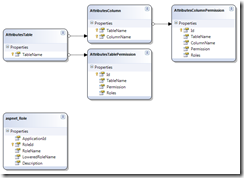
Attribute.dbml diagram

Figure 1 - Attribute (Linq to SQL Classes)

On both the AttributeTablePermissions and AttributeColumnPermissions and change the data type for the Permission column/field from int (System.Int32) to TablePermissionsAttribute.Permissions and ColumnPermissionsAttribute.Permissions .

Note: I've refractored FieldPermissionsAttribute to ColumnPermissionsAttribute as I thought it should be Table and Column or Entity/Class and Field/Property not a mixture and I decided to make it Table and Column.
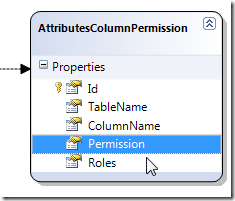
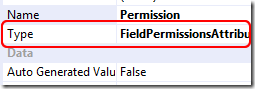
Entity  Entity Properties

Figures 2 & 3

When you changed both types save the Attributes.dbml file.

Adding the Permissions Attributes MetaModel and Registration

Add a new MetaModel declaration to the beginning of the RegisterRoutes method of the Global.asax file:

MetaModel attributesModel = new MetaModel();

After the default MetaModel registration register the DataContext of the attributesModel.

attributesModel.RegisterContext(typeof(AttributesDataContext), new ContextConfiguration() { ScaffoldAllTables = true });
Note: There two ways of adding a second set of Linq to SQL Classes:  
    1. Is the above way of registering two MetaModels
    attributesModel.RegisterContext(typeof(AttributesDataContext), new ContextConfiguration() { ScaffoldAllTables = true });
    2. Have one MetaModel and register both DataContexts against it.
    model.RegisterContext(typeof(NWDataContext), new ContextConfiguration() { ScaffoldAllTables = true });
    model.RegisterContext(typeof(AttributesDataContext), new ContextConfiguration() { ScaffoldAllTables = true });

Show the MetaModel for the permissions attribute tables on the Default.aspx page

Copy the current GridView and give it the id Menu2 adding a <br /> between them.

<br />
<asp:GridView ID="Menu2" runat="server" AutoGenerateColumns="false" Visible="false"
    CssClass="gridview" AlternatingRowStyle-CssClass="even">
    <Columns>
        <asp:TemplateField HeaderText="Table Name" SortExpression="TableName">
            <ItemTemplate>
                <asp:HyperLink ID="HyperLink1" runat="server" 
NavigateUrl='<%#Eval("ListActionPath") %>'><%#Eval("DisplayName") %>
</asp:HyperLink> </ItemTemplate> </asp:TemplateField> </Columns> </asp:GridView>

Listing 1 - adding new GridView to page

In the code behind

// Show Admin Table is user in Admin
String[] roles = Roles.GetRolesForUser();
var attributeModel = (MetaModel.GetModel(typeof(AttributesDataContext)));
var visibleTables2 = attributeModel.VisibleTables;
if (visibleTables2.Count > 0 && roles.Contains("Admin"))
{
    Menu2.DataSource = visibleTables2;
    Menu2.DataBind();
    Menu2.Visible = true;
}

Listing 2 - code to show the admin table if user is member of "Admin" roles

Creating the FieldTemplates to deal with Roles and Permissions selection

Three FieldTemplates are required:

  1. Roles.ascx and Roles_Edit.ascx
  2. TablePermissions.ascx and ColumnPermissions.ascx
  3. TablePermissions_Edit.ascx and ColumnPermissions_Edit.ascx

1. Roles.ascx and Roles_Edit.ascx

For the Roles.ascx you just need to copy and rename the Text.ascx file remembering to change the class name in the code behind from TextField to RolesField, and also in the ascx page Inherits="TextField" to Inherits="RolesField".

Roles.ascx in action 

Figure 4

For the Roles_Edit.ascx you can start by copying the Text_Edit.ascx and then rework it.

<%@ Control Language="C#" CodeFile="Roles_Edit.ascx.cs" Inherits="Roles_EditField" %>
<asp:CheckBoxList ID="CheckBoxList1" runat="server" 
    ondatabound="CheckBoxList1_DataBound" 
RepeatDirection="Horizontal" RepeatLayout="Flow"> </asp:CheckBoxList>

Listing 3 - Roles_Edit.ascx

using System;
using System.Collections.Specialized;
using System.Linq;

public partial class Roles_EditField : System.Web.DynamicData.FieldTemplateUserControl
{
    protected override void OnDataBinding(EventArgs e)
    {
        base.OnDataBinding(e);

        // get all the roles from the aspnet_Roles table and
        // populate the CheckBoxList
        var DC = new AttributesDataContext();
        var allRoles = from r in DC.aspnet_Roles
                       select r.RoleName;
        CheckBoxList1.DataSource = allRoles;
        CheckBoxList1.DataBind();
    }

    protected override void ExtractValues(IOrderedDictionary dictionary)
    {
        String value = "";
        for (int i = 0; i < CheckBoxList1.Items.Count; i++)
        {
            // append all the boxes that are checked
            if (CheckBoxList1.Items[i].Selected == true)
                value += CheckBoxList1.Items[i].Text + ",";
        }
        if (String.IsNullOrEmpty(value))
        {
            dictionary[Column.Name] = value;
        }
        else
        {
            dictionary[Column.Name] = value.Substring(0, value.Length - 1);
        }
    }

    public override Control DataControl
    {
        get
        {
            return CheckBoxList1;
        }
    }

    protected void CheckBoxList1_DataBound(object sender, EventArgs e)
    {
        if (FieldValue != null)
        {
            String[] selectRoles = ((String)FieldValue).Split((char)',');
            for (int i = 0; i < CheckBoxList1.Items.Count; i++)
            {
                // select all check boxes that are in the array 
                if (selectRoles.Contains(CheckBoxList1.Items[i].Value))
                {
                    CheckBoxList1.Items[i].Selected = true;
                }
            }
        }
    }
}

Listing 4 - Roles_edit.ascx.cs

Roles_Edit.ascx FiledTemplate in action

Figure 5

2. TablePermissions.ascx and ColumnPermissions.ascx

These two FieldTemplates are basically the same with some minor adjustments for the class name and the attribute Permissions FieldPermissionsAttribute or the TablePermissionsAttribute.

<%@ Control Language="C#" CodeFile="TablePermissions.ascx.cs" Inherits="TablePermissionsField" %>
<asp:Literal ID="Literal1" runat="server"></asp:Literal>
Listing 5 - TablePermissions.ascx and ColumnPermissions.ascx
using System;
using System.Web.UI;

public partial class TablePermissionsField : System.Web.DynamicData.FieldTemplateUserControl
{
    protected override void OnDataBinding(EventArgs e)
    {
        base.OnDataBinding(e);

        object value = FieldValue;
        if (value != null)
        {
// Convert Permission to string
//Literal1.Text = ((FieldPermissionsAttribute.Permissions)value).ToString(); Literal1.Text = ((TablePermissionsAttribute.Permissions)value).ToString(); } } public override Control DataControl { get { return Literal1; } } }
Listing 6 - TablePermissions.ascx.cs and ColumnPermissions.ascx.cs

It should be noted that FieldValue is only valid after OnDataBinding is called, so it is not valid and you will get a runtime error if you try to reference if in the Page_Load event.

3. TablePermissions_Edit.ascx and ColumnPermissions_Edit.ascx

These two FieldTemplates are also very similar to create, so build the first and test then copy rename and alter the TablePermissionsAttribute to FieldPermissionsAttribute and that sorts the other out (don't forget the class names on the ascx and code behind). 

<%@ Control Language="C#" CodeFile="TablePermissions_Edit.ascx.cs" Inherits="TablePermissions_EditField" %>
<asp:DropDownList ID="DropDownList1" runat="server" 
    ondatabound="DropDownList1_DataBound">
</asp:DropDownList>

Listing 7 - TablePermissions_Edit.ascx and ColumnPermissions_Edit.ascx

using System;
using System.Collections.Specialized;
using System.Web.UI;
using System.Web.UI.WebControls;

public partial class TablePermissions_EditField : System.Web.DynamicData.FieldTemplateUserControl
{

    protected override void OnDataBinding(EventArgs e)
    {
        base.OnDataBinding(e);
        // get a data bindable list of permissions for the DDL
        //var test = Enum.GetValues(typeof(FieldPermissionsAttribute.Permissions));
        var test = Enum.GetValues(typeof(TablePermissionsAttribute.Permissions));
        DropDownList1.DataSource = test;
        DropDownList1.DataBind();
    }

    protected override void ExtractValues(IOrderedDictionary dictionary)
    {
        dictionary[Column.Name] = DropDownList1.SelectedValue;
    }

    public override Control DataControl
    {
        get
        {
            return DropDownList1;
        }
    }

    protected void DropDownList1_DataBound(object sender, EventArgs e)
    {
        if (FieldValue != null)
        {
            // get the currently assigned attribute
            //var permission = (FieldPermissionsAttribute.Permissions)FieldValue;
            var permission = (TablePermissionsAttribute.Permissions)FieldValue;
            ListItem item = this.DropDownList1.Items.FindByValue(permission.ToString());

            if (item != null)
            {
                // set selected item
                item.Selected = true;
            }
        }
    }
}

Listing 7 - TablePermissions_Edit.ascx.cs and ColumnPermissions_Edit.ascx.cs

Note: It is important to remember that FieldValue is only available after the FieldTemplate's OnDataBinding event has fired, if  you try and reference it before then

Restricting Access to the Admin Tables

When you've copied and renamed we have all the elements of our interface we just need to make sure that the PageTemplates don't allow any user who accidentally find themselves on and admin page to access the data.

All we have to do is add the following code to the beginning of the Page_Load event handler.

protected void Page_Load(object sender, EventArgs e)
{
    table = GridDataSource.GetTable();
    Title = table.DisplayName;

    // Show Admin Table is user in Admin
    String[] roles = Roles.GetRolesForUser();
    var tableDataContext = table.CreateContext();
    if (tableDataContext.GetType() != typeof(AttributesDataContext) && !roles.Contains("Admin"))
    {
        // redirect to Default.aspx with error
        Response.Redirect("~/Default.aspx?error=You do not have access to Admin on this site (Table=" + table.Name + ")");
    }

    InsertHyperLink.NavigateUrl = table.GetActionPath(PageAction.Insert);

    // Disable various options if the table is readonly
    if (table.IsReadOnly)
    {
        GridView1.Columns.RemoveAt(0);
        InsertHyperLink.Visible = false;
    }
}

Listing 8 - Page_Load event handler on the List.aspx PageTemplate.

Add a Label with an Id of Error to the Default.aspx and in the Page_Load event handler Default.aspx.cs code behind.

if (Request.QueryString.Count > 0 && Request.QueryString["error"] != "")
{
    Error.Text = Request.QueryString["error"];
}

Listing 9 - Showing the error message on the Default.aspx
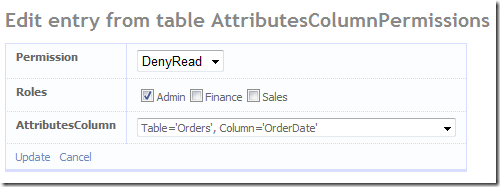
Two Finnished FieldTemplates in operation

Next

This is the tricky bit; in the next post we will parse the database and add attribute dynamically to the metadata at application startup.

Note: This will have the same restrictions as the InMemoryMetadataProvider post by Marcin on his blog post Dynamic Data samples: Custom metadata providers the permissions are set at startup of the application.

Monday, 16 June 2008

DynamicData: Database Based Permissions - Part 1

**** UPDATED ****

  1. Part 1 - Create the database tables.
  2. Part 2 - Add a User Interface to modify the permissions.
  3. Part 3 - User Marcin's InMemoryMetadataProvider to add the database based permissions to the Metadata at runtime.
  4. Part 4 - Add components from A DynamicData Attribute Based Permission Solution using User Roles to consume the database based metadata.
  5. Part 5 - Oops! Table Names with Spaces in them and Pluralization.

Creating the Permissions Tables

The first thing I decided was that the Permissions and Roles needed to be in the same database as the tables the permissions were to be set on. The reasons were as follows:

  • For the  user interface access to the Roles for ForeignKey relationships.
  • The T-SQL needed access to the actual database where tables were stored to get a list of tables and fields.

Adding the Tables from ASPNETDB to the Northwind Database

This meant creating the table for the ASPNETDB in the Northwind database, I had not intended to show how to do this but as I had to dig around to find out how I am going to do it here.

  1. Close Visual Studio 2008 and open SQL Server Management Studio and temporarily attach the Northwind database in your App_Data folder.
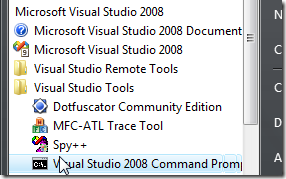
  2. open an Visual Studio 2008 Command Prompt
    Windows Vista Start->All Programs->Microsoft Visual Studio 2008->Visual Studio Tools->Visual Studio 2008 Command Prompt
    Click Start->All Programs->Microsoft Visual Studio 2008->Visual Studio Tools->Visual Studio 2008 Command Prompt just to be safe right mouse click and choose Run as Administrator.
  3. From the command prompt type Aspnet_regsql.exe press enter.
  4. Follow the wizard through choosing your database.
    Aspnet_regsql.exe wizard choose database
  5. When you have clicked finish.
  6. Now you have the ASPNETDB tables in the Northwind database.

Creating the Permissions Tables

For this I've created a bit of T-SQL (revised to use table and column names as primary keys instead of Id (int))

USE [Northwind]
GO
/****** Object:  Table [dbo].[AttributesTables]    Script Date: 06/12/2008 19:09:36 ******/
SET ANSI_NULLS ON
GO
SET QUOTED_IDENTIFIER ON
GO

PRINT 'Create Attribute Permissions Tables';
GO

IF NOT EXISTS (SELECT * FROM sys.objects WHERE object_id = OBJECT_ID(N'[dbo].[AttributesTables]') AND type in (N'U'))
BEGIN
    CREATE TABLE [dbo].[AttributesTables](
        [TableName] [nvarchar](50) NOT NULL,
     CONSTRAINT [PK_AttributesTables_1] PRIMARY KEY CLUSTERED 
    (
        [TableName] ASC
    )WITH (PAD_INDEX  = OFF, STATISTICS_NORECOMPUTE  = OFF, IGNORE_DUP_KEY = OFF, ALLOW_ROW_LOCKS  = ON, ALLOW_PAGE_LOCKS  = ON) ON [PRIMARY]
    ) ON [PRIMARY];
END
ELSE 
    PRINT 'Error: [dbo].[AttributesTables] already exists';
GO
/****** Object:  Table [dbo].[AttributesTablePermissions]    Script Date: 06/12/2008 19:09:36 ******/
SET ANSI_NULLS ON
GO
SET QUOTED_IDENTIFIER ON
GO
IF NOT EXISTS (SELECT * FROM sys.objects WHERE object_id = OBJECT_ID(N'[dbo].[AttributesTablePermissions]') AND type in (N'U'))
BEGIN
    CREATE TABLE [dbo].[AttributesTablePermissions](
        [Id] [int] IDENTITY(1,1) NOT NULL,
        [TableName] [nvarchar](50) NOT NULL,
        [Permission] [int] NOT NULL,
        [Roles] [nvarchar](1024) NOT NULL,
     CONSTRAINT [PK_AttributesTablePermissions] PRIMARY KEY CLUSTERED 
    (
        [Id] ASC
    )WITH (PAD_INDEX  = OFF, STATISTICS_NORECOMPUTE  = OFF, IGNORE_DUP_KEY = OFF, ALLOW_ROW_LOCKS  = ON, ALLOW_PAGE_LOCKS  = ON) ON [PRIMARY]
    ) ON [PRIMARY];
END
ELSE 
    PRINT 'Error: [dbo].[AttributesTablePermissions] already exists';
GO

/****** Object:  Table [dbo].[AttributesColumns]    Script Date: 06/12/2008 19:09:36 ******/
SET ANSI_NULLS ON
GO
SET QUOTED_IDENTIFIER ON
GO
IF NOT EXISTS (SELECT * FROM sys.objects WHERE object_id = OBJECT_ID(N'[dbo].[AttributesColumns]') AND type in (N'U'))
BEGIN
    CREATE TABLE [dbo].[AttributesColumns](
        [TableName] [nvarchar](50) NOT NULL,
        [ColumnName] [nvarchar](50) NOT NULL,
     CONSTRAINT [PK_AttributesColumns_1] PRIMARY KEY CLUSTERED 
    (
        [TableName] ASC,
        [ColumnName] ASC
    )WITH (PAD_INDEX  = OFF, STATISTICS_NORECOMPUTE  = OFF, IGNORE_DUP_KEY = OFF, ALLOW_ROW_LOCKS  = ON, ALLOW_PAGE_LOCKS  = ON) ON [PRIMARY]
    ) ON [PRIMARY];
END
ELSE 
    PRINT 'Error: [dbo].[AttributesColumns] already exists';
GO

/****** Object:  Table [dbo].[AttributesColumnPermissions]    Script Date: 06/12/2008 19:09:36 ******/
SET ANSI_NULLS ON
GO
SET QUOTED_IDENTIFIER ON
GO
IF NOT EXISTS (SELECT * FROM sys.objects WHERE object_id = OBJECT_ID(N'[dbo].[AttributesColumnPermissions]') AND type in (N'U'))
BEGIN
    CREATE TABLE [dbo].[AttributesColumnPermissions](
        [Id] [int] IDENTITY(1,1) NOT NULL,
        [TableName] [nvarchar](50) NOT NULL,
        [ColumnName] [nvarchar](50) NOT NULL,
        [Permission] [int] NOT NULL,
        [Roles] [nvarchar](1024) NOT NULL,
     CONSTRAINT [PK_AttributesColumnPermissions] PRIMARY KEY CLUSTERED 
    (
        [Id] ASC
    )WITH (PAD_INDEX  = OFF, STATISTICS_NORECOMPUTE  = OFF, IGNORE_DUP_KEY = OFF, ALLOW_ROW_LOCKS  = ON, ALLOW_PAGE_LOCKS  = ON) ON [PRIMARY]
    ) ON [PRIMARY];
END
ELSE 
    PRINT 'Error: [dbo].[AttributesColumnPermissions] already exists';
GO

/****** Now set up the relationshipd ******/
PRINT '';
PRINT 'Setup table relationships';
GO

/****** Object:  ForeignKey [FK_AttributesColumnPermissions_AttributesColumns]    Script Date: 06/14/2008 11:30:54 ******/
IF NOT EXISTS (SELECT * FROM sys.foreign_keys WHERE object_id = OBJECT_ID(N'[dbo].[FK_AttributesColumnPermissions_AttributesColumns]') AND parent_object_id = OBJECT_ID(N'[dbo].[AttributesColumnPermissions]'))
BEGIN
    ALTER TABLE [dbo].[AttributesColumnPermissions]  WITH CHECK ADD  CONSTRAINT [FK_AttributesColumnPermissions_AttributesColumns] FOREIGN KEY([TableName], [ColumnName])
    REFERENCES [dbo].[AttributesColumns] ([TableName], [ColumnName]);
    ALTER TABLE [dbo].[AttributesColumnPermissions] CHECK CONSTRAINT [FK_AttributesColumnPermissions_AttributesColumns];
END
ELSE 
    PRINT 'Error: [FK_AttributesColumnPermissions_AttributesColumns] already exists';
GO

/****** Object:  ForeignKey [FK_AttributesColumns_AttributesTables]    Script Date: 06/14/2008 11:30:54 ******/
IF NOT EXISTS (SELECT * FROM sys.foreign_keys WHERE object_id = OBJECT_ID(N'[dbo].[FK_AttributesColumns_AttributesTables]') AND parent_object_id = OBJECT_ID(N'[dbo].[AttributesColumns]'))
BEGIN
    ALTER TABLE [dbo].[AttributesColumns]  WITH CHECK ADD  CONSTRAINT [FK_AttributesColumns_AttributesTables] FOREIGN KEY([TableName])
    REFERENCES [dbo].[AttributesTables] ([TableName]);
    ALTER TABLE [dbo].[AttributesColumns] CHECK CONSTRAINT [FK_AttributesColumns_AttributesTables];
END
ELSE 
    PRINT 'Error: [FK_AttributesColumns_AttributesTables] already exists';
GO

/****** Object:  ForeignKey [FK_AttributesTablePermissions_AttributesTables]    Script Date: 06/14/2008 11:30:54 ******/
IF NOT EXISTS (SELECT * FROM sys.foreign_keys WHERE object_id = OBJECT_ID(N'[dbo].[FK_AttributesTablePermissions_AttributesTables]') AND parent_object_id = OBJECT_ID(N'[dbo].[AttributesTablePermissions]'))
BEGIN
    ALTER TABLE [dbo].[AttributesTablePermissions]  WITH CHECK ADD  CONSTRAINT [FK_AttributesTablePermissions_AttributesTables] FOREIGN KEY([TableName])
    REFERENCES [dbo].[AttributesTables] ([TableName]);
    ALTER TABLE [dbo].[AttributesTablePermissions] CHECK CONSTRAINT [FK_AttributesTablePermissions_AttributesTables];
END
ELSE 
    PRINT 'Error: [FK_AttributesTablePermissions_AttributesTables] already exists';
GO

**** The code below is now defunct Part 5 now cover this ****

/****** Now populate tables with Table and Column Names ******/
PRINT ''
PRINT 'Populate AttributesTables and AttributesColumns Tables';
GO

IF (SELECT COUNT(*) FROM [dbo].[AttributesTables]) = 0
BEGIN
    PRINT 'Populating: [AttributesTables]';
    INSERT INTO [dbo].[AttributesTables]
        SELECT [TABLE_NAME] AS [TableName]
          FROM [INFORMATION_SCHEMA].[TABLES]
          WHERE [TABLE_TYPE] = 'BASE TABLE' AND SUBSTRING([TABLE_NAME], 1, 10) <> 'Attributes' AND SUBSTRING([TABLE_NAME], 1, 7) <> 'aspnet_';
    PRINT '';
END
ELSE
    PRINT 'Error: [dbo].[AttributesTables] already has rows';


IF (SELECT COUNT(*) FROM [dbo].[AttributesColumns]) = 0
BEGIN
    PRINT 'Populating: [AttributesColumns]';
    INSERT INTO [dbo].[AttributesColumns]
        SELECT [AT].[TableName], [COLUMN_NAME] AS [ColumnName]
          FROM [INFORMATION_SCHEMA].[COLUMNS] AS T
          JOIN [dbo].[AttributesTables] AT ON
          [T].[TABLE_NAME] = [AT].[TableName];
    PRINT '';
END
ELSE
    PRINT 'Error: [dbo].[AttributesColumns] already has rows';
GO

This listing will create the Permissions Tables and populate them with the base data. This is what we will end up with (revised see above):

Attribute tables diagram

Attribute Tables

When you've run this T-SQL detach the database from the SQL Server Management Studio.

Updating web.config

The web.config must be updated (see below) to configure membership, profile and roleManager providers to use the Northwind database.

<connectionStrings>
    <remove name="NorthwindConnectionString" />
    <add name="NorthwindConnectionString" 
         connectionString="Data Source=.\SQLEXPRESS;AttachDbFilename=|DataDirectory|\Northwind.mdf;Integrated Security=True;User Instance=True"
    providerName="System.Data.SqlClient" />
</connectionStrings>

Updated Connection strings

<authentication mode="Forms">
    <forms loginUrl="~/Login.aspx" protection="All" path="/"/>
</authentication>
<authorization>
    <deny users="?"/>
</authorization>
<membership>
    <providers>
        <remove name="AspNetSqlMembershipProvider"/>
        <add name="AspNetSqlMembershipProvider" 
             type="System.Web.Security.SqlMembershipProvider, System.Web, Version=2.0.0.0, Culture=neutral, PublicKeyToken=b03f5f7f11d50a3a" 
             connectionStringName="NorthwindConnectionString" 
             enablePasswordRetrieval="false" 
             enablePasswordReset="true" 
             requiresQuestionAndAnswer="false" 
             applicationName="/" 
             requiresUniqueEmail="false" 
             passwordFormat="Hashed" 
             maxInvalidPasswordAttempts="5" 
             minRequiredPasswordLength="7" 
             minRequiredNonalphanumericCharacters="0" 
             passwordAttemptWindow="10" 
             passwordStrengthRegularExpression=""/>
    </providers>
</membership>
<profile>
    <providers>
        <remove name="AspNetSqlProfileProvider"/>
        <add name="AspNetSqlProfileProvider" 
             connectionStringName="NorthwindConnectionString" 
             applicationName="/" 
             type="System.Web.Profile.SqlProfileProvider, System.Web, Version=2.0.0.0, Culture=neutral, PublicKeyToken=b03f5f7f11d50a3a"/>
    </providers>
</profile>
<roleManager enabled="true">
    <providers>
        <remove name="AspNetSqlRoleProvider"/>
        <add name="AspNetSqlRoleProvider" 
             connectionStringName="NorthwindConnectionString" 
             applicationName="/" 
             type="System.Web.Security.SqlRoleProvider, System.Web, Version=2.0.0.0, Culture=neutral, PublicKeyToken=b03f5f7f11d50a3a"/>
        <remove name="AspNetWindowsTokenRoleProvider"/>
        <add name="AspNetWindowsTokenRoleProvider" 
             applicationName="/" 
             type="System.Web.Security.WindowsTokenRoleProvider, System.Web, Version=2.0.0.0, Culture=neutral, PublicKeyToken=b03f5f7f11d50a3a"/>
    </providers>
</roleManager>

Updated <system.web>

I've updated the connection string to remove the connection first and added membership, profile and roleManager sections to the <system.web> section of the web.config file.

Revised

I've changed the format of the tables so that they no longer use Id (int) as primary keys. I have substituted TableName and ColumnName as primary keys this will allow the content of the main tables (AttributesTables & AttributesColumns) and  to be updated while the user maintained table (AttributesTablePermissions & AttributesColumnPermissions) remain intact (for the most part, if you for instance rename a table or column then the attributes defined in the user maintained tables will become orphaned).

More additions

You will need to add a Login.aspx page with a login control on to the root of the website.

Next

Creating the user interface for setting the database based attributes.

Saturday, 14 June 2008

ForeignKey and Entity Reference Columns

Just a note David Ebbo explains Understanding foreign keys and relationship columns in Dynamic Data on his blog this is something that confused me when I first started creating custom pages in DynamicData.

Thanks again to David.

Friday, 13 June 2008

DynamicData: Database Based Permissions

In this sequel to the A DynamicData Attribute Based Permission Solution using User Roles I will user Marcin Dobosz's

Dynamic Data samples: Custom metadata providers InMemoryMetadataProvider to add metadata from a database.

Steps to build

  1. Create the database tables
  2. Add a User Interface to modify the permissions
  3. User Marcin's InMemoryMetadataProvider to add the database based permissions to the Metadata at runtime.

I'll be back soon with the first step.

Wednesday, 11 June 2008

DynamicData - Limit Data Displayed By User

Articles in this Series

Limiting Data by the Current User

This is a really simple scenario where the table has a column which is update with the current user name at record creation (see: Automatic Column Update how to automatically update tables) all that is required is to add a WhereParameter to the pages LinqDataSources. In the Page_Load add the line for each LinqDataSource on the page (this line of code is for the List.aspx page).

GridDataSource.WhereParameters.Add(new Parameter("CreatedBy", DbType.String, User.Identity.Name));
Obviously you may whish to add a CheckBox or RadioButton to toggle this feature or even add a filter to filter several users at once (see Marcin Dobosz Blog post Dynamic Data samples: Extending the FilterRepeater for details on how to extend the FilterRepeater)

Friday, 6 June 2008

DynamicData Default Values in ForegnKey_Edit & other FieldTemplates

Metadata method

Add a new class the your website called DefaultValueAttribute with the code below.

using System;
using System.Collections.Generic;
using System.Linq;
using System.Web.DynamicData;

[AttributeUsage(AttributeTargets.Property)]
public class DefaultValueAttribute : System.Attribute
{
    // As implemented, this identifier is merely the Type of the attribute.
    // However, it is intended that the unique identifier be used to identify 
    // two attributes of the same type.
    public override object TypeId { get { return this; } }

    /// <summary>
    /// Constructor
    /// </summary>
    /// <param name="value">String</param>
    public DefaultValueAttribute(String value)
    {
        this._value = value;
    }

    private String _value;
    public String Value
    {
        get { return this._value; }
    }
}

Listing 1 - DefaultValueAttribute

Add your metadata to the appropriate FK fields

[MetadataType(typeof(OrderMetadata))]
public partial class Order
{
}

public class OrderMetadata
{
    [DefaultValue("3")]
    public Object Shipper { get; set; }
}

Listing 2 - Metadata

Open your DynamicData FieldTemplates folder and edit the ForeigKey_Edit.aspx, and add an OnDataBound="DropDownList1_DataBound" entry as in Listing 3

<asp:DropDownList 
    ID="DropDownList1" 
    runat="server" 
    CssClass="droplist" 
    OnDataBound="DropDownList1_DataBound">
</asp:DropDownList>

Listing 3 - Adding the OnDataBound event handler

Next in the code behind file add the DropDownList1_DataBound event handler Listing 4a

protected void DropDownList1_DataBound(object sender, EventArgs e)
{
    // value gotten via a query string as below 
    //string value = Request.QueryString[Column.Name];

    // value gotten via metadata 
    string value = Column.GetDefaultValue();

    if (this.Mode == DataBoundControlMode.Insert && !string.IsNullOrEmpty(value))
    {
        ListItem item = this.DropDownList1.Items.FindByValue(value);
        if (item != null)
        {
            item.Selected = true;
        }
    }
}

Listing 4a - The OnDataBound event handler Metadata version

In this event handler Listing 4a the default value is aquired via the metadata from Listing 2.

Note: the this.Mode == DataBoundControlMode.Insert which makes sure that the auto-fill of default values only occurs for Inserts.

Query String Method

Open your DynamicData FieldTemplates folder and edit the ForeigKey_Edit.aspx, and add an OnDataBound="DropDownList1_DataBound" entry as in Listing 3, next in the code behind file add the DropDownList1_DataBound event handler Listing 4b see Figure 1 for the query string.

protected void DropDownList1_DataBound(object sender, EventArgs e)
{
    // value gotten via a query string as below 
    string value = Request.QueryString[Column.Name];

    //// value gotten via metadata 
    //string value = Column.GetDefaultValue();

    if (this.Mode == DataBoundControlMode.Insert && !string.IsNullOrEmpty(value))
    {
        ListItem item = this.DropDownList1.Items.FindByValue(value);
        if (item != null)
        {
            item.Selected = true;
        }
    }
}

Listing 4b - The OnDataBound event handler QueryString version

DefaultValue via QueryString

Figure 1 - Query String

In Listing 4b event handler all I'm doing is checking for a value passed in the query string see Figure 1 as in this POST from the ASP.Net DynamicData Forum

Other FieldTemplates

This same pattern can be applied to all FieldTemplates for adding default values see Listing 5 which is added to the Text_Edit.ascx FieldTemplate.

protected void TextBox1_PreRender(object sender, EventArgs e)
{
    // Adding a default value to a textbox
    // value aquired via metadata 
    string value = Column.GetDefaultValue();
    if (this.Mode == DataBoundControlMode.Insert && !string.IsNullOrEmpty(value))
    {
        TextBox1.Text = value;
    }
}

Listing 5

Again the value could be acquired either via metadata or query string Listing 6 would replace the line that contains Column.GetdefaultValue().

// value acquired via query string
string value = Request.QueryString[Column.Name];

Listing 6

My feeling on this is you could do all this in the code behind of any of the pages that perform Inserts, on the OnPreRender event however if you put this code in more than one Insert page then you create a code maintenance issue. You will need to make changes in several different places, plus each extra Insert page you create will need this same code adding. However adding this small amount of code to each FieldTemplate you wish to have auto-fill of default values will reduce then amount of maintenance etc.

Thursday, 5 June 2008

DynamicData - Project File update

Articles in this Series

Update to Visual Studio 2008 Project Files

File for use with SQL Server 2005

File for use with SQL Server 2008

Sorry for the problems with the original being SQL Server 2008 ONLY.

Steve

Missing passwords

the sample already has Login and Roles setup (Account details below).

Website users:

  • admin
  • fred
  • sue

all passwords are: password

Sorry for not repeating this here earlier.

Steve

Sunday, 1 June 2008

DateTime Validation in DynamicData

Step 1 add a CustomValidator to the CustomUserControl a copy of the DateTime_Edit.ascx (or just modify the existing DateTime_Edit.ascx user control)

<asp:CustomValidator ID="CustomValidator1" runat="server" 
    ErrorMessage="Invalid DateTime"
    ControlToValidate="TextBox1" 
    OnServerValidate="CustomValidator1_ServerValidate">
</asp:CustomValidator>

Step 2 Add a server side event OnServerValidate="CustomValidator1_ServerValidate" and an error message.

protected void Page_Load(object sender, EventArgs e)
{
    TextBox1.ToolTip = Column.Description;

    //SetUpValidator(RequiredFieldValidator1);
    //SetUpValidator(RegularExpressionValidator1);
    //SetUpValidator(DynamicValidator1);
}

Step 3 In the Page_Load event comment out the three SetUpValidator calls.

protected void CustomValidator1_ServerValidate(object source, ServerValidateEventArgs args)
{
    DateTime tempDateTime;
    String textDateTime = TextBox1.Text;
    if (DateTime.TryParse(textDateTime, out tempDateTime))
    {
        args.IsValid = true;
    }
    else
    {
        args.IsValid = false;
    }
}

Step 4 add you server side event handler for the OnServerValidate event and you've done it.